



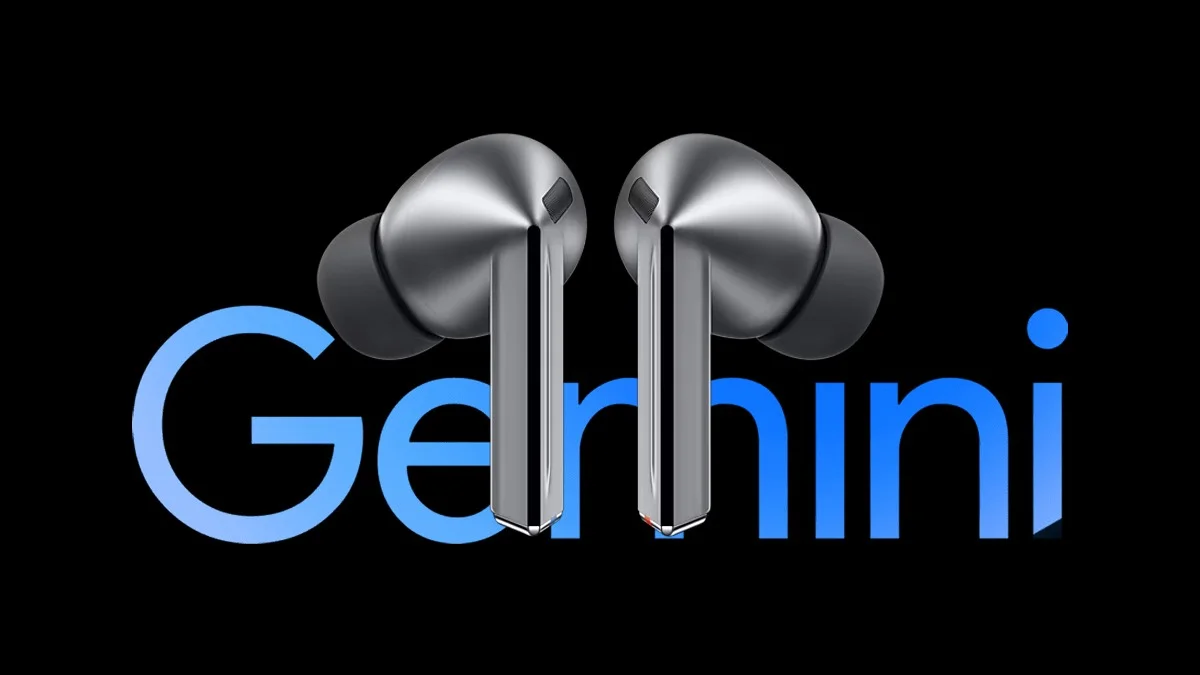
Galaxy Buds 3 Are Getting Gemini AI: Samsung has officially started rolling out Gemini support for its Galaxy Buds 3 earbuds. The update is completely free, and getting it installed is fairly straightforward. There is one catch though, you might need to have beta software running on your phone.
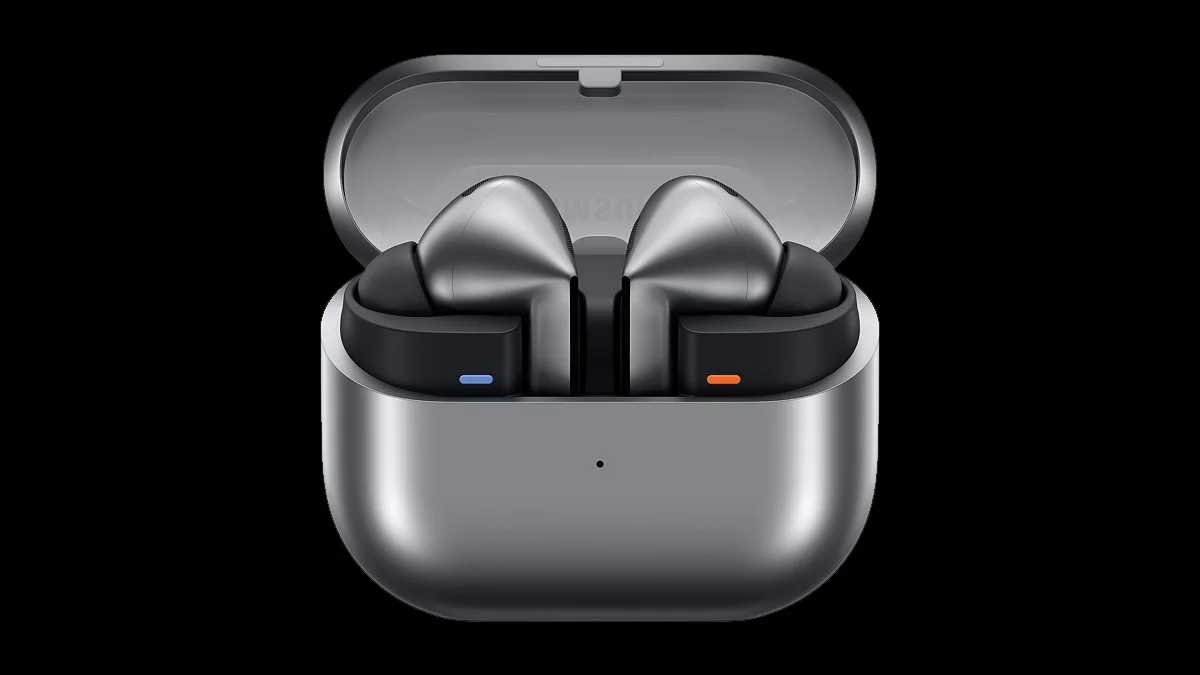
Samsung Begins Gemini Rollout for Galaxy Buds 3
Gemini itself doesn’t run directly on the earbuds. It’s far too heavy to operate natively, so your phone or tablet acts as the go-between for your voice and Gemini’s processing power.
According to 9to5Google, for now the update seems to be available only for phones running One UI 8 on top of Android 16. That version comes pre-installed on the Galaxy Z Fold 7 and Galaxy Z Flip 7. For the Galaxy S25 series, however, One UI 8 is still in beta, meaning it’s a test version of the operating system that’s only available to select users.
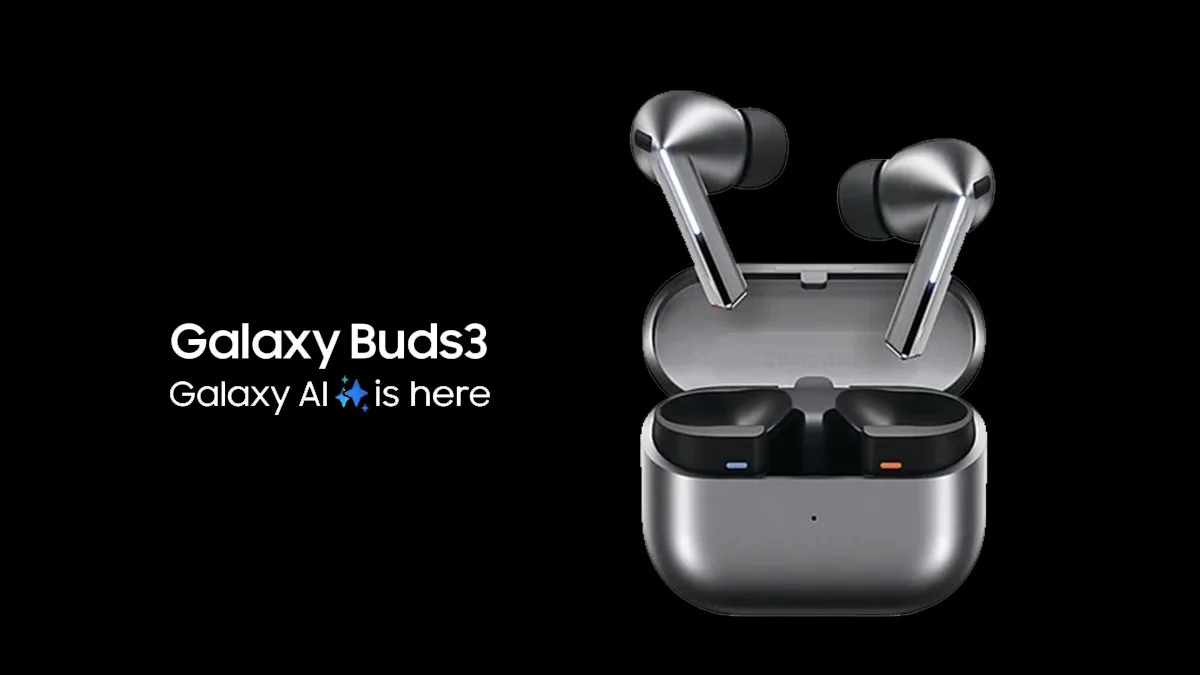
How to Get Gemini on Galaxy Buds 3 and Buds 3 Pro
If you own a Galaxy S25 or an older model, the stable release of One UI 8 isn’t expected until late September 2025. The good news is that a beta version is available, and starting next week, it will expand to more devices, including the Galaxy S24 series, Galaxy Z Fold 6, and Galaxy Z Flip 6. Next month, even more devices will be added to the beta list, such as the Galaxy S23, Z Fold 5, Z Flip 5, and several A-series phones.
Once you’ve got One UI 8 installed, the next step is to check for software updates for your earbuds, and then keep your fingers crossed. The Gemini update is reportedly a bit “wonky,” so the experience might vary depending on your device.
If you do get the update, you should notice a new option called “Set up Google digital assistant” at the top of the Voice Controls section in Samsung’s app. That’s where you can link Gemini to your smartphone or tablet and start using it with your Buds.
ALSO READ: How to Easily Connect Your Android Phone to a Windows PC with Phone Link