
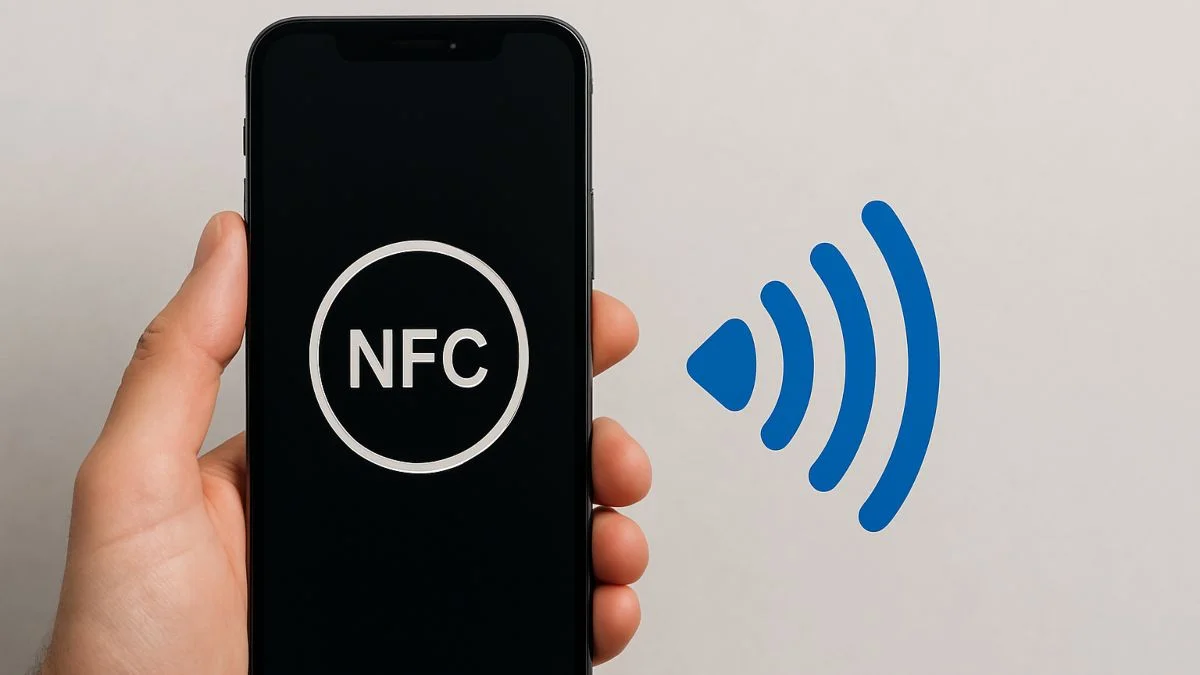
Near Field Communication (NFC) is a short-range wireless technology that lets two devices talk to each other when they are only a few centimeters apart. iPhones have had NFC since the iPhone 6, mainly for Apple Pay. Starting with the iPhone XS, XR, and later, Apple expanded what Near Field Communication can do, adding features like background tag reading and even the ability to write NFC tags.
Understanding NFC on iPhone
If you have used an Android phone, you might have seen an NFC toggle in the settings. iPhones work differently. On supported models, Near Field Communication is always “on” for the things it supports. You do not turn it on like you would a flashlight. Instead, it activates automatically when you do something that needs it.

Key NFC Features on iPhone
Apple Pay:
This is the feature most people think of when they hear “Near Field Communication.” Double-click the side button (or the Home button on older models), hold your iPhone near a contactless payment terminal, and NFC will process your payment. You will need to set up Apple Pay in the Wallet app and add your cards first.
Background Tag Reading (iPhone XR, XS, and later):
These models can read NFC tags automatically when your screen is lit up, with no extra steps needed. Hold your iPhone near an Near Field Communication tag, such as one on a poster, product, or smart device, and a notification will pop up. Tap it to open a website, launch an App Clip, or trigger an automation.
NFC Tag Reader in Control Center (iPhone 7, 8, X):
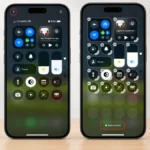
On some older iPhones, you will need to use the Near Field Communication Tag Reader manually. To add it, go to Settings > Control Center > More Controls and tap the plus sign next to “Near Field Communication Tag Reader.” Once it is in Control Center, swipe down from the top-right (or up from the bottom on older models), tap the NFC icon, and you are ready to scan.
Shortcuts App for Automations:
The Shortcuts app lets you create personal automations that are triggered by Near Field Communication tags. This is where you can program a tag to make your phone do something, such as tap your phone to a tag by your bed to turn on Do Not Disturb and start a sleep playlist.
Here is how to set it up:
Open the Shortcuts app.
Tap the Automation tab at the bottom.
Tap Create Personal Automation (or the “+” icon if you already have automations).
Scroll down and select NFC.
Tap Scan next to “Near Field Communication Tag” and hold your iPhone near the tag.
Name the tag and tap Next.
Tap Add Action and choose what you want it to do, such as “Open App,” “Play Music,” or “Set Focus.”
Tap Next, then Done.
Third-Party Apps:
Some apps use Near Field Communication for pairing with smart devices, sharing digital business cards, or pulling up product information. These apps will usually guide you on how to use NFC inside them.
iPhone Models and NFC Compatibility
iPhone 6 and 6 Plus: Near Field Communication only works for Apple Pay and cannot scan other tags.
iPhone 7, 8, and X: Works for Apple Pay and can scan tags with the built-in NFC Tag Reader or a third-party app.
iPhone XS, XR, 11, 12, 13, 14, 15, 16 and later: Full Near Field Communication support for Apple Pay, background tag reading, and writing tags with Shortcuts or other apps.
Troubleshooting NFC on iPhone
If NFC is not working as expected:
Make sure your iPhone model supports the feature you are trying to use.
Update your iPhone to the latest iOS (Settings > General > Software Update).
Hold your iPhone very close to the Near Field Communication tag or reader, as it only works within a few centimeters.
Restart your iPhone to fix minor glitches.
For Apple Pay issues, check that your cards are set up in the Wallet app.
For tag reading, make sure the tag actually has data on it, because blank tags will not trigger anything.
With a little know-how, you can use Near Field Communication on your iPhone for much more than just making payments. Whether it is quick transactions, smart automations, or connecting to devices, NFC is a feature that can make your iPhone even more useful in everyday life.
ALSO READ: Is GPT-5 Really Here? The Truth Behind The “Introducing GPT-5” Message