




Easy Ways To Identify A Song With Your Android Smartphone
Ever heard a catchy tune playing nearby and found yourself wondering, “What song is this?” Fortunately, your Android smartphone can come to the rescue. Whether it’s a snippet playing in a café or a melody stuck in your head, Android offers fast, accurate tools to help you identify the song, no more endlessly typing lyrics into search bars.
- Easy Ways To Identify A Song With Your Android Smartphone
In this guide, we’ll walk you through six easy and effective methods, ranging from built-in features like Google’s Song Search and Pixel’s Now Playing, to popular third-party apps like Shazam and SoundHound, to help you pinpoint that elusive song in just a few taps.
1. Use Google’s “Search a Song” Feature
Open the Google app on your Android device, tap the microphone icon, and choose “Search a song.” You can either play the track aloud or even hum or sing a tune into the mic. Within seconds, you’ll receive possible matches with confidence levels.
2. Ask Gemini Directly

Using Google’s AI assistant Gemini? Just open the app and say, “What’s this song?” Gemini will use the Song Search interface to listen and identify, it’s simple, although not yet fully integrated within conversation flow.
3. Add a Quick Settings “Song Search” Tile
For instant access, you can add a Song Search tile to your Quick Settings panel (where Wi-Fi, flashlight, etc., are located). Swipe down, tap this tile, and start identifying, even if the song is playing nearby.
4. Use Pixel’s “Now Playing” Feature (Pixel Phones Only)
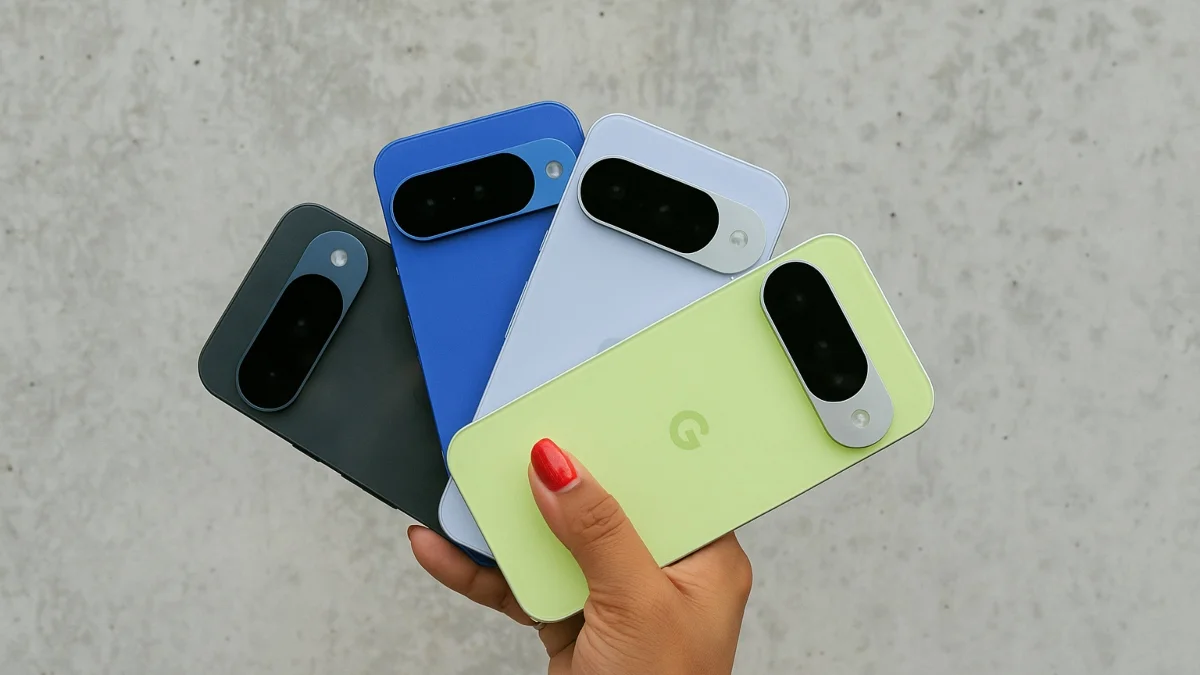
Owners of Google Pixel 2 or newer get a great built-in tool called Now Playing. When enabled, it automatically recognizes songs playing around you, showing the track title directly on your lock screen, even offline. You’ll also get a history of identified songs.
5. Try Third-Party Apps: Shazam, SoundHound & More
If you prefer standalone options, apps like Shazam and SoundHound are widely popular:
- Shazam captures a snippet of audio, matches it to a vast fingerprint database, and gives you artist, title, lyrics, and links to streaming services.
- SoundHound stands out for its ability to recognize songs even when you’re humming or singing.
Other notable options include:
- MusixMatch – Focuses on lyrics and even karaoke-style playback.
- Genius – A massive lyric database.
- Doreso – Supports query via humming and singing.
6. Try Alternative Web Tools and Communities
For more hands-on or creative searches:
- Musipedia: A web tool where you can hum, play, or tap the rhythm to identify songs.
- WatZatSong: A community-driven platform where users hum or sing the melody and others help identify it.
Summary Table
| Method | How It Works | Best For |
| Google “Search a Song” | Mic or humming input via Google app | Quick, flexible recognition |
| Gemini Assistant | “What’s this song?” via Gemini | AI-based voice interaction |
| Quick Settings Tile | Tap a shortcut in Quick Settings | Fast access anywhere |
| Pixel Now Playing | Automatic detection on Pixel phones | Hands-free, offline recognition |
| Shazam / SoundHound | Third-party apps | Accurate, rich song info |
| MusixMatch, Genius, etc. | Lyrics and metadata | Deep lyric-based exploring |
| Musipedia / WatZatSong | Humming/community help | Obscure melodies or fun search |
Frequently Asked Questions (FAQs)
Q1. Can Android phones identify songs from other apps like TikTok or YouTube?
Yes. Tools like Google’s Song Search, Quick Settings tile, or Shazam can listen to songs played within other apps and identify them effectively.
Q2. Does “Now Playing” work offline?
Yes. Pixel’s Now Playing is designed to work offline by relying on a stored database of songs.
Q3. Why does Gemini redirect out of its interface?
Gemini currently triggers the Google app’s Song Search experience externally; the result appears in Google Search rather than within Gemini’s chat interface.
Q4. Which method is the fastest to access?
For sheer speed, the Quick Settings tile or Pixel’s Now Playing (if you have a Pixel) are top options, no app opening required.
Q5. What if I don’t know any lyrics or can’t hum the melody?
Try community tools like WatZatSong or Shazam, it works with ambient audio even if you can’t hum or remember lyrics.
Also Read- Google Expands Redesigned Quick Share Beyond Galaxy Phones