




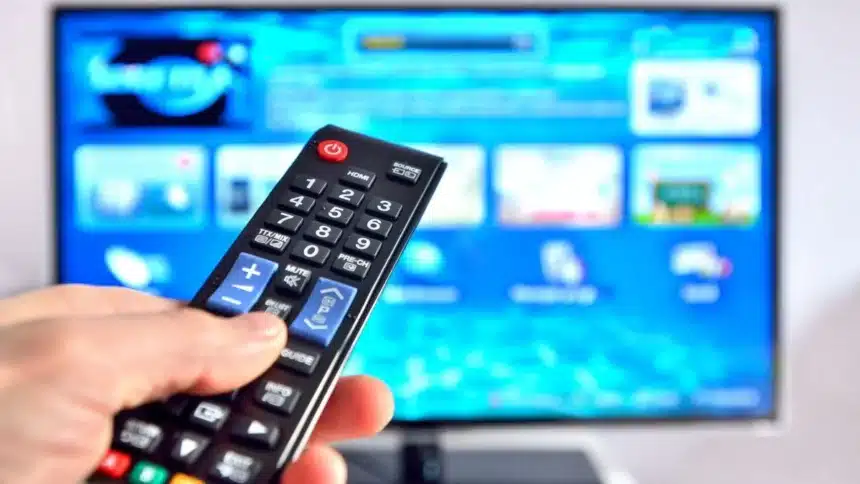
Most people set up their Smart TV, connect it to Wi-Fi, log in to their favourite apps and never open the settings menu again. If that sounds familiar, you are not alone.
But here’s the truth: the default settings on most Smart TVs are not designed to give you the best viewing experience at home. They are usually set up to look bright and eye-catching in stores. With a few small changes, you can improve picture quality, boost performance and even protect your privacy.
Here are the hidden settings you should check right away.
-
Turn Off Motion Smoothing
Motion Smoothing, sometimes called TruMotion or Action Enhancement, adds extra frames to move look smoother. While this may work well for sports, it often makes movies look unnatural. This is commonly known as the “Soap Opera Effect.”
If you enjoy watching films the way they were meant to be seen, go to your picture settings and turn this feature off.
-
Disable Automatic Content Recognition (ACR)
Automatic Content Recognition monitors your viewing activity no matter where you are watching (for example, Netflix, cable TV or an app), and this information can be compiled, providing you with targeted advertisements.
If you wish to operate on a more private or less data-driven level, look for terms like “Viewing Data” and “Ad Tracking” under Privacy or Terms and then opt out of these features. By opting out, you will reduce how much your TV records your habits.
-
Switch to Movie or Filmmaker Mode
Many Smart TVs come set to “Vivid” or “Standard” mode. These modes boost brightness and colours to make the screen stand out in a showroom. At home, this can make colours look too strong and unnatural.
Switching to “Movie,” “Cinema,” or “Filmmaker Mode” provides more accurate colours and better contrast. It may look slightly dim at first, but your eyes will adjust, and the picture will feel more natural.
-
Check Overscan or Aspect Ratio
Many TV’s are set up to be zoomed in slightly by default. This usually means that the edges of the picture could be cut off, which can result in the loss of subtitles or other relevant content.
Most products will have setting options for just scan, screen fit or original aspect ratio to ensure that you are viewing the complete screen correctly.
-
Turn Off Energy Saving Mode
Energy Saving or Eco Mode reduces screen brightness based on room lighting. While it may save some power, it often makes the picture look dull and darker than it should be.
If your screen seems too dim even at high brightness levels, this setting could be the reason. Try turning it off and see the difference.
-
Enable HDMI-CEC
Devices can communicate with one another through the HDMI-CEC (High-Definition Multimedia Interface with Consumer Electronics Control) technology. For instance, when a user turns on their video game console or streaming device, their television will automatically turn on and will also change the input source automatically to the appropriate one.
Many different manufacturers have different names for this feature; however, regardless of what it might be called, enabling the HDMI-CEC feature on all of your devices will simplify everything for you.
-
Rename Your Inputs
If you have multiple devices connected, it can be confusing to remember what is plugged into HDMI 1 or HDMI 2.
Most Smart TVs let you rename inputs to something clearer, such as “Gaming Console,” “Set-Top Box,” or “DVD Player.” This small change makes everyday use much simpler.
-
Use Game Mode for Consoles
If you play games and notice a slight delay between pressing a button and seeing the action on screen, you should enable Game Mode.
Game Mode reduces extra picture processing and lowers input lag, giving you smoother and faster response times.
-
Adjust Gamma Settings
When dark movie scenes appear overly dark and lack detail, it may indicate an issue with gamma correction. Gamma correction settings may need to be adjusted.
A gamma level of approximately 2.2 typically provides a good balance for home video viewing while also allowing you to see detail in shadow areas without causing the video to look overexposed or too washed out.
-
Update Your Smart TV Software
Your Smart TV is essentially a computer. Manufacturers release updates to fix bugs, improve performance and sometimes add new features.
Go to Settings, then Support, and check for Software Updates at least once a month. Keeping your TV updated ensures it runs smoothly and securely.
-
Clear App Cache
Over time, apps like Netflix or YouTube can slow down or freeze due to stored temporary data.
If an app is not working properly, go to the App Manager in Settings and select “Clear Cache.” This often solves performance issues without deleting the app.
A Smart TV is more powerful than most people realise. By spending just a few minutes adjusting these hidden settings, you can improve picture quality, enhance performance and protect your privacy.
Also Read: Your iPhone Isn’t Optimized – Fix These 9 Settings ASAP