



How To Use The New Capture Button On iPhone 16 Like A Pro: Apple’s iPhone 16 series introduced several refinements, but none have caught more attention than the brand-new Capture Button. This physical addition has changed how users interact with the iPhone camera, making photo and video shooting feel more intuitive and professional.
- What Is the Capture Button on iPhone 16?
- How to Use the Capture Button for Photos
- How to Use the Capture Button for Videos
- Capture Button Shortcuts and Hidden Features
- How to Customize the Capture Button
- Tips to Make the Most of the Capture Button
- Troubleshooting the Capture Button
- Why the Capture Button Matters
- FAQs
Whether you are a casual photographer or someone who loves experimenting with creative angles, understanding how to use the Capture Button properly can help you unlock the full potential of your iPhone 16’s powerful camera system. This guide will walk you through every feature, hidden function, and trick you need to know.
What Is the Capture Button on iPhone 16?
The Capture Button is a dedicated physical button placed on the lower-right side of the iPhone 16, just below the power button. Unlike previous models that relied solely on on-screen controls, this new addition allows you to instantly capture photos or record videos without having to unlock your device or open the Camera app manually.
Apple designed the Capture Button to provide a tactile, camera-like experience. It responds to pressure sensitivity, meaning a light tap performs one function while a deeper press performs another, similar to how professional camera shutters work.
How to Use the Capture Button for Photos
Taking photos using the Capture Button is simple, but there are several layers of functionality you can explore.
- Single Press for Quick Photos
- A single tap on the Capture Button instantly takes a photo, even when your iPhone is locked.
- This is perfect for capturing sudden moments without wasting time unlocking your device.
- A single tap on the Capture Button instantly takes a photo, even when your iPhone is locked.
- Half-Press to Focus
- Lightly press and hold the Capture Button to focus on your subject.
- You’ll notice a subtle vibration when the focus locks in place.
- Lightly press and hold the Capture Button to focus on your subject.
- Full Press to Capture

How To Use The New Capture Button On iPhone 16 - Once focused, press deeper to take the shot.
- This mimics the behavior of a DSLR camera and gives you more control over timing.
- Once focused, press deeper to take the shot.
- Hold to Record a Quick Video
- If you hold down the Capture Button, the camera automatically switches to video mode and starts recording.
- Release it to stop, a quick and convenient way to capture short clips.
- If you hold down the Capture Button, the camera automatically switches to video mode and starts recording.
How to Use the Capture Button for Videos
The Capture Button’s real strength lies in video control. With the iPhone 16’s advanced camera hardware, you can shoot cinematic-quality videos using these intuitive gestures:
- Press and Hold to Record Immediately
- Holding down the Capture Button begins instant recording without switching modes.
- Ideal for capturing fast-moving moments.
- Holding down the Capture Button begins instant recording without switching modes.
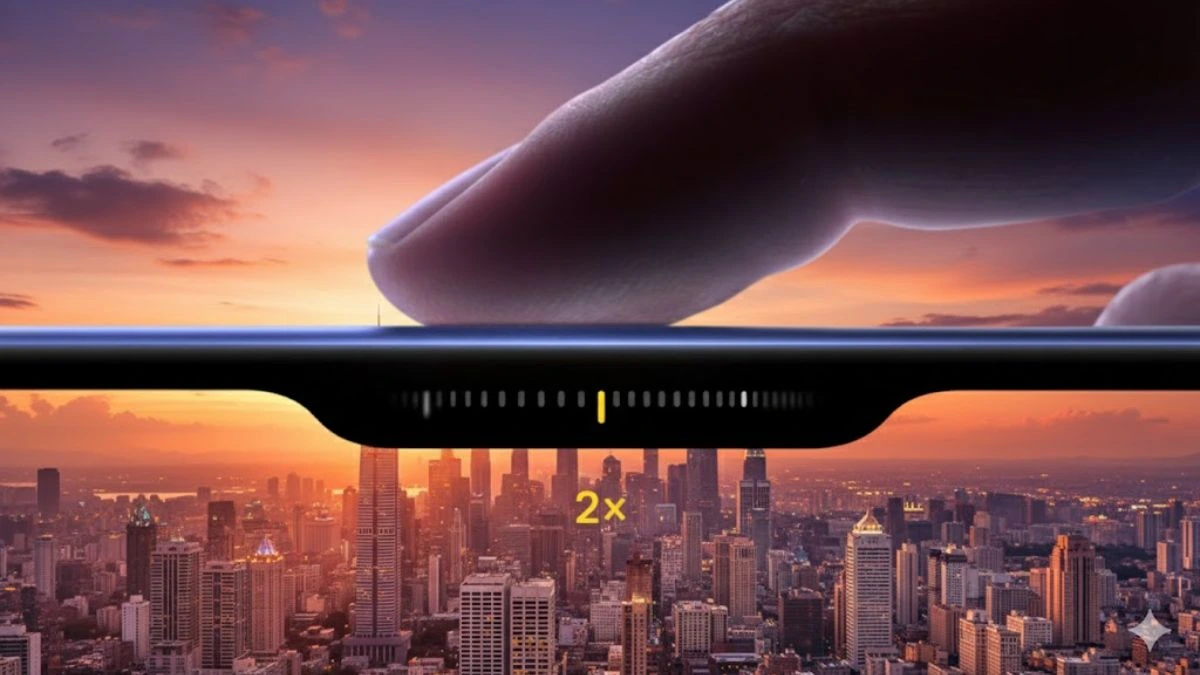
- Swipe Left or Right for Zoom Control
- While recording, swipe your finger horizontally over the button to smoothly zoom in or out.
- This feature works seamlessly for professional-style transitions.
- While recording, swipe your finger horizontally over the button to smoothly zoom in or out.
- Light Press to Adjust Focus While Filming
- Gently tap the Capture Button mid-recording to adjust focus points dynamically.
- This allows you to shift attention between subjects while keeping your video fluid.
- Gently tap the Capture Button mid-recording to adjust focus points dynamically.
- Double-Tap to Flip the Camera
- During a video, a quick double-tap switches between front and rear cameras, perfect for vlog-style content.
Capture Button Shortcuts and Hidden Features
Beyond standard photo and video use, Apple added extra functions that make the Capture Button far more versatile.
- Quick Launch the Camera App
- Double-tap the Capture Button when the screen is off to launch the Camera app instantly.
- Use in Other Apps
- Some third-party apps, like Instagram and Snapchat, already support Capture Button input for photos and stories.
- Change Capture Mode Quickly
- Swipe up or down on the button to toggle between modes such as Portrait, Panorama, or Slow-Mo.
- Use With AssistiveTouch
- If you prefer on-screen controls, you can map the Capture Button function to AssistiveTouch in Settings.
How to Customize the Capture Button
While the Capture Button’s main purpose is for photography, Apple allows limited customization to match your style.
- Go to Settings – Camera – Capture Button
- Choose the default function:
- Quick Photo
- Quick Video
- Launch Camera App
- Quick Photo
- You can also toggle “Press and Hold Behavior” to decide if you want it to record a video or open the camera.
For power users, this level of personalization ensures that your Capture Button always performs the task you use most often.
Tips to Make the Most of the Capture Button
Here are a few professional tricks to maximize its potential:
- Use the Capture Button for Low-Light Photography: Holding it lightly to pre-focus helps stabilize your shot and reduce blur.
- Combine It With Voice Control: Say “Hey Siri, take a photo,” and then press the button to trigger burst mode.
- Shoot From Unusual Angles: Since you don’t need to touch the screen, you can shoot comfortably from low or overhead positions.
- Use Capture Button While Wearing Gloves: Perfect for outdoor or winter photography.
Troubleshooting the Capture Button
If the Capture Button is not responding:
- Ensure your iPhone 16 is updated to the latest iOS version.
- Clean around the button to remove dust or debris.
- Restart your device to reset hardware sensors.
- If the problem persists, contact Apple Support for a diagnostic check.
Why the Capture Button Matters
Apple’s Capture Button might seem like a small hardware change, but it signifies a major step toward bridging smartphone photography with traditional camera usability. It gives users tactile control, reduces on-screen distractions, and improves the speed of shooting, all while maintaining Apple’s sleek design philosophy.
For content creators, vloggers, and everyday users alike, the Capture Button is more than a gimmick, it’s a tool that enhances creativity, precision, and convenience.
FAQs
Q1. Where is the Capture Button located on the iPhone 16?
A. It’s on the lower-right side of the phone, just below the power button.
Q2. Can I use the Capture Button when the screen is locked?
A. Yes. You can press it to quickly take a photo or hold it to record a video without unlocking your phone.
Q3. Can I disable the Capture Button?
A. Currently, Apple does not allow full deactivation, but you can change its behavior under Settings – Camera – Capture Button.
Q4. Does the Capture Button work with third-party camera apps?
A. Yes, popular apps like Instagram and TikTok are adding compatibility for this new feature.
Q5. Is the Capture Button available on all iPhone 16 models?
A. Yes, it is available across all models, iPhone 16, 16 Plus, 16 Pro, and 16 Pro Max.
Also Read- OpenAI To Permit Erotic Content On ChatGPT For Verified Adults