


How to Use Google Lens on iPhone (Yes, It Works Just Fine)
Think Google Lens is some Android-only magic trick? Not quite. If you’ve got an iPhone and at least one Google app installed, you’re already set to use one of Google’s most underrated features.
Whether you’re curious about a pair of sneakers, a mystery houseplant, or want to track down a plate of pasta you spotted at brunch, Google Lens is your shortcut to answers.
What is Google Lens, Anyway?
In simple terms, it’s Google Search for your camera. You point, shoot, and Google pulls up information about what you’re looking at. It can identify products, animals, books, landmarks, food, text, and just about anything else you can snap a photo of.
And yes, your iPhone can do all of this. You just need the right apps.
How to Get Google Lens on iPhone
You won’t find a standalone Google Lens app on the App Store. But the feature is built into several existing Google apps. Here’s how to get access:
-
Download the Google Chrome app for web-based image searches.
-
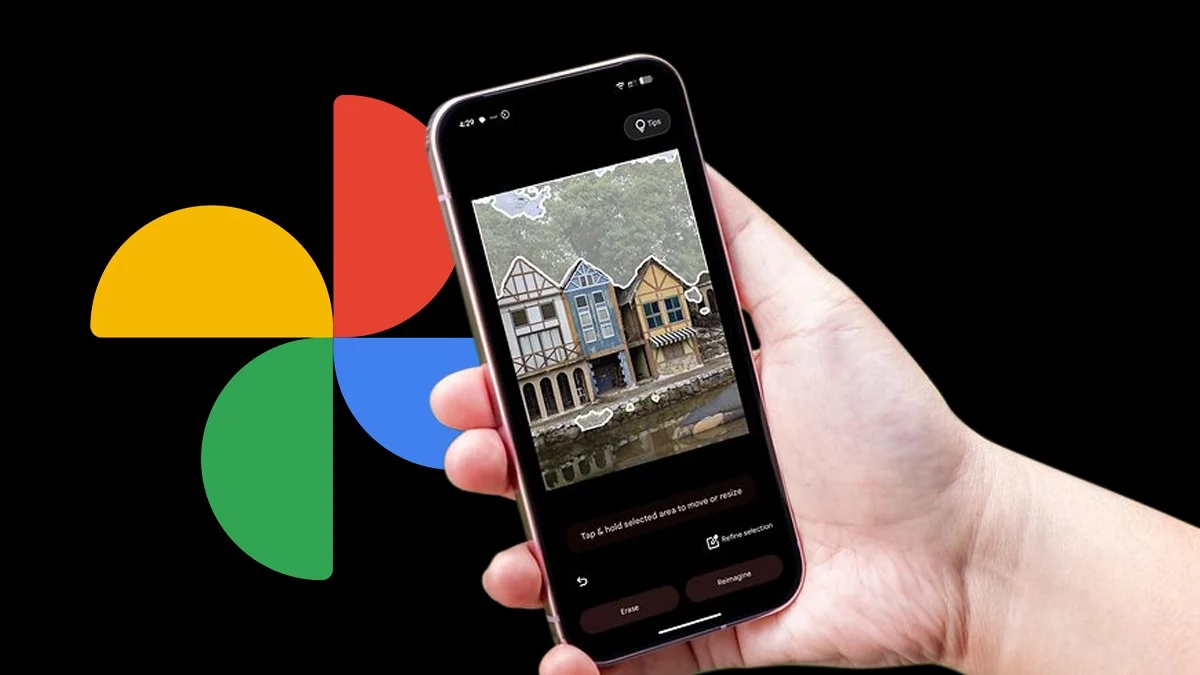
Use Google Photos if you want to search through old images on your phone.
-
Install the Google app for the full Lens experience, including real-time camera use.
How to Use Google Lens on iPhone
The easiest way to use Google Lens is through the Google app. Here’s the step-by-step:
-
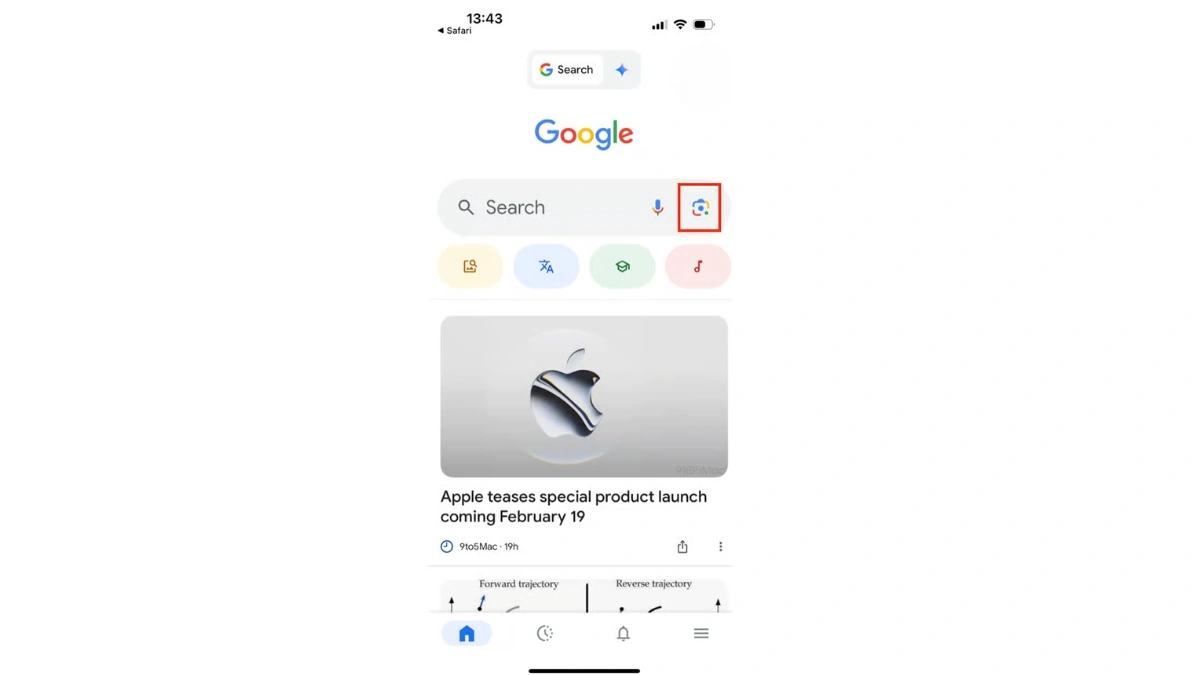
Open the Google app on your iPhone. If you don’t have it, grab it from the App Store.
-
Tap the Google Lens icon in the search bar. It looks like a little camera.
How To Use Google Lens On iPhone, Credits- Macpaw -
Select Search with Camera.
-
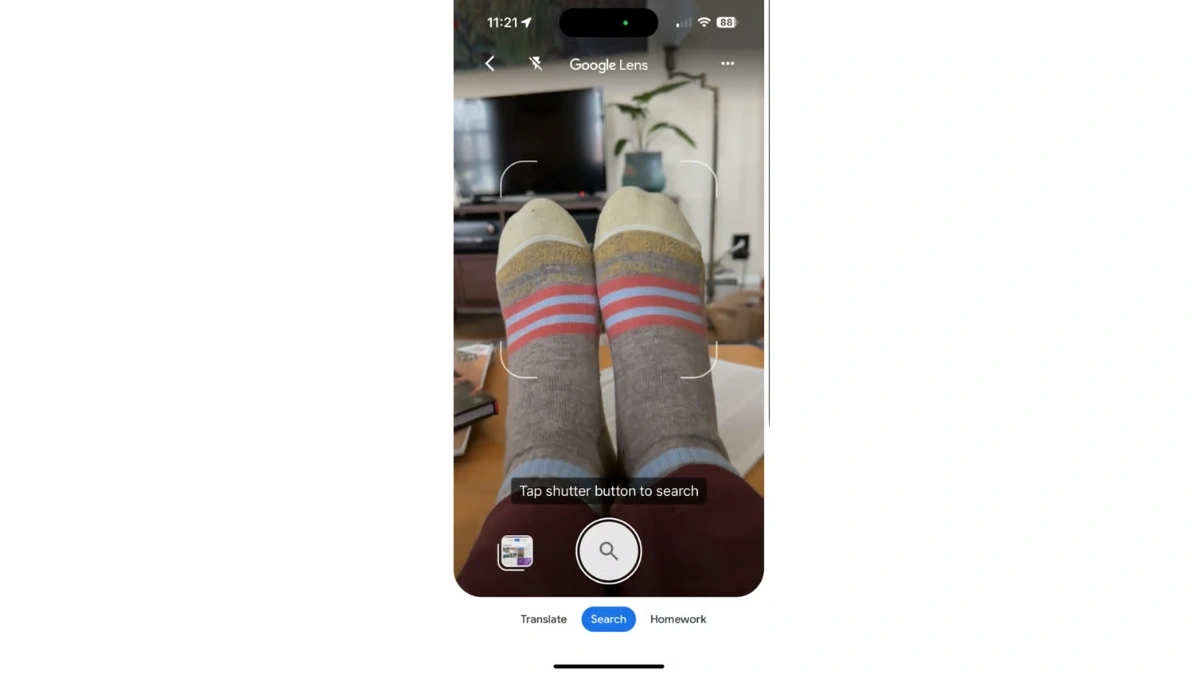
Point your camera at the object or scene you want to identify.
How To Use Google Lens On iPhone Step-By-Step Guide, Credits- Macpaw -
Tap the shutter button to capture it.
-
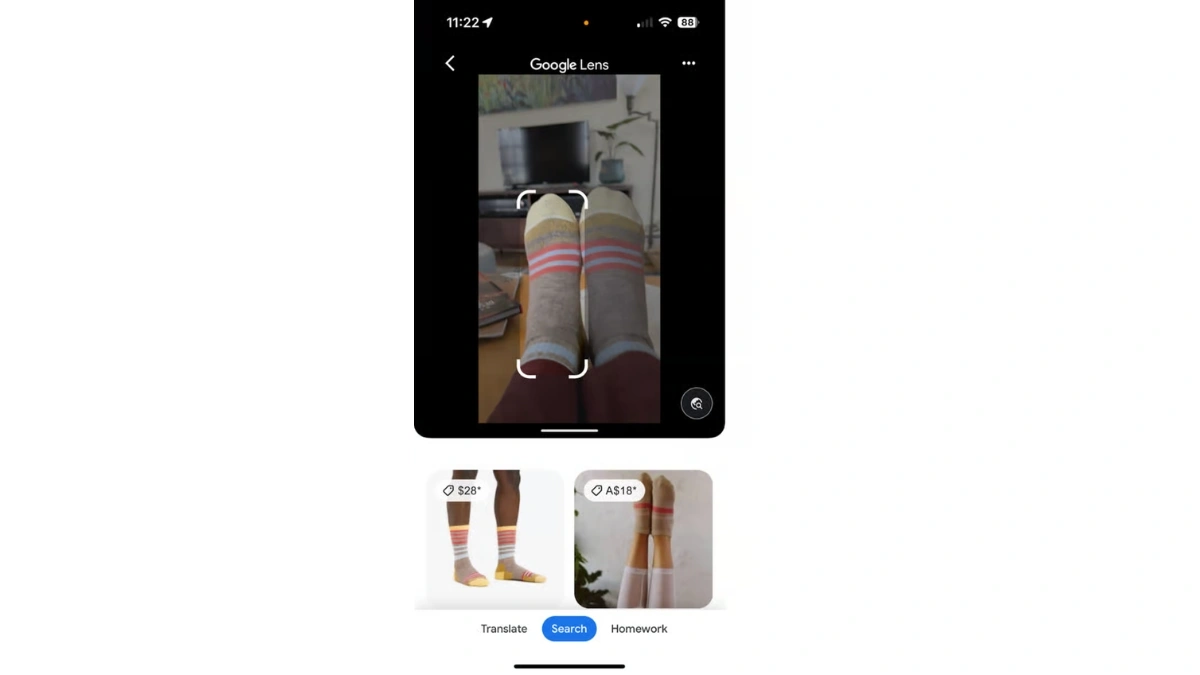
Google will show you related search results, product links, breed info, or even recipes depending on what you’ve captured.
How To Use Google Lens On iPhone Guide, Credits- Macpaw
What It Can Do
Google Lens is surprisingly accurate. You can use it to:
-
Find the name of a plant or dog breed
-
Shop for a product you see in real life
-
Scan QR codes or barcodes
-
Translate foreign text in real time
-
Get recipes from food photos
-
Look up books, buildings, or artwork
For example, I once snapped a photo of a pair of socks and Google found the exact same pair online within seconds. It’s that smart.
Bonus Tip
If you’ve already taken a photo and want to search using Lens later, just open the image in Google Photos. Tap the Lens icon and let it work its magic. No need to take another shot.
Also Read- Photo Assist Is Samsung Galaxy’s Secret Weapon