





How to Upload a YouTube Video from Your Phone in 2025 (Without Breaking a Sweat)
So, you’ve got a killer video sitting in your phone’s gallery and you’re ready to unleash it on YouTube? Good news, uploading a video from your mobile device is probably the easiest part of your content creation journey. Whether you’re vlogging from a beach, ranting from your bedroom, or dropping that how-to guide you shot at 2 AM, the YouTube app’s got you covered.
Here’s how to upload a video to YouTube from your phone without the headache.
1. Open the YouTube app
If you somehow don’t already have it, grab the YouTube app from the Google Play Store (for Android) or the App Store (for iPhone). You can also use the YouTube Studio app, but the process is basically the same.
2. Log into your account
No YouTube account, no upload. Simple as that. If you’re not signed in, now’s the time. You’ll need to be logged into your Google account to get that video live.
3. Tap the ‘Create’ icon
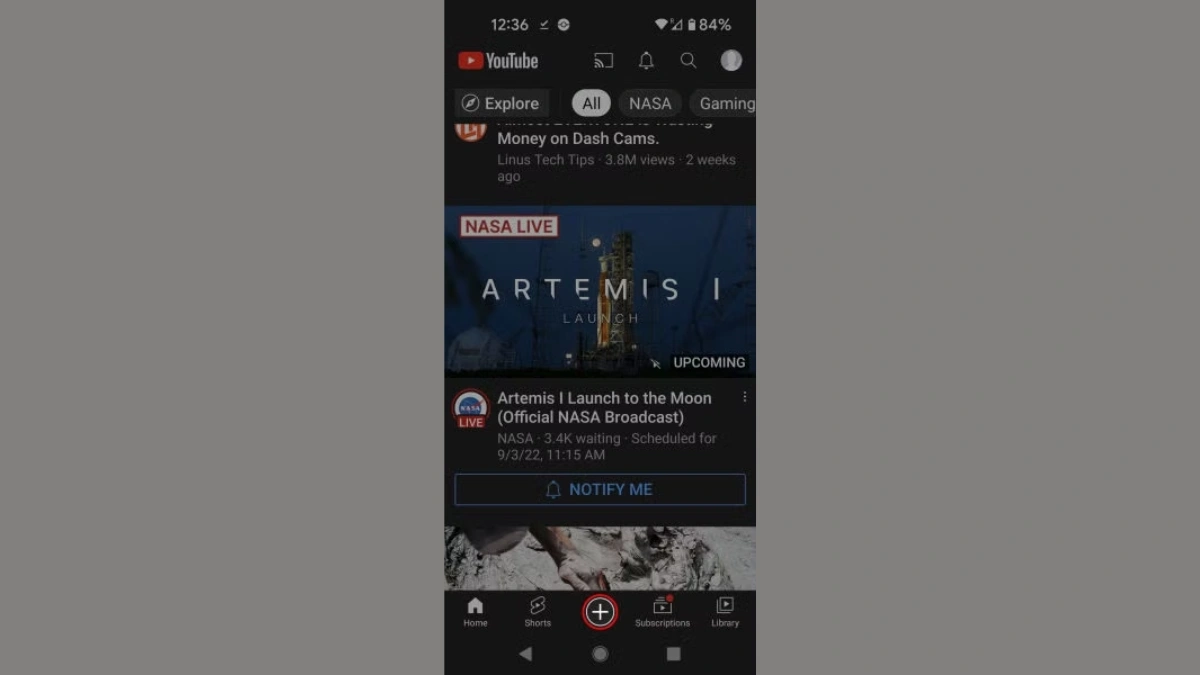
Look at the bottom center or top right of your screen (depends on the version of the app). You’ll see a camera icon or a “+” button. Tap that. If this is your first time uploading, you might get asked to give YouTube access to your camera and photos, go ahead and allow it.
4. Choose your video
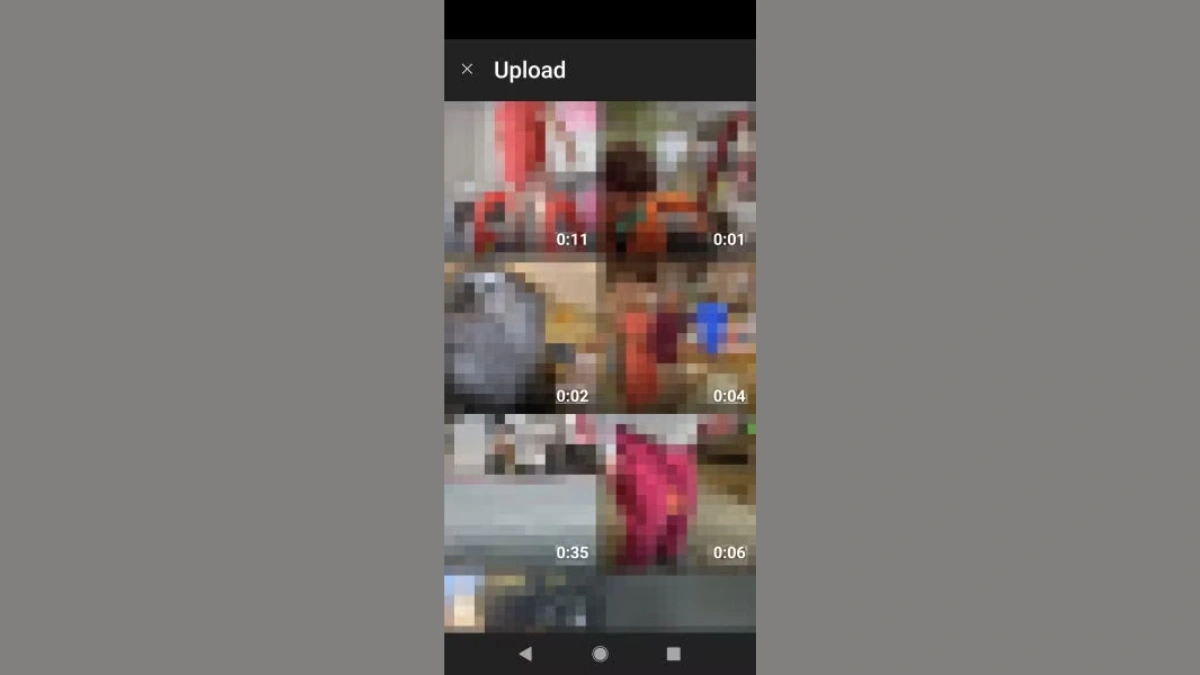
Now you’ve got three options: record a new video, go live, or upload an existing one. For this guide, tap the video you already recorded. Scroll through your gallery, pick your clip, and tap to select.
5. Hit “Next”
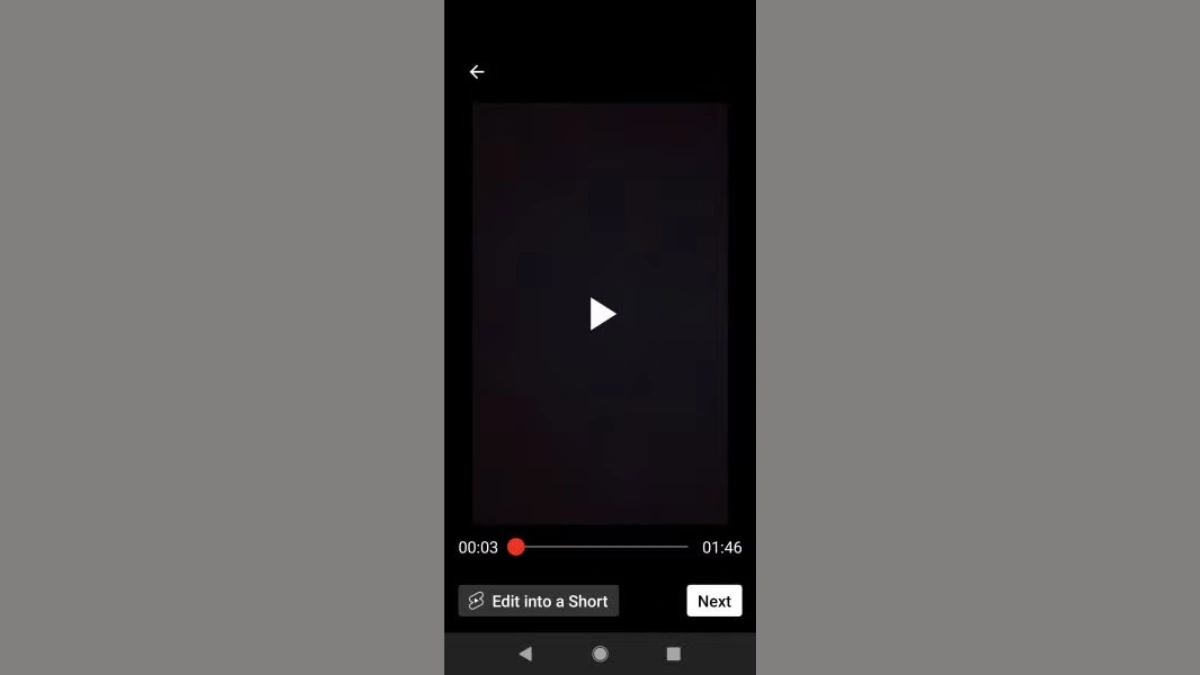
You’ll get a quick preview of the video. If everything looks good, tap “Next” to move on.
6. Add the video details
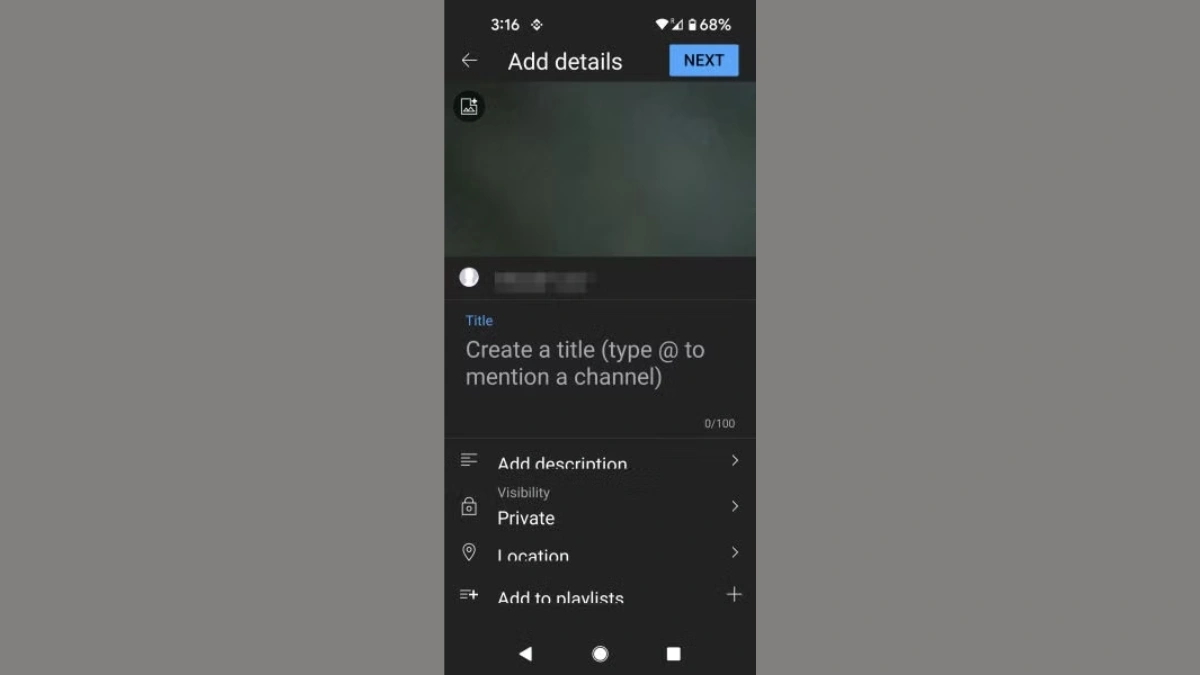
This is your moment to shine. Add a catchy title, type in a solid description, choose your privacy setting (public, unlisted, or private), and optionally tag your location. Keep it clean, clear, and keyword-friendly if you’re going for views.
Bonus: You can also set your video for kids or not-for-kids right here, YouTube’s gotta know.
7. Tap “Upload” and you’re live
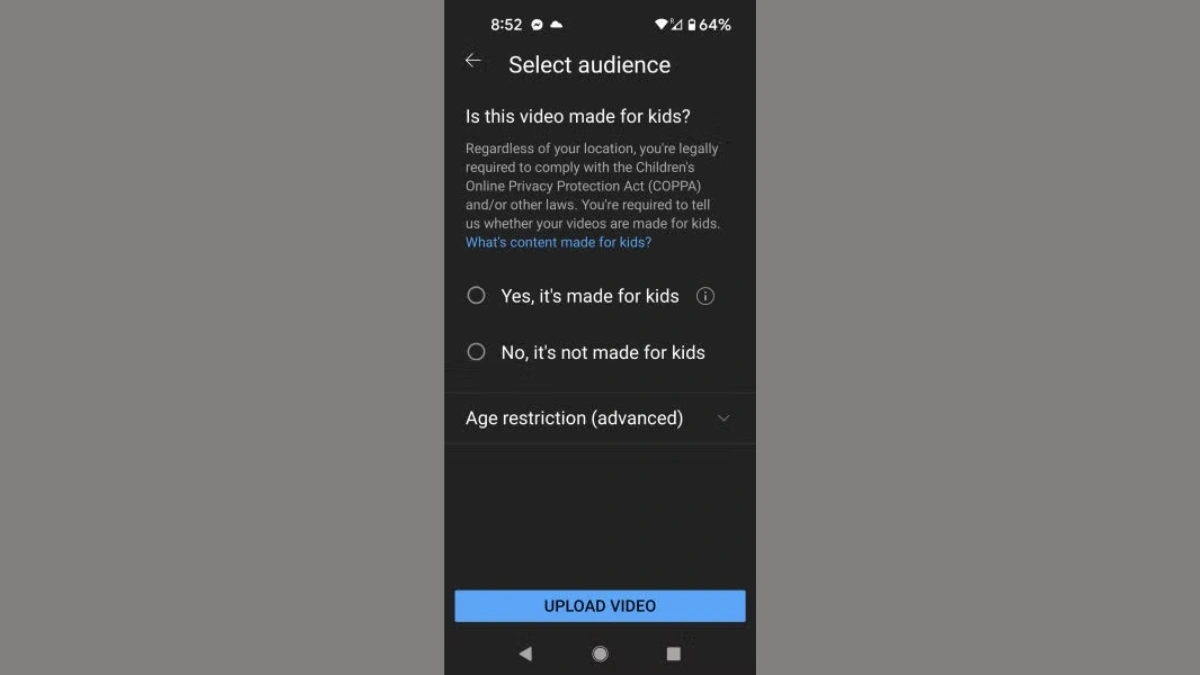
That’s it. You’ve officially uploaded your masterpiece from your phone. Tap “Upload” and YouTube does the rest. You’ll get a notification once it’s processed and live.
Also Read- How to Customize the Always-On Display on Your OnePlus Phone