



Constant switching back and forth among apps is probably one of the most irritating aspects of smartphone use today.
When you are reading, get interrupted by an incoming text, reply to the text, go back to what you were reading and find you have lost your place, and do it over and over again.
That’s where the Split Screen feature on Android comes in: once you begin using it correctly, it will transform the way you interact with your phone.
What Split Screen Actually Does
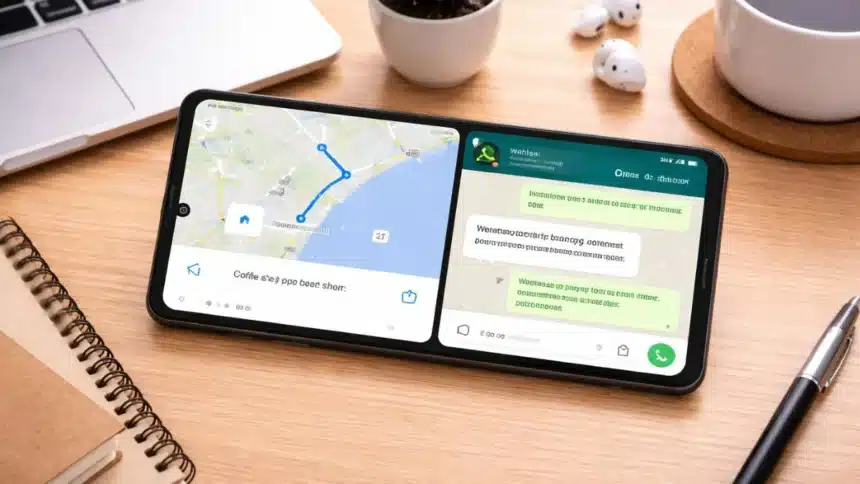
Split Screen lets you run two apps at the same time. One on the top half, the other on the bottom (or side-by-side on bigger phones).
It works on most modern Android phones, especially those running recent versions of Android and custom skins like OxygenOS, One UI, and others.
How to Turn On Split Screen on Android
Follow these steps:
- Open the first app you want to use
- Tap the Recent Apps button (or swipe up and hold if you use gesture navigation)
- Tap the app icon at the top of the preview window
- Tap Split Screen
- Now choose the second app from the recent apps list
That’s it. Both apps will open together on the screen.
How to Adjust Split Screen Properly
Once both apps are open:
- Drag the middle divider line up or down
- Give more space to the app you’re using more
- Shrink the one you just need occasionally
This makes the experience way smoother.
And if you want to exit the split screen, then just drag the divider all the way up or all the way down.
One app will close, and the other will take the full screen again.
This feature works best when you use it with messaging apps, browsers, notes apps and video apps.
Try using split screen once properly, and you will stop switching between apps like before. It honestly makes Android feel way more powerful.
Also Read: How To Control And Navigate Android XR Glasses Effortlessly