


3 iPhone Settings You Should Change Right Now
You love your iPhone. It’s sleek, smart, and lets you doomscroll in peace. But what if we told you it’s quietly keeping tabs on your every move? Yep, even when it’s in your pocket, even when you think you’re being careful, there are settings buried deep in your iPhone that might be leaking more data than you signed up for.
Here are three low-key settings that could be secretly tracking you, and how to shut them down before your phone starts feeling more like a snitch than a sidekick.
1. App Tracking: The Sneaky One
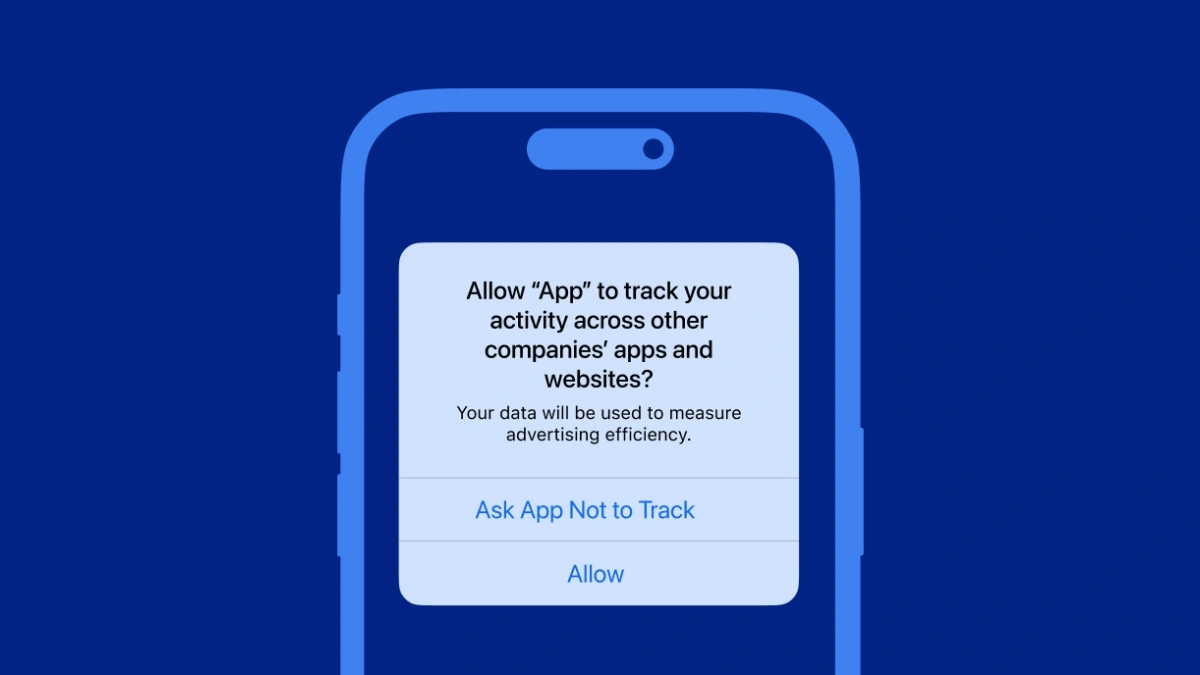
Apple made a big deal about “App Tracking Transparency” when iOS 14.5 dropped, and fair enough, it lets you control whether apps can track you across other apps and websites. But here’s the catch: most people tap “Allow” without thinking, and boom, your online behaviour becomes marketing gold.
What to do:
-
Go to Settings – Privacy & Security – Tracking
-
Toggle off “Allow Apps to Request to Track”
-
Then head to Settings – Privacy & Security – Apple Advertising and turn off “Personalised Ads”
This won’t stop ads entirely, but it will stop apps from using your activity to tailor what you see. Facebook, Amazon, Instagram, they all love this stuff.
2. Significant Locations: The Creepy One
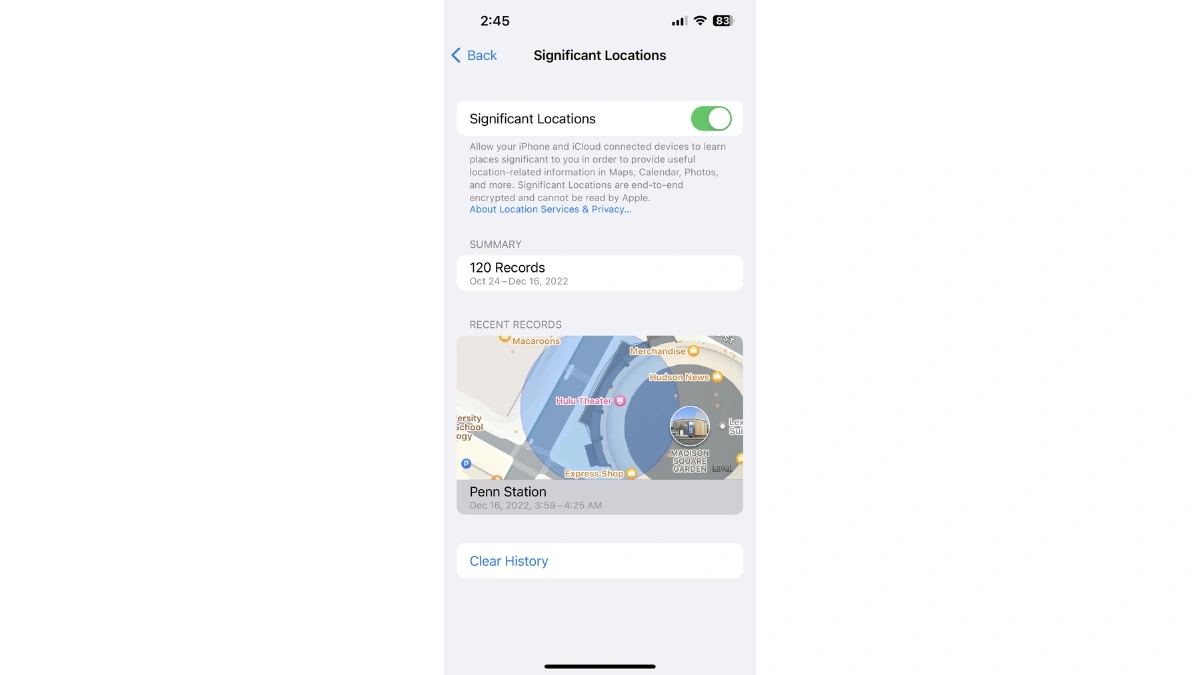
Your iPhone knows where you live. And where you work. And probably how many times you went to that same overpriced coffee shop last week.
“Significant Locations” is a feature designed to “improve” apps like Maps and Photos. In reality, it stores a list of places you visit most often, right down to the time and frequency.
How to shut it down:
-
Go to Settings – Privacy & Security – Location Services – System Services – Significant Locations
-
Toggle it off, and hit “Clear History” while you’re at it
It’s encrypted, yes, but if you’re not comfortable with your phone keeping a diary of your movements, you’ll want this gone.
3. iPhone Analytics & Background App Refresh: The Silent Snoop
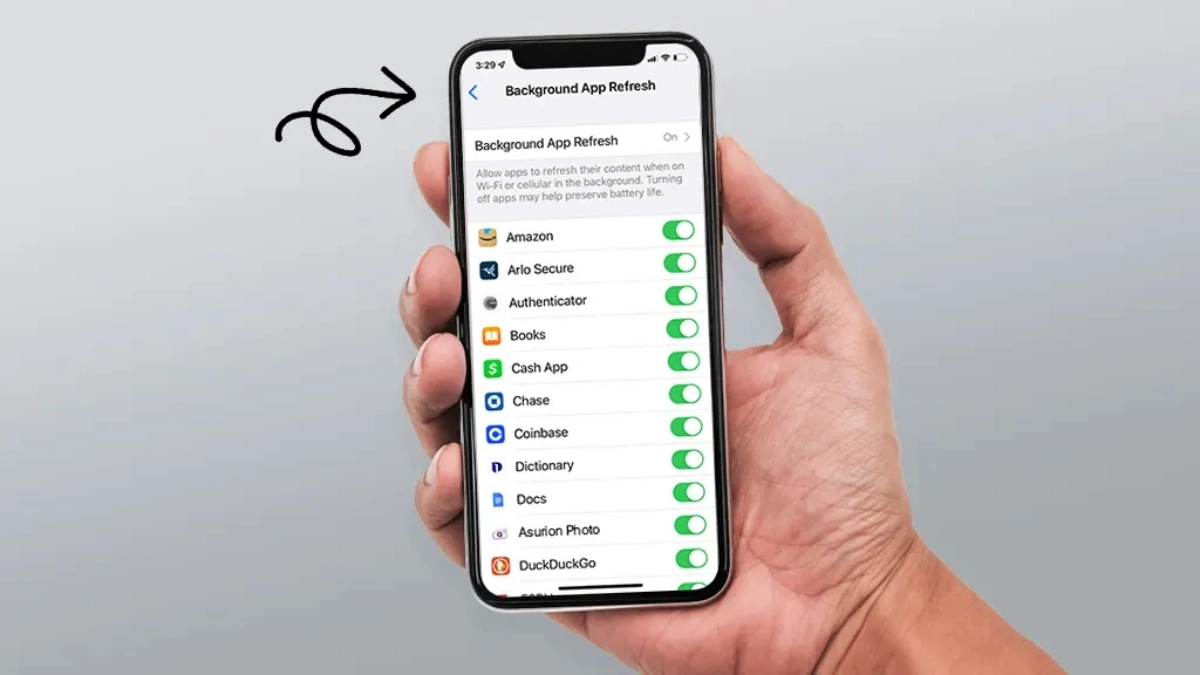
Apple says it collects “anonymous diagnostic data.” Sounds innocent, right? Until you realise it includes crash logs, Siri interactions, and app usage and it’s sent straight to Apple. You’re basically ghostwriting your own tech support file.
Meanwhile, Background App Refresh lets apps run when you’re not using them. That means data still flows even when the app isn’t on your screen.
Here’s how to block the nosy bits:
-
Settings – Privacy & Security – Analytics & Improvements
-
Turn off “Share iPhone Analytics”
-
Then go to Settings – General – Background App Refresh and either turn it off completely or limit it to Wi-Fi only
Final Thought: It’s Your Phone, Not Theirs
Look, Apple’s better at privacy than most tech giants but that bar is low. If you’re serious about keeping your data yours, these three settings are a solid place to start. Your iPhone doesn’t need to know everywhere you’ve been or everything you do. Some things are just between you and your screen.
Also Read- Top 5 Most Data-Hungry Apps Spying On You In 2025