



If your game starts lagging right when things get intense, it’s honestly the most frustrating thing ever. You are in the middle of the fight, everything freezes for a second, and you’re out.
The good news? You don’t need a new phone. If you’re using a OnePlus device like the OnePlus Nord 4, a few simple setting changes can make your gaming feel way smoother.
Let’s fix this step by step. Keep your phone in your hand while doing this.
Why Your Game Lags
Before fixing it, a quick reality check.
Lag usually happens because too many background processes are running. AM is being used inefficiently, and extra features are recording or tracking gameplay
So, what we will do is basically free up your phone’s power for the game only.
Step-By-Step Guide to Boost Gaming Performance
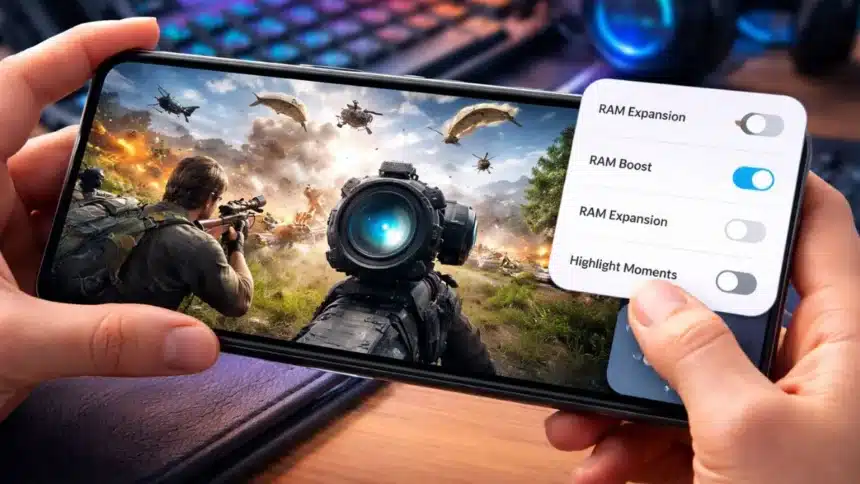
Step 1: Turn OFF RAM Boost
This might sound weird, but turning this OFF actually helps in gaming.
- Open Settings
- Go to System Settings
- Tap on RAM Boost
- Turn it OFF
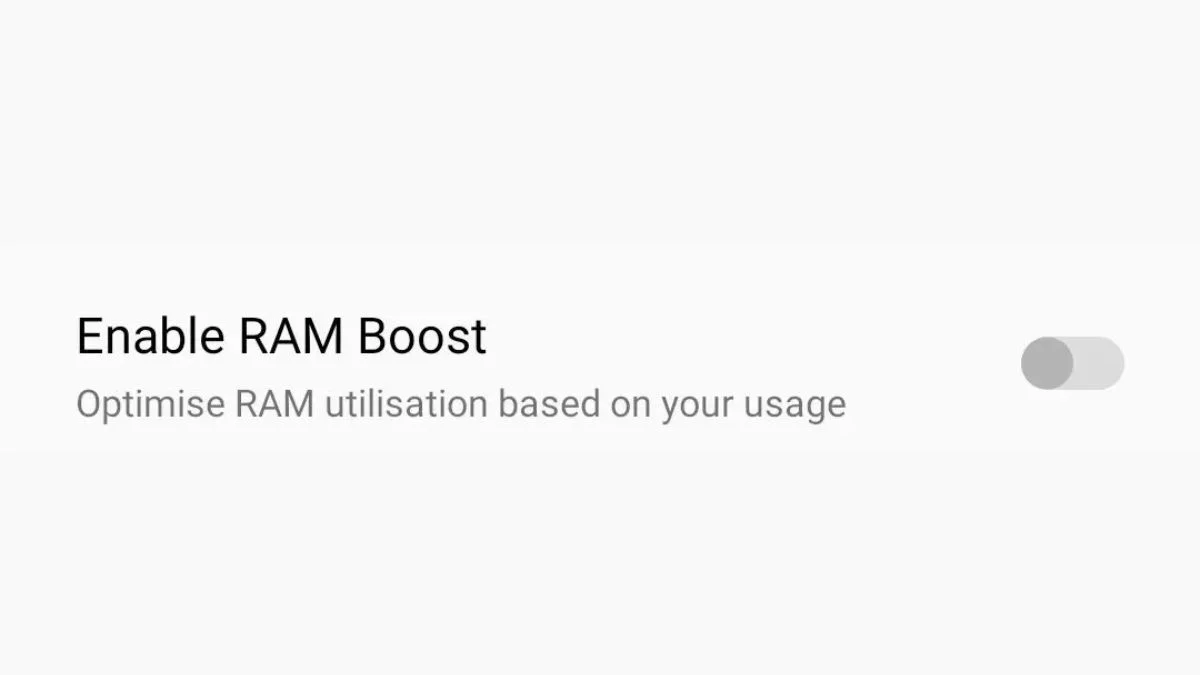
RAM Boost tries to manage memory automatically, but during heavy gaming, it can mess with performance.
Step 2: Turn OFF RAM Expansion
Now this is important.
- Go to Settings
- Tap on About Device
- Open RAM
- Find RAM Expansion
- Turn it OFF
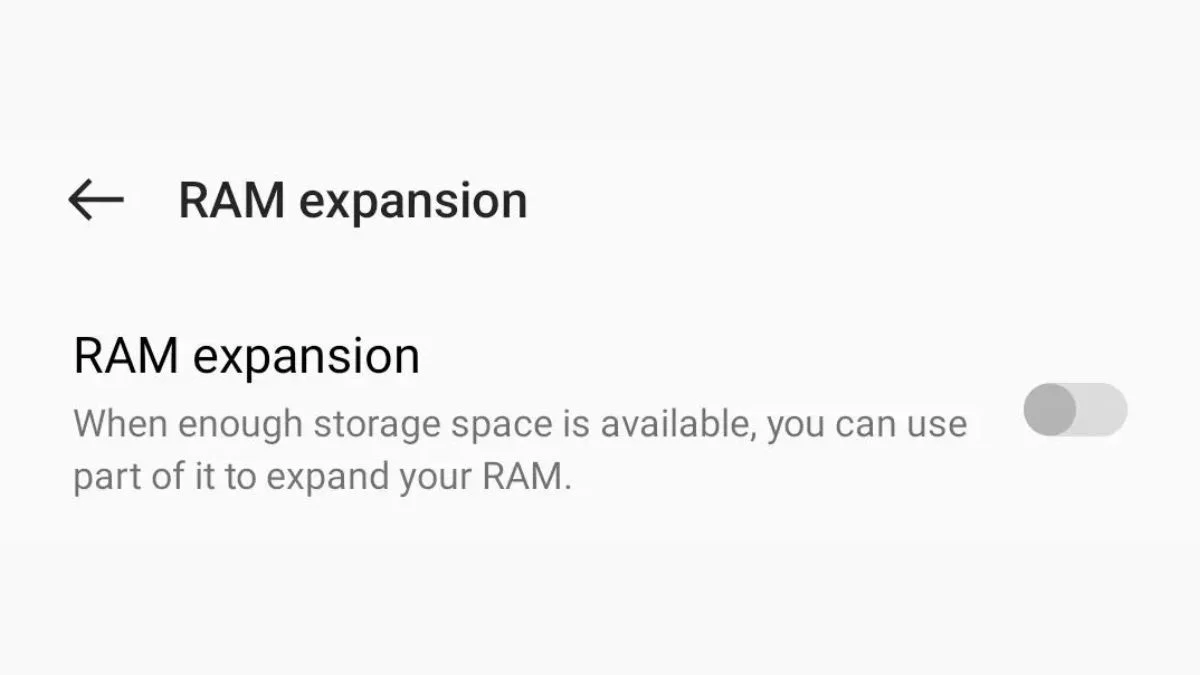
RAM Expansion uses your storage as extra RAM. Sounds good, but storage is way slower than actual RAM. So instead of helping, it can actually cause lag in games.
Step 3: Turn OFF Highlight Moments
If you play Battlegrounds Mobile India, this one is a must.
- Open BGMI
- Go to Settings
- Tap on Controls
- Open Advanced Controls
- Find Highlight Moments
- Turn it OFF
This feature records your gameplay moments in the background.
So, lag doesn’t always mean your phone is weak. Sometimes it’s just the wrong settings slowing things down.