



Keeping your child safe online is more important than ever. If you’re using a OnePlus phone with OxygenOS, you’ve got some great tools to help you manage what your child can access and how much time they spend on their device. This guide walks you through everything, from built-in features to apps like Google Family Link, so you can set things up with confidence.
1. Use Google Family Link (The Best All-in-One Option):
Google Family Link is one of the most effective ways to manage your child’s phone. With it, you can limit screen time, control which apps they can use, track their location, and more.
To set it up:
On your child’s OnePlus phone:
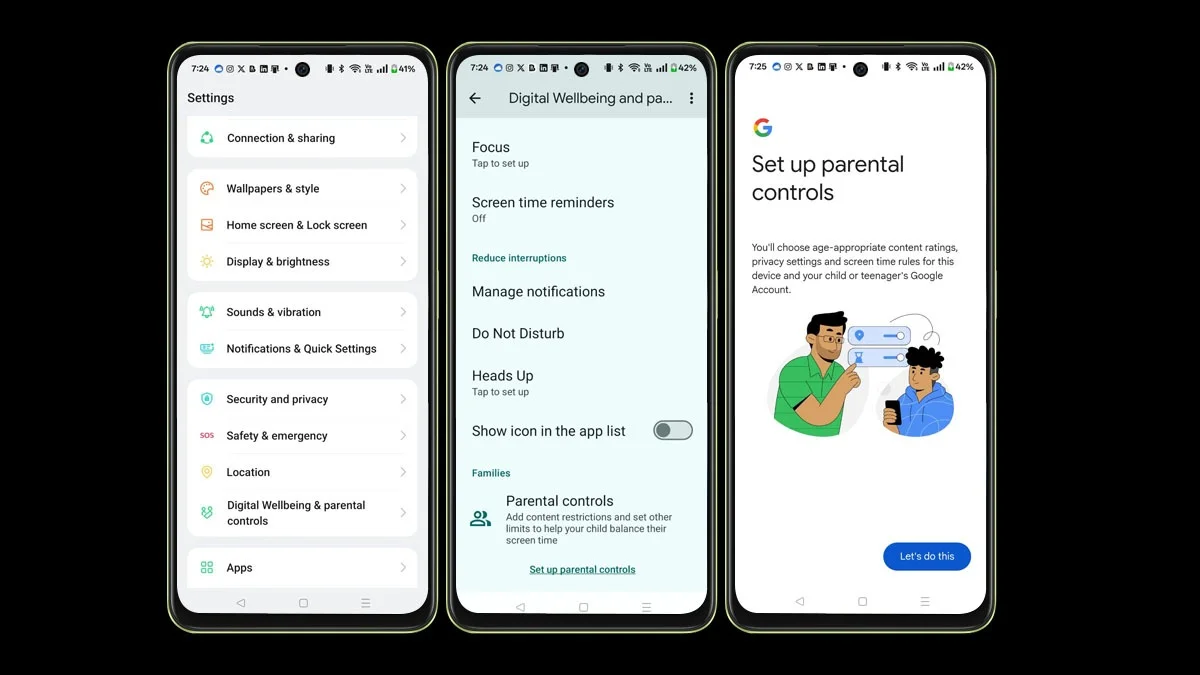
- Go to Settings > Digital Wellbeing & Parental Controls
(or just Parental Controls, depending on your OxygenOS version). - Tap Set up parental controls and follow the prompts.
- Choose Child or Teen, then sign in with or create a Google account for your child.
- When asked, sign in with your own Google account to link the two.
- On your own phone (as the parent):
- Download the Google Family Link for parents app from the Play Store or App Store.
- Sign in with your Google account and link it to your child’s phone.
With Family Link, you can:
- Set time limits for apps and device use
- Approve or block app downloads and purchases
- Filter content on Chrome, YouTube, Google Search, and more
- Track your child’s phone location
- Lock the phone remotely when needed
2. Set Parental Controls in the Google Play Store:
- To control what content your child can access through the Play Store:
- Open the Play Store on your child’s phone.
- Tap the profile icon > Settings > Family > Parental Controls.
- Turn them on, set a PIN, and choose age limits for apps, games, movies, and more.
3. Use Built-in OnePlus Tools:
- App Locker: This lets you lock certain apps with a PIN. It’s perfect for blocking access to things like messaging or social media apps.
- Go to Settings > Security & privacy > App Locker
- Set a PIN and choose which apps to lock
Kids Mode (if available on your device):
Some newer OnePlus phones include a Kids Mode, usually found in Settings > Digital Wellbeing or Special Features.
It lets you:
- Limit app access
- Block specific features
- Create a safe space for your child to use the phone
4. Set Up a Separate User Profile:
- If you share a phone with your child, creating a separate profile is a great idea.
- Go to Settings > Users & Accounts > Add user
- Create a new profile with a Google account you manage
- Switch to this profile whenever your child uses the phone
5. Try Third-Party Parental Control Apps:
- Apps like Kids Place or FamiKit give you even more control:
- Set screen time limits
- Block websites or apps
- Monitor activity remotely
- Lock settings so your child can’t disable the app
- To get started:
Download the app on both your phone and your child’s phone
Create an account and follow the setup instructions
6. Extra Tips for Better Control:
- Disable Guest Mode: This prevents kids from switching to a guest profile to bypass restrictions. You can find this in the Users section in Settings.
- Check in regularly: It’s a good idea to review your child’s activity now and then, and adjust settings as needed.
- Use content filters: Turn on SafeSearch in Chrome and Restricted Mode in YouTube for a safer browsing experience.
Quick Reference Table: Key Methods
| Method | What It Does | Where to Find |
|---|---|---|
| Google Family Link | Full remote control and supervision | Play Store, Digital Wellbeing settings |
| Play Store Restrictions | Blocks apps and mature content | Play Store > Settings > Family > Parental Controls |
| App Locker (OxygenOS) | Locks selected installed apps | Settings > Security & privacy > App Locker |
| Kids Mode | Restricts access to apps and features (on supported models) | Settings > Digital Wellbeing or Special Features |
| Third-Party Apps (e.g. Kids Place) | Advanced filtering, screen time management | Play Store |
| Separate User Profile | Creates a limited and isolated phone environment | Settings > Users & Accounts |
ALSO READ: OnePlus Gesture Guide: Swipe, Tap And Control Like A Pro