




iPhone 16 Storage Management Guide: Simple Steps To Free Up Space Safely
The iPhone 16 is powerful, but even a powerful phone becomes frustrating when storage is almost full. Apps start to misbehave, the camera stops saving photos, and simple tasks can feel slow. A clear storage management routine can keep your device fast and reliable without forcing you to delete memories in a hurry.
- iPhone 16 Storage Management Guide: Simple Steps To Free Up Space Safely
- Why storage management matters on iPhone 16
- How to check your current iPhone 16 storage
- Step 1: Clean up photos and videos
- Step 2: Remove and offload heavy apps
- Step 3: Control downloads, media and offline content
- Step 4: Tidy up messages and chat apps
- Step 5: Use iCloud wisely
- Step 6: Clear system clutter and browsing data
- Step 7: Set up a monthly storage routine
- Frequently Asked Questions
This step by step guide is written for regular users, not technical experts. Each section explains what is taking space, which settings you should check, and which files you can safely remove. Follow the steps in order and you will build a simple system to keep your iPhone 16 clean for the long term.
Why storage management matters on iPhone 16
Storage problems rarely appear suddenly. For most people, the phone feels fine for months and then, one day, a warning appears that storage is almost full. At that moment, users often delete random apps or photos in a hurry, which can break workflows or remove important memories. A planned approach avoids such panic and keeps your experience smooth every day.
Managing storage is also important for performance. When your iPhone has a comfortable amount of free space, it can handle updates, save high quality photos and videos, and keep apps running without constant background clean up. A small amount of regular maintenance is much easier than dealing with a full device after it starts to struggle.
How to check your current iPhone 16 storage
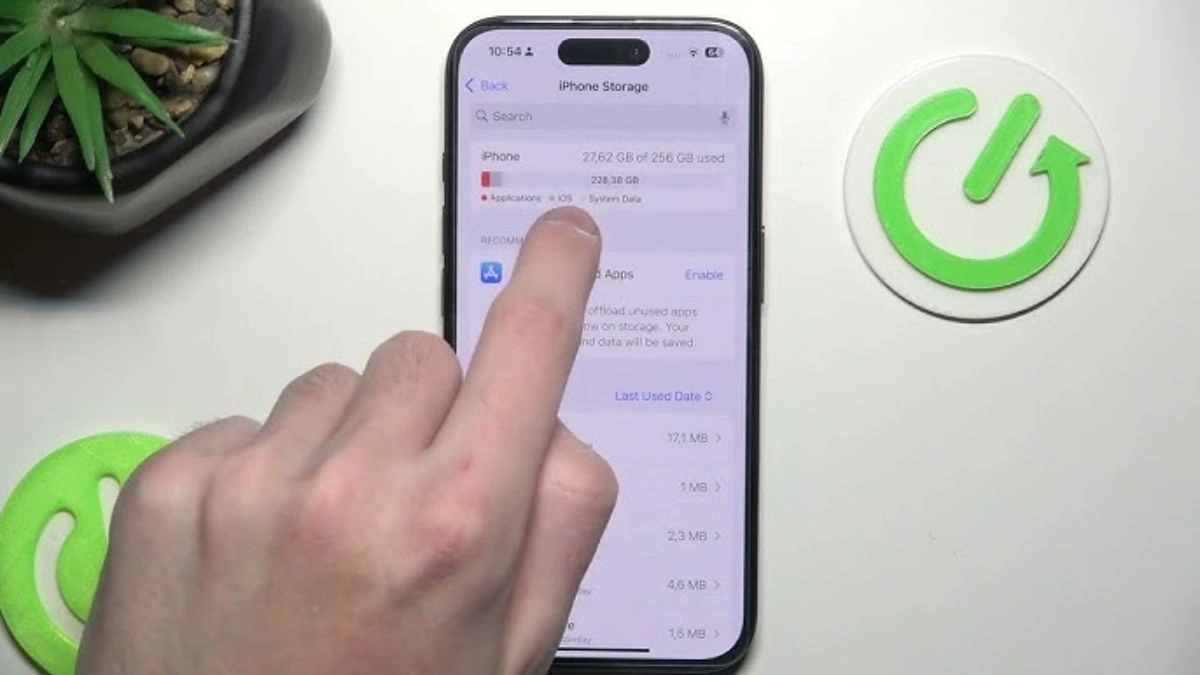
Before you start deleting anything, you need a clear view of how your storage is used. Your iPhone 16 offers a simple visual breakdown of which categories are taking space, such as apps, photos, media, messages and other data. Checking this first will guide your decisions in the next steps.
Once you know whether photos, apps or downloads are the main problem, you can focus your time where it matters most. This also stops you from deleting small items that will not make a real difference. The goal is to remove a few large blocks of data rather than hundreds of tiny files.
Step 1: Clean up photos and videos
For most users, photos and videos are the largest part of storage usage. The iPhone 16 encourages high quality images and videos, which look beautiful but also take more space. A single long video or a set of 4K clips can fill several gigabytes quickly, especially on devices with lower capacity.
Start by reviewing recent photos and videos. Remove duplicates, blurred shots and accidental captures such as screenshots you no longer need. It helps to scroll through your library month by month and delete only what is clearly useless. This approach is safer than trying to clean everything in one quick session.
Next, consider using cloud storage to protect your memories while keeping the device lighter. When photos are safely stored in the cloud, you can choose options that keep smaller versions on the phone while the full files remain online. This way you save space but still see all your images in the gallery. However, always confirm that important pictures are fully backed up before you delete anything from the device.
You can also review slow motion videos, screen recordings and long clips from events or trips. These are often huge files. Sometimes trimming a long video to only the important part can save a lot of space without losing the moment. If you like to film often, building a habit of reviewing and trimming videos every week will prevent sudden storage problems later.
Step 2: Remove and offload heavy apps
After photos and videos, apps are usually the next major storage consumer. Some games, editing tools or social media apps can grow very large over time as they store cached images, temporary files and downloads. A storage review should always include a close look at which apps are really worth their size.
Identify apps you no longer use regularly. Many users keep old games, event apps, or tools that were needed only once. Removing these can free up hundreds of megabytes or even more with little impact on your daily life. If you think you may need an app again in the future, you can always download it when required.
For apps that you want to keep but rarely open, offloading is a useful option if you prefer to save space. Offloading removes the app itself but keeps its data on your device. When you reinstall the app later, your information and settings return as before. This is especially helpful for large apps that you use occasionally, such as travel or special shopping apps.
Some apps, especially social media and streaming services, accumulate cache and temporary files. Often the easiest way to clear this is to delete the app and reinstall it. Before doing so, make sure you know your login details. After reinstalling, you will usually find that the app uses much less storage than before, while your account data remains safe on the service side.
Step 3: Control downloads, media and offline content
Many users forget about offline content. Music downloads, podcasts, offline maps, series episodes and movie files can quickly fill storage in the background. Because they are not always visible in the main Photos or Files apps, they are easy to overlook when you feel your iPhone 16 is full.
Open your music and podcast apps and check for downloaded content. You may find old playlists or episodes that you finished months ago. These can be safely removed once you are done listening. It is better to keep only your current playlist or a small set of favourite offline songs for situations without network coverage.
Streaming apps for video also store shows and movies offline when you choose to download them. These files are often very large. Go into the downloads section of each such app and remove anything you have already watched. A single high quality movie can take more space than hundreds of photos, so deleting a few old films can create a lot of free storage.
Some users also rely on offline navigation maps for travel. These are helpful, but large areas can consume a lot of space. Review old trips and remove map data for regions you will not visit again soon. Keeping only the maps you actually need will balance convenience and storage usage.
Step 4: Tidy up messages and chat apps
Messages and chat apps are another hidden source of storage usage. Text messages themselves are small, but media shared inside them is not. Over time, family groups, friends groups and work chats collect thousands of photos, videos, voice notes and documents that all stay on your phone.
Start with the Messages app. Review old conversations that are no longer active, especially those filled with many attachments. You can delete entire threads that you are sure you do not need, or go inside a conversation and remove only the media while preserving important texts. This keeps your information history but reduces the storage impact.
For popular chat apps, open the storage management settings inside each app. Many of them show which chats are using the most space. You can filter by large files, old media and forwarded content. It is often safe to delete repeated memes, greetings and status videos that circulate in groups. Focus on clearing old media from groups rather than from one to one chats that may contain important information.
You can also adjust automatic download settings. If your phone saves every photo and video sent to you, storage will fill quickly. Consider changing settings so that only content you open is downloaded in full, or select only certain types such as photos but not videos. This one change can dramatically slow down storage growth in the future.
Step 5: Use iCloud wisely
Cloud storage can be a strong partner for your iPhone 16 if you use it thoughtfully. It can reduce the pressure on local storage while keeping your data safe and accessible across devices. However, it needs to be configured with care so that you understand what is on the phone and what is only online.
A good first step is to ensure that essential data such as contacts, calendars, notes and important documents are synced. This does not usually use too much of your device storage, but it protects information if anything happens to the phone. It also reduces the need to keep large local backups of everything at all times.
For photos and videos, cloud sync can store full resolution files online while keeping lighter versions on the device. This setting is useful if your photo library is very large. The key point is to confirm that your internet connection and account are reliable, because you will need access to the cloud when you want to download the full quality file again.
Backups are another important area. Full device backups can use a significant amount of space in your cloud storage plan. Check how many old backups are stored and remove those that are no longer needed, especially from devices you no longer use. Keeping only current or recent backups is usually enough for safety, and it keeps your cloud storage organised.
Step 6: Clear system clutter and browsing data
Over time, system and app processes create temporary files and cached data. Individually these are small, but together they can make a noticeable difference in storage usage. While you should be careful not to interfere with system files directly, there are safe places where you can clear data without risk.
Start with your main browser. Clearing website data and history will remove cached images, cookies and temporary files that are no longer needed. This can slightly affect how quickly websites load the first time after the clean up, but it is usually worth it for the space you regain. If you use several browsers, repeat the step in each one.
Some apps have a clear cache or clear temporary data option inside their own settings. You can use these tools when they are available. This is generally safer than trying to remove files directly from within a file manager because the app understands which data can be rebuilt automatically. It is wise to review these options whenever you notice an app using more storage than expected.
Restarting your iPhone 16 after a major clean up can also help the system recalculate storage usage and remove some temporary files that were ready to be cleared. This is not a magic solution, but as part of a full maintenance routine it supports a more accurate and efficient storage state.
Step 7: Set up a monthly storage routine
Storage management works best as a habit, not as a crisis response. Instead of waiting until your iPhone 16 warns you that space is almost full, you can follow a simple routine once a month. This keeps the device fresh and avoids the stress of having to delete files when you need to capture something important.
A good monthly check can be quite short. You can start by looking at the storage section to see if any category has grown unusually. Then review newly installed apps, recent downloads, and the previous month of photos and videos. Deleting just a little bit regularly is easier than a huge clean up once a year.
You can also choose one special focus each month. For example, one month you clean up chat media, the next month you review offline downloads, and another month you clear browser data. Rotating tasks like this ensures that no area is ignored for too long, while keeping each session quick and manageable.
Finally, connect storage checks with other regular activities. For instance, you can review storage on the first weekend of every month or whenever you update your phone software. By linking it with an existing habit, you are more likely to stay consistent and enjoy a smooth, reliable experience throughout the life of your iPhone 16.
Frequently Asked Questions
1. How much free space should I keep on my iPhone 16?
There is no single number that fits everyone, but it is a good idea to keep a comfortable safety margin instead of running your device at the limit. If your phone always has a reasonable amount of free space, system updates, new apps and high quality media files will install smoothly without forcing you to delete things at the last moment.
Think about how you use your phone. If you often shoot long videos, you will want more free space than someone who only takes casual photos. Aim for enough free storage to record a few important events and install large apps when needed. It is better to stay slightly above this level rather than waiting for warning messages.
2. Is it safe to delete apps, or will I lose my data?
Deleting an app removes the app itself and its local data from your iPhone. However, many modern apps store your main information in an online account. In those cases, when you reinstall and sign in again, your key data returns. This is common with social networks, email apps, streaming services and many popular games.
If you are unsure, you can check whether the app uses an account system and whether your progress or information is linked to that account. For apps that do not use accounts, consider whether the local data is important before deleting. If you only used the app briefly or it was related to a past event, removing it is usually safe.
3. What is the difference between deleting and offloading an app?
When you delete an app, both the app and its data are removed from the device. This frees up the maximum possible space, but any local information not stored elsewhere will be lost. It is a strong but final clean up option, best used for apps you do not plan to use again.
Offloading an app removes the app itself but keeps its data on your phone. The icon usually remains on the home screen with a small mark. When you tap it, the app is downloaded again and your data returns. This option is ideal for large apps that you use rarely but want to keep configured for future use.
4. Do I need cloud storage to manage iPhone 16 storage well?
You can manage storage on your iPhone 16 without cloud services by regularly deleting unneeded content and moving important files to a computer or external drive. Many users successfully follow this local method, especially if they prefer not to rely on online storage. It just requires more manual transfers and careful organisation.
Cloud storage, however, adds flexibility. It allows you to keep a large photo library and other important files accessible without storing everything on the device at full size. For many people this feels more convenient, as they can access their content from multiple devices. The best choice depends on your comfort level and how consistent you are with backups.
5. How often should I do a full storage clean up on my iPhone 16?
A light check once a month is usually enough for most users. This includes reviewing new photos and videos, deleting apps you no longer need, and clearing old downloads. A few minutes of attention at this frequency prevents sudden storage crises and keeps the device responsive.
If you are a heavy user who records many videos, downloads movies or installs large games, you may benefit from a quick review every two weeks. The goal is not to reach a perfect, empty state, but to avoid accumulation of unnecessary data that slowly reduces your available space and affects your experience.
Also Read- Full One UI 8.5 Update Details Have Leaked And There Is A Lot To Unpack