




Keeping Telegram’s cache under control and fine-tuning auto-download settings can free up a surprising amount of space on your device. With just a few tweaks, you can decide how long media stays on your phone and what gets downloaded automatically. It’s an easy way to keep Telegram running smoothly without clogging up your storage.
Understanding Telegram Cache and Auto-Downloads
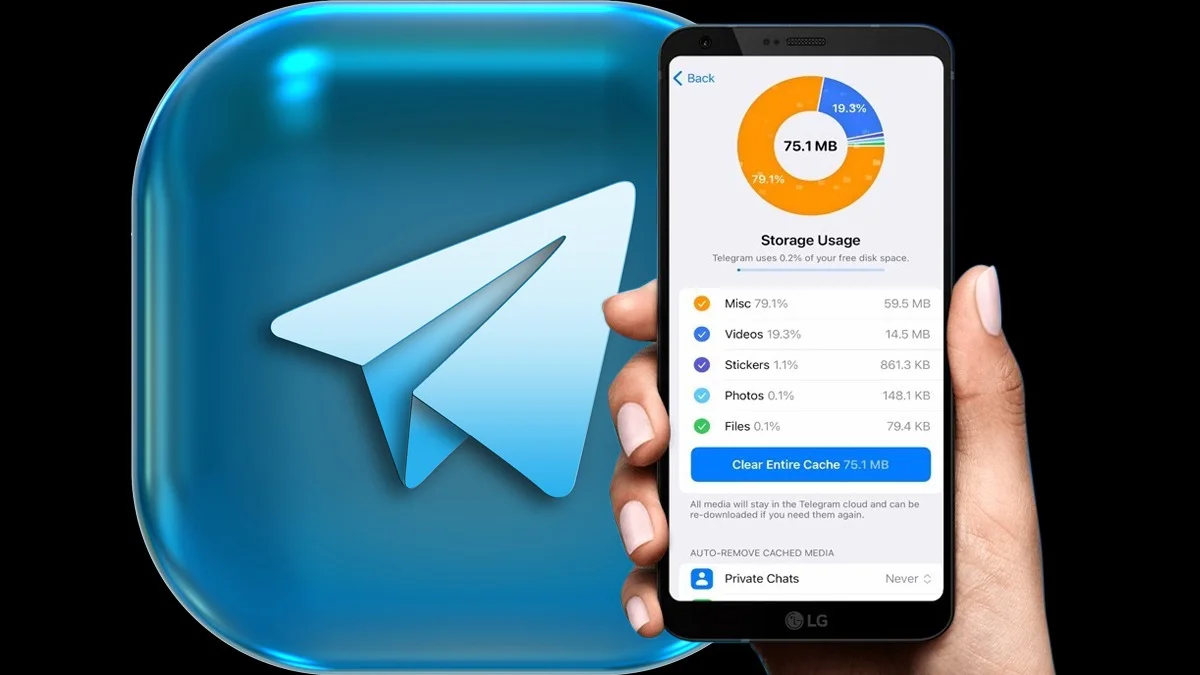
Whenever you use Telegram, the app saves media like photos, videos, audio files, and documents on your device so you can open them quickly. Over time, this cached data can take up a lot of space. You can clear this cache manually or let Telegram do it automatically, but keep in mind that some essential files needed for the app itself can’t be removed.
Clearing the cache doesn’t delete your actual media from Telegram. Everything stays in the cloud, so you can download any file again whenever you need it. And because Telegram syncs messages across all your devices, wiping the cache won’t remove any messages. It’s also worth noting that deleting messages doesn’t clear cached files, so it’s not a storage-saving trick.
How to Clear Telegram’s Cache
iOS, macOS, and Android
-
Open Settings, go to Data and Storage, then tap Storage Usage.
-
Choose Clear Cache.
-
You can adjust the Keep Media setting to 3 days, 1 week, or 1 month. Anything older gets cleared automatically. If you choose Forever, Telegram won’t auto-remove cached media.
-
There’s also an option to set a Max Cache Size.
Windows, macOS, and Linux Desktop
-
Click the three lines in the top left corner, then head to Settings.
-
Go to Advanced, open Data and Storage, and select Clear Cache.
-
Here you can also set a total storage limit for your cache.
Adjusting Auto-Download Settings
iOS, macOS, and Android
Head to Settings, then Data and Storage, and tap Automatic Media Download. You can turn auto-download off completely or set a smaller size limit for downloads. Even if you turn it off, tapping a file in a chat will still save it to your device.
Windows, macOS, and Linux Desktop
Go to the three-line menu, open Settings, then Advanced, and choose Automatic Media Download. You’ll find the same options to disable auto-downloads or adjust size limits.
A Little Setup Goes a Long Way
With the right settings, Telegram can keep your device running quickly without using more storage than necessary. A few minutes of customization can make your experience smoother and your phone or computer feel less cramped.
ALSO READ: Best Payment Methods In Indonesia: Top Ways To Pay In 2025