



How to Check Battery Health on iPhone 16 (Step-by-Step)
The battery in your iPhone 16 is a wear-able component that naturally degrades over time as it undergoes charge and discharge cycles. Monitoring battery health helps ensure your device performs well throughout its lifespan and lets you know when it might be time for a battery replacement.
iPhone 15 models and newer,including the iPhone 16, now provide detailed battery health information directly in Settings, including maximum capacity percentage, battery cycle count, and replacement recommendations.
Here’s how to check battery health on your iPhone 16 in easy steps.
1. How to Find Battery Health Stats on iPhone 16
To view the battery health information on your iPhone 16:
- Open the Settings app.

Open the Settings app - Scroll down and tap Battery.
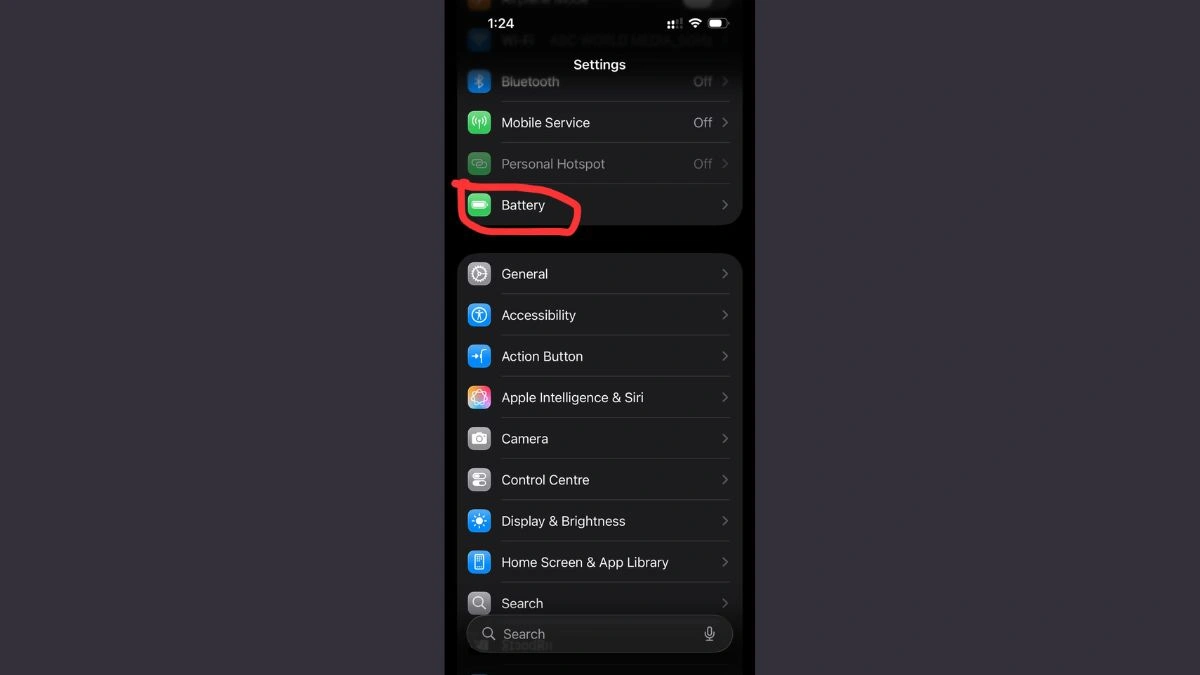
Scroll down and tap Battery - Tap Battery Health (or Battery Health & Charging).
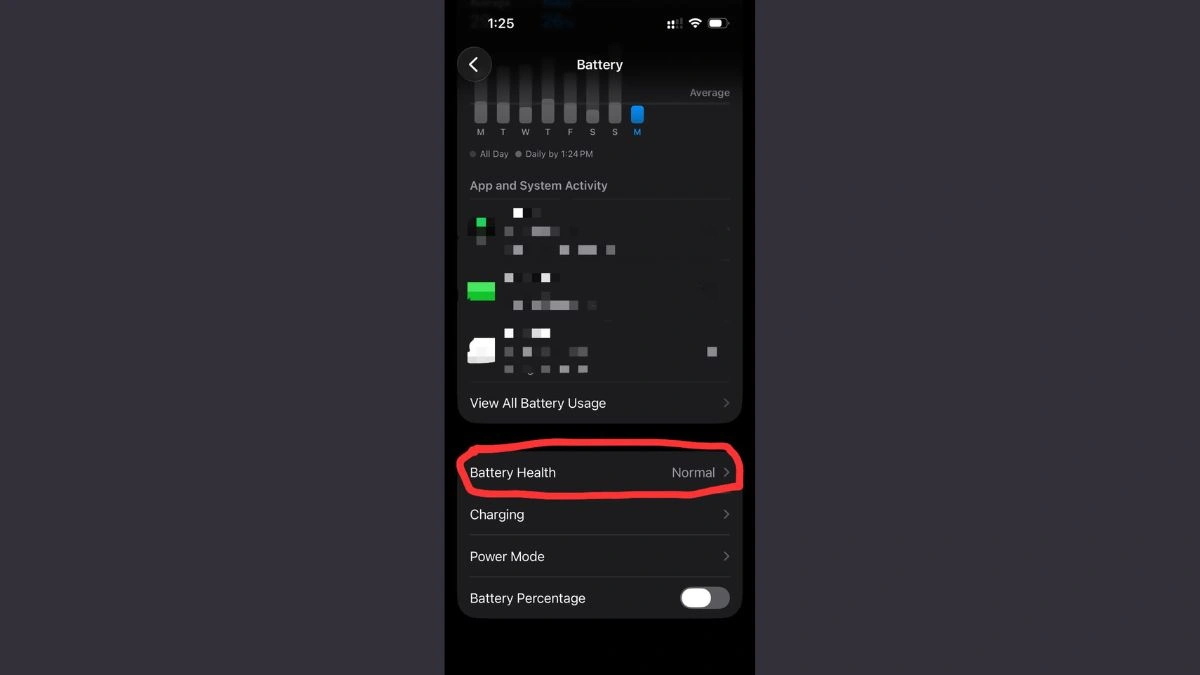
Tap Battery Health
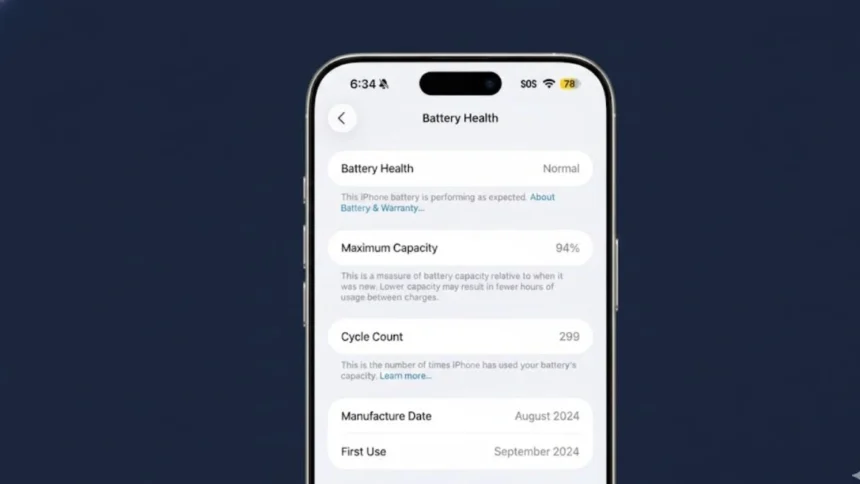
On iPhone 15 and newer models running iOS 17.4 or later, this screen shows:
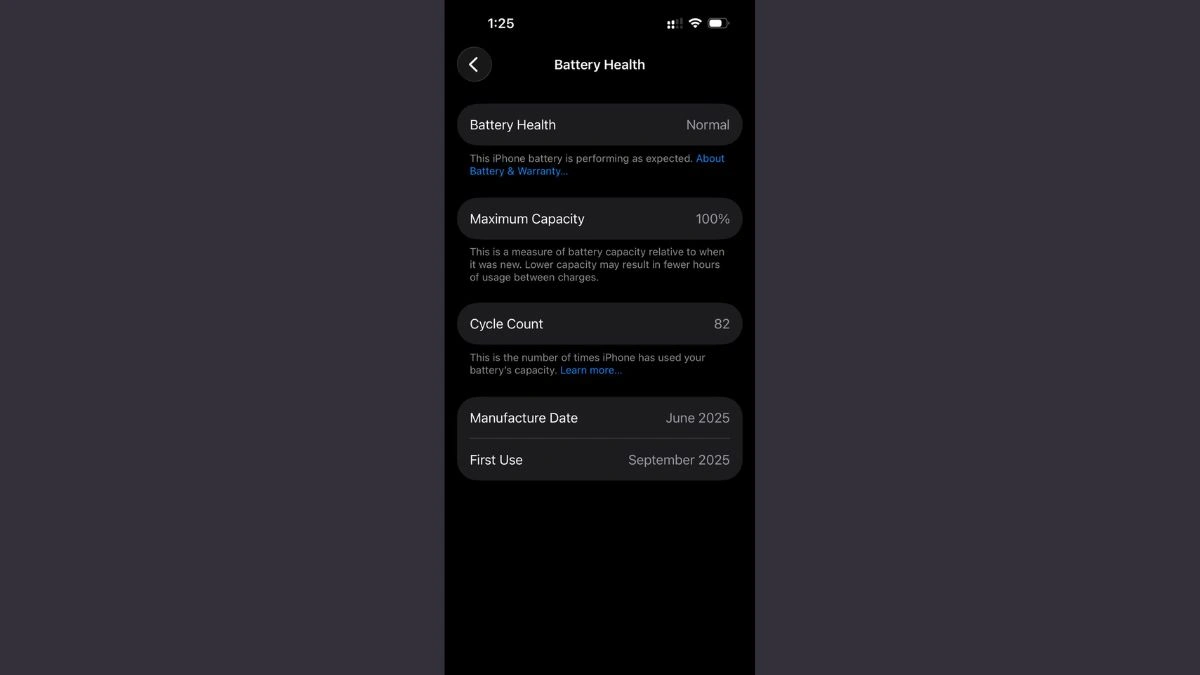
- Maximum Capacity – an estimate of your battery’s remaining charge capacity compared with when it was new
- Cycle Count – the number of full charge cycles your battery has gone through
- Battery age details – including manufacture and first use dates
- Battery replacement recommendations if needed
This is the most direct way to understand how your battery is performing over time.
2. Understanding iPhone Battery Cycle Count
Battery cycle count is a key indicator of battery aging. Unlike just the number of charges, a cycle count measures a complete 100 percent worth of discharge and recharge. For example, using 50 percent one day and charging it back to full, then using 50 percent the next day and charging back to full again, would count as one full cycle.
On iPhone 15 and newer models like the iPhone 16, Apple displays the cycle count in the Battery Health section of Settings so you can see how many cycles your battery has completed.
Why cycle count matters:
- Wear indicator – a higher cycle count usually means the battery’s ability to hold charge has diminished.
- General lifespan metric – iPhone batteries are typically designed to retain at least 80 percent of original capacity after about 1,000 full charge cycles under normal conditions.
Knowing the cycle count helps you understand how much life your battery has left.
3. When to Replace the Battery
There are two main metrics to look at when deciding if your iPhone 16 battery needs replacement:
Maximum Capacity Percentage
- This percentage compares current battery capacity with the capacity when the battery was new.
- If the Maximum Capacity drops significantly (for example, below 80 percent), daily usage and battery life may noticeably degrade. In that case, a battery replacement is generally recommended.
Battery Replacement Recommendations
- In the Battery Health settings screen, iOS may also show an “Important Battery Message” if the system detects that the battery’s ability to deliver peak performance is significantly reduced.
- When this message appears, it’s a clear indicator that Apple-recommended battery service may be needed.
Battery Lifespan Expectations
Apple states that iPhone batteries are consumable and will age over time. Once the battery health declines below a useful level, it can result in:
- Reduced battery life
- Slower performance
- Unexpected shutdowns
If you regularly see low Maximum Capacity and high cycle count, consider scheduling a battery service appointment through Apple or an Apple-authorized provider.
Checking your battery health on iPhone 16 is straightforward using the built-in Settings app. The Battery Health screen provides key metrics such as maximum capacity and cycle count, helping you track how your battery ages. Keeping an eye on these numbers can help you decide the right time for a battery replacement, ensuring your iPhone continues to perform reliably.
Also Read- OnePlus End-of-Year Launch Pad Go 2 And Watch Lite Upgrades