





How to Clear Browser Cache on Mobile Devices
Clearing your mobile browser cache is one of the simplest ways to fix loading problems, website errors, sign-in failures, and slow performance. Cached files help websites load faster, but over time they may cause issues. This guide explains the exact steps for Android, iOS, and Fire tablets in a clean and easy format.
Many users notice that clearing cache instantly improves browsing on their library websites, apps, and everyday online pages. It removes outdated files, resets stored data, and frees up space. Each device has a slightly different process, so the steps below are divided by platform for convenience.
Before you begin, remember that clearing cache does not delete your saved passwords unless you choose to remove them. It only removes temporary files, cookies, and stored browsing data.
How to Clear Cache on Android
Android devices offer more than one browser, so the steps vary slightly. The most common ones are the default Android browser and Google Chrome. Both can be cleared in a few taps.
Clear Cache on Android Browser
If you use the default Android browser, the settings are usually straightforward. The privacy section stores all options related to cache and cookies. Clearing these can help fix loading issues instantly and free the local storage used by old data.
Steps:
- Open the browser on your Android device.
- Go to Menu.
- Tap More.
- Open Settings or Privacy & Security.
- Tap Clear Cache.
- Tap Clear History.
- Tap Clear All Cookie Data if needed.
Each option removes specific temporary files. Clearing all three ensures a full reset of stored web data.
Clear Cache on Google Chrome (Android)
Google Chrome is the most widely used mobile browser. Clearing its cache helps when pages refuse to load, accounts do not sign in properly, or downloads fail.
Steps:
- Open Chrome.
- Tap Menu.
- Go to Settings.
- Tap Privacy.
- Tap Clear Browsing Data at the bottom of the screen.
- Keep the default options selected: browsing history, cache, and cookies.
- Tap Clear to finish.
Chrome clears all temporary web data in seconds, and you can resume browsing without interruptions.
How to Clear Cache on iOS (iPhone & iPad)
Safari is the default browser on iOS devices. The option to remove cache is built directly into the system settings, making the process simple and quick.
Safari stores website data, cookies, and browsing history. When too much data builds up, some pages may load incorrectly or cause sign-in problems.
Steps:
- Go to the Home screen.
- Open Settings.
- Tap Apps > Safari, or tap Safari directly on iOS 17 and earlier.
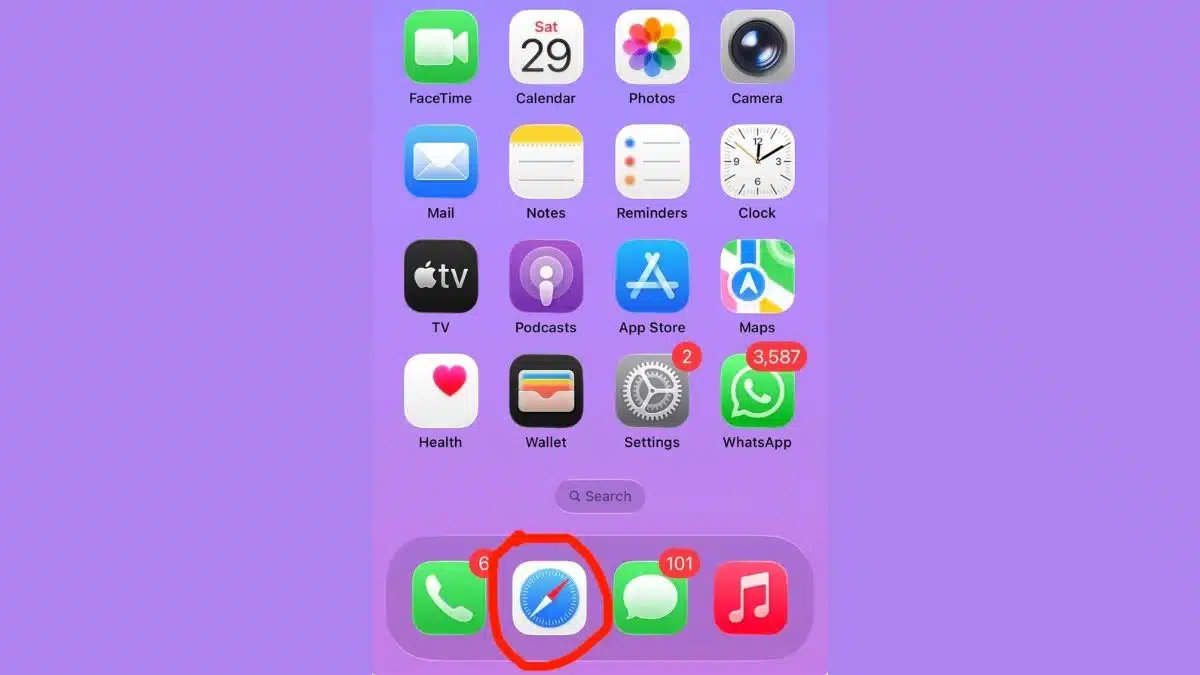
Open the Safari App
- Scroll to the bottom of the settings page.
- Tap Clear History and Website Data.

Confirm by Tapping Clear History
- Tap Clear History and Data again to confirm.
This action removes cached files while keeping your device storage clean and efficient.
How to Clear Cache on Fire Tablets (Silk Browser)
Fire tablets use the Silk Browser, which stores cache and cookies like any other browser. Clearing it can fix loading delays and sign-in errors, especially on library and media websites.
Steps:
- Open Silk Browser.
- Tap Menu.
- Go to Settings.
- Tap Privacy.
- Tap Clear Browsing Data.
- Ensure Browsing History, Cache, and Cookies & Site Data are all selected.
- Tap Clear to finish.
If the steps differ on your Fire tablet, check the device user manual as software versions vary.
Why Clearing Cache Helps
Clearing cache solves many common issues such as slow browsing, websites refusing to load, app-like web pages acting incorrectly, or login problems. Cached files accumulate over time, and outdated data can clash with updated site versions. Removing these files refreshes the browser and ensures smooth performance.
It also frees up storage space and removes cookies that may cause unwanted tracking or outdated user sessions.
FAQs
Q1. Does clearing cache delete passwords?
A. No, clearing cache does not remove saved passwords unless you manually select that option.
Q2. How often should I clear my browser cache?
A. Clearing it once every few weeks helps maintain smooth browsing.
Q3. Will clearing cache log me out of websites?
A. Clearing cookies may log you out. Clearing only cache will not.
Q4. Does clearing cache improve speed?
A. Yes, it removes outdated temporary files and can speed up browsing.
Q5. Is clearing cache safe for all devices?
A. Yes, it is safe and recommended for fixing common mobile browser issues.
Also Read- Google Pixel 10 Finally Bridges The Gap With Native AirDrop Compatibility