

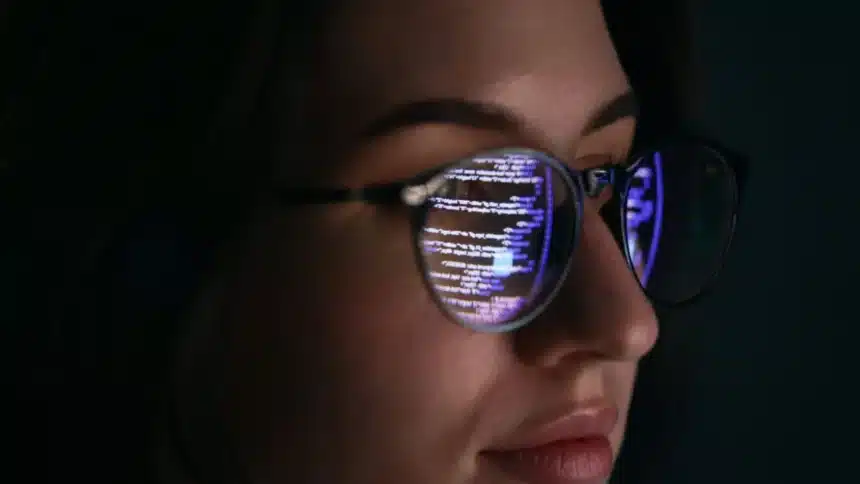
Google’s Android XR glasses are expected to arrive in 2026, bringing a new way to interact with digital content through wearable devices. Unlike smartphones, these glasses combine audio, touch controls and, in some models, a small display built into the frame.
Here is a guide on how you can control and navigate Android XR glasses.
Two Types of Android XR Glasses
Google has outlined two main versions:
- AI Glasses: These include speakers, a microphone and a camera. They work mainly through audio.
- Display AI Glasses: These add a small screen. Some models will have a single display (monocular), while future versions may include dual displays (binocular).
Importantly, even display models can switch to audio-only mode. This means apps must work properly without relying entirely on the screen.
Physical Buttons and Controls
All Android XR glasses will include certain mandatory hardware controls:
- Power button to turn the device on or off
- Touchpad for navigation
- Camera button for photos and videos
Models with a display will also have a display button, usually placed under the frame’s stem.
Camera Button
The camera button is simple to use:
- Press once to take a photo
- Press and hold to record a video
- Press again to stop recording
- Double-press to open the Camera app
Display Button
On display models, the display button allows users to wake or put the screen to sleep. This makes it easy to switch between screen-based interaction and audio-only use.
Using the Touchpad
The touchpad is the main navigation tool. It supports different gestures:
- Tap: Play, pause or confirm an action
- Touch and hold: Activate Gemini (Google’s AI assistant)
- Swipe: Move through menus or options
- Two-finger swipe: Adjust volume
- Swipe down (on display models): Go back to the previous screen or return to the Home screen
On display models, swiping can also help scroll through lists, move between items and select buttons.
LED Indicators
Android XR glasses will include two LED lights, one visible to the wearer and one for people nearby.
These lights show when certain features are active, such as recording or device status. They are system indicators and cannot be changed by apps.
The Software Experience
On Display AI Glasses, users will see a Home screen similar to a smartphone lock screen.
At the bottom is a system bar that remains visible. It shows:
- Time
- Weather
- Notifications
- Alerts
- Activity indicators
- Visual feedback from Gemini
Above the system bar, users may see quick information and suggested actions. The system is designed to show useful updates without requiring constant input.
Notifications
Notifications appear as small pill-shaped icons. When selected, they expand to show more detail.
Multitasking
If more than one activity is running, users can switch between them. The system supports simple multitasking without making the display crowded.
App Design and Display Considerations
Android XR glasses use a design style called “Glimmer.” It avoids sharp corners, instead using rounded shapes that are easier on the eyes.
Because the display is optical and see-through, colour choices matter. Some colours use more power and create more heat than others. For example:
- Green uses the least power
- Blue uses more power
- Bright white screens can cause overheating
To improve performance and battery life, apps are encouraged to use fewer bright elements and avoid filling the entire screen with white.
Icons should also be simple and unfilled to prevent visual distortion.
Google provides tools such as Jetpack Compose Glimmer to help developers create optimised buttons, cards, lists and other interface elements for the glasses.
Android XR glasses are designed to combine touch, voice and visual interaction in a compact wearable device. By using simple gestures, physical buttons and voice commands, users can control the device without needing a traditional screen-based experience.
Also Read: Step by Step Guide To Call Recording On Google Pixel