



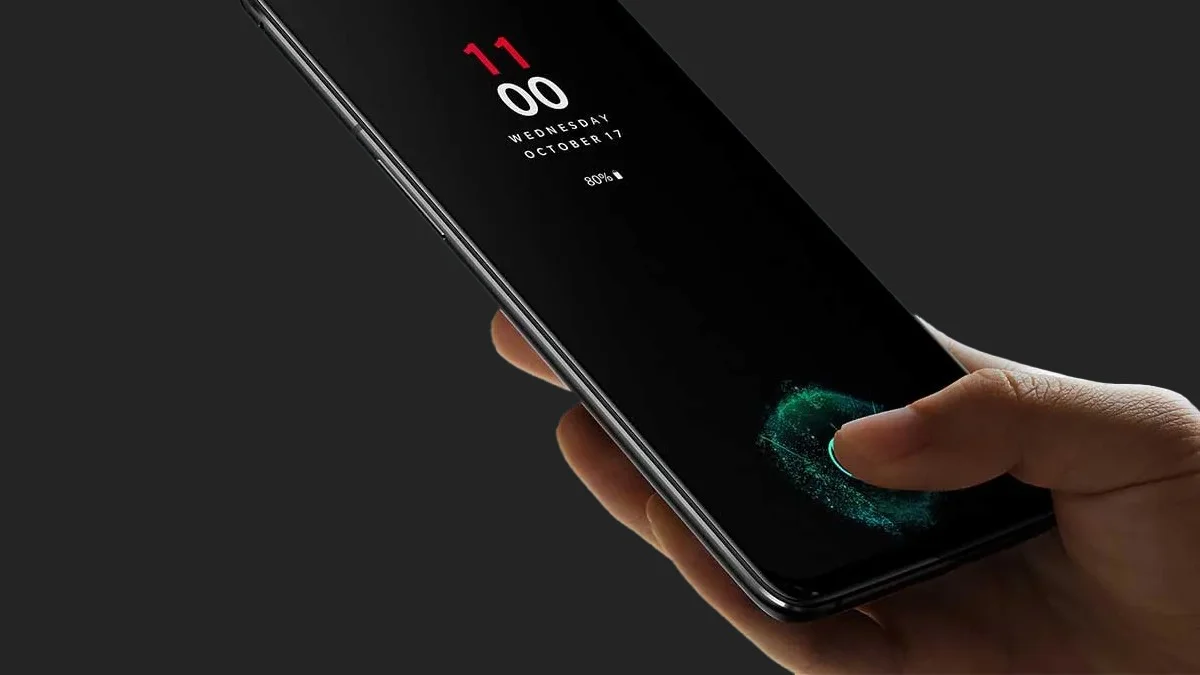
The Always-On Display (AOD) on OnePlus phones is a super handy feature. It lets you quickly check the time, date, and notifications without unlocking your phone. And with the new OxygenOS 15 (based on Android 15), OnePlus has taken AOD customization to the next level, letting you turn your screen into something stylish, personal, and even helpful for your digital well-being.
Here’s a simple guide to using and customizing AOD on your OnePlus device with OxygenOS 15:
Getting Started: Turn on AOD and Find the Settings
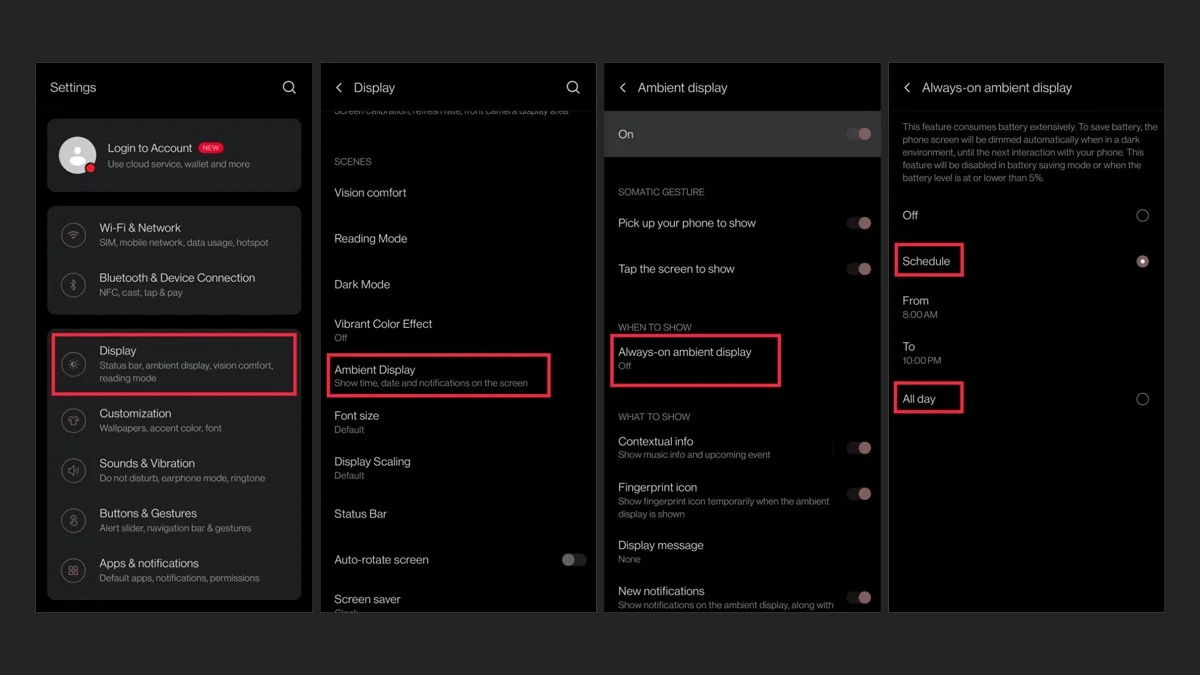
- Open the Settings App: Tap the Settings icon on your phone’s home screen or app drawer.
- Go to AOD Settings: Head to Wallpapers & Style or Display, then look for Ambient Display or Always-On Display. The exact path might vary slightly by device.
- Enable AOD: Toggle the switch to turn on the Always-On Display feature.
- Choose When AOD Shows: OnePlus gives you a few ways to control when AOD is active:
All Day: AOD is always on (uses more battery but still optimized).
Scheduled: Set specific times for AOD to be on, like during the day but off at night.
- Somatic Gesture or Tap to Show: AOD appears only when you tap the screen or lift your phone. Great for saving battery.
Customize Your AOD Style
OxygenOS 15 adds new designs and options to help you get creative.
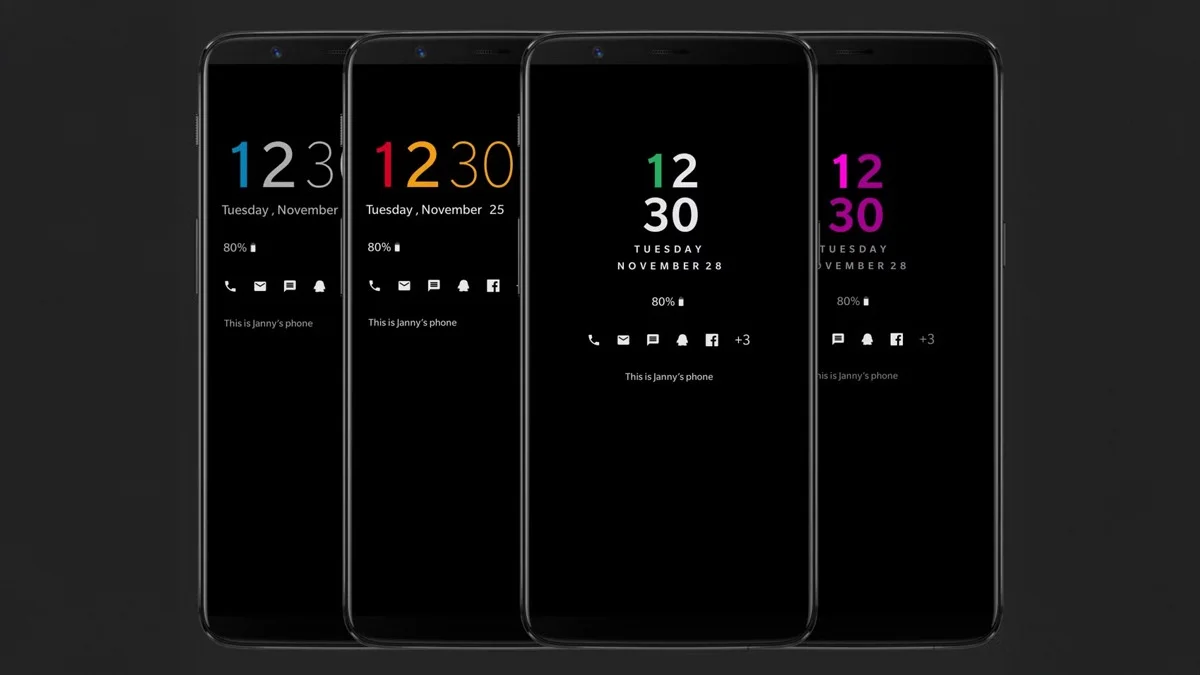
Clock Styles:
You can choose your favorite font, layout, and colors. OxygenOS 15 introduces effects like blurred wallpapers, glass textures, color blending, and AI-powered depth.
Bitmoji AOD:
Connect your Bitmoji account, and your avatar will animate and react based on your activity, like dancing to music. Updates from Snapchat sync automatically.
Canvas AOD:
It works best with clear portrait photos. You can pick from different outline styles and colors. Your original photo becomes the lock screen wallpaper for a connected look.
Custom Patterns and Personal AOD:
You can draw your own designs using different shapes, brush types, and colors. Some models also let you add text or images, great for showing a photo or quote.
Insight AOD:
It shows a bar that changes based on your phone use, plus an unlock counter. It’s not flashy, but it’s great for tracking screen time.
Omoji AOD:
You can customize your Omoji and pick animations for your AOD. It’s a fun, built-in alternative to Bitmoji.
What’s New in OxygenOS 15 for AOD
OneTake Transitions: Enjoy smooth movement from the AOD to the lock screen and then to your home screen.
Luminous Rendering Engine: This adds effects like real-time blur, shadows, and more natural lighting across your lock and AOD screens.
More Custom Modes: You can now choose between new looks like Flux or Classic, with extra design options.
Extra AOD Tips
Control Notifications: You can pick which app icons appear on your AOD in the settings.
Choose What Info to Show: Decide whether to show the date, battery percentage, or even certain widgets.
Watch Battery Life: Even though AOD is efficient, it still uses some power. If you’re concerned, try using it on a schedule or enable gesture-based display.
Try Different Styles: Keep experimenting until you find a setup you love. OnePlus keeps adding new options in updates, so stay updated.
By using these tools and features in OxygenOS 15, your OnePlus AOD can become much more than a passive screen. It can be something personal, useful, and uniquely yours.
ALSO READ: OnePlus 13 and 13R Update Brings Mind AI Tool with Smart Features