
By using this site, you agree to the Privacy Policy and Terms of Use.
Accept
DevicologyDevicology
  • News
    NewsShow More
    G-Shock Blends Japanese Craft And Iconic Design With The Origami Series
    G-Shock Blends Japanese Craft And Iconic Design With The Origami Series
    By Tricia Wei
    Apple Brings Back Drag And Drop Multitasking With iPadOS 26.2 Update
    Apple Brings Back Drag And Drop Multitasking With iPadOS 26.2 Update
    By Tricia Wei
    Motorola Signature Debuts as a Slim Flagship With 7 Years of OS Updates
    Motorola Signature Debuts as a Slim Flagship With 7 Years of OS Updates
    By Tricia Wei
    Apple, iPad mini, iPad mini 8, A20 Pro, Apple Silicon, Tablets, Consumer Technology, OLED Display, Mobile Chips, iOS
    iPad mini 8 May Get a Major Performance Boost With A20 Pro Chip
    By Tricia Wei
    Qwen’s Global Rise: Alibaba’s AI Models Pass 700 Million Downloads
    Qwen’s Global Rise: Alibaba’s AI Models Pass 700 Million Downloads
    By Tricia Wei
  • Features
    FeaturesShow More
    Apple Watch Blood Sugar Tracking Might Be Closer Than We Think
    Apple Watch Blood Sugar Tracking Might Be Closer Than We Think
    By Tricia Wei
    Apple Brings Back Drag And Drop Multitasking With iPadOS 26.2 Update
    Apple Brings Back Drag And Drop Multitasking With iPadOS 26.2 Update
    By Tricia Wei
    Public WiFi Can Expose Your Identity In Minutes, Security Expert Warns
    Public WiFi Can Expose Your Identity In Minutes, Security Expert Warns
    By Tricia Wei
    Apple TV Adds Google Cast For Android Users While Netflix Cuts Support
    Apple TV Adds Google Cast For Android Users While Netflix Cuts Support
    By Tricia Wei
    Apple CarPlay Ultra 2025: Everything You Need To Know About Apple’s Biggest In-Car Software Upgrade
    Apple CarPlay Ultra 2025: Everything You Need To Know About Apple’s Biggest In-Car Software Upgrade
    By Carlos Blanco
  • Reviews
  • Apps
  • Guide
    GuideShow More
    How To Create A Google Photos Album In Just A Few Minutes
    How To Create A Google Photos Album In Just A Few Minutes
    By Tricia Wei
    Apple’s Back Tap Feature Makes Smart Home Control Effortless
    Apple’s Back Tap Feature Makes Smart Home Control Effortless
    By Tricia Wei
    How To Blur Your Home On Google Maps In Under A Minute
    How To Blur Your Home On Google Maps In Under A Minute
    By Tricia Wei
    Step by Step Guide To Call Recording On Google Pixel
    Step by Step Guide To Call Recording On Google Pixel
    By Tricia Wei
    How To Fix iPhone 16 Battery Drain After The Latest Update: Step-by-Step Guide
    How To Fix iPhone 16 Battery Drain After The Latest Update: Step-by-Step Guide
    By Carlos Blanco
  • Tech
    TechShow More
    Apple Watch Blood Sugar Tracking Might Be Closer Than We Think
    Apple Watch Blood Sugar Tracking Might Be Closer Than We Think
    By Tricia Wei
    G-Shock Blends Japanese Craft And Iconic Design With The Origami Series
    G-Shock Blends Japanese Craft And Iconic Design With The Origami Series
    By Tricia Wei
    Apple Brings Back Drag And Drop Multitasking With iPadOS 26.2 Update
    Apple Brings Back Drag And Drop Multitasking With iPadOS 26.2 Update
    By Tricia Wei
    Motorola Signature Debuts as a Slim Flagship With 7 Years of OS Updates
    Motorola Signature Debuts as a Slim Flagship With 7 Years of OS Updates
    By Tricia Wei
    Chinese Smart Glasses Makers Steal the Spotlight at CES
    Chinese Smart Glasses Makers Steal the Spotlight at CES
    By Tricia Wei
  • Top
    TopShow More
    Top 5 Laptops Expected To Launch In 2026: MacBook M6, Dell XPS, ThinkPad And More
    Top 5 Laptops Expected To Launch In 2026: MacBook M6, Dell XPS, ThinkPad And More
    By Carlos Blanco
    Top 5 Smartphones Expected To Launch In 2026: iPhone 18, Galaxy S26 And More
    Top 5 Smartphones Expected To Launch In 2026: iPhone 18, Galaxy S26 And More
    By Carlos Blanco
    Top 5 Smartwatches Expected To Launch In 2026: Apple Watch, Galaxy Watch And More
    Top 5 Smartwatches Expected To Launch In 2026: Apple Watch, Galaxy Watch And More
    By Carlos Blanco
    Top 5 Wireless Earbuds Expected To Launch In 2026: AirPods, Galaxy Buds And More
    Top 5 Wireless Earbuds Expected To Launch In 2026: AirPods, Galaxy Buds And More
    By Carlos Blanco
    Top 5 Action Cameras To Buy In 2026 For Video And Vlogging
    Top 5 Action Cameras To Buy In 2026 For Video And Vlogging
    By Carlos Blanco
  • Game Zone
    Game ZoneShow More
    Best Free iOS Games 2025: Hottest iPhone And iPad Games To Try Now
    Best Free iOS Games 2025: Hottest iPhone And iPad Games To Try Now
    By Carlos Blanco
    Best New iOS And Android Games For August 2025
    Best New iOS And Android Games For August 2025
    By Tricia Wei
    Top Gaming Websites In Thailand (July 2025): Most Visited Platforms Ranked
    Top Gaming Websites In Thailand (July 2025): Most Visited Platforms Ranked
    By Carlos Blanco
    Top Gaming Websites In Ukraine: Most Visited Platforms in 2025
    Top Gaming Websites In Ukraine: Most Visited Platforms in 2025
    By Carlos Blanco
    Phantom Blade Zero Gameplay Demo Played at S-Party 2025
    Phantom Blade Zero Gameplay Demo Played at S-Party 2025
    By Vishwajeet Jaiswal
Font ResizerAa
DevicologyDevicology
Font ResizerAa
  • News
  • Features
  • Reviews
  • Apps
  • Guide
  • Tech
  • Top
  • Game Zone
Search
  • News
  • Features
  • Reviews
  • Apps
  • Guide
  • Tech
  • Top
  • Game Zone

Popular Post

How to Save Mobile Storage Without Deleting Your Apps
News

How to Save Mobile Storage Without Deleting Your Apps

CES 2026:
NewsTech

CES 2026: The Gadgets Set To Transform Homes This Year

Apple Issues Safety Alert About Charging Your iPhone While Sleeping
News

Apple Issues Safety Alert About Charging Your iPhone While Sleeping

CES 2026: Samsung Launches Ultra-Slim Galaxy Book6 Laptops Packed With Power
News

CES 2026: Samsung Launches Ultra-Slim Galaxy Book6 Laptops Packed With Power

Follow US
Made by ThemeRuby using the Foxiz theme. Powered by WordPress
Guide

Transfer WhatsApp From iPhone To iPhone

Vishwajeet Jaiswal
Last updated: August 4, 2025
By Vishwajeet Jaiswal
Share
How to Transfer WhatsApp Chats from iPhone to iPhone
Transfer WhatsApp Chats from iPhone to iPhone

Learn How to Transfer WhatsApp Chats from iPhone to iPhone

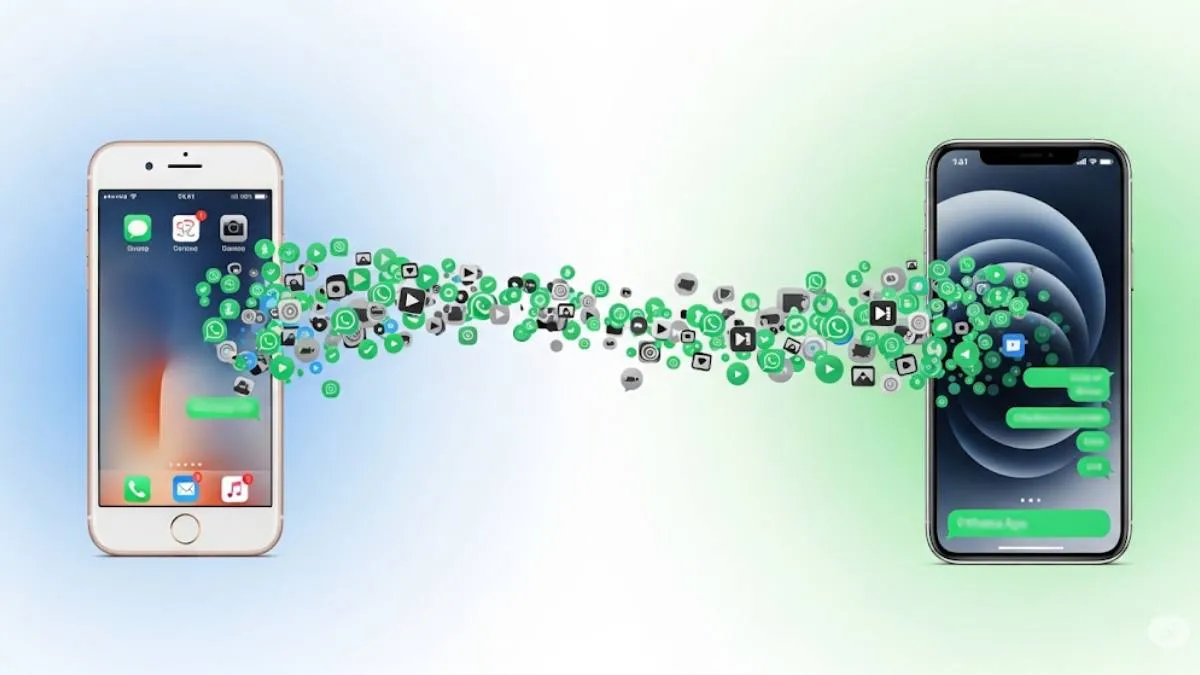
If you’re switching to a new iPhone, one of the first things you’ll want to do is transfer WhatsApp from iPhone to iPhone. While most people use iCloud backup to transfer, but not everyone has enough iCloud storage to do the same. The good news is you can transfer WhatsApp from iPhone to iPhone without Backup and without any data loss. In this guide we’ll show you the easiest and safest way to do it for free. Whether you want to do it with without Backup, via QR Code, WhatsApp iCloud Backup, or iCloud the choice depends on your storage availability and comfort with these WhatsApp transfer tools.

Contents
  • Learn How to Transfer WhatsApp Chats from iPhone to iPhone
  • Transfer WhatsApp from iPhone to iPhone Without Backup
    • Method 1 – Direct Transfer via QR Code
      • How Direct Transfer Works
      • Step-by-Step Process to Transfer WhatsApp
    • Method 2 – Using WhatsApp iCloud Backup
      • Understanding iCloud Chat Backup
      • Steps for Restoring from iCloud Backup
    • Method 3 – Use Third-Party WhatsApp Transfer Apps
      • Why Choose a Third-Party Tool?
      • Things you need to do before transferring your WhatsApp
      • Step-by-Step Guide to Using the Tool
    • Tips for a Smooth WhatsApp Transfer in Between iphones
      • Before Transfer
      • After Transfer
    • Transfer WhatsApp to a New iPhone Quickly

Transfer WhatsApp from iPhone to iPhone Without Backup

Transfer WhatsApp Chats from iPhone to iPhone

Switching to a new iPhone is exciting but transferring your WhatsApp chats and media can feel stressful. This guide will show you the most effective ways to transfer WhatsApp from iPhone to iPhone, with or without backup. Whether you prefer using built in features or third-party PC tools or third-party WhatsApp transfer apps you’ll find everything here you need.

WhatsApp holds important conversations, media and memories. So, moving this data safely to your new device is a priority. Below, we’ll explain each method step-by-step to help you keep all your chats intact and transfer them with ease.

Method 1 – Direct Transfer via QR Code

This method uses WhatsApp’s built-in feature for device to device transfer with a QR code. It is one of the fastest ways to transfer WhatsApp from iPhone to iPhone free without backup.

- Advertisement -
Ad image

How Direct Transfer Works

This feature lets you move your WhatsApp messages and media directly using a QR code. Both devices must have the latest iOS and WhatsApp versions. Note that this method does not transfer payment messages or call history.

Step-by-Step Process to Transfer WhatsApp

  1. On your old iPhone – Open WhatsApp and go to Settings
  2. Tap Chats – Then choose Transfer Chats to iPhone
  3. Tap Start – Begin the transfer process
  4. On your new iPhone – Install WhatsApp and register using the same phone number
  5. Select Continue – when you get the prompt for transfering the chat history
  6. Scan the QR code  – On your old iPhone using your new iPhone’s camera
  7. Wait until the transfer is complete and then set up your profile

This is the quickest option for you, if you want a fast and easy iPhone to iPhone WhatsApp transfer solution without using your iCloud.

Method 2 – Using WhatsApp iCloud Backup

If you have iCloud storage available, then you can easily transfer your WhatsApp from iPhone to iPhone using iCloud.

Understanding iCloud Chat Backup

This feature lets you save your WhatsApp data to your iCloud account . You’ll need to ensure iCloud Drive is enabled and there’s enough storage space on both devices for a smooth transfer.

Steps for Restoring from iCloud Backup

  1. Open WhatsApp on your old iPhone.
  2. Go to Settings > Chats > Chat Backup.
  3. Tap Back Up Now to upload your current chat history to iCloud.
  4. On your new iPhone, install WhatsApp and sign in using the same phone number.
  5. When prompted, tap Restore Chat History.

All your chats and media should appear on the new device, just like before after restoring

- Advertisement -
Ad image

ALSO READ: How To Transfer WhatsApp Chats From Android To iPhone

Method 3 – Use Third-Party WhatsApp Transfer Apps

If you prefer a more flexible and complete option, then you can use third-party tools to perform an iPhone to iPhone free WhatsApp transfer. These tools are especially helpful if you want to move WhatsApp without iCloud or iTunes.

Why Choose a Third-Party Tool?

As compare to device built-in features, third-party app and tools such as Dr.Fone WhatsApp Transfer, EaseUS ChatTrans provides more control and features.

- Advertisement -
Ad image

These tools allow you to –

  • Transfer complete chat history, including media, documents and stickers
  • Use the same tool for Android and iPhone transfers
  • Back up and restore WhatsApp chats easily
  • Avoid limitations like iCloud storage or same Apple ID requirements

Things you need to do before transferring your WhatsApp

Before using a any WhatsApp transfer tool check if your device supports with it or not with iOS versions. You’ll also need a PC or Mac (Windows or Mac) to install the software and USB cables to connect both phones.

Step-by-Step Guide to Using the Tool

  1. Download and install a WhatsApp transfer tool on your PC or Mac.
  2. Use USB cables to connect both your old iPhone and new iPhone to the computer.
  3. Open the tool and choose the WhatsApp Transfer option.
  4. Select your old iPhone as the source and the new iPhone as the destination.
  5. Click on Transfer and follow the instructions shown on the screen.
  6. Allow them If the tool asks for any permissions on your phones.
  7. Wait for the transfer to finish and confirm everything is moved successfully.

These WhatsApp device switching tools are useful, when you want to transfer WhatsApp from iPhone to iPhone, without Backup or iCloud, offering reliable results even for large data sizes.

Tips for a Smooth WhatsApp Transfer in Between iphones

Before Transfer

  • Make sure your new iPhone has enough free storage
  • Ensure both iPhones are fully charged
  • Check your Wi-Fi connection if using iCloud
  • Update WhatsApp and iOS to the latest versions

After Transfer

  • Open WhatsApp on your new iPhone
  • Browse through chats and media to ensure everything is intact
  • Send a test message to confirm functionality

Doing these checks helps you avoid missing data and ensures everything is working smoothly after the move.

Transfer WhatsApp to a New iPhone Quickly

Moving your WhatsApp from one iPhone to another is not too hard. Whether you are doing this using methods like direct QR code method, iCloud or third-party tools or apps. All these options allow you to transfer WhatsApp from iPhone to iPhone smoothly.

This guide showed you how to perform a safe step-by-step iPhone to iPhone WhatsApp transfer with or without backup. Choose the method which suits your situation and enjoy your new iPhone without losing anything of your WhatsApp .

ALSO READ: How to Transfer Data from iPhone to Android – Easy Steps and Guide

TAGGED:iPhone to iPhoneiPhone to iPhone WhatsApp SwitchMobileTransMove WhatsApp Using iCloudPhone to Phone transferTransfer WhatsAppTransfer WhatsApp to a New iPhoneWhatsApp Chat backup iTunesWhatsApp Chats TransferWhatsApp data to your iCloud accountWhatsApp Switch iPhone to iPhoneWhatsApp transferWhatsApp without iCloudwithout iCloud
Share This Article
Facebook Flipboard Copy Link
- Advertisement -
Ad image

Must Read

Apple Watch Blood Sugar Tracking Might Be Closer Than We Think
TechFeatures

Apple Watch Blood Sugar Tracking Might Be Closer Than We Think

G-Shock Blends Japanese Craft And Iconic Design With The Origami Series
TechNews

G-Shock Blends Japanese Craft And Iconic Design With The Origami Series

How To Create A Google Photos Album In Just A Few Minutes
Guide

How To Create A Google Photos Album In Just A Few Minutes

Apple Brings Back Drag And Drop Multitasking With iPadOS 26.2 Update
TechFeaturesNews

Apple Brings Back Drag And Drop Multitasking With iPadOS 26.2 Update

- Advertisement -
Ad image

You Might also Like

How To Get The Highest Video Quality On Netflix With Simple Tips
Guide

How To Get The Highest Video Quality On Netflix With Simple Tips

How to Restore iPhone from Backup: Step-by-Step Guide
Guide

How to Backup And Restore iPhone: Step-by-Step Guide

How to Personalize the Action Button on iPhone 16?
GuideTech

How to Personalize the Action Button on iPhone 16?

What Is Face ID And How Does It Work On iPhone And iPad?
Guide

What Is Face ID And How Does It Work On iPhone And iPad?

Devicology
Whatsapp Instagram X-twitter Linkedin

The website Devicology is a repository of information on mobile devices, mobile gadgets, their functions and how to manage the devices for better user control. It offers expert advice on how to manage the settings of the hand-held devices so that the control remains with the user. From custom settings to optimum device utilization, the website covers multiple subjects of user interest and value. 

  • About Us
  • Terms of Use
  • Privacy Policy
  • Contact

© 2025 – Devicology. All Rights Reserved