



If you have ever wished you could open apps quickly without leaving what you are doing, the Smart Sidebar on the OnePlus Nord 4 is exactly for that.
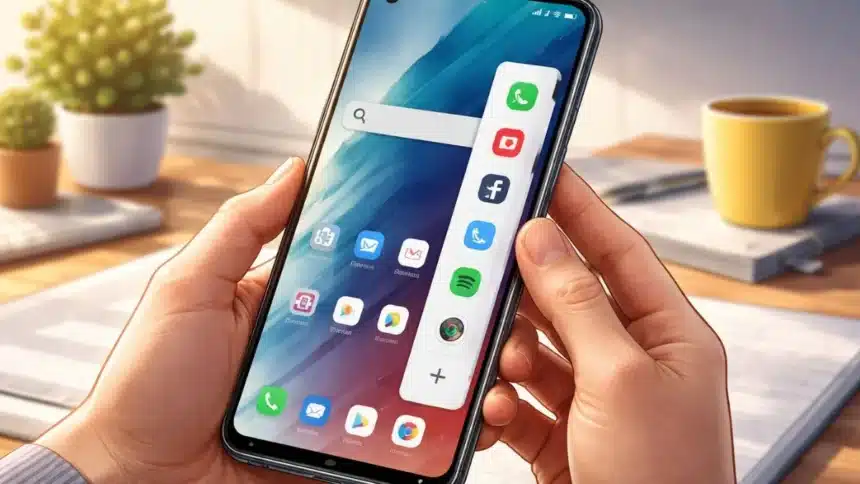
Think of it like a hidden shortcut panel that sits on the side of your screen. Swipe it, and your favourite apps, tools, and even mini floating windows are right there.
What is Smart Sidebar?
Smart Sidebar is like a quick-access drawer. This means instead of going back to the home screen and searching for apps or switching again and again. You just swipe from the side and open the app instantly.
It saves time. A lot.
Steps-by-Step to Enable Smart Sidebar
Follow these steps, and you are done in less than a minute:
Step 1: Open Settings
Unlock your phone and tap on Settings
Step 2: Go to Accessibility & Convenience
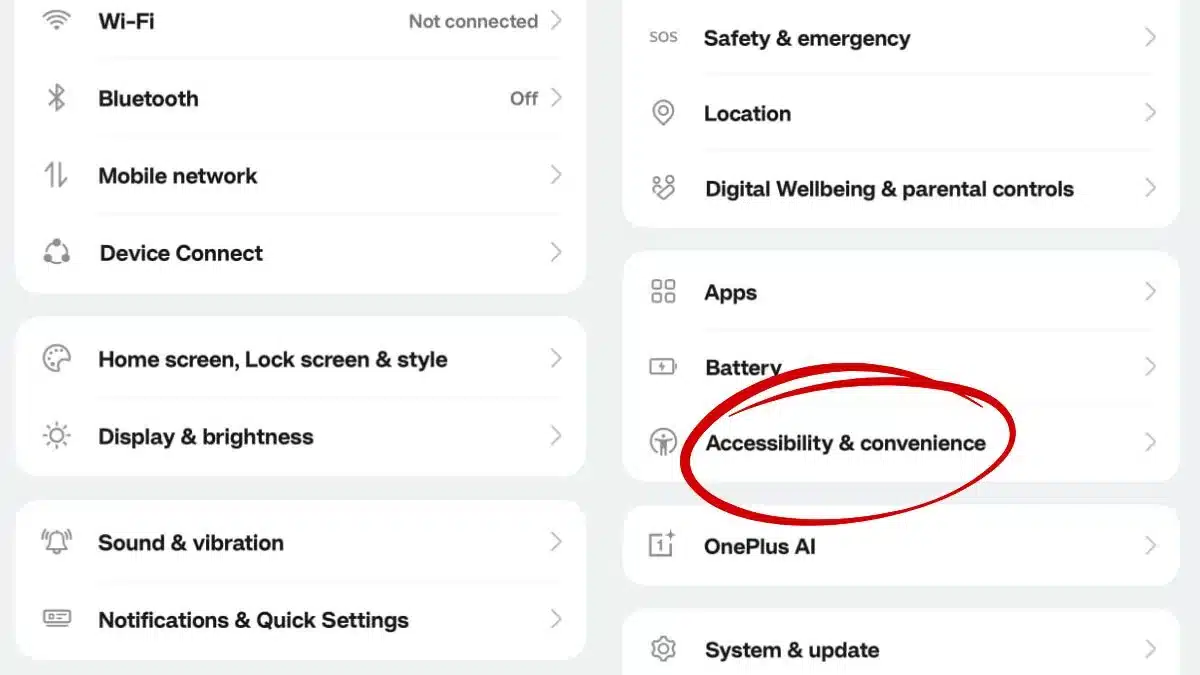
Scroll down a bit and tap on accessibility or sometimes Special Features & AI
Step 3: Tap on Smart Sidebar
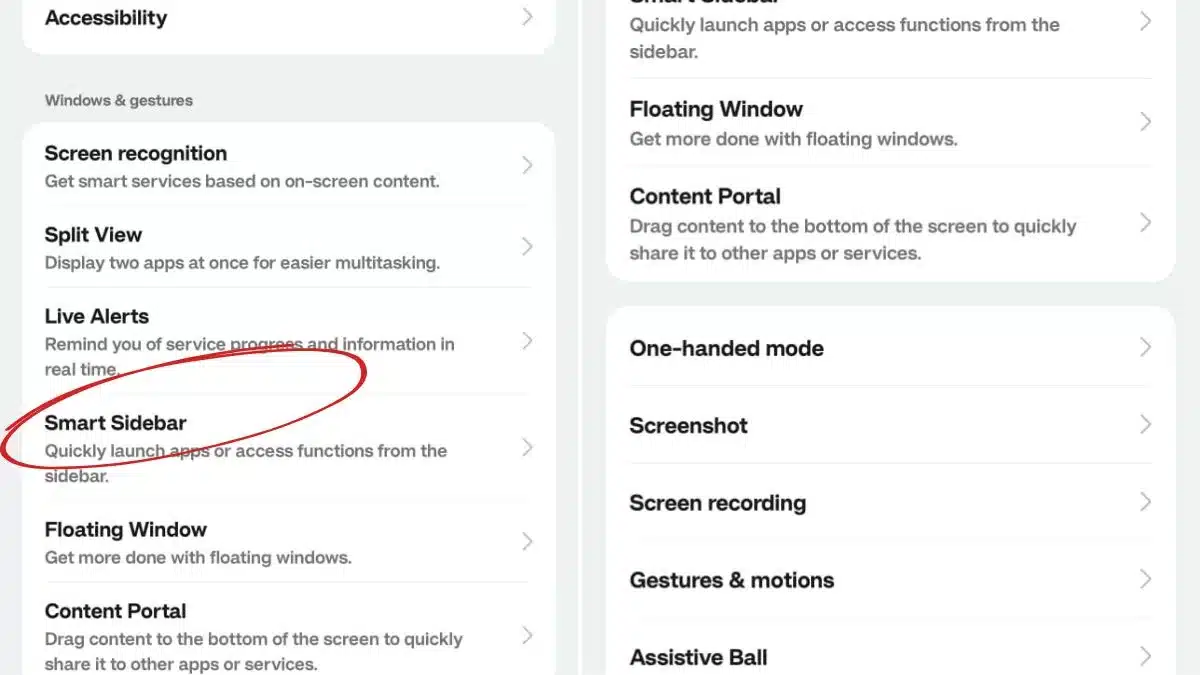
Now you’ll see the option, Smart Sidebar
Step 4: Turn It ON
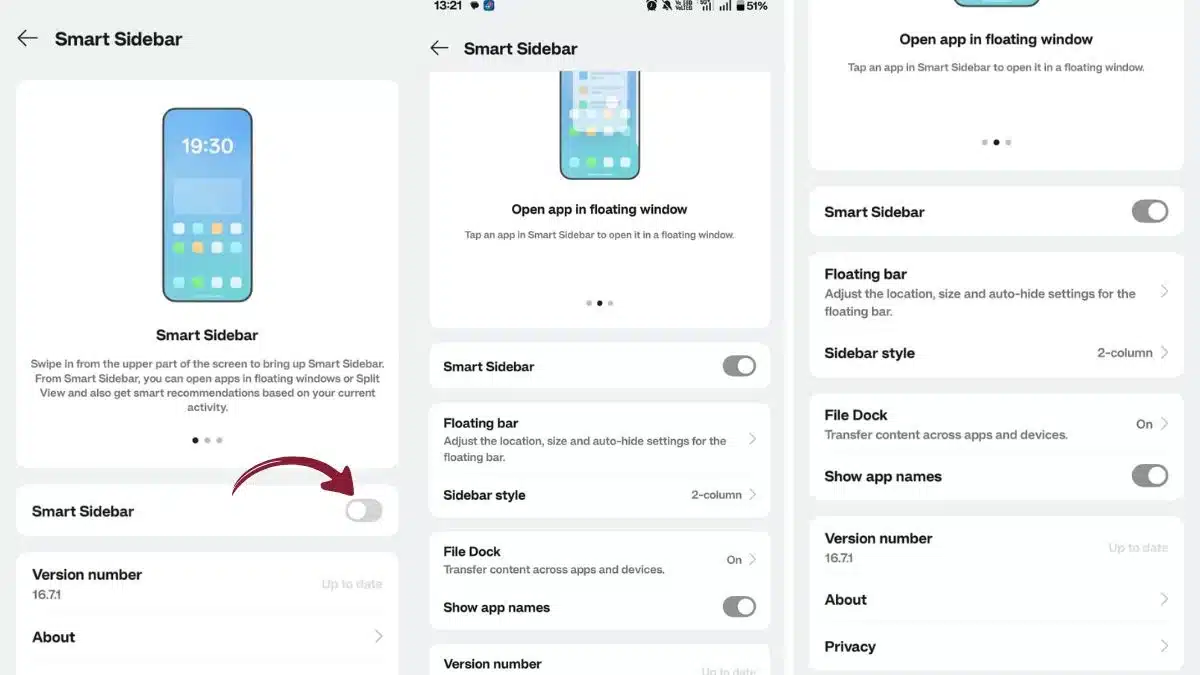
You will see a toggle switch.
Just turn it ON. And that’s it. You’re done.
How to Use Smart Sidebar
Once it’s enabled, look carefully at the side of your screen.
You will see a small vertical line (very light). Just swipe from that line towards the centre.
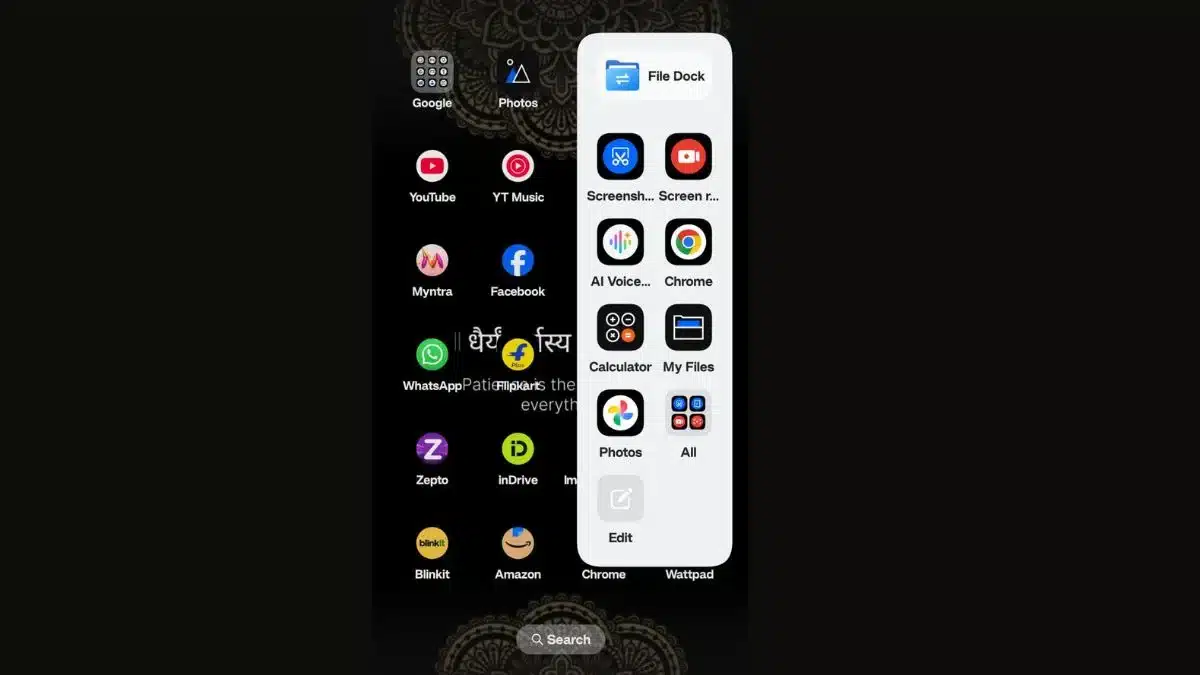
Now your sidebar opens. From here, you can open apps instantly, use tools like screenshot, screen recording and drag apps into floating windows.
Smart Sidebar is one of those features people ignore, but once you start using it, you won’t go back.
Also Read: How To Use Two WhatsApp Accounts On One Phone Effortlessly