


How to Fix iPhone 16 Battery Drain After the Latest Update
If your iPhone 16 battery is draining faster after a recent update, you are not alone. It is common for users to notice poor battery life right after installing new software. Sometimes the system is still settling in. At other times, certain settings or apps start using more power in the background.
- How to Fix iPhone 16 Battery Drain After the Latest Update
- Why Battery Drain Happens After an Update
- Step 1: What To Check First
- Check Battery Usage by App
- Step 2: Step-by-Step Settings Changes
- Turn On Low Power Mode When Needed
- Optimise Display Settings
- Review Location Services
- Good Habits After Fixing Battery Drain
- FAQs
- Q1. Why did my iPhone 16 battery start draining after the update?
- Q2. How long should I wait before worrying about battery drain after an update?
- Q3. Which settings help the most with battery life on iPhone 16?
- Q4. Will resetting all settings delete my photos and apps?
- Q5. When should I think about erasing and restoring my iPhone 16?
The good news is that most battery drain issues can be improved with a few careful checks and simple changes. In this step by step guide, we will walk through what to check first, the most important settings you should adjust, how to control background apps and what kind of resets you can try if nothing else works.
Why Battery Drain Happens After an Update
After a major update, your iPhone often performs tasks in the background. For example, it may reindex files, reanalyse photos or optimise apps. All this can use more battery in the first day or two. Sometimes new features are turned on by default, which can also increase power usage.
In other cases, an app that worked well before the update might not be optimised yet for the new version. That app may start using extra battery without you noticing. That is why it is important to check both system settings and individual apps when you feel your iPhone 16 battery is suddenly worse.
You do not always have to reset or erase your phone. In many situations, a few simple adjustments are enough to get your battery life back to normal or at least much better than before.
Step 1: What To Check First
Before making big changes, start with basic checks. These early steps help you understand whether the drain is temporary or a real ongoing problem.
Give It 24-48 Hours
Right after installing a new update, your iPhone may feel warmer and lose battery quickly. This can be normal while the system completes background tasks. If you just updated today, wait a day or two and see if the situation improves on its own.
At the same time, use this period to watch how you are using the phone. If you are testing new features, using the camera a lot or gaming more, that can also explain faster drain.
Check Battery Usage by App
Next, look at which apps are using the most power.
- Open the Settings app.
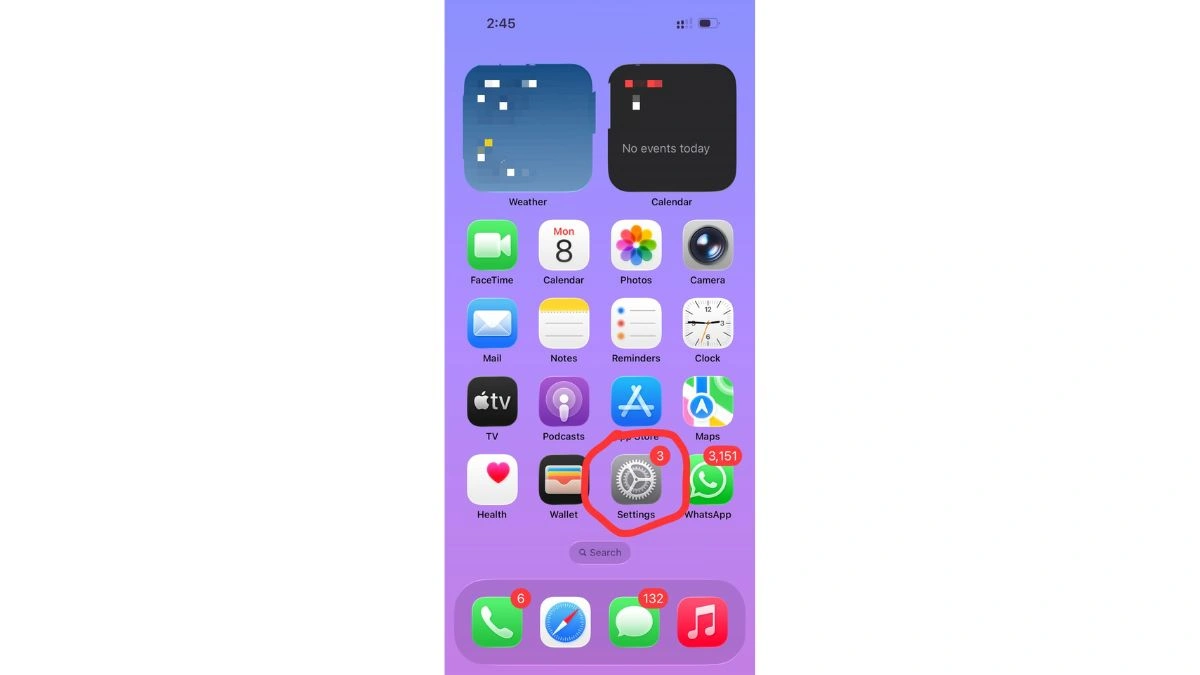
Open Settings - Tap Battery.
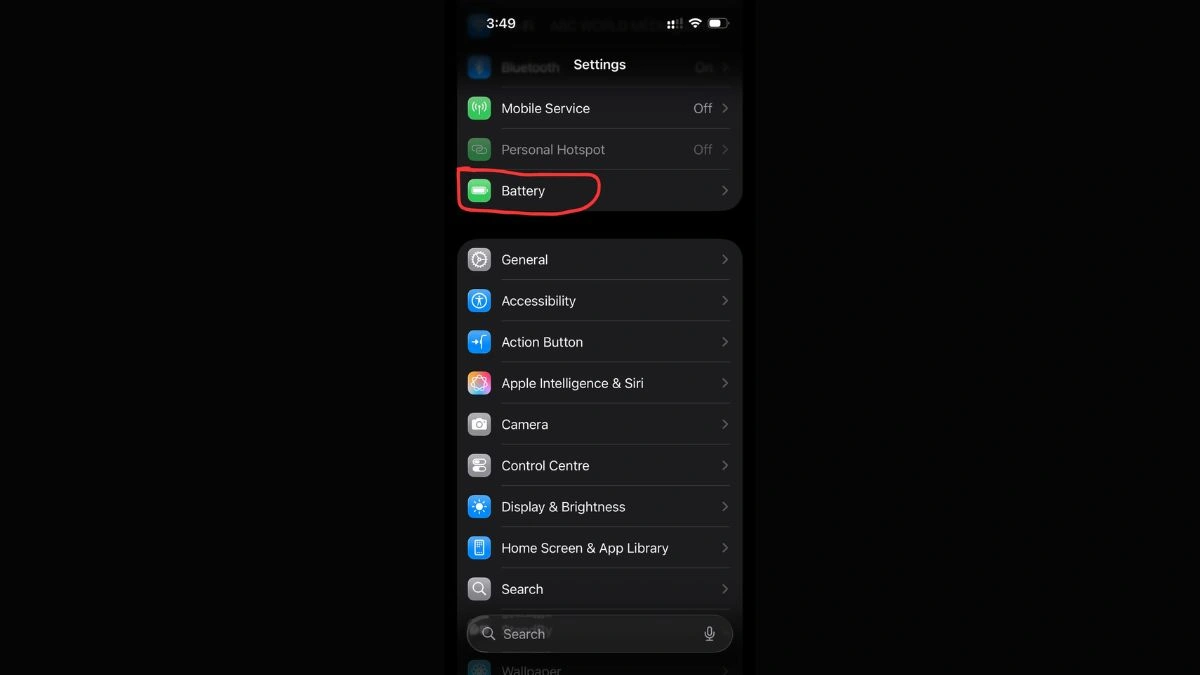
Tap Battery - Scroll down to see Battery Usage by App.
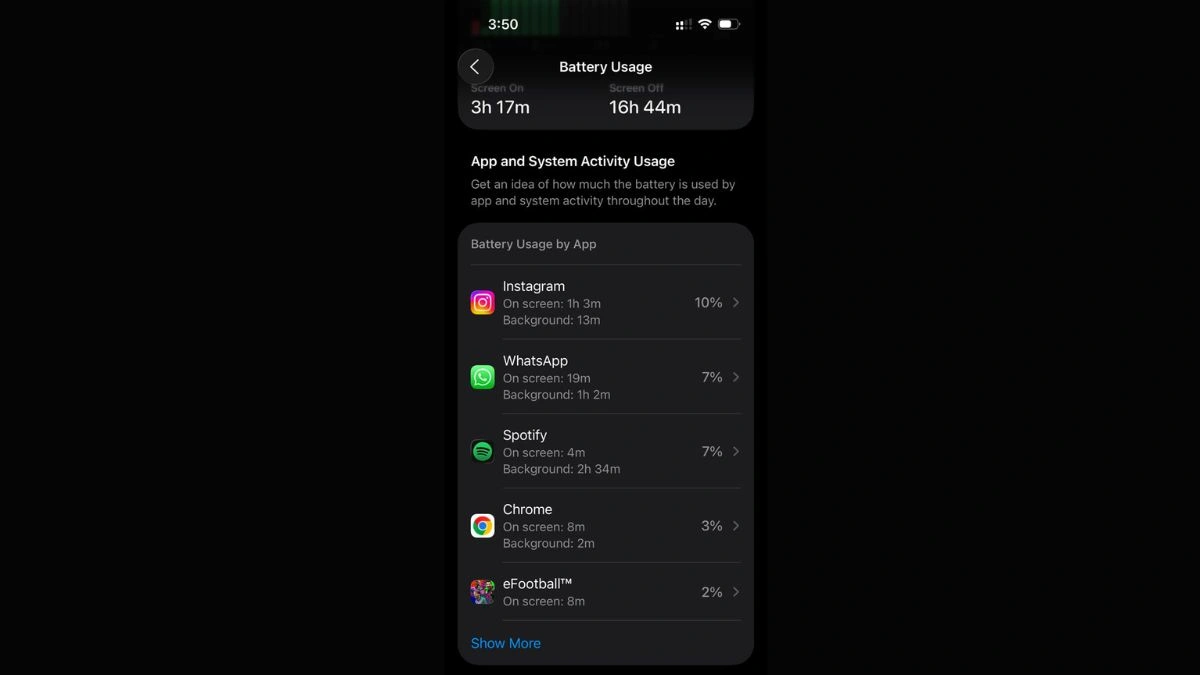
Scroll down to see Battery Usage by App
Here you will see which apps are using the most battery in the last 24 hours or last 10 days. Pay attention to:
- Apps at the top of the list
- Apps with high percentage even if you do not use them much
- Apps showing a lot of Background Activity
If one app suddenly started using far more battery after the update, it might be the main cause of your problem.
Step 2: Step-by-Step Settings Changes
Once you understand the situation, start optimising your iPhone 16 settings. These changes are safe and can make a big difference.
Turn On Low Power Mode When Needed
Low Power Mode is a simple way to extend battery life when your charge is running low.
- Go to Settings.
- Tap Battery.
- Turn on Low Power Mode.
You can use this feature during busy days, travel or when you know you will not be near a charger for a long time. It reduces background activity, mail fetch and some visual effects.
Optimise Display Settings
The screen is one of the biggest battery users on any phone. Simple display changes can help:
- Open Settings and tap Display & Brightness.
- Turn on Auto-Brightness if available, so the phone adjusts based on your environment.
- Reduce the Brightness slider to a comfortable but lower level.
- Set Auto-Lock to a shorter time such as 30 seconds or 1 minute so the screen does not stay on unnecessarily.
If your iPhone 16 supports higher refresh rates, you may also consider limiting them if there is such an option, as higher refresh can use more power.
Review Location Services
Location tracking is useful but can drain battery if too many apps use it all the time.
- Go to Settings.
- Tap Privacy & Security.
- Tap Location Services.
Now check app by app:
- For most apps, choose While Using instead of Always.
- Turn Never for apps that do not need location at all.
- Only very important apps like maps or ride services may need stronger location access.
This step alone often reduces unnecessary battery drain.
Good Habits After Fixing Battery Drain
Once your iPhone 16 battery life improves, you can keep it healthy with a few simple habits.
Use Low Power Mode on heavy days, avoid keeping the brightness at maximum all the time and update apps regularly so they stay compatible with the latest system. Try not to install too many unused apps, and review your battery usage screen from time to time so you notice any new problem apps early.
Remember that no smartphone battery lasts forever, but with the right settings and habits, you can keep your iPhone 16 performing well for a long time.
FAQs
Q1. Why did my iPhone 16 battery start draining after the update?
A. After an update, your phone may run background tasks or turn on new features, which can temporarily increase battery usage.
Q2. How long should I wait before worrying about battery drain after an update?
A. It is a good idea to wait 24 to 48 hours to let background processes finish, then check if the battery drain continues.
Q3. Which settings help the most with battery life on iPhone 16?
A. Display brightness, Location Services, Background App Refresh and Low Power Mode have some of the biggest effects on daily battery life.
Q4. Will resetting all settings delete my photos and apps?
A. No. Resetting all settings only returns system settings to default. Your apps, photos and personal data remain on the device.
Q5. When should I think about erasing and restoring my iPhone 16?
A. Only consider a full erase and restore if battery drain is still very bad after trying all other steps like checking apps, changing settings and using reset options.
Also Read- Google Returns, Alibaba Joins In: Are AI Glasses the Next Big Thing or Just Hype?