



Ever wondered what cookies are and why they matter for your online experience? Cookies are little files created by websites you visit. They help make your life online easier by remembering things like your login details, site preferences, and even showing you content relevant to your location.
You can manage cookies in a few ways: delete them, allow or block third-party cookies, and even set preferences for specific websites.
If you’re part of a special test group that limits third-party cookies by default, you might see slightly different settings for managing them. Here’s a simple guide to help you understand and control cookies across your devices.
What Are Cookies
Cookies come in two main types:
First-party cookies: These are created by the site you’re visiting. You’ll see the site’s name in your address bar.
Third-party cookies: These come from other sites that are embedded in the site you’re visiting, like ads, images, or videos. These cookies can track your actions across different websites to personalize content and ads.
Tip: Some websites may ask you to accept or reject cookies.
Besides cookies, there are other ways websites personalize content and ads. Features like ad topics and site-suggested ads in Chrome help sites show relevant content while limiting how much they can track you.
How To Manage Cookies And Protect Your Privacy Online
How to Delete Cookies
On iPhone and iPad
Deleting cookies will sign you out of websites and may remove saved preferences.
-
Open Chrome on your device.
-
Tap More and then Settings.
-
Go to Privacy and Security, then Delete Browsing Data.
-
Check Cookies and Site Data, and uncheck the other items.
-
Tap Delete Browsing Data and then Done.
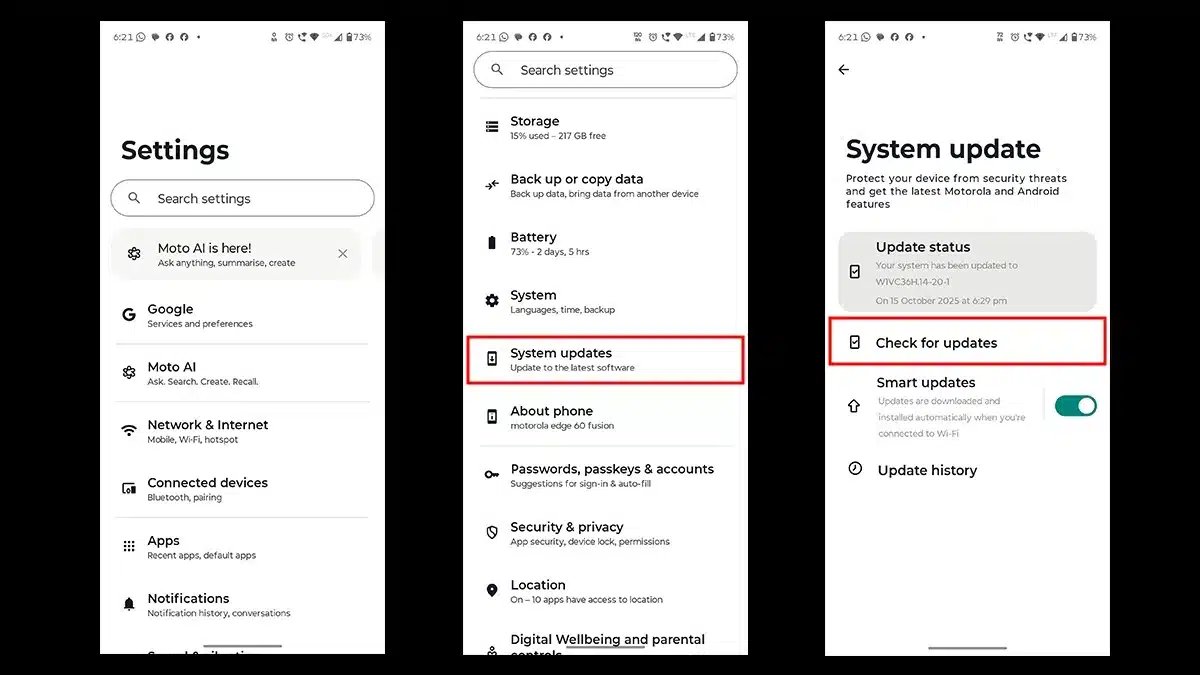
On Android
Deleting cookies may sign you out of sites and remove saved settings.
-
Open Chrome on your device.
-
Tap More and then Settings.
-
Go to Privacy and Security, then Delete Browsing Data.
-
Choose a time range like Last Hour or All Time.
-
Check Cookies and Site Data, and uncheck everything else.
-
Tap Delete Data and then Delete.
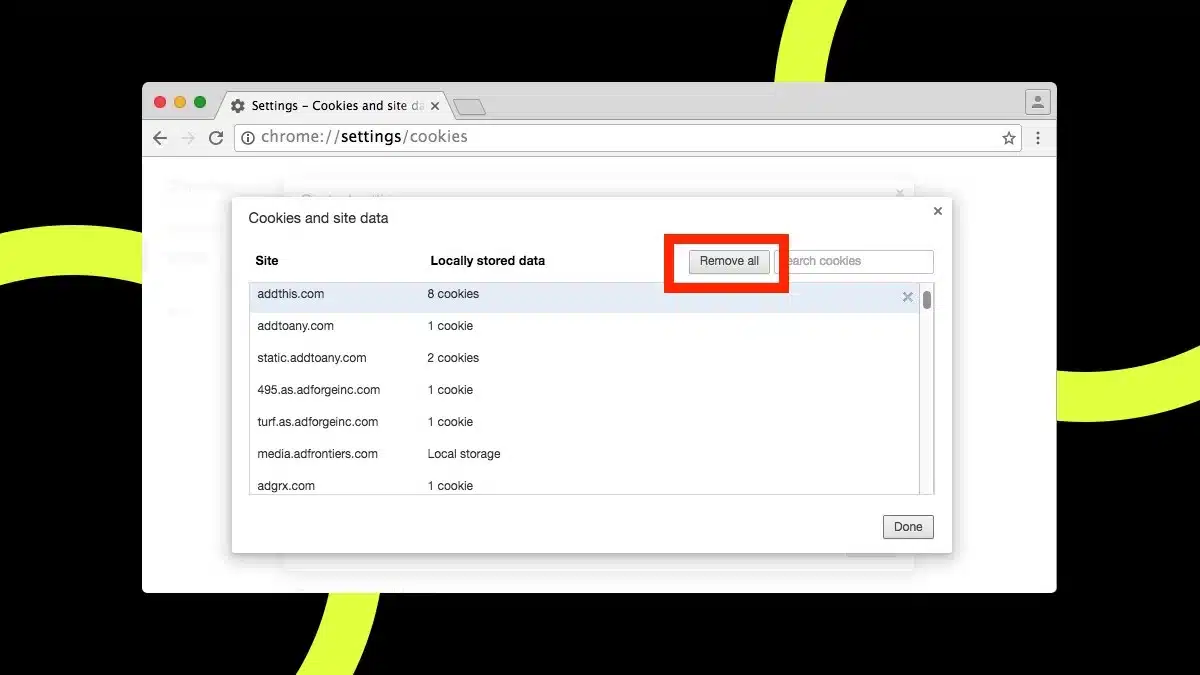
On a Computer
Deleting cookies will log you out and remove saved preferences.
-
Open Chrome.
-
At the top right, click More and then Settings.
-
Go to Privacy and Security, then Third-party cookies.
-
Select See All Site Data and Permissions, then Delete All Data.
-
Confirm by selecting Delete.
Managing Third-Party Cookies
If you don’t allow sites to save cookies, some websites may not work as expected. You can manage which sites can use third-party cookies.
In Incognito mode, third-party cookies are blocked by default.
You can allow or block third-party cookies for any site:
For Test Group Users
Google is testing features in Chrome that limit how third-party cookies track you. If you’re in this group, third-party cookies are restricted by default, except where necessary for basic website functions.
You can block third-party cookies completely:
-
Open Chrome on your computer.
-
Click More, then Settings.
-
Go to Privacy and Security, then Third-party cookies.
You can also turn on advanced privacy protections:
-
Block all third-party cookies: Some site features may not work, but Chrome will block cookies from all third-party sources.
-
Send “Do Not Track” request: This asks websites not to track you. Sites may choose whether to honor this request.
-
Choose which sites can use third-party cookies: You can edit your preferences under “Sites allowed to use third-party cookies.”
ALSO READ: Inside Mozilla Festival 2025: Rethinking Privacy, Creativity, And Growth