


Handing your iPhone to someone for a quick task might seem totally harmless. But it only takes a few taps for someone to accidentally open messages, photos, or apps you never planned to share. That’s where Guided Access comes in. It’s a built-in Apple feature that keeps your phone locked to just one app, giving you peace of mind when someone else is using your device.
iPhone Privacy Hack Everyone Should Know About
What Guided Access Actually Does
Guided Access keeps your iPhone focused on a single screen. Once it’s turned on, the phone stays inside that one app until you unlock it with your passcode or Face ID. It’s simple to use, works in everyday situations, and helps protect your privacy without needing awkward explanations.
Enable Guided Access in Settings
Start by opening Settings, then go to Accessibility and tap Guided Access. Turn it on and set a passcode that’s easy for you to remember but hard for others to guess. This passcode controls when Guided Access ends. After setup, you can use it whenever you need extra control while sharing your phone.
Use Guided Access When Sharing Your Phone
Before giving your phone to someone, open the specific app you want them to use. Then press the side button three times to activate Guided Access. Your iPhone will stay locked to that screen, preventing access to other apps or areas.
Control Which Parts of the Screen Work
Guided Access lets you block certain sections of the screen. Simply draw circles around the areas you want to disable. This is helpful for hiding menus, links, or buttons you’d rather keep private while still allowing someone to use the main features.
Disable Physical Buttons if Needed
You can choose to turn off hardware buttons like the volume controls, side button, or even the keyboard during a session. This prevents users from changing settings or leaving the app. It adds an extra layer of control when someone borrows your phone temporarily.
Set Time Limits for Extra Control
If you’re only sharing your phone for a short period, you can set a timer. Guided Access will automatically end when the time runs out. This is useful when you want your phone to return to normal without needing to remember to switch it back.
Use Face ID or Touch ID to Exit
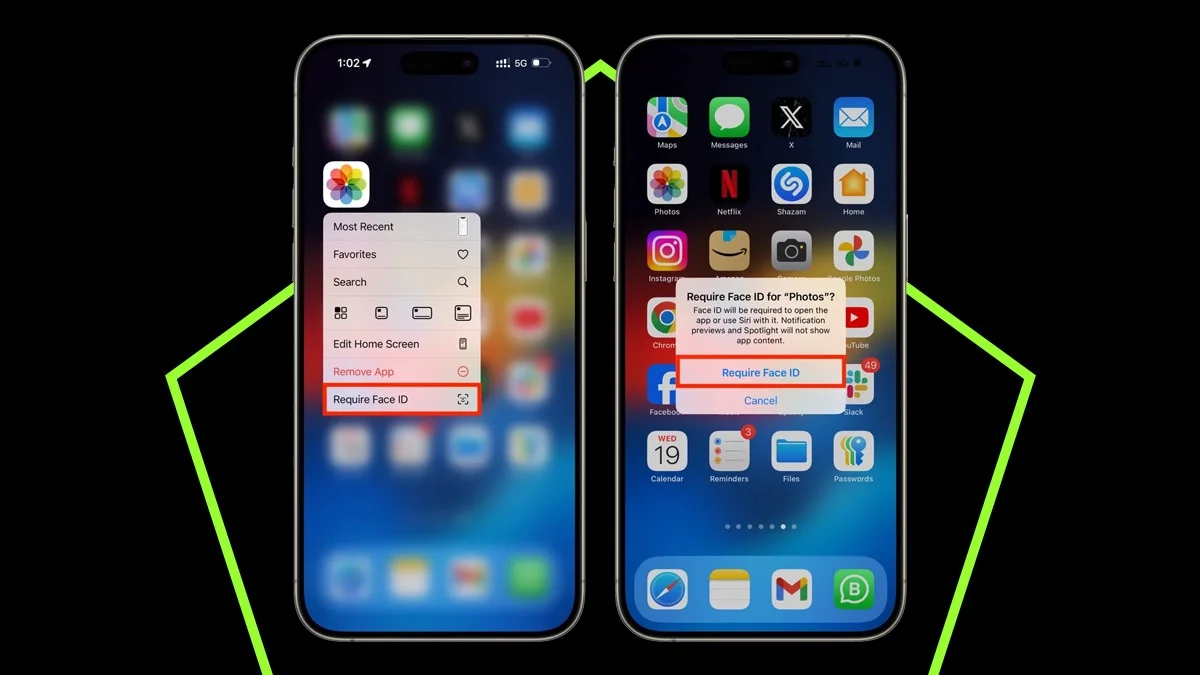
To make things faster and more private, enable Face ID or Touch ID to end a session. You won’t have to type a passcode in public, and exiting Guided Access becomes quick and seamless.
Prevent App Switching Completely
While Guided Access is active, users can’t switch apps, open notifications, or move beyond the allowed screen. Swiping around won’t take them anywhere else. This keeps everything focused and protects your personal information from accidental access.
Great for Photos, Calls, and Quick Tasks
Guided Access is perfect when showing photos, letting someone make a call, or asking them to complete a quick form. It stops accidental swipes into personal albums, emails, or messages during simple interactions.
Useful in Public and Professional Situations
Whether you’re in a meeting, at an event, or out in public, Guided Access adds an extra layer of security when someone needs to use your phone briefly. You can hand it over with confidence, knowing your private data stays protected.
Easy to Turn Off Anytime
To end Guided Access, simply triple-click the side button again and verify with your passcode or Face ID. Your phone immediately returns to normal use. Since it’s flexible and temporary, you can use it whenever you need and turn it off just as easily.
A Simple Way to Protect Your Space
Guided Access helps you set clear digital boundaries without making things uncomfortable. You stay polite while keeping your personal information safe. Once you get used to it, it becomes a simple habit that makes sharing your iPhone much less stressful.
ALSO READ: Anker Launches New 45W Nano Smart Display Charger With Early Discount Deal
- iPhone Privacy Hack Everyone Should Know About
- What Guided Access Actually Does
- Enable Guided Access in Settings
- Use Guided Access When Sharing Your Phone
- Control Which Parts of the Screen Work
- Disable Physical Buttons if Needed
- Set Time Limits for Extra Control
- Use Face ID or Touch ID to Exit
- Prevent App Switching Completely
- Great for Photos, Calls, and Quick Tasks
- Useful in Public and Professional Situations
- Easy to Turn Off Anytime
- A Simple Way to Protect Your Space