



Screenshots have become an important tool in our digital life. Whether you want to save an offer, keep proof of a conversation, or show an error, taking a screenshot is the fastest way. For everyone, whether you are a student or a working person, knowing how to take a screenshot on your Samsung phone is important.
- How to Take Screenshot Using Volume Down and Power Buttons
- How to Take Screenshot from Quick Settings Panel
- How to Take Screenshot Using Voice Commands
- How to Use Edge Panels to Take Screenshot
- How to Take Screenshot Using Palm Swipe Gesture
- What to Do After Taking Screenshot
- Screenshot Not Working or Want to Capture More
Samsung Galaxy devices are helpful because they give many ways to take screenshots based on what is easy for you. Whether you want to use physical buttons or just a simple gesture, everything is possible.
Let us look step by step at the different ways to take a screenshot on Samsung phones.
How to Take Screenshot Using Volume Down and Power Buttons

The first and the most basic way is to press the Volume Down and Power buttons at the same time. This works on almost every Samsung Galaxy phone.
How to do
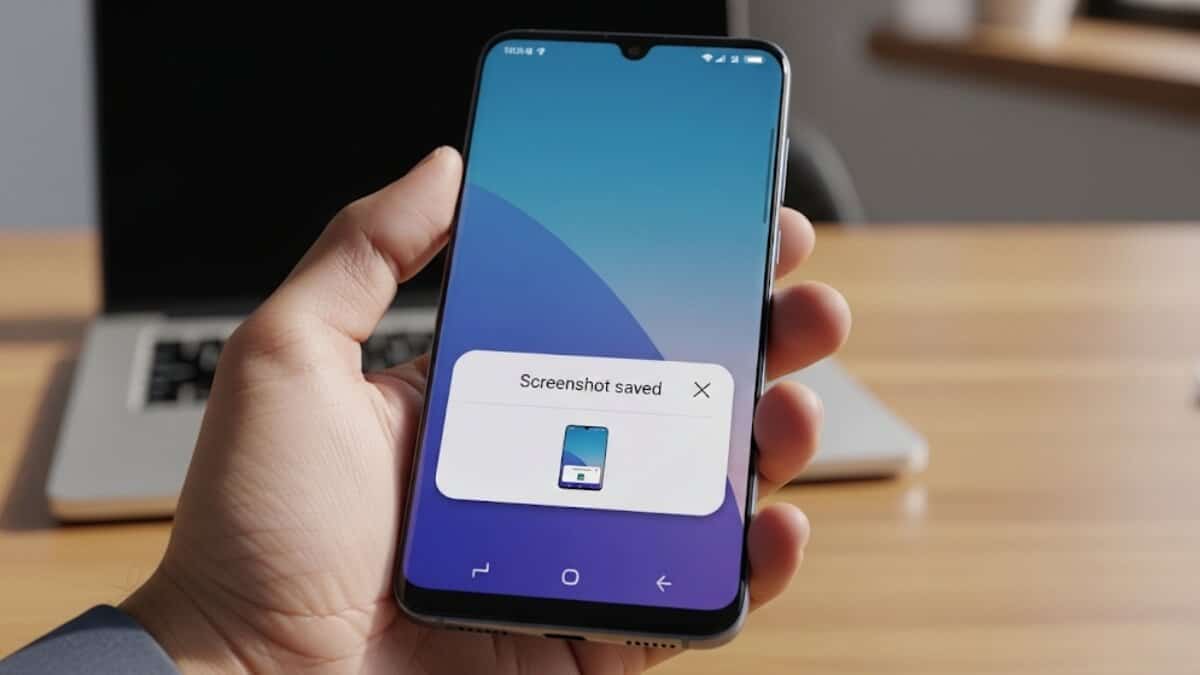
Just press both buttons together and quickly release them. The screen will flash once and a small preview will appear which you can edit or share.
Best for
When you want to quickly capture something important without opening any setting or option.
How to Take Screenshot from Quick Settings Panel
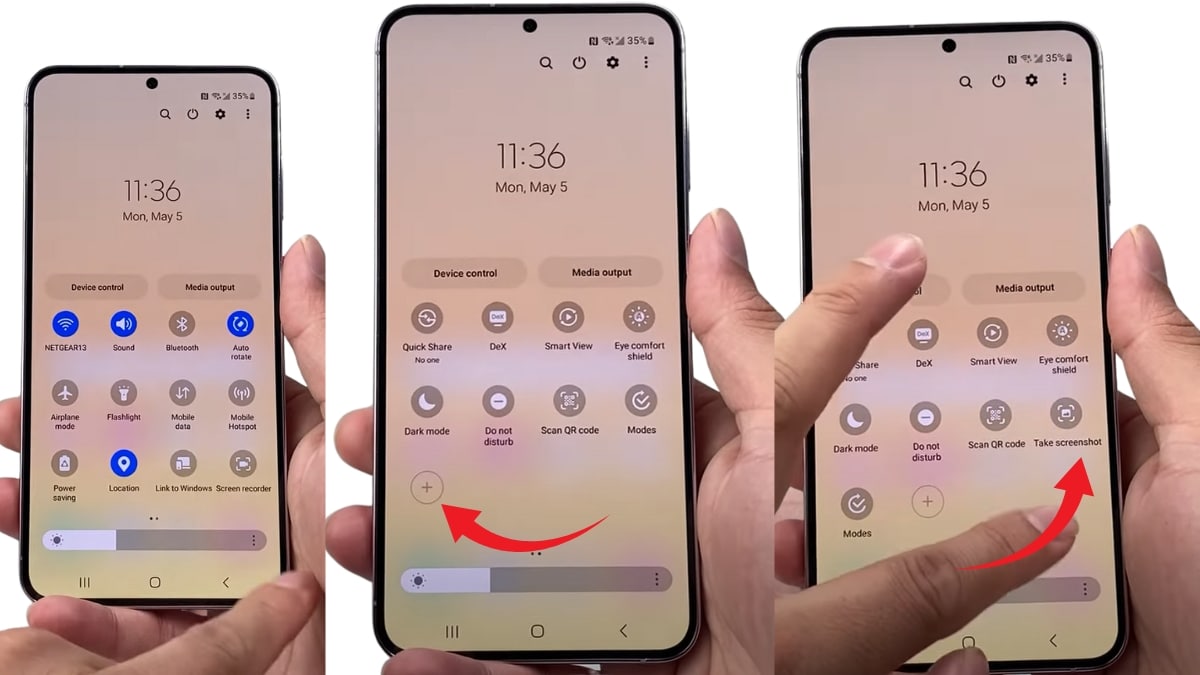
This is helpful if you want a one-tap shortcut.
How to do
Swipe down from the top of your screen to open the Quick Settings. Tap on the Screenshot icon. If you do not see it, go to edit options and add the Screenshot button for next time use.
Best for
People who want to take screenshots without using their both hands or pressing the buttons.
How to Take Screenshot Using Voice Commands
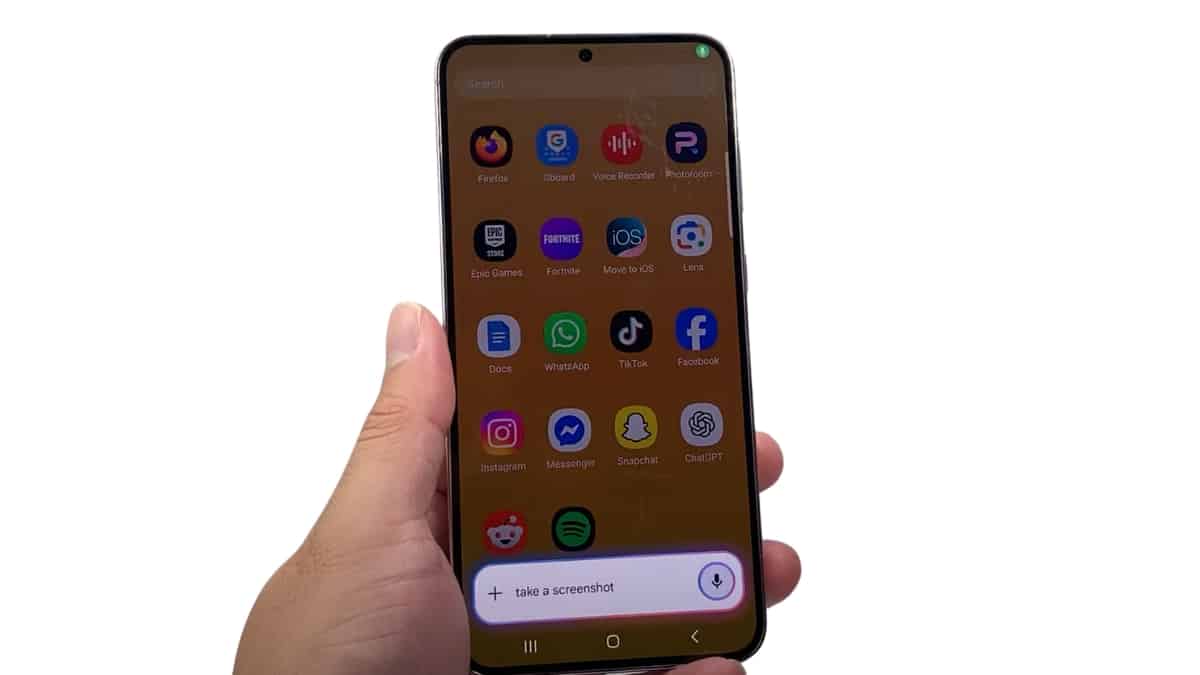
If your hands are busy or you prefer hands free options, this is for you.
Google Assistant
Say “Hey Google take a screenshot.”
Bixby – Say “Hi Bixby take a screenshot.”
Best for
Anyone who wants a touch-free and easy way to take a screenshot.
How to Use Edge Panels to Take Screenshot
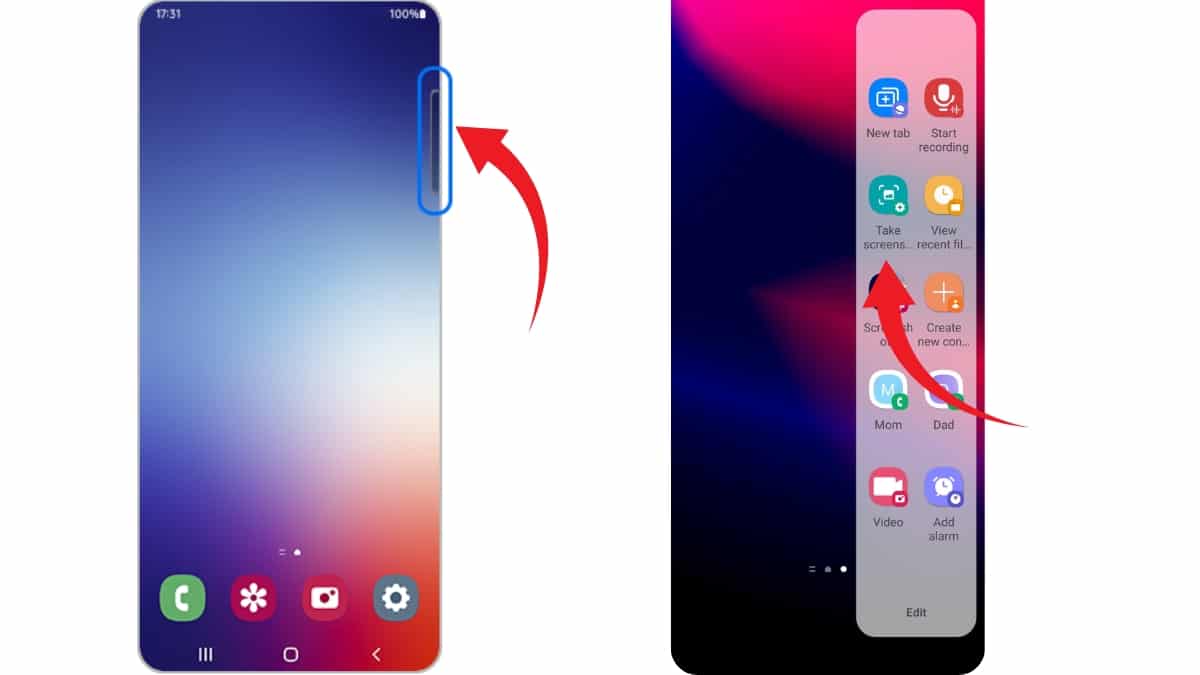
If you like multitasking and shortcuts, this option is helpful.
How to enable
Go to Settings then Display then Edge Panels. Turn it on and add the Tasks or Smart Select panel.
How to use
Swipe from the edge of the screen then choose the screenshot or Smart Select option.
Best for
People who use many apps and like organizing their screen with shortcuts.
How to Take Screenshot Using Palm Swipe Gesture
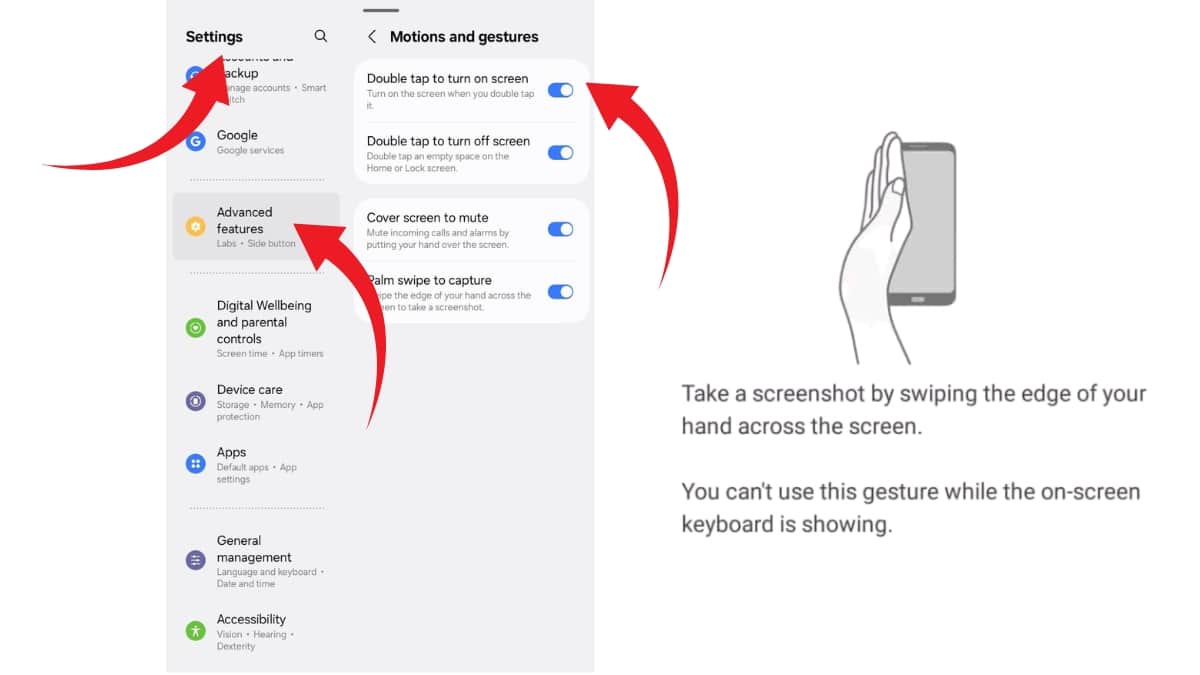
This is good for those who prefer gesture control instead of buttons.
How to set up
Go to Settings then Advanced Features then Motions and Gestures. Turn on Palm swipe to capture.
How to use
Move the side of your hand across the screen. Your screenshot will be taken.
Best for
Single-hand use and when you want a simple gesture instead of pressing any button.
What to Do After Taking Screenshot
Storage
All screenshots are saved in Screenshots folder inside your Gallery app.
Editing and Sharing
Tap the preview image to crop, draw or send it using messaging, email, social media or others.
Organizing
You can make different albums like Work, Family or Receipts in your Gallery. You can also use other apps to manage them better.
Screenshot Not Working or Want to Capture More
If screenshot is not saving
Check your phone storage and make sure Gallery app has the right permissions.
If gestures or shortcuts are not working
Make sure they are turned on in Settings and that your software is updated.
To take long or scrolling screenshots
After taking a screenshot tap on “Scroll Capture” or “Capture more” to get the full screen content.
All these methods work well on real Samsung phones. With this guide you can save anything you see on your screen. Screenshots help you stay ready, keep proof and share information quickly whenever needed.
ALSO READ: How To Turn Off Gemini: Take Back Control Of Your Google Apps