



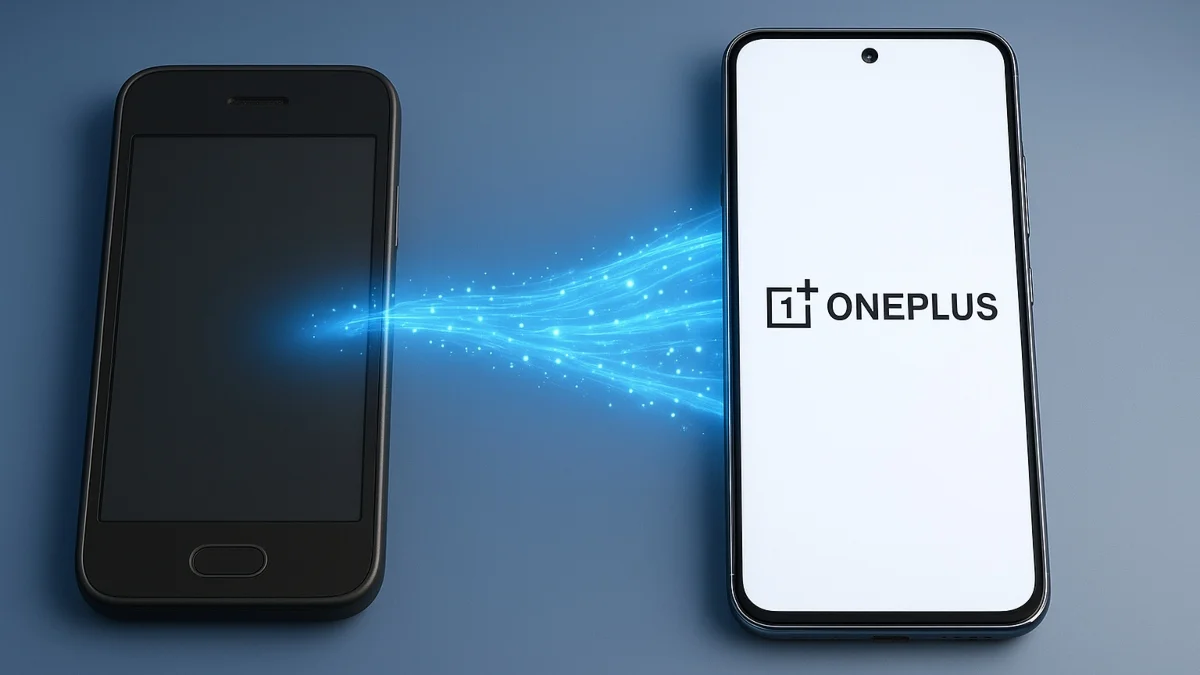
How To Transfer Data From Old Phone To New OnePlus: Getting a new OnePlus is exciting – but making sure all your contacts, photos, apps, and settings come with you can feel like a chore. The good news? OnePlus and Android give you plenty of easy ways to transfer your stuff.
- How To Transfer Data From Old Phone To New OnePlus. Here’s a simple guide to the best options:
- 1. Clone Phone (formerly OnePlus Switch)
- 2. Google Backup & Restore
- 3. Bluetooth Transfer
- 4. PC or OTG Cable
- 5. Cloud Storage (Google Drive, OneDrive, etc.)
- 6. Third-Party Apps
- Moving from iPhone to OnePlus?
- Pro Tips for a Smooth Transfer
How To Transfer Data From Old Phone To New OnePlus. Here’s a simple guide to the best options:
1. Clone Phone (formerly OnePlus Switch)
This is OnePlus’s own transfer app and the easiest way to bring over almost everything—contacts, photos, texts, apps, and more.
How to use it:
-
On your new OnePlus, go to Settings > Additional Settings > Backup and Reset > Backup and Migrate > Clone Phone.
-
Choose This is the new phone.
-
On your old phone, install Clone Phone from the Play Store, open it, and tap This is the old phone.
-
Scan the QR code on your new device.
-
Pick what you want to move, start the transfer, and wait until it finishes.
Tips:
Keep both phones charged, on the same Wi-Fi, and updated. If something doesn’t work, try reinstalling the app.

2. Google Backup & Restore
Google’s backup system is built right into Android and works great for contacts, calendar, photos, and settings.
How to use it:
-
On your old phone, head to Settings > Backup & Reset and turn on Backup my data.
-
Make sure everything is synced to your Google account.
-
On your new phone, log in with the same Google account and select Restore during setup.
Heads up: Some app data and media may need to be pulled separately from Google Photos or Drive.
3. Bluetooth Transfer
Good for smaller things like photos, contacts, or documents.
-
Turn on Bluetooth on both phones and pair them.
-
On your old phone, select files to share and choose your new OnePlus as the target.
Note: It’s slow and not great for big transfers or apps.
4. PC or OTG Cable
Perfect for music, PDFs, or large files.
-
Plug your old phone into a computer, copy your files, then move them to the new phone.
-
Or, connect the phones directly with an OTG cable and move files using a file manager.
5. Cloud Storage (Google Drive, OneDrive, etc.)
If your files are already in the cloud, just log into your accounts on the new phone and sync everything. No cables needed!
6. Third-Party Apps
Apps like Copy My Data also work over Wi-Fi. Just install on both devices, connect them, and follow the steps.
Moving from iPhone to OnePlus?
Clone Phone supports iPhones too, though it only transfers things like contacts, photos, and videos—not messages or app data. For the rest, use Google sync.
Pro Tips for a Smooth Transfer
-
Charge both phones (70% or more is safest).
-
Use a fast, stable Wi-Fi connection.
-
Update all transfer apps before starting.
-
Don’t disconnect until the transfer is done.
ALSO READ: How a Simple App Permission Can Hand Hackers the Keys