




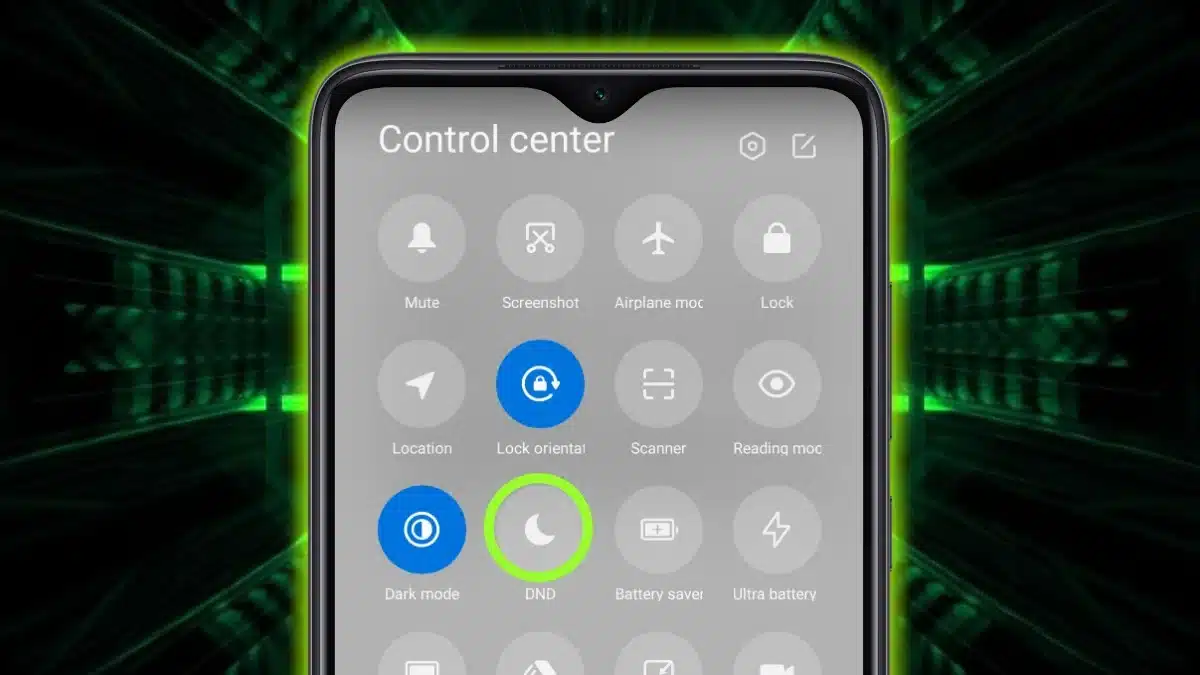
The Do Not Disturb (DND) Mode In Xiaomi can be enabled both manually and on a set schedule. Scheduling the Do Not Disturb (DND) Mode in Xiaomi makes things easier for the user, as they do not have to go to the settings each time to enable the mode, and instead, they can use the smart feature to schedule it at a time that works for them. The feature of the Xiaomi phone that allows users to schedule this time makes it even more convenient, as the user no longer has to go and set the ‘do not disturb’ mode manually each time. This means it automatically turns on and off depending on the time you have chosen.
- What does the Do Not Disturb (DND) Mode do?
- Step-by-Step process to schedule the Do Not Disturb (DND) Mode:
- Step 1: Go to ‘Settings’ and select ‘Sound & Vibration’
- Step 2: Tap on ‘Do not disturb’
- Step 3: Enable or disable the ‘Do not disturb’ feature.
- Step 4: Select ‘Schedule Turn On Time’ in the DND Mode in Xiaomi
- Quick Access Method to Schedule the Do Not Disturb (DND) Mode in Xiaomi:
What does the Do Not Disturb (DND) Mode do?
The Do Not Disturb mode on your Xiaomi device, when activated, mutes all incoming notifications and messages. However, the user can still allow calls from select contacts to come in or from none at all.
It is a handy feature to help the user silence the unwanted notifications, enabling them to focus on what they want to focus on when they need that time.
Step-by-Step process to schedule the Do Not Disturb (DND) Mode:
Step 1: Go to ‘Settings’ and select ‘Sound & Vibration’
Settings- Sound & Vibration
Step 2: Tap on ‘Do not disturb’
Settings- Sound & Vibration- ‘Do not disturb’
Step 3: Enable or disable the ‘Do not disturb’ feature.
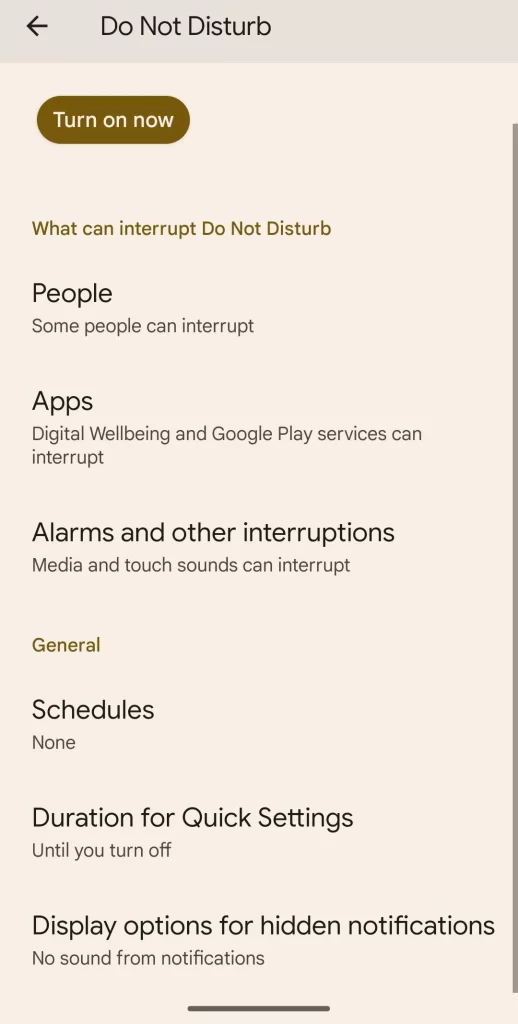
You will find various options here to select from –
- Schedule turn-on time
- Always
- When the device is locked
- Allow Incoming calls
- Notify about repeated calls
Step 4: Select ‘Schedule Turn On Time’ in the DND Mode in Xiaomi
Settings- Sound & Vibration- ‘Do not disturb’ – ‘Schedule Turn On Time’
Once you click on ‘Schedule Turn On Time’, you will be able to set custom start and end times for enabling the ‘Do not disturb’ mode in Xiaomi.
You can further customize other settings, like allowing incoming calls from certain contacts and enabling notifications for repeated calls.
- The other setting options, like ‘Notify about repeated calls’, are helpful tools to get the urgent calls through to the user. This helps the user stay connected even when they require some focused time off from the device.
- Allow Incoming calls from ‘specific contacts only’ is also a helpful tool, which gives the user greater control over their digital lives.
Quick Access Method to Schedule the Do Not Disturb (DND) Mode in Xiaomi:
Step 1: Swipe down from the top of your screen to open the panel for enabling quick settings.
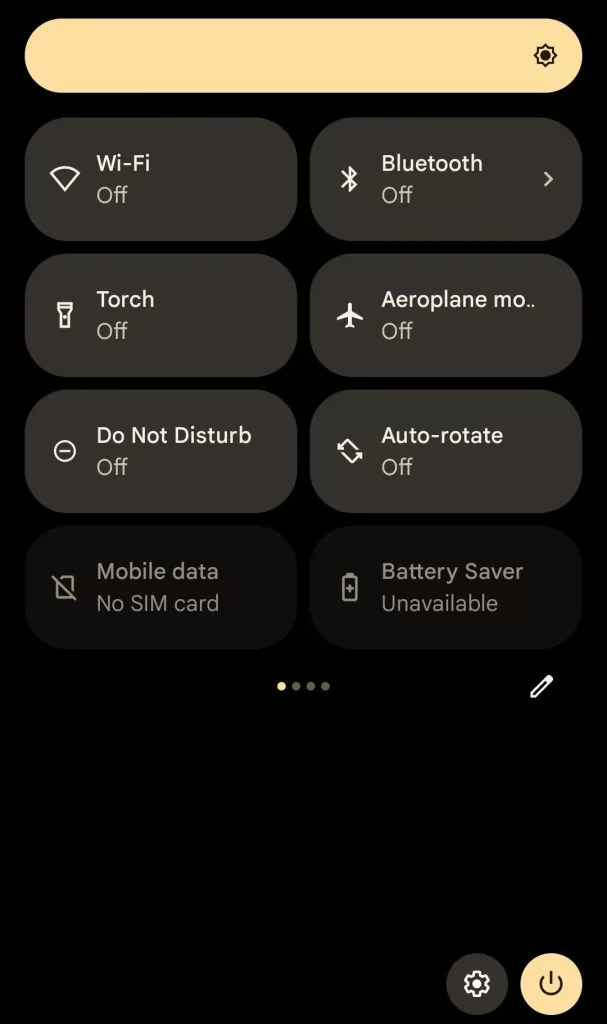
Step 2: Press and hold the ‘Do Not Disturb’ mode option.
Now, just press and hold the ‘Do not disturb’ or DND Mode in your Xiaomi phone.
Step 3: You will be directed to ‘Do Not Disturb’ mode settings.
Once you enter the ‘Do Not Disturb’ mode settings, you will be able to easily set up a custom schedule to enable the mode as per your requirements.
The feature of scheduling the ‘Do Not Disturb’ mode in your Xiaomi phone is a useful way to get rid of distractions and interruptions during certain specific times of the day when you want to focus on work or personal time. You can set it up from the settings menu, and it will automatically silence the notifications, calls, and other pop-ups that tend to come up. Scheduling it not only helps in focusing on tasks but is essential for your digital well-being.
It is not merely just another feature in your phone. It is a powerful tool that can be used to manage your time efficiently by eliminating the hassle of manually enabling it every day. It enables custom settings that let the user have full control over when they want to be disturbed. DND Mode in Xiaomi is ultimately one of the most essential features in today’s time as it enables the user to set some time where they can focus on what they want to focus on during particular times of the day without any disturbances.
ALSO READ: Safeguard Your Device: Set Up Fingerprint And Face Unlock On Xiaomi