




iOS 26 Battery Drain Issues: 5 Best Ways To Fix Your iPhone Battery Problems
iOS 26 has brought several improvements and features for iPhone users, but many people are also noticing one major problem: battery life issues. After updating their devices, users are reporting that their phones are draining faster than usual. While this is sometimes normal after a big update, the problem can be frustrating when it lasts longer than expected.
- iOS 26 Battery Drain Issues: 5 Best Ways To Fix Your iPhone Battery Problems
- Make Use of Adaptive Power Mode
- How to Enable Adaptive Power Mode
- Turn Off the Always-On Display
- How to Turn Off Always-On Display
- Put Siri to Sleep
- How to Disable Siri Voice Activation
- Switch to Dark Mode
- How to Enable Dark Mode
- Enable Optimized Battery Charging
- How to Turn On Optimized Battery Charging
- FAQs
When you install a new software update, your iPhone works harder in the background for a while. It indexes files, updates system processes, and adjusts to the new system. During this time, a temporary drop in battery life is expected. However, if the battery problem stays for days or weeks, you may need to take additional steps to fix it. Thankfully, there are several solutions you can try that do not impact your daily usage too much.
Your first step should always be simple: update all your apps and restart your iPhone. This alone fixes many issues because app updates often include optimizations for new iOS versions. You should also check your Battery section inside Settings to identify problematic apps. If an app is consuming more power than normal, reinstalling or deleting it may immediately solve the issue.
But if these basic steps don’t improve battery life, you do not need to jump directly to extreme measures like turning off 5G or keeping Low Power Mode on at all times. Instead, there are smarter options that have less impact on your experience but still help significantly. Below are the five best fixes that improve iOS 26 battery life without major compromises.
Make Use of Adaptive Power Mode
Adaptive Power Mode is one of the most useful new features Apple introduced with iOS 26. It is smarter and more advanced than the traditional Low Power Mode. While Low Power Mode reduces performance and limits many features, Adaptive Power Mode works more intelligently and only activates when your phone thinks you need longer battery life.
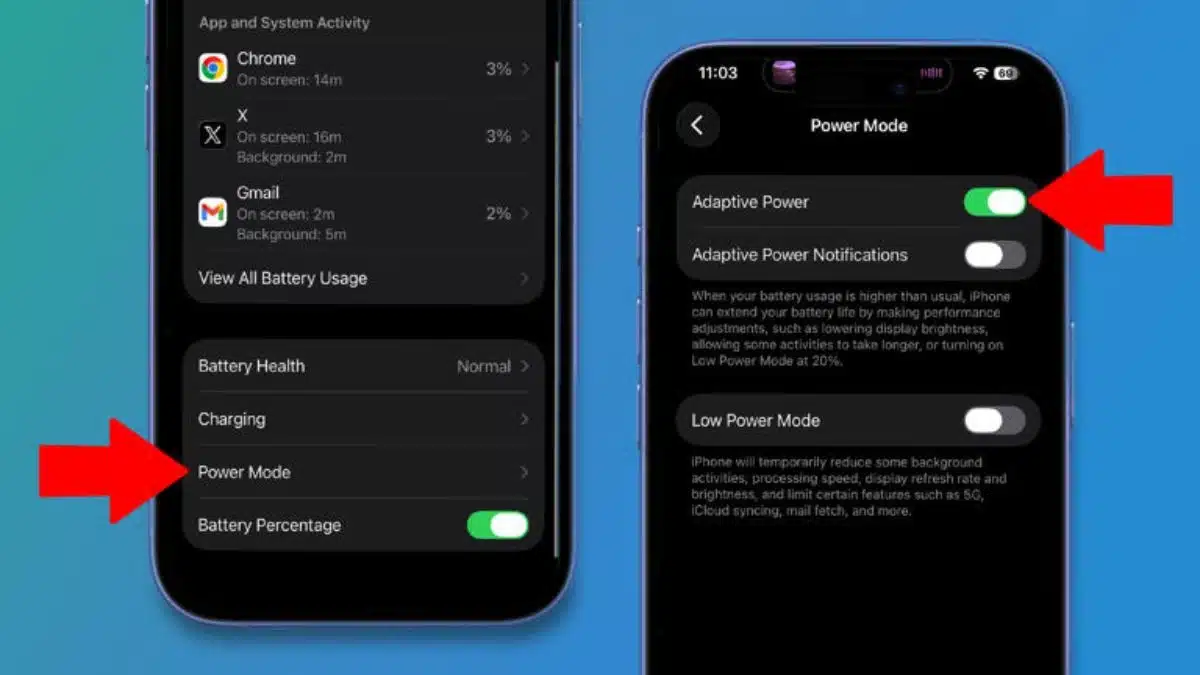
This feature is available on iPhone 15 Pro models and later. On the iPhone 17 series and iPhone Air, it is already enabled by default, which shows how important Apple considers it for battery performance.
Adaptive Power Mode works quietly in the background. When your iPhone predicts that you might need your battery to last longer, it temporarily adjusts system settings. For example, it may lower the display brightness or reduce certain activities in the background. The difference is that these changes only happen when necessary, so your everyday experience remains smooth.
This makes Adaptive Power Mode an ideal setting to keep on all the time. It helps your phone automatically manage power more wisely without you having to monitor anything manually.
How to Enable Adaptive Power Mode
You can enable it easily by going to:
Settings > Battery > Power Mode > Adaptive Power
After turning it on, your iPhone will immediately start using this smart system whenever needed.
Turn Off the Always-On Display
Always-On Display is a convenient feature that lets you see information such as the time, widgets, and notifications without waking the screen. However, keeping any part of the display active requires power, even with Apple’s efficient technology.
If you are facing battery drain after installing iOS 26, turning off the Always-On Display is a simple and effective fix. Many users find that battery life improves noticeably once this feature is disabled.
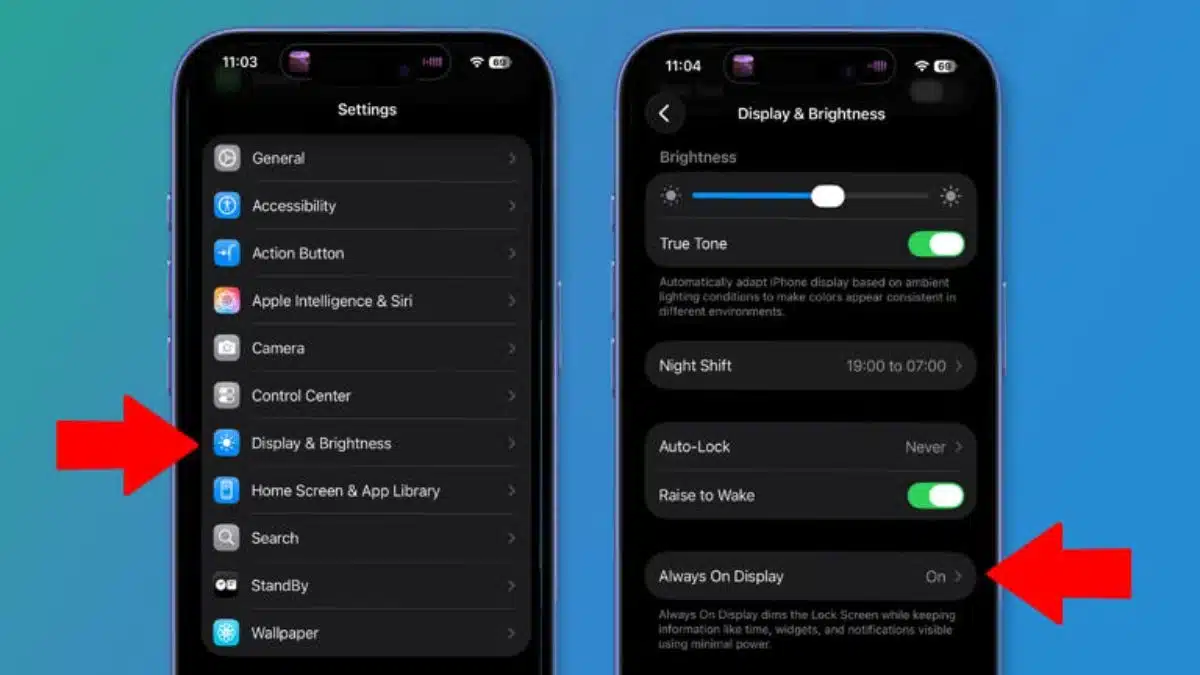
For people who own an Apple Watch, the Always-On Display becomes even less important. If you already receive notifications and check the time on your watch, keeping your iPhone’s display permanently active may not add much value.
How to Turn Off Always-On Display
Go to:
Settings > Display & Brightness > Always On Display > Toggle Off
You may miss the feature initially, but the improvement in battery life often makes it worthwhile.
Put Siri to Sleep
Siri’s hands-free activation, using “Siri” or “Hey Siri”, requires your iPhone to constantly listen for the activation phrase. This background listening uses battery power, even if you do not use Siri often.
If you rarely activate Siri with your voice, disabling the voice activation feature can help your battery last longer. For many users, this change will not affect daily use because Siri can still be launched by pressing the side button.
Until Siri gets its planned AI upgrades, most people mainly use it for simple tasks such as setting timers, reminders, or making quick searches. Because of this, disabling voice activation has very little impact on overall convenience.
How to Disable Siri Voice Activation
You can turn off this feature by navigating to:
Settings > Apple Intelligence & Siri > Talk & Type to Siri > Off
This stops your phone from constantly listening, and that small change is enough to help your battery.
Switch to Dark Mode
Dark mode is a simple visual change, but on OLED screens, it can also save a small amount of battery. OLED displays work differently from LCD screens. On OLED, black pixels are turned off completely, meaning they do not use any power.
Because of this, using dark mode across the system reduces the number of pixels your phone needs to light up. The battery savings are not huge, but they are consistent and add up throughout the day.
This benefit applies to almost all modern iPhones because nearly every recent model uses an OLED screen. The only exception is the iPhone SE (2022), which still uses an LCD display.
How to Enable Dark Mode
Turn it on by going to:
Settings > Display & Brightness > Appearance > Dark
You can keep it enabled permanently or schedule it to activate at night, depending on your preference.
Enable Optimized Battery Charging
While the previous solutions help with day-to-day battery life, Optimized Battery Charging protects your battery’s long-term health. It may not provide an immediate improvement, but over months and years, it helps the battery retain more of its original capacity.
This feature works by learning your charging habits. It charges your iPhone to 80% quickly, but delays the final 20% until right before you usually wake up or unplug your device. This reduces the number of hours your battery stays at 100%, a state that increases battery wear.
If you typically charge your phone overnight, this feature is especially beneficial. iOS intelligently completes the final part of the charge closer to morning, which helps prevent long-term battery damage.
How to Turn On Optimized Battery Charging
You can enable it by heading to:
Settings > Battery > Charging > Optimized Battery Charging
Once activated, the system automatically manages your charging pattern without affecting your daily routine.
iOS 26 introduces powerful new features, but it also brings battery challenges for many users. Some battery drain is normal right after installing a major update because your phone performs many background tasks. However, if the problem continues, the five solutions above are the best ways to regain your battery life without sacrificing essential features.
Using Adaptive Power Mode gives your iPhone smart energy management without reducing performance. Turning off the Always-On Display and Siri’s listening feature cuts down on unnecessary battery use. Switching to Dark Mode offers small but consistent savings, and Optimized Battery Charging protects your battery’s long-term health.
By applying these simple steps, you can experience better battery performance on iOS 26 while still enjoying all your iPhone features.
FAQs
Q1. Is it normal for iOS updates to cause battery drain?
A. Yes. After an update, your iPhone performs many background tasks, which temporarily reduces battery life. This usually improves within a few days.
Q2. Does Adaptive Power Mode affect performance?
A. No. Adaptive Power Mode only activates when your iPhone thinks you need extended battery life. It makes temporary adjustments without major performance loss.
Q3. Will turning off the Always-On Display save a lot of battery?
A. It depends on your usage. Many users notice a clear improvement because the display no longer stays active all day.
Q4. Can disabling “Hey Siri” improve battery life?
A. Yes. When this feature is on, your phone constantly listens for the voice command, which uses battery power.
Q5. Does Dark Mode save battery on all iPhones?
A. Dark Mode only saves battery on iPhones with OLED screens. The iPhone SE (2022) is the only recent model that does not benefit.
Also Read- Android Users Warned As Google Deletes Apps Causing Phone Lag