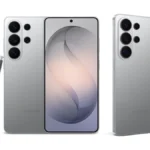



With over 95 million photos uploaded to Instagram every day, standing out is no easy task. But if you’ve got the Samsung Galaxy S25, you’re already ahead of the game.
This phone is one of the best camera phones available and it’s packed with smart tools to make your photos look amazing. It includes special food modes, a Pro Mode full of extra settings, and AI features like super zoom and instant slow-motion video. One of the coolest features is Photo Assist.
What is Photo Assist?
Photo Assist is like your own built-in photo editor on the Galaxy S25. After you take a picture, it offers helpful suggestions for edits like cropping and AI-powered improvements.
Think of it as a creative space. You can snap a picture and use the S Pen to draw something on top. Sketch a dog, and the AI might place a realistic puppy in the scene, like it’s sitting on your couch.
Creative and Convenient
This is a great tool for kids who like to draw or for adults who need fast visuals. Unlike many other AI tools, where you have to start over to make changes, Photo Assist lets you move and resize your creations directly.
Want that puppy to be the size of a Tic Tac or as big as a building? You can do that, and it will still look natural, especially on the Galaxy S25’s bright 6.2-inch AMOLED screen.
Try Portrait Studio Too
Photo Assist also powers Portrait Studio, which lets you turn your selfies into cartoons, sketches, manga characters, and more.
A Fresh Take on Filters
If you usually stick to the same few filters, Photo Assist can suggest different styles to help you try something new. You no longer have to rely on capturing the perfect shot every time.
Simple to Use
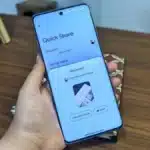
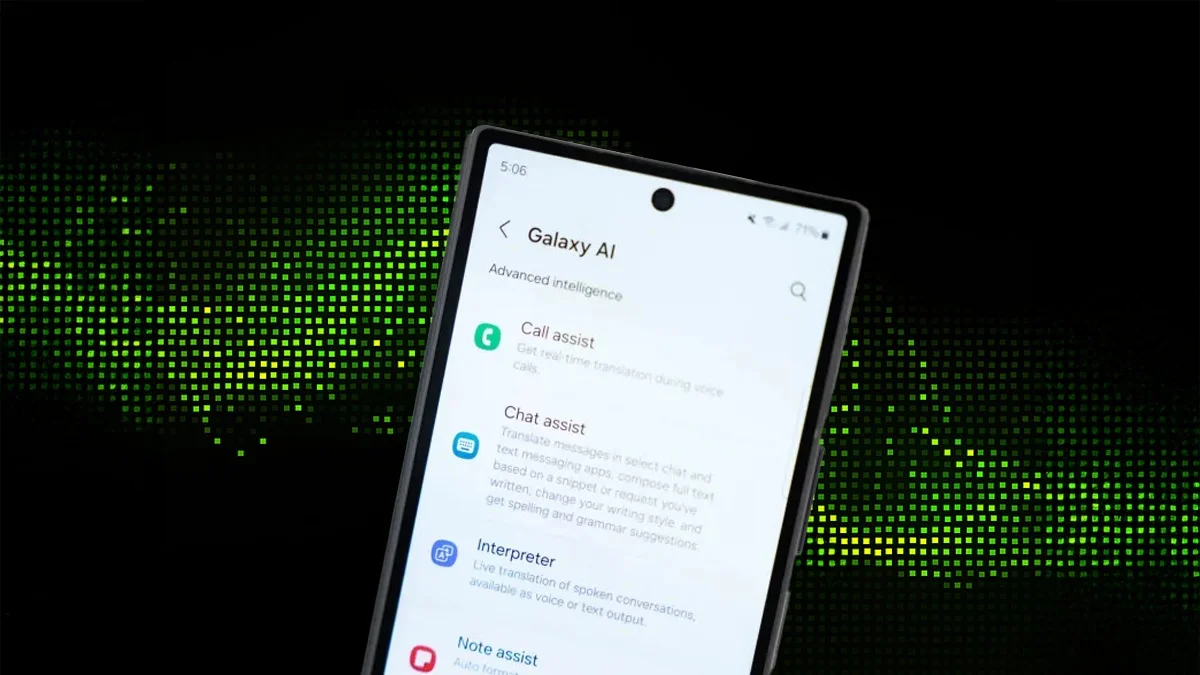
It’s easy to get started. Go to Settings, then Galaxy AI, then Photo Assist to turn it on. Open a photo in your Gallery, tap the Photo Assist icon, and start editing.
Edited images will include a small watermark to show they were created with AI.
To learn more about what the Galaxy S25 can do, visit Samsung’s website and stay tuned for the next Galaxy Z launch coming soon.
ALSO READ: Is Your Phone Also Getting Slower? Know the Real Reason