



How to Clear Cache and Cookies on iPhone
Clearing your cache and cookies on an iPhone is a simple but effective way to improve privacy and refresh your browsing experience. When you browse the internet, your iPhone saves certain data to make websites load faster. This data is known as cache and cookies. Over time, these files build up and may slow down your device or store information you no longer want saved.
- How to Clear Cache and Cookies on iPhone
- What Clearing Your Cache and Cookies Actually Does
- Important Note Before You Clear Your Data
- Step by Step Guide to Clear Cache and Cookies on iPhone
- Step 1: Open the Safari App
- Step 2: Tap the Bookmarks Icon
- Step 3: Tap the History Icon
- Step 4: Tap the Clear Button
- Step 5: Choose the Timeframe You Want to Clear
- Step 6: Confirm by Tapping Clear History
- Why You May Want to Clear Your Cache and Cookies Regularly
- What to Expect After Clearing Your Data
- How Safari Profiles Affect Your Clearing Choices
- When You Should Avoid Clearing Your Cache
- FAQs
Using your Safari app, you can erase this browsing data at any time. This action deletes your history of visited websites, recent search entries and the permissions you may have allowed websites in the past. For example, if you previously allowed a website to use your location or send notifications, clearing your browsing data removes that permission. This gives you better control over your privacy.
The process is quick and does not require any technical knowledge. You can complete it in a few moments using your Safari settings. In the guide below, you will find simple instructions that clearly explain how to remove cache, cookies and browsing history from your iPhone.
What Clearing Your Cache and Cookies Actually Does
When you clear your cache and cookies, your iPhone removes saved website data from Safari. This data includes items such as stored page elements, login information, browsing history and small files that websites place in your browser. These files help websites remember your activity, but they also store information you might not want kept over time.
By clearing this data, you erase the list of websites you visited and any recent searches done through the Safari app. This means that Safari will no longer show previous suggestions based on your browsing habits. It also resets permissions you granted earlier to websites, such as access to your location or permission to send notifications.
This action can improve your privacy because it removes stored information that websites used to track your activity. It also helps refresh your browsing sessions, which may resolve issues where pages fail to load correctly. Clearing your cache is a good step whenever your browser feels slow or keeps showing errors.
Important Note Before You Clear Your Data
When you clear your browsing history in Safari, only Safari’s own history and data are removed. Many websites keep their own independent records, and those records are not affected. This means that even if you clear your history from your iPhone, the website itself may still keep information about your account or activity on its own servers.
Also remember that clearing Safari’s history does not delete your activity in other apps. If you use different browsers or applications that have their own browsing features, those histories remain unchanged unless you clear them separately inside those apps.
This distinction is important because it helps you understand what data is removed and what is not. Clearing Safari’s data improves privacy inside your browser, but it does not erase external logs kept by other apps or websites.
Step by Step Guide to Clear Cache and Cookies on iPhone
You can follow the steps below to erase your browsing history, cache and cookies in the Safari app on your iPhone. The steps are easy and can be done even if you are new to iPhones or not comfortable with technical settings.
Step 1: Open the Safari App
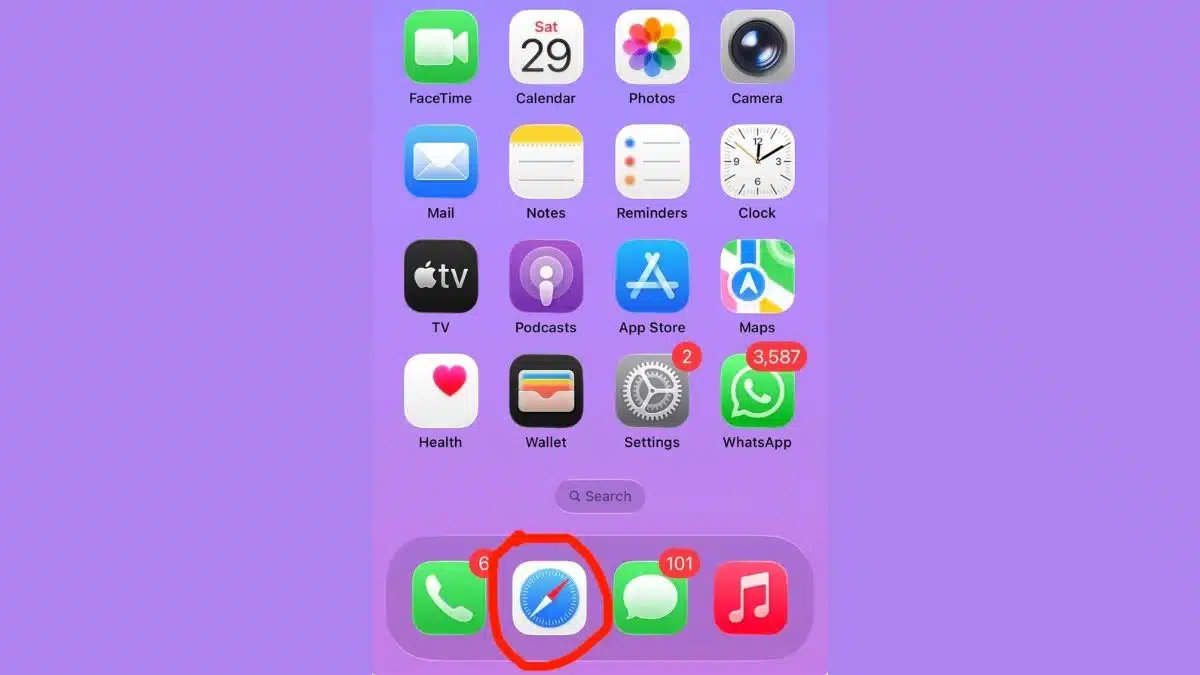
Begin by going to the Safari app on your iPhone. Safari is the default internet browser on all iPhones, and clearing your cache must be done inside this app.
Step 2: Tap the Bookmarks Icon
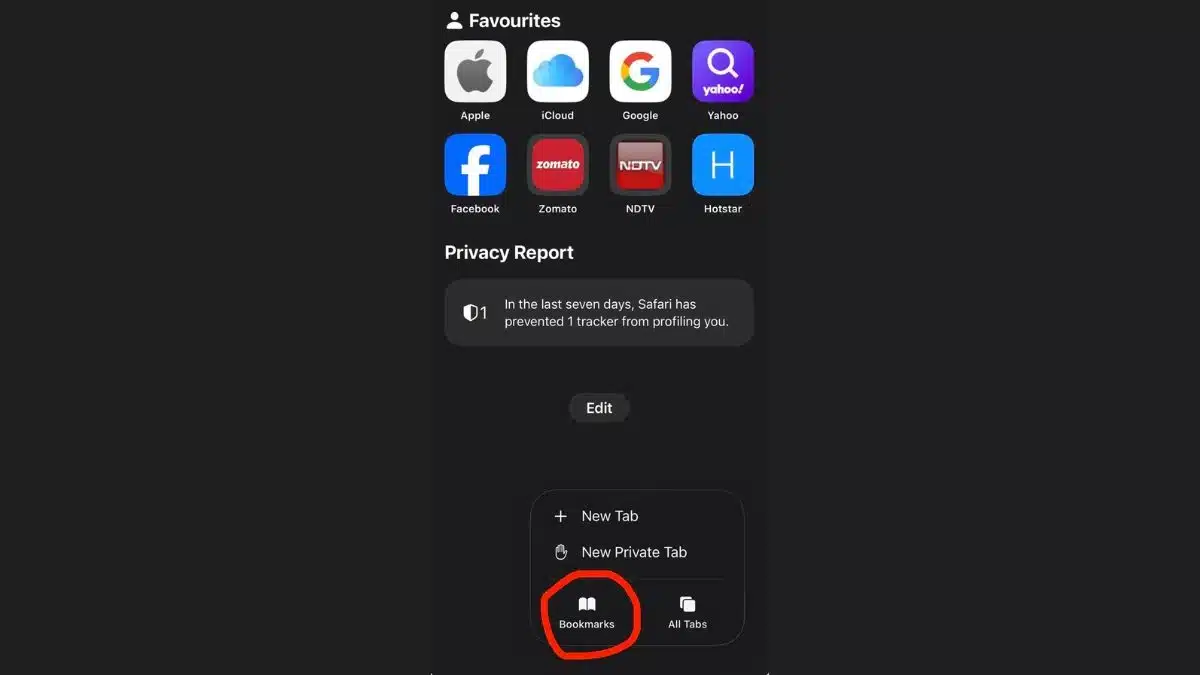
After opening Safari, tap the icon that shows your Bookmarks. If your Safari layout is set to Bottom or Top tabs, tap the icon that represents your open pages. This will help you access the correct section.
Step 3: Tap the History Icon
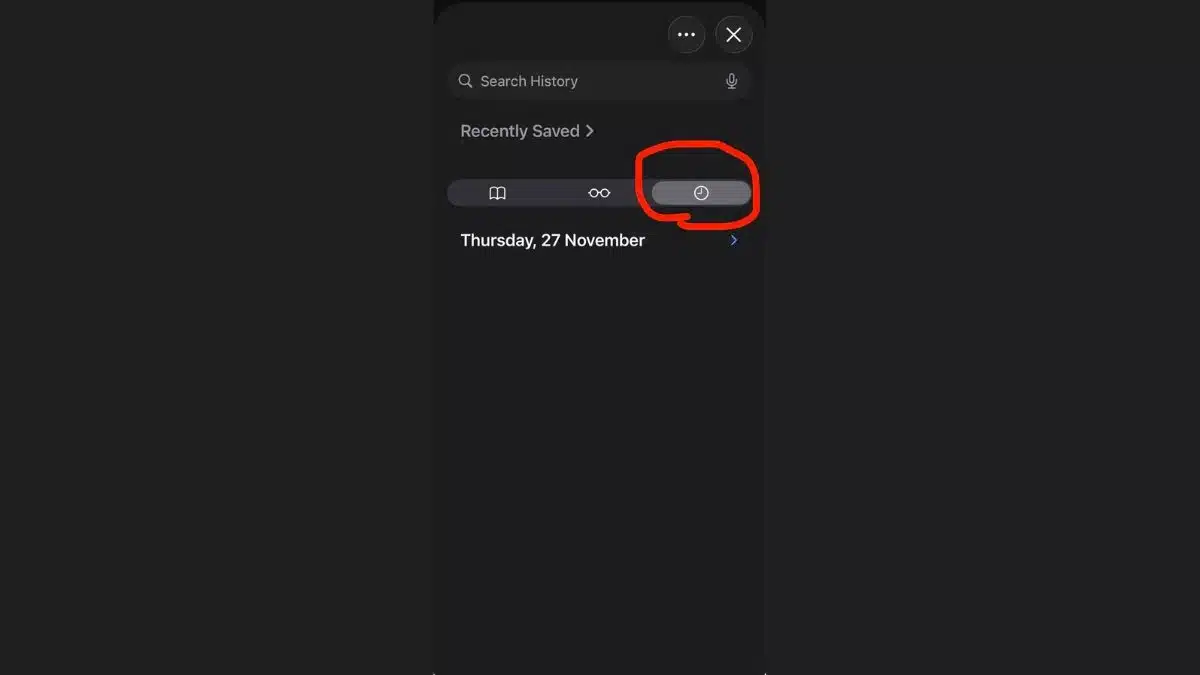
Inside the Bookmarks section, tap the History icon. This is where Safari stores your list of visited websites and search history.
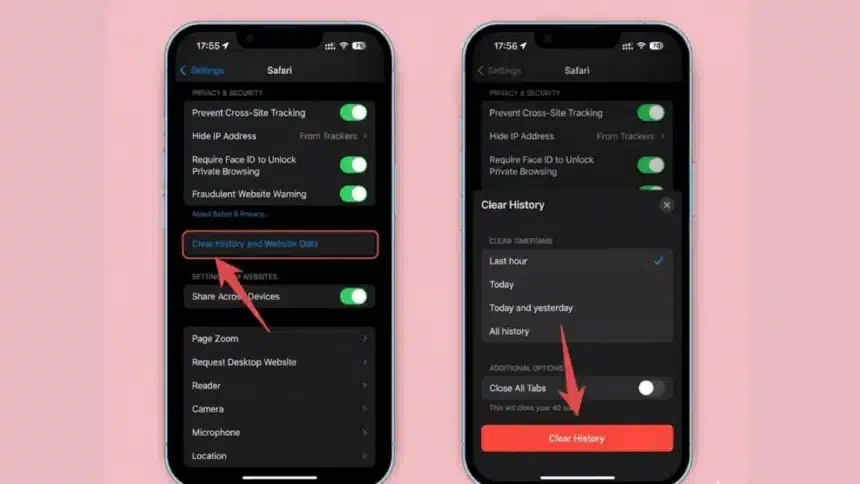
Step 4: Tap the Clear Button

After opening your history, you will see the option to Clear. Tap this button to begin the process of removing your browsing data.
Step 5: Choose the Timeframe You Want to Clear
Safari will show you different time options. These options allow you to select how much history you want to erase. For example, you may choose to clear only the last hour of data or clear all data from the beginning. If you have Safari profiles set up, you can choose a specific profile or select All Profiles to clear the data from all browsing profiles at once.
Step 6: Confirm by Tapping Clear History
Once you have selected your preferred timeframe, tap Clear History. This final step will remove your cache, cookies and browsing history based on the option you selected.

These steps will complete the process. After this, your Safari browser will not show visited websites, saved searches or previously granted permissions.
Why You May Want to Clear Your Cache and Cookies Regularly
Clearing your browsing data is not something you must do every day, but doing it occasionally can be helpful. One reason is improved privacy. When you clear your history and cookies, you reduce the amount of personal data saved by your browser. This is useful especially if you share your phone with someone or give it for repairs.
Another benefit is improved performance. Sometimes your browser might feel slow or pages may not load properly. This can happen when cached files become old or corrupted. Clearing your cache resets these files and often fixes minor issues.
It is also useful when a website behaves strangely. If you notice that certain pages are not updating or showing old information, clearing your cache helps refresh those pages.
Finally, clearing your cookies removes old website permissions. If you no longer want a site to use your location or send notifications, clearing your data removes those permissions automatically.
What to Expect After Clearing Your Data
After you complete the steps, Safari will no longer remember your previous activity. When you visit websites again, they may load slightly slower at first because your browser has to reload all elements from scratch. This is normal and expected.
Websites may also ask for permission again to use features like your location. This happens because clearing cookies removes those saved permissions. You can choose whether to allow or deny these requests again when they appear.
If you were signed in to websites, clearing cookies may sign you out and you might need to enter your login details again. This depends on the sites you use, because each site handles cookies differently.
Your browser will feel cleaner, and any browsing issues caused by stored data may be resolved.
How Safari Profiles Affect Your Clearing Choices
If you have created Safari profiles on your iPhone, you can choose to clear the history of only one profile or all profiles. This gives you more control, especially if you use different profiles for work, studies or personal browsing.
By selecting a single profile, you erase only the data connected to that profile. If you choose All Profiles, Safari will clear all the browsing data across every profile you have created.
This feature is helpful for people who organise their browsing into separate categories and want specific control over each category.
When You Should Avoid Clearing Your Cache
While clearing cache is helpful, there are times you may want to avoid it temporarily. If you are in the middle of an important online task or filling out a form, clearing your cache might remove saved session data. It might be better to complete your task first before clearing your history.
Also, if you rely heavily on autofill features, clearing cookies may remove saved login information. You should ensure you remember your passwords or have them stored safely before clearing your data.
Understanding these points helps you choose the right time to clear your cache and cookies.
FAQs
Q1. Does clearing cache delete my passwords?
A. Clearing cache and cookies may remove login sessions, so some websites may require you to sign in again.
Q2. Will it delete my data in other apps?
A. No. It only clears Safari data. Other apps keep their histories unless cleared separately.
Q3. Why are websites asking for permission again?
A. Clearing cookies removes old permissions, so websites ask again to use location or notifications.
Q4. Can I clear only one Safari profile?
A. Yes. If you have profiles, you can choose a specific profile or choose All Profiles.
Q5. Will this speed up Safari?
A. It may help Safari run smoother by removing old or corrupted cached files.
Also Read- Unlocking Galaxy AI: Top Features On Your Samsung Phone And How They Make Life Easier