
By using this site, you agree to the Privacy Policy and Terms of Use.
Accept
DevicologyDevicology
  • News
    NewsShow More
    Apple Creator Studio Shows How Apple Is Rethinking Creative Subscriptions
    Apple Creator Studio Shows How Apple Is Rethinking Creative Subscriptions
    By Tricia Wei
    Nothing’s CMF Phone Mini Concept Is The Compact Phone We Want Back
    Nothing’s CMF Phone Mini Concept Is The Compact Phone We Want Back
    By Tricia Wei
    Infinix NOTE Edge Shows How Affordable Phones Have Evolved
    Infinix NOTE Edge Shows How Affordable Phones Have Evolved
    By Tricia Wei
    This 4-Inch Phone Proves Peak Smartphone Design Still Exists
    This 4-Inch Phone Proves Peak Smartphone Design Still Exists
    By Tricia Wei
    Apple Issues New Spyware Alert For iPhone Users
    Apple Issues New Spyware Alert For iPhone Users
    By Tricia Wei
  • Features
    FeaturesShow More
    3 Underrated Apple Watch Features Most Users Miss
    3 Underrated Apple Watch Features Most Users Miss
    By Tricia Wei
    Apple Watch Blood Sugar Tracking Might Be Closer Than We Think
    Apple Watch Blood Sugar Tracking Might Be Closer Than We Think
    By Tricia Wei
    Apple Brings Back Drag And Drop Multitasking With iPadOS 26.2 Update
    Apple Brings Back Drag And Drop Multitasking With iPadOS 26.2 Update
    By Tricia Wei
    Public WiFi Can Expose Your Identity In Minutes, Security Expert Warns
    Public WiFi Can Expose Your Identity In Minutes, Security Expert Warns
    By Tricia Wei
    Apple TV Adds Google Cast For Android Users While Netflix Cuts Support
    Apple TV Adds Google Cast For Android Users While Netflix Cuts Support
    By Tricia Wei
  • Reviews
  • Apps
  • Guide
    GuideShow More
    How To Create A Google Photos Album In Just A Few Minutes
    How To Create A Google Photos Album In Just A Few Minutes
    By Tricia Wei
    Apple’s Back Tap Feature Makes Smart Home Control Effortless
    Apple’s Back Tap Feature Makes Smart Home Control Effortless
    By Tricia Wei
    How To Blur Your Home On Google Maps In Under A Minute
    How To Blur Your Home On Google Maps In Under A Minute
    By Tricia Wei
    Step by Step Guide To Call Recording On Google Pixel
    Step by Step Guide To Call Recording On Google Pixel
    By Tricia Wei
    How To Fix iPhone 16 Battery Drain After The Latest Update: Step-by-Step Guide
    How To Fix iPhone 16 Battery Drain After The Latest Update: Step-by-Step Guide
    By Carlos Blanco
  • Tech
    TechShow More
    Top 5 Wireless Speakers For Home In 2026
    Top 5 Wireless Speakers For Home In 2026
    By Carlos Blanco
    Nothing’s CMF Phone Mini Concept Is The Compact Phone We Want Back
    Nothing’s CMF Phone Mini Concept Is The Compact Phone We Want Back
    By Tricia Wei
    Infinix NOTE Edge Shows How Affordable Phones Have Evolved
    Infinix NOTE Edge Shows How Affordable Phones Have Evolved
    By Tricia Wei
    3 Underrated Apple Watch Features Most Users Miss
    3 Underrated Apple Watch Features Most Users Miss
    By Tricia Wei
    Top 5 Best Smartwatches For 2026 (Apple, Samsung, Google And More)
    Top 5 Best Smartwatches For 2026 (Apple, Samsung, Google And More)
    By Carlos Blanco
  • Top
    TopShow More
    Top 5 Laptops Expected To Launch In 2026: MacBook M6, Dell XPS, ThinkPad And More
    Top 5 Laptops Expected To Launch In 2026: MacBook M6, Dell XPS, ThinkPad And More
    By Carlos Blanco
    Top 5 Smartphones Expected To Launch In 2026: iPhone 18, Galaxy S26 And More
    Top 5 Smartphones Expected To Launch In 2026: iPhone 18, Galaxy S26 And More
    By Carlos Blanco
    Top 5 Smartwatches Expected To Launch In 2026: Apple Watch, Galaxy Watch And More
    Top 5 Smartwatches Expected To Launch In 2026: Apple Watch, Galaxy Watch And More
    By Carlos Blanco
    Top 5 Wireless Earbuds Expected To Launch In 2026: AirPods, Galaxy Buds And More
    Top 5 Wireless Earbuds Expected To Launch In 2026: AirPods, Galaxy Buds And More
    By Carlos Blanco
    Top 5 Action Cameras To Buy In 2026 For Video And Vlogging
    Top 5 Action Cameras To Buy In 2026 For Video And Vlogging
    By Carlos Blanco
  • Game Zone
    Game ZoneShow More
    Best Free iOS Games 2025: Hottest iPhone And iPad Games To Try Now
    Best Free iOS Games 2025: Hottest iPhone And iPad Games To Try Now
    By Carlos Blanco
    Best New iOS And Android Games For August 2025
    Best New iOS And Android Games For August 2025
    By Tricia Wei
    Top Gaming Websites In Thailand (July 2025): Most Visited Platforms Ranked
    Top Gaming Websites In Thailand (July 2025): Most Visited Platforms Ranked
    By Carlos Blanco
    Top Gaming Websites In Ukraine: Most Visited Platforms in 2025
    Top Gaming Websites In Ukraine: Most Visited Platforms in 2025
    By Carlos Blanco
    Phantom Blade Zero Gameplay Demo Played at S-Party 2025
    Phantom Blade Zero Gameplay Demo Played at S-Party 2025
    By Vishwajeet Jaiswal
Font ResizerAa
DevicologyDevicology
Font ResizerAa
  • News
  • Features
  • Reviews
  • Apps
  • Guide
  • Tech
  • Top
  • Game Zone
Search
  • News
  • Features
  • Reviews
  • Apps
  • Guide
  • Tech
  • Top
  • Game Zone

Popular Post

Honor Launches Magic 8 Pro Air With Massive 5,500mAh Battery
News

Honor Launches Magic 8 Pro Air With Massive 5,500mAh Battery

Alibaba’s Qwen AI App Crosses 100 Million Users With Major Upgrade
News

Alibaba’s Qwen AI App Crosses 100 Million Users With Major Upgrade

JD Sports Brings Shopping Directly To ChatGPT And Copilot
News

JD Sports Brings Shopping Directly To ChatGPT And Copilot

Anker Reveals Its Latest Lineup Of Smart Charging Accessories
Tech

Anker Reveals Its Latest Lineup Of Smart Charging Accessories

Follow US
Made by ThemeRuby using the Foxiz theme. Powered by WordPress
Guide

How to Check Apple ID Logged In Devices on iPhone, Mac, PC & Web

Arthur James
Last updated: May 23, 2025
By Arthur James
Share
Apple ID device list on iPhone showing logged in devices

Easily view and manage all devices linked to your Apple ID across iPhone, iPad, Mac, Windows, and browser.

Your Apple ID is the account that you use to access all your Apple services and ensure all of your devices work together in a seamless manner. It helps to bolster the security of your account and personal information. Apple ID contains the user’s personal information and settings, and when an Apple ID is used to sign in to an Apple device, the device will automatically use the data and settings associated with the Apple ID. Following are the steps to trace the devices that you’re currently logged in to with your Apple ID.

Contents
  • Easily view and manage all devices linked to your Apple ID across iPhone, iPad, Mac, Windows, and browser.
    • How to find Apple devices in your list
      • Find where you’re signed in using your iPhone, iPad, or Apple Watch to 
      • Find where you’re signed in using your Mac 
      • Find where you’re signed in using your PC
      • Find where you’re signed in using the web 
    • How To Add an Apple device to the list
    • How to remove an Apple device from the list
      • Remove an Apple device using your iPhone or iPad
      • Remove an Apple device using your Mac
      • Remove an Apple device using your PC 
      • Also Read: How Nokia’s 4G Tech Will Help Astronauts Communicate on the Moon in Real-Time
      • Remove an Apple device using web 
      • Remove an Apple device from your account page permanently 

How to find Apple devices in your list

You can find where you are currently logged in to with your Apple ID using your iPhone, iPad, Mac, PC, and through the web as well.

- Advertisement -

Find where you’re signed in using your iPhone, iPad, or Apple Watch to 

  1. Click Settings > [your name], then scroll down.
  2. Click any device name to view that device’s details, such as the device model, serial number, OS version, and if it’s a trusted device that can be used to receive Apple ID verification codes. details might vary depending on the device type. You might be required to answer your security questions to view device details.
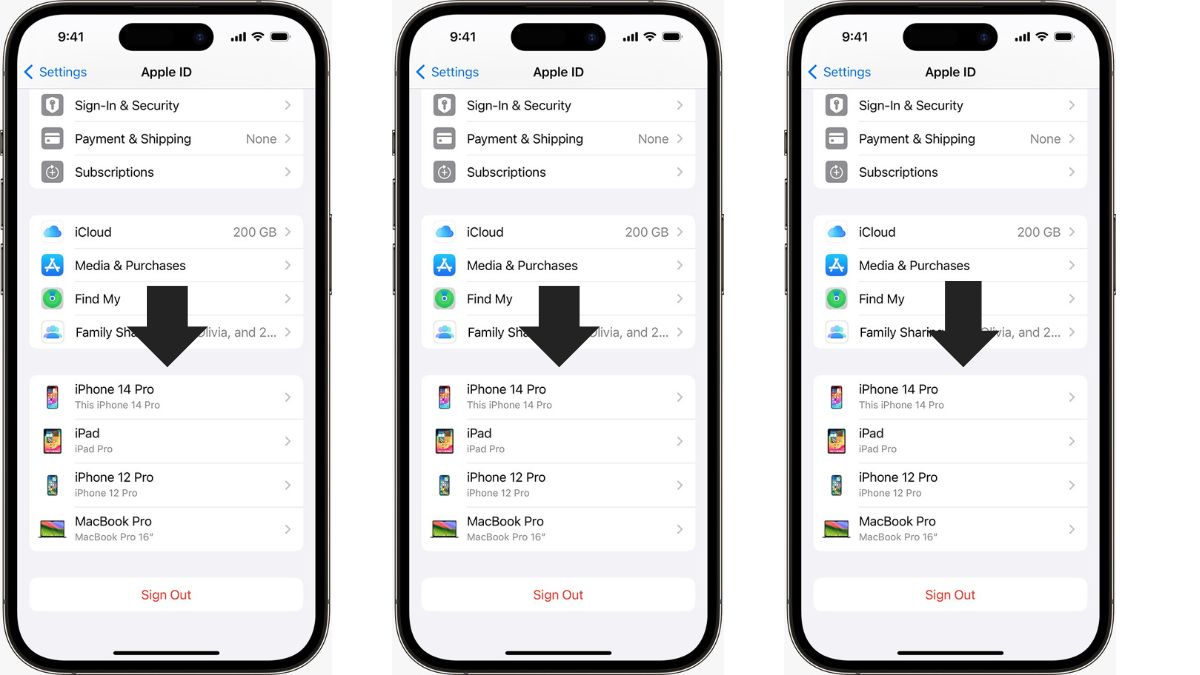
How To Check Your Apple ID Devices List To Find Where You Are Signed In

Find where you’re signed in using your Mac 

  1. Tap on the Apple menu  > System Settings. In the case of macOS Monterey or earlier, click Apple menu  > System Preferences.

2. Click on your name. In the case of macOS Monterey or earlier, tap on Apple ID. 3. Click any device name to view that device’s details, such as the device model, serial number, and OS version. The details might vary depending on the device type. You might be required to answer your security queries to view device details. How To Check Your Apple ID Devices List To Find Where You Are Signed In
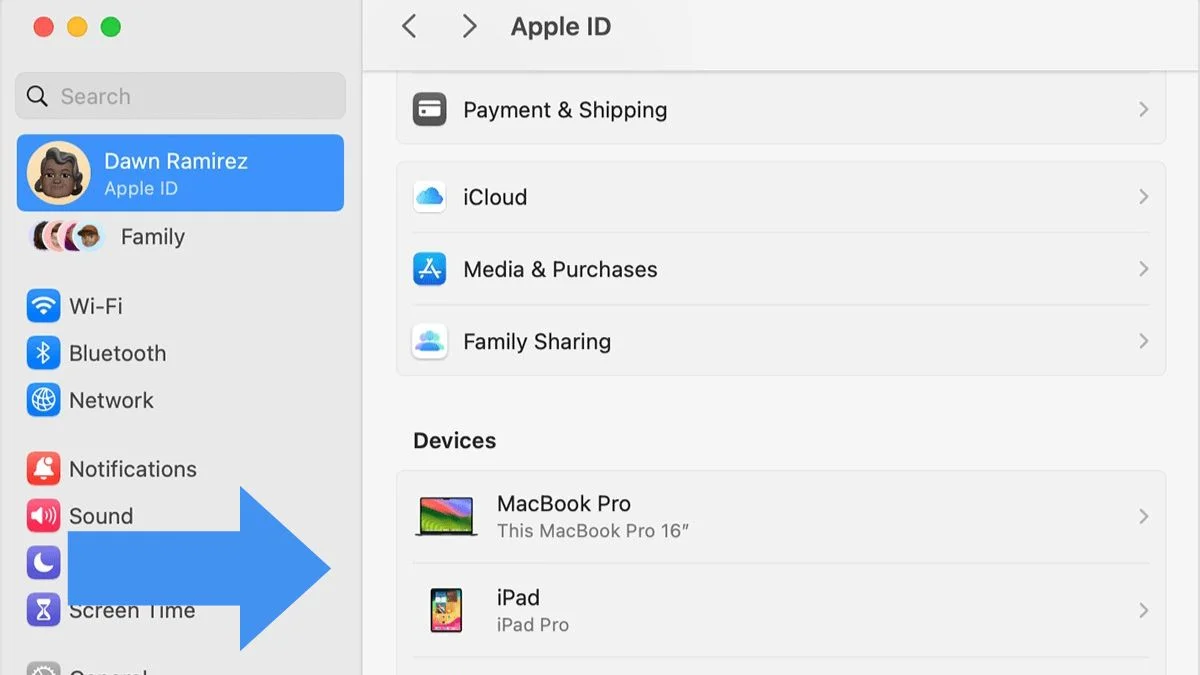
Find where you’re signed in using your PC

  1. Open iCloud for Windows.
  2. Click Manage Apple ID under your name
  3. Click any device name to see that device’s information, for instance, the device model, serial number, and OS version. The details might vary depending on the device type.
How To Check Your Apple ID Devices List To Find Where You Are Signed In
Courtesy: Apple

Find where you’re signed in using the web 

  1. Log in to appleid.apple.com,* then select Devices.
  2. If you don’t see your devices right away, tap on View Details and respond to your security questions.
  3. Click any device name to view that device’s details, such as the device model, serial number, OS version, and if it’s a trusted device that can be used to receive Apple ID verification codes. The details might vary depending on the device type.

How To Check Your Apple ID Devices List To Find Where You Are Signed In

- Advertisement -

How To Add an Apple device to the list

To add a device to the list, you are required to log in with your Apple ID. After you sign in on a device with your Apple ID, that device appears in the list. Here’s where you need to sign in:

  • iOS or iPadOS: Sign in to iCloud, iMessage, FaceTime, iTunes & App Stores, or Game Center on the device. You can also see your paired Apple Watch.
  • MacOS or Windows 10 and later: Sign in to iCloud on the device.
  • Apple TV HD and later: Sign in to the iTunes and App Store on the device.
  • Apple TV (3rd generation) and earlier: Sign in to the iTunes Store on the device.

How to remove an Apple device from the list

If you are not using your device anymore, or if you don’t recognize a listed device, you should remove it from the list. Following are the steps to remove a device from the list:

Remove an Apple device using your iPhone or iPad

  • Tap the device to find its details, then click Remove from Account.
  • Check the message that appears, then tap again to confirm that you want to remove the device.

Remove an Apple device using your Mac

  1. Go to Apple menu  > System Settings. In the case of macOS Monterey or earlier, choose Apple menu  > System Preferences.
  2. Tap on your name. In the case of macOS Monterey or earlier, click Apple ID.
  3. Click the device to find its information, then click Remove from Account.
  4. Check the message that appears, then tap again to confirm that you want to remove the device.

Remove an Apple device using your PC 

  1. Open iCloud for Windows.
  2. Click Manage Apple ID under your name.
  3. Tap on the device to find its details, then click Remove from Account.
  4. Check the message that appears, then click again to confirm that you want to remove the device.

Also Read: How Nokia’s 4G Tech Will Help Astronauts Communicate on the Moon in Real-Time

Remove an Apple device using web 

  1. Log in to appleid.apple.com, then select Devices.
  2. Choose the device to find its details, then click “Remove from account.”
  3. Check the message that appears.
  4. Tap again to confirm that you want to remove the device.

Remove an Apple device from your account page permanently 

If you’re still signed in with your Apple ID on the device, it might reappear on your account page the next time the device is connected to the Internet. To permanently remove the device from your account page, log out of iCloud, iTunes & App Stores, iMessage, FaceTime, and Game Center on that device or erase that device.

- Advertisement -
TAGGED:apple account securityApple Device ListApple DevicesApple IDapple id helpApple ID SettingsCheck Apple DevicesiCloud DevicesiPhone settingsManage Apple IDRemove Apple Device
Share This Article
Facebook Flipboard Copy Link
- Advertisement -
Ad image

Must Read

Apple Creator Studio Shows How Apple Is Rethinking Creative Subscriptions
NewsApps

Apple Creator Studio Shows How Apple Is Rethinking Creative Subscriptions

Top 5 Wireless Speakers For Home In 2026
Tech

Top 5 Wireless Speakers For Home In 2026

Nothing’s CMF Phone Mini Concept Is The Compact Phone We Want Back
NewsTech

Nothing’s CMF Phone Mini Concept Is The Compact Phone We Want Back

Infinix NOTE Edge Shows How Affordable Phones Have Evolved
NewsTech

Infinix NOTE Edge Shows How Affordable Phones Have Evolved

- Advertisement -
Ad image

You Might also Like

How to Fix A Phone With An Unresponsive Screen Due To Water
Guide

How to Fix A Phone With An Unresponsive Screen Due To Water

183 Million Passwords Exposed: How To Protect Your Gmail Account
GuideNews

183 Million Passwords Exposed: How To Protect Your Gmail Account

Protect Your Child Online With These OnePlus Parental Settings
Guide

Protect Your Child Online With These OnePlus Parental Settings

How to Remove Meta AI from WhatsApp
GuideApps

How to Remove Meta AI from WhatsApp: Step-by-Step Guide

Devicology
Whatsapp Instagram X-twitter Linkedin

The website Devicology is a repository of information on mobile devices, mobile gadgets, their functions and how to manage the devices for better user control. It offers expert advice on how to manage the settings of the hand-held devices so that the control remains with the user. From custom settings to optimum device utilization, the website covers multiple subjects of user interest and value. 

  • About Us
  • Terms of Use
  • Privacy Policy
  • Contact

© 2026 – Devicology. All Rights Reserved