

How To Disable YouTube AI Dubbing On Android And iPhone
YouTube recently introduced a feature called auto-dubbing (or AI-dubbing) for eligible videos. The idea is to automatically generate dubbed audio tracks in different languages, helping viewers from around the world understand videos more easily. This feature is especially targeted at creators who want to reach a broader, global audience.
- How To Disable YouTube AI Dubbing On Android And iPhone
- How Viewers Can Disable Auto-Dubbing on Android or iPhone
- Steps to Switch Back to Original Audio
- Workarounds if Audio Track Option is Not Available
- How Content Creators Can Disable Auto-Dubbing for Their Videos
- Why You Might Prefer Original Audio Over AI-Dubbing
- What to Expect: Limitations and Current Reality
- FAQs
- Q1. Is there a global switch in YouTube to disable auto-dubbing for all videos?
- Q2. Can viewers always switch back to the original audio?
- Q3. If I disable auto-dubbing for my channel, will future uploads remain in original language only?
- Q4. Does disabling auto-dubbing affect subtitles or captions?
- Q5. Can I revert to original audio on mobile browsers if the YouTube app does not let me?
When auto-dubbing is active, some videos may play with a dubbed voiceover instead of the original audio track. While this can be helpful for viewers who don’t speak the video’s original language, many users prefer watching content with the original voice, and there are ways to revert to that on both Android and iPhone.
Below is how you, as a viewer or a creator, can disable or bypass AI-dubbing.
How Viewers Can Disable Auto-Dubbing on Android or iPhone
At present, there is no global “disable auto-dubbing” switch for all YouTube videos. However, when a video supports multiple audio tracks, you can manually switch to the original audio.
Here is what you can try:
Steps to Switch Back to Original Audio
- Open the video that is playing with dubbed audio, on your Android or iPhone YouTube app or browser.
- Tap on the Settings (gear) icon in the video player controls.
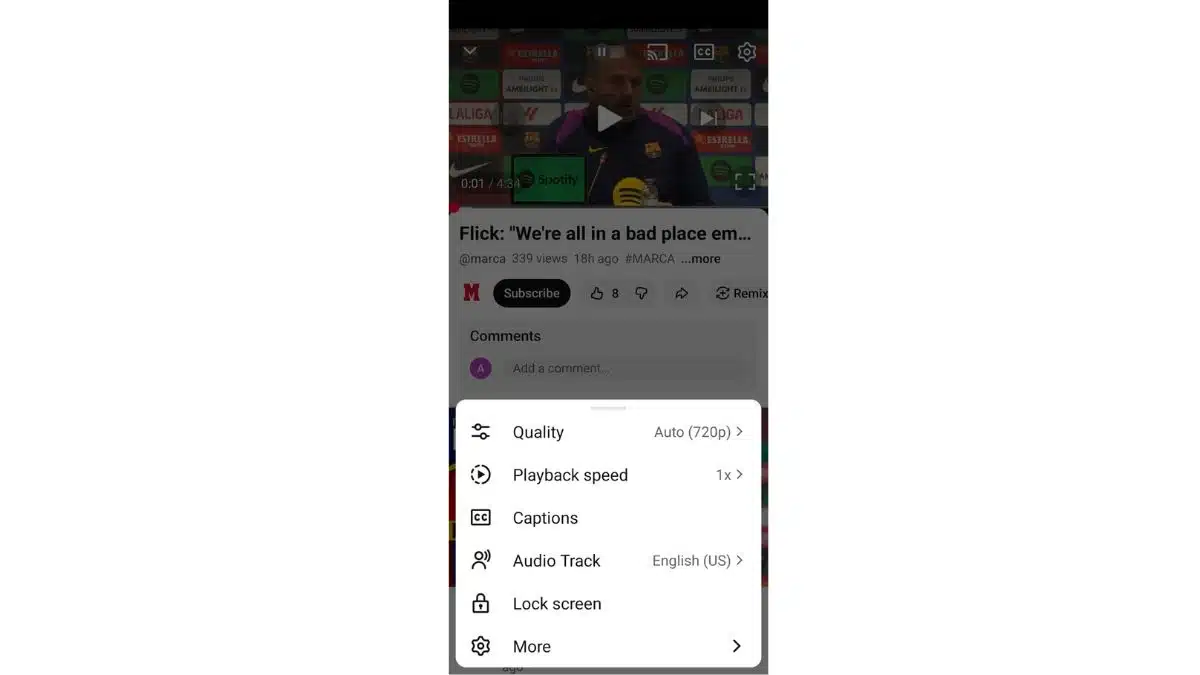
Tap on the Settings (gear) icon in the video player controls - Look for an Audio track option.
- If available, choose Original audio instead of the dubbed version.
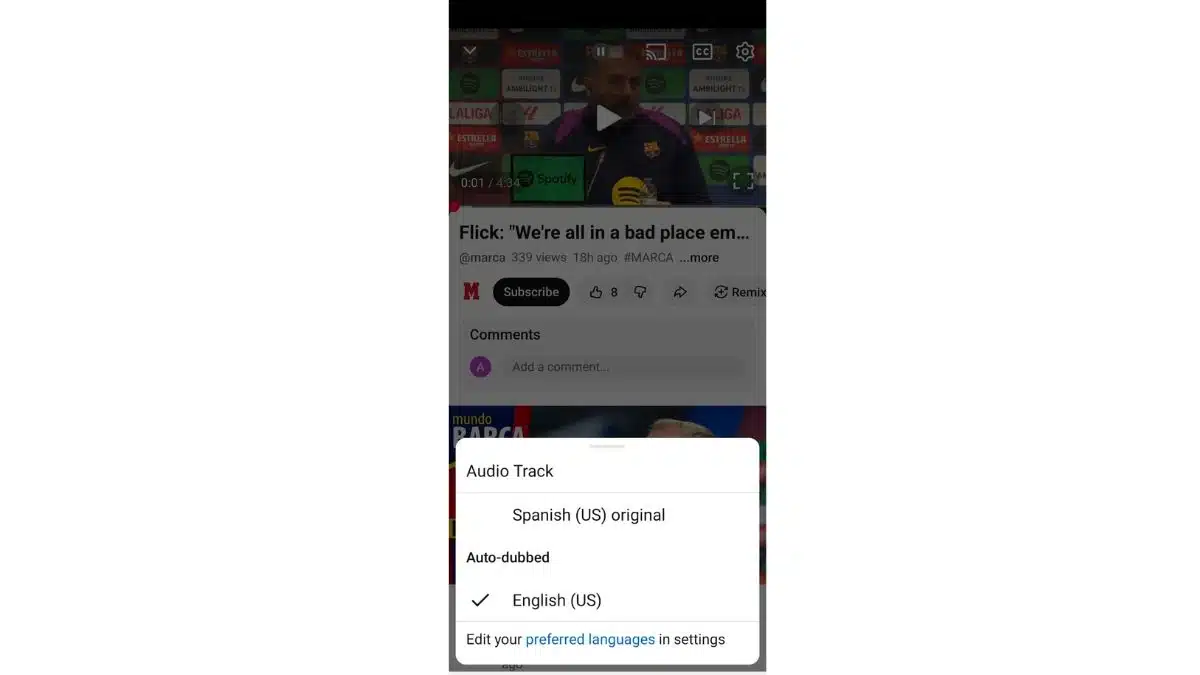
If available, choose Original audio instead of the dubbed version
Important Things to Know
- Not all videos support multiple audio tracks. If a video does not offer an “Audio track” option, you may not be able to revert to the original language.
- On some mobile browsers or in certain versions of the YouTube app, the “Audio track” option may not appear.
- If the dubbed version was uploaded by the creator as a standard audio track, switching may not be possible.
Workarounds if Audio Track Option is Not Available
Some users report that switching device or browser settings may help, for example using the Desktop site option in a mobile browser to access more settings, including audio-track selection.
But note: these are unofficial workarounds and may not always work reliably.
How Content Creators Can Disable Auto-Dubbing for Their Videos
If you upload videos on YouTube and want to prevent auto-dubbing from being applied automatically, you have control but only via desktop access.
Follow these steps:
- Sign in to YouTube Studio on your computer.
- Go to Settings – Upload defaults – Advanced settings.
- Find the option labeled Allow automatic dubbing and uncheck it.
- Click Save. From now on, your new uploads will not receive AI-dubbed audio tracks automatically.
If you previously had auto-dubbing enabled and want to disable it for a specific video:
- In YouTube Studio, go to Content – select the video – Languages.
- Under the audio or language list, locate the auto-dubbed track you want to remove. Then choose Unpublish or Delete for that dubbed track.
This way, the video will remain available in its original audio only.
Why You Might Prefer Original Audio Over AI-Dubbing
Auto-dubbing is intended to help viewers by providing foreign-language audio, but many users find drawbacks:
- The dubbed voice may sound synthetic or emotionless. It may not match the natural tone, pacing or style of the original speaker.
- Translations may mis-handle idioms, jokes, or cultural references.
- Synchronization between video and dubbed audio may be imperfect.
For these reasons, many viewers prefer to watch in the original language and rely on subtitles if needed instead of AI-generated dubbed audio.
What to Expect: Limitations and Current Reality
- Auto-dubbing is still a relatively new feature and is only available for videos and channels that meet certain eligibility criteria.
- Because auto-dubbing is optional and creator-controlled, not all videos will have alternate audio tracks.
- YouTube currently does not offer a universal “disable auto-dubbing for all videos” setting. Both viewers and creators must manually manage dubbing preferences per video or per channel.
That means sometimes you may still encounter auto-dubbed videos even if you prefer original audio, especially if the video uploader or the platform has defaulted to dubbing.
FAQs
Q1. Is there a global switch in YouTube to disable auto-dubbing for all videos?
A. No. At present, there is no universal setting that disables auto-dubbing for all videos.
Q2. Can viewers always switch back to the original audio?
A. Not always. Switching to original audio works only if the video has more than one audio track.
Q3. If I disable auto-dubbing for my channel, will future uploads remain in original language only?
A. Yes. By unchecking Allow automatic dubbing in YouTube Studio’s Upload defaults, your future uploads should no longer receive AI-dubbed audio tracks.
Q4. Does disabling auto-dubbing affect subtitles or captions?
A. No. Subtitles or captions are separate from audio tracks.
Q5. Can I revert to original audio on mobile browsers if the YouTube app does not let me?
A. Sometimes, using a desktop-mode view in mobile browsers might allow access to audio-track settings not visible in the app.
Also Read- How To Clear Cache And Cookies On iPhone: Simple Guide For Safari Users