




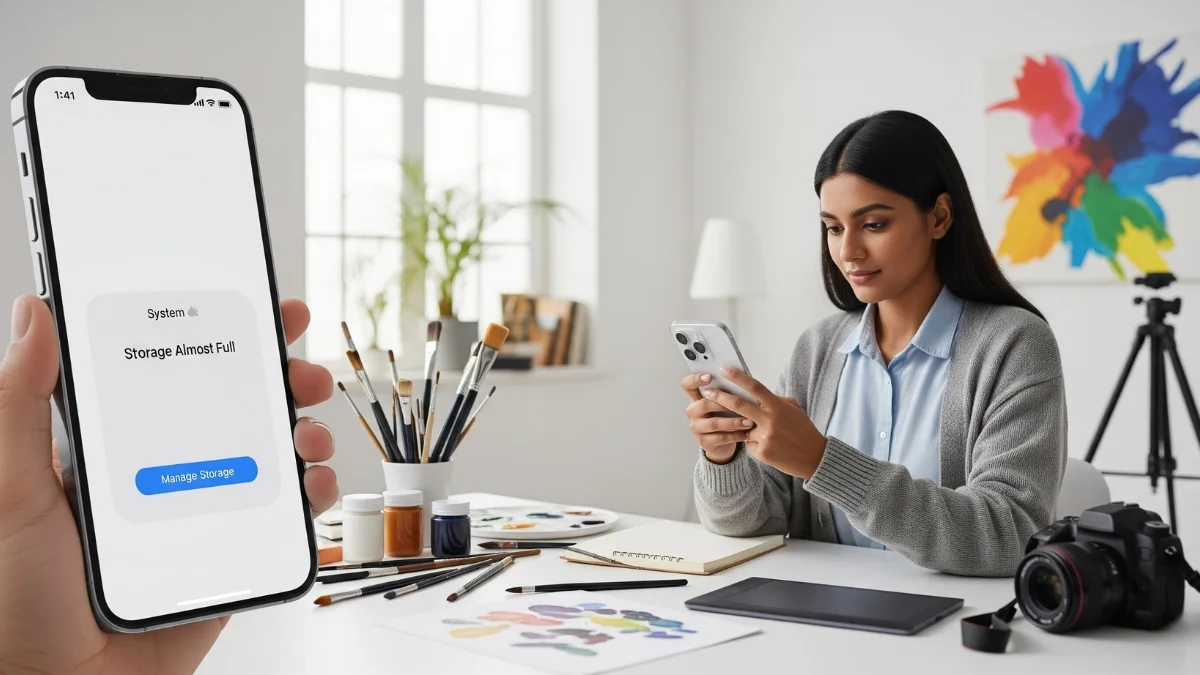
Running Out of iPhone Storage for Art Photos? Here’s How to Fix It: Shooting high-res art photos on your iPhone is great, but those detailed shots take up a lot of space fast. If you’re tired of running out of storage during a shoot, don’t worry. You don’t have to delete everything to make room. Whether you’re just getting started or already deep into your creative journey, this simple guide will help you free up space so you can keep capturing your best work.
How Much Space Do You Need for High-Quality Photos?
It depends on how you take and manage your photos. Do you take a few carefully planned shots, or do you snap many from different angles? Do you edit on your phone, or do you move photos to your laptop or external drive?
The more you do directly on your iPhone, like shooting, editing, and storing photos, the more storage you’ll need. Take a moment to think about your workflow, then clear space based on that.
Running Out of iPhone Storage for Art Photos? Follow These Steps To Fix It
Step 1: Clean Up Your Photos App
Photos usually use up the most storage. Instead of going through your gallery one by one, try a cleaner app to speed things up. A good option is the Clever Cleaner AI CleanUp App. It’s free and easy to use.
Here’s how to use it:
- Download the app from the App Store
- Let it scan your photo library
- Tap Smart Cleanup to remove duplicates and similar shots
- Review the trash before deleting everything for good
You can also clear large files, screenshots, and Live Photos. It’s fast and helpful.
Step 2: Check the Files App
You might have forgotten files in the Files app. Open it, go to On My iPhone or iCloud Drive, sort by file size, and delete anything you no longer need.
After that, clear the Recently Deleted folder to free up space right away.
Step 3: Clear App Data
Apps build up extra files over time. To check which ones take up the most space:
- Go to Settings, then General, then iPhone Storage
- Look through the list and tap on the biggest apps
- Delete and reinstall if needed to start fresh
This removes old data that may be slowing things down.
Bonus Tip: Use iCloud to Save Space
If you don’t want to delete your media, turn on iCloud Photos. It stores the full version online and keeps smaller copies on your phone. Just remember, the free version only gives you 5 GB, so you may need to upgrade.
Ready to Start Shooting Again?
Now you know what to do when your iPhone storage gets full. With just a bit of cleanup, you’ll have plenty of space to focus on your art without worrying about running out of room.
ALSO READ: Nothing Phone 3 Review: Stunning Looks, Solid Performance, But Not Quite Flagship