




Ever written an email at night but didn’t want to send it immediately? Or needed to send something at the perfect time, but know you will forget?
That is exactly where scheduling helps.
With Gmail, you can write your email now and send it later, automatically. No reminders, no stress.
Steps to Schedule an Email in Gmail
Step 1: Open Gmail
Go to Gmail on your phone or computer and log in.
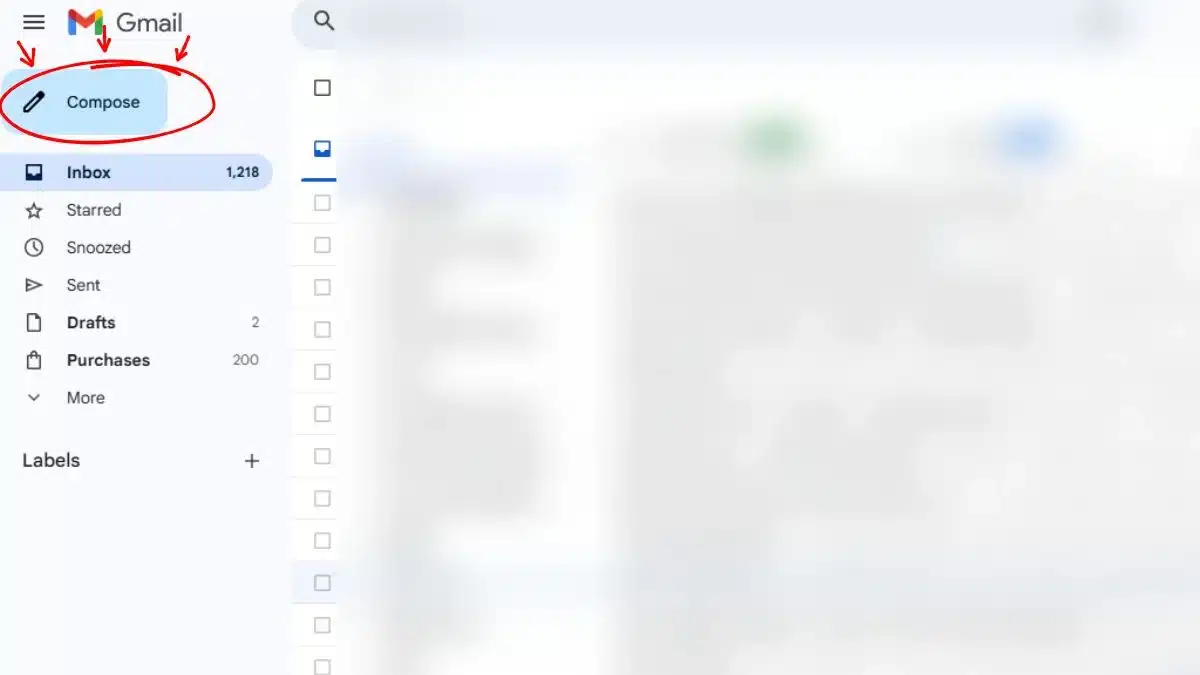
Step 2: Click on Compose
Tap or click on Compose to write a new gmail.
Step 3: Write Your Email
Add the recipient’s Gmail address, subject and message
Write it normally.
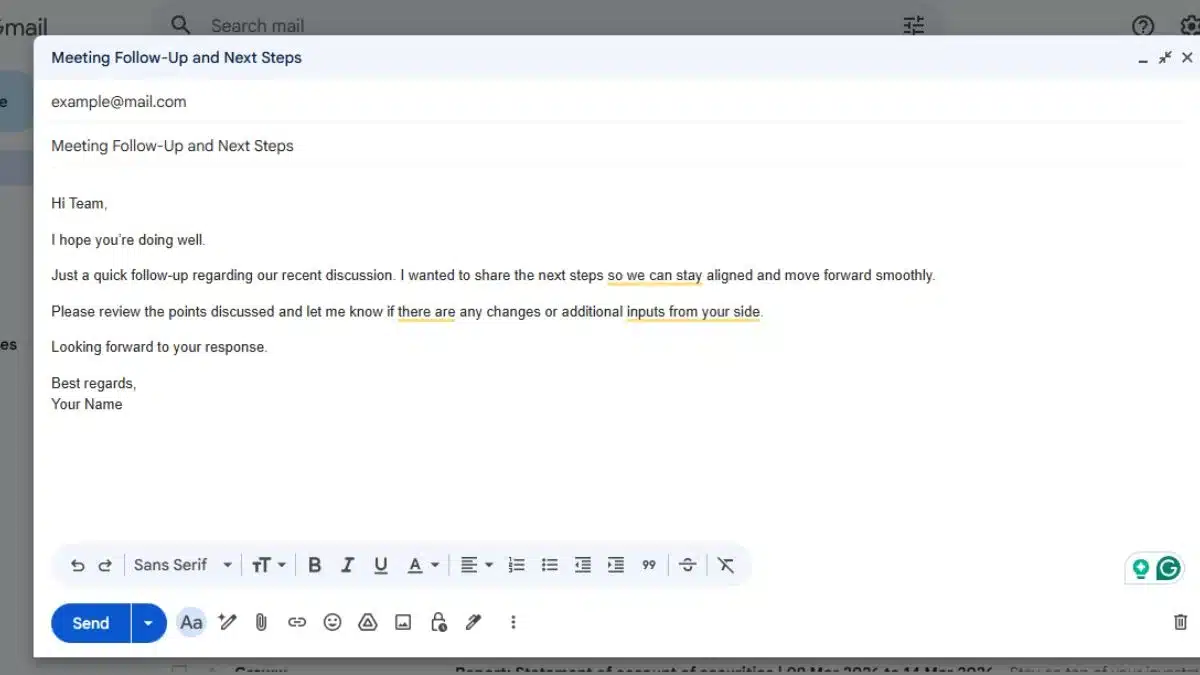
Step 4: Click the Small Arrow Next to Send
Now don’t hit “Send” directly.
Look carefully, next to the Send button, you’ll see a small arrow (▼).
Click on it.
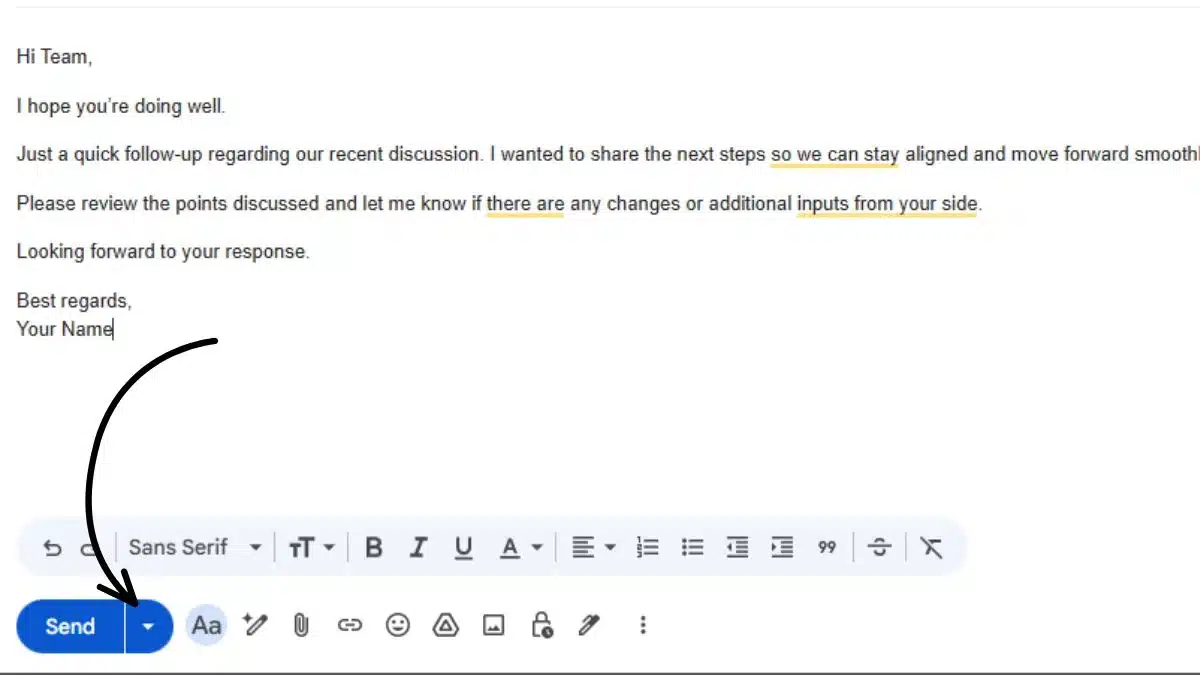
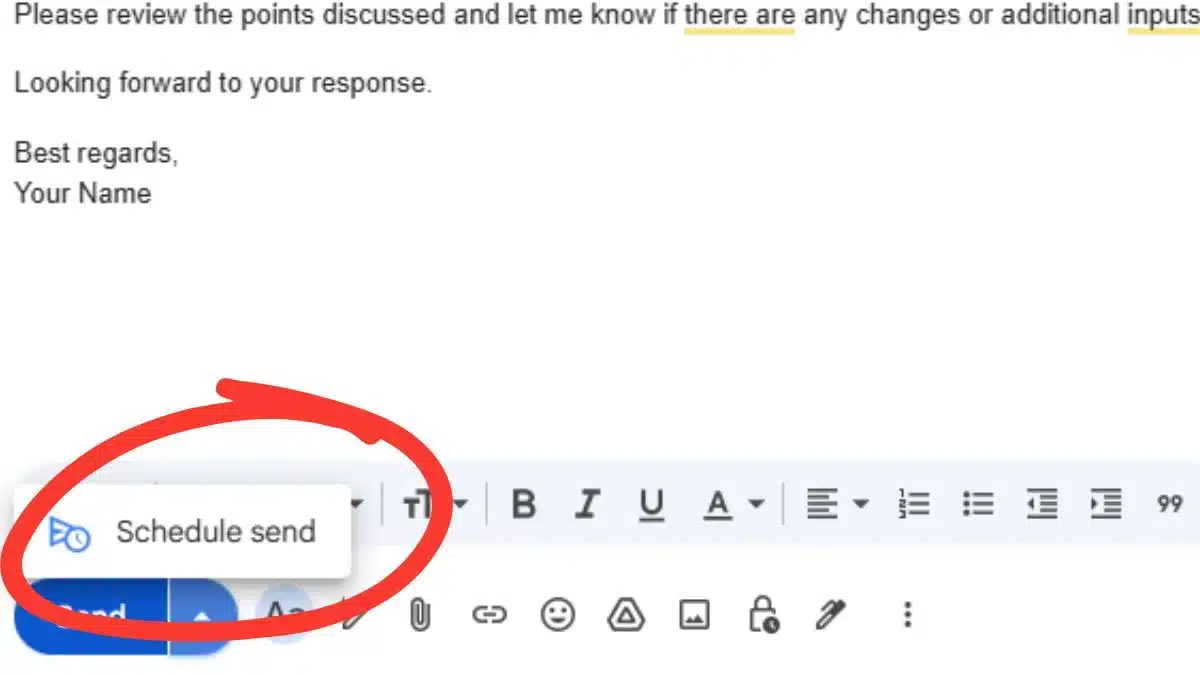
Step 5: Tap on “Schedule Send”
Now select Schedule send.
Step 6: Pick Date and Time
Choose when you want your gmail to go.
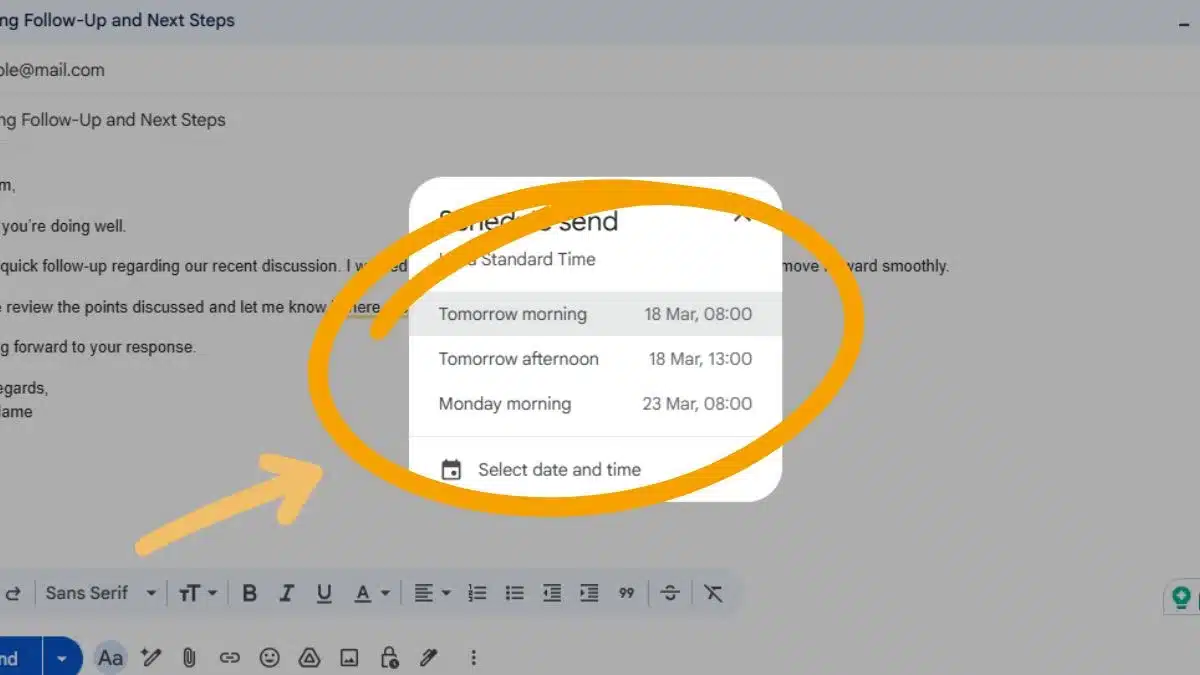
And done
Your email will now go automatically.
How to Cancel a Scheduled Gmail
And, if by any chance you want to cancel that gmail, just-
- Go to Scheduled
- Open the email
- Tap Cancel send
That Gmail will go back to Drafts, and it won’t be sent anymore.
Also Read: Your Phone Is Lagging? Do This To Instantly Boost Gaming Performance In Your OnePlus Phone