





Minecraft is one of the most exciting games but one can make it even better by adding popular mods. For the unversed, Minecraft Mods are used for enhancing the game by improving the graphics and adding more advanced features in gameplay. Mods will let you take your gaming experience to the next level. Interestingly, it is very easy to install the Minecraft Mods. In this article, we bring you a simple guide for installing Minecraft mods on Windows, Mac, Android, and iOS.
It has to be noted that in order to install Minecraft mods on Windows or Mac, you’ll need a mod loader. Forge is one of the most popular and user-friendly options, and this guide will focus on using it. Other alternatives of mod loaders include Fabric and LiteLoader. Forge makes it simple to download and manage mods by letting you add them directly to your mods folder. Before starting the installation process, it’s important to get your system ready:
Steps To Launch And Prepare Minecraft For Modding:
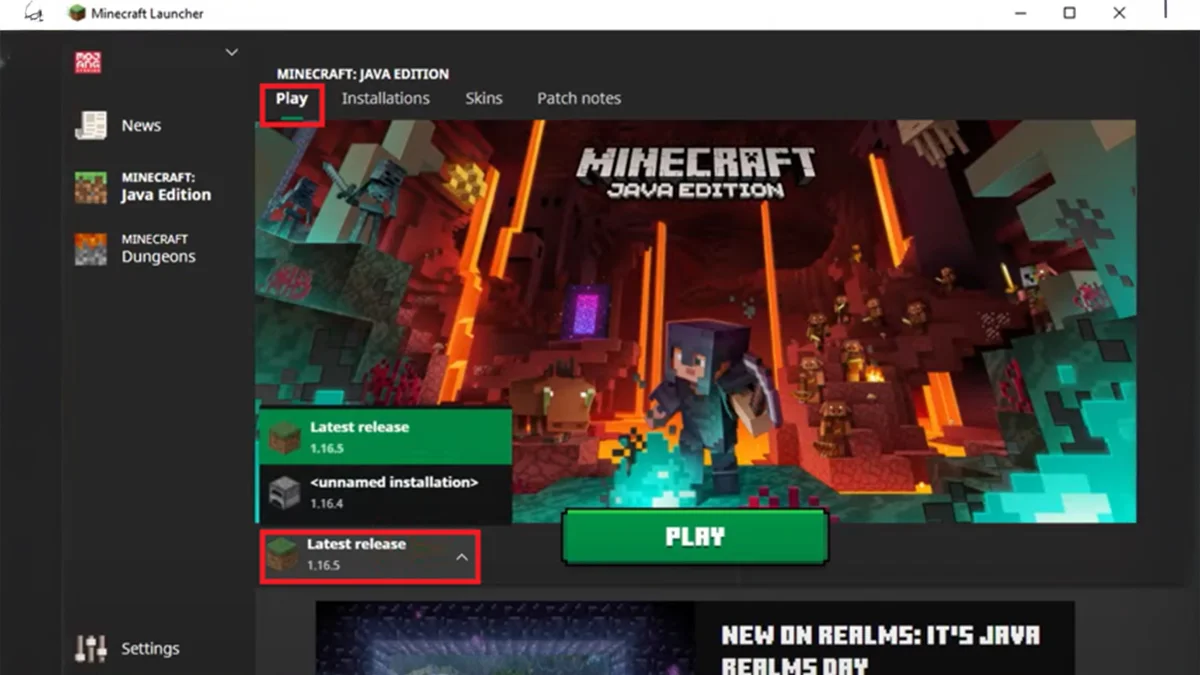
1. Open The Minecraft Launcher:
- Launch the Minecraft launcher on your system.
2. Select or Add The Desired Version Of The Minecraft Launcher:
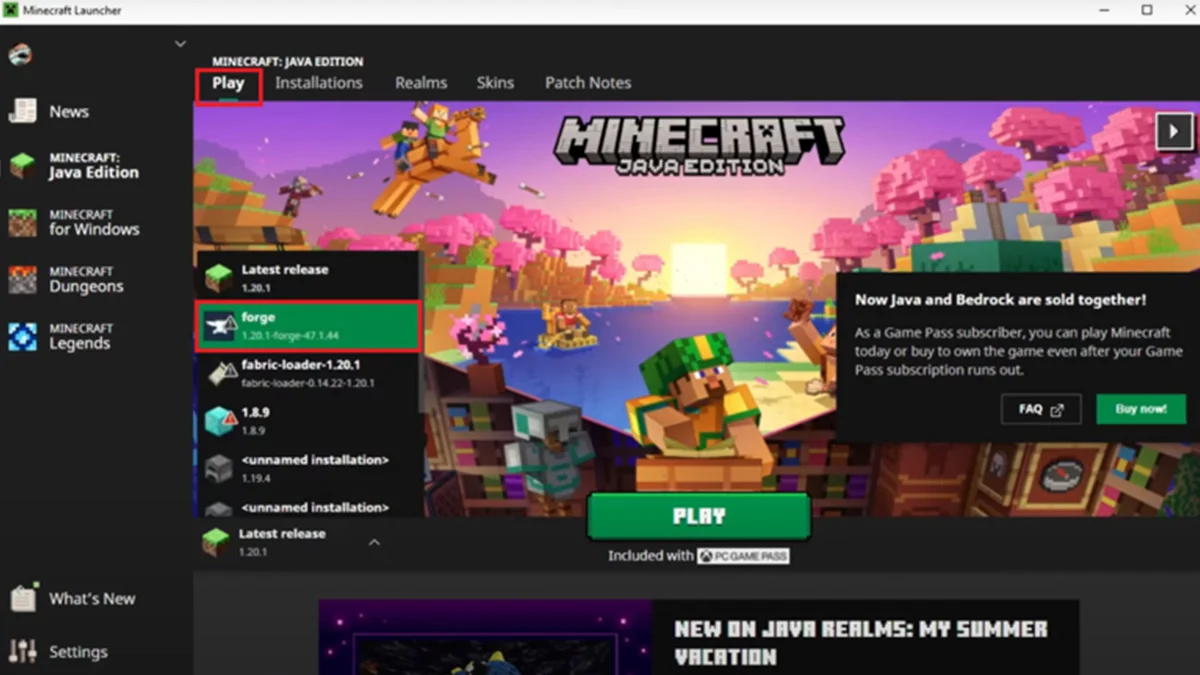
- Go to the Play tab and check if the version you want to add is available.
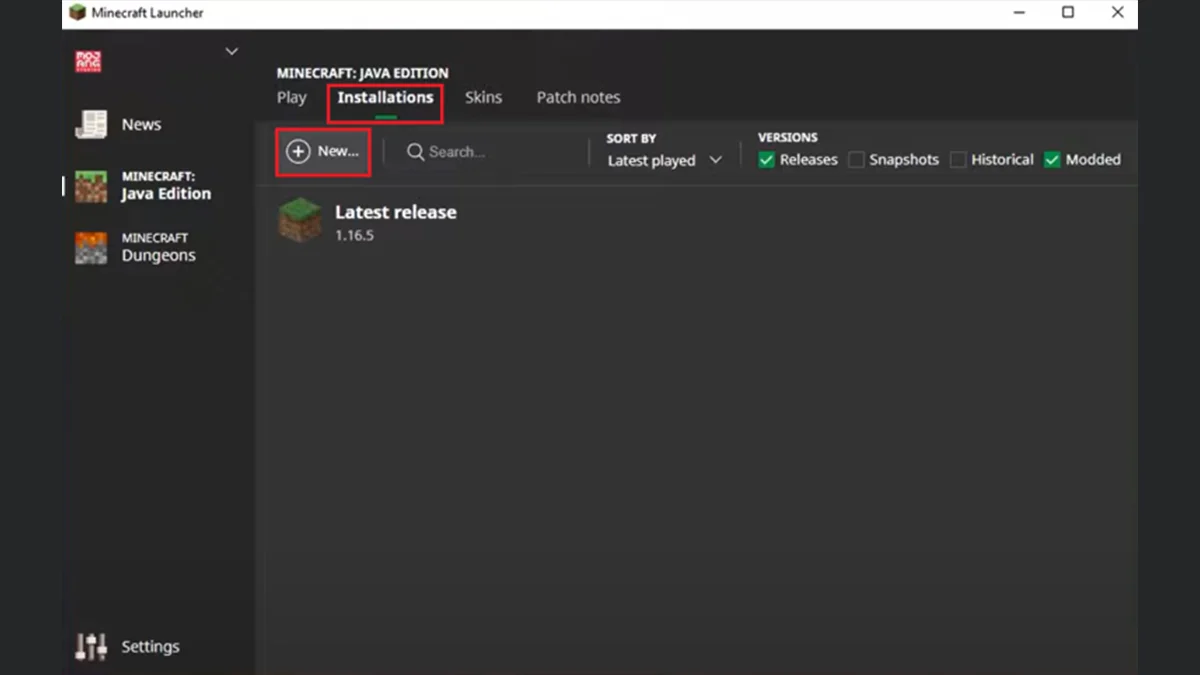
- If the version is not listed:
1. Scroll the Installations tab.
2. Click New to create a new version profile.
3. Under the ‘versions‘ tab, scroll down the menu and select the required version.
4. Click Create to save the new profile.
3. Launch The Selected Version:
- Go back to the Play tab.
- Select the version you wanted
- Click the Play button to launch it.
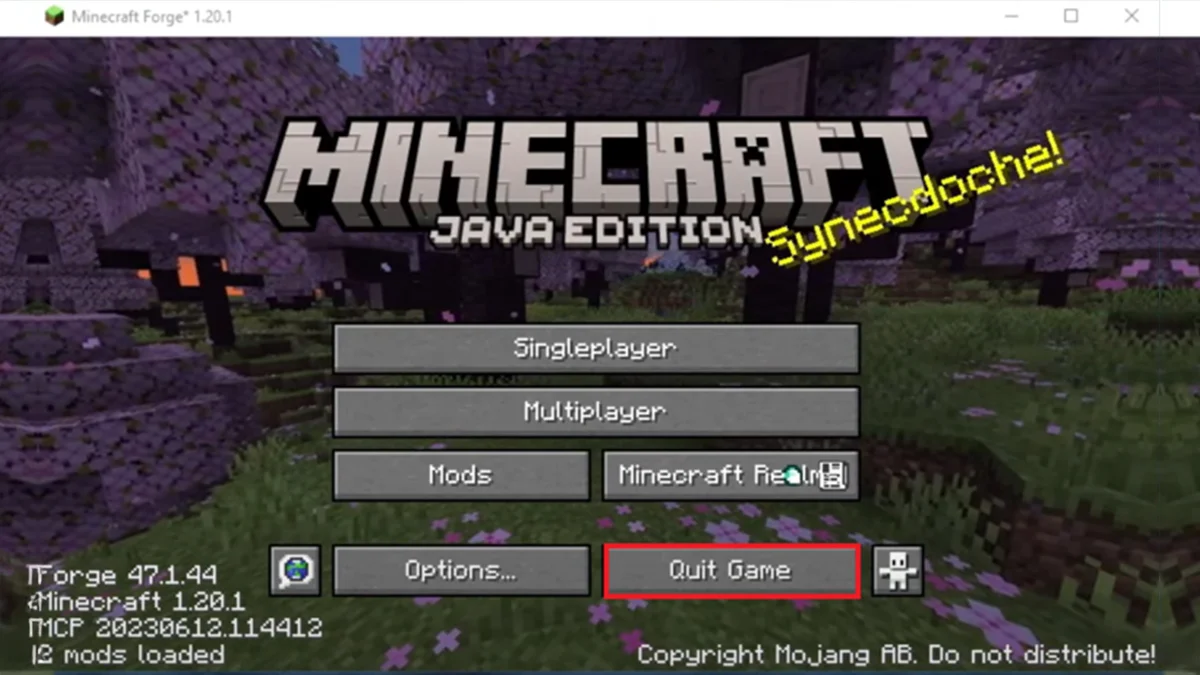
4. Exit The Game:
- You can quit the game, whenever you want to by selecting the Quit Game option in the Minecraft window.
5. Go Ahead With Mod Installation:
- After exiting the game, follow the specific mod installation instructions on your system.
Step 1: Install Java
1. Go to the official Java website.
2. Click Download Java and follow the prompts to install it.

Step 2: Install Forge
1. Install Forge:
- Visit the official website of Forge, click on Installer under Download Recommended section, and click Skip after 5 seconds to download.
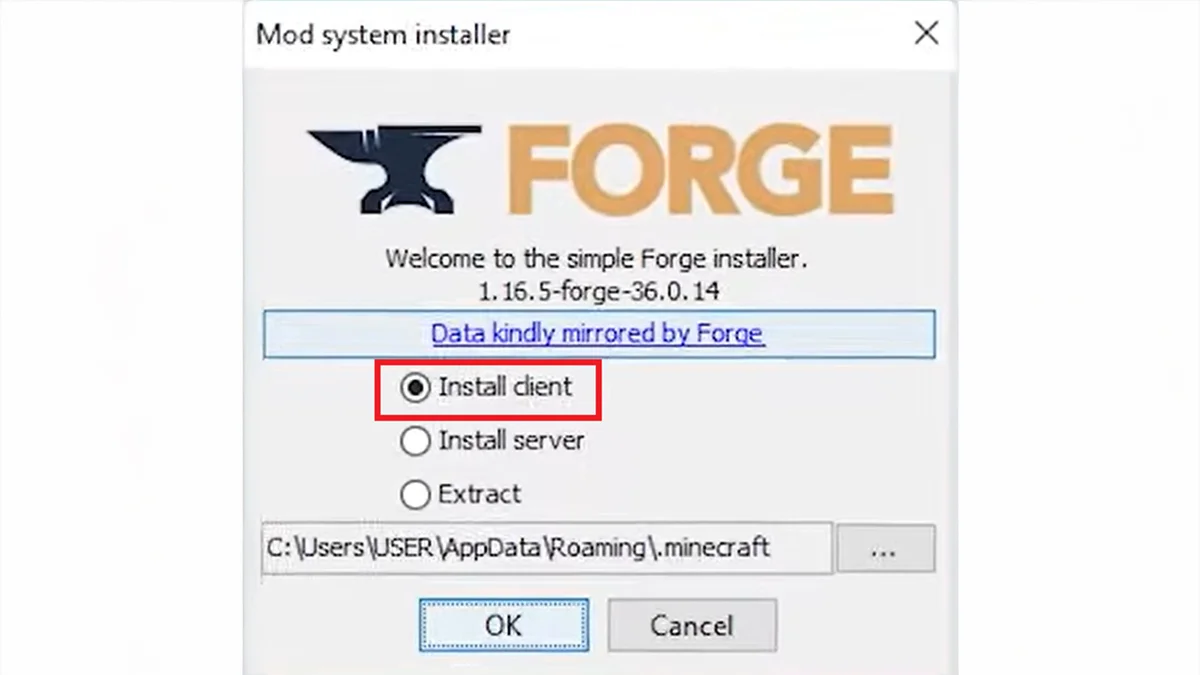
2. Install Forge:
- Windows: Right-click the installer, open with Java, select Install client, and click OK.
- Mac: If blocked, go to System Settings > Privacy & Security, allow Forge, then run the installer, select Install client, and click OK.
Step 3: Launch Minecraft and Install Mods
1. Open the Minecraft Launcher.
2. In the Play tab, select Forge from the bottom-left corner, then click Play.
3. If a warning appears about the modified installation, check the box that says “I understand the risks. Don’t warn me again about this installation” and click Play.
4. Once the game loads, go to the Mods tab.
5. Click Open mods folder at the bottom-left. This will open the folder where mods should be placed.
- If you don’t see this option, follow the next step to find the folder manually:
- For Windows: Go to C:\Users[yourname]\AppData\Roaming.minecraft.
- For Mac: Go to ~/Library/Application Support/minecraft.
6. If there’s no Mods folder in the location, create one and name it Mods.
7. Keep this folder open for adding mods later.
Step 4: Install Mods
For PC:
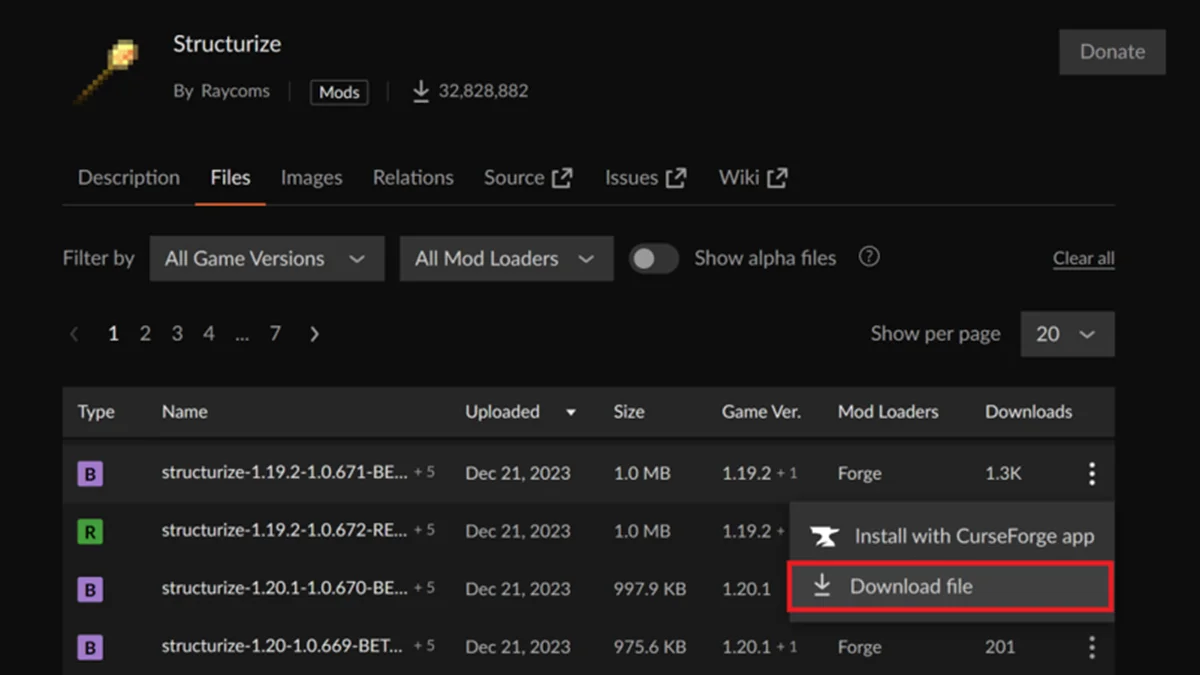
- Go to a trusted site like CurseForge and select Minecraft.
- Choose a mod, check compatibility with your Forge version, and download it.
- Open the Mods folder (as done in Step 3) and move the downloaded mod into it.
For Mobile (Android/iOS):
- Download the mod (usually .mcaddon).
- If the file is a .zip, rename it to .mcaddon.
- For iPhone: Tap the file to open in Minecraft.
- For Android: Long-press the file, select Open with, and choose Minecraft.
- Wait for Minecraft to confirm the mod is imported.
- Create a new world and enable required settings in the Experiments tab.
- In Behavior Packs, tap Activate.
- If necessary, activate the Resource Pack in the Resource Packs tab.
ALSO READ: The Best Mid-Range Phones Of 2024