




Keeping your Motorola phone’s software up-to-date is important for security, smooth performance, and enjoying new features. Updates fix bugs, patch security issues, and sometimes bring useful tools or improvements. Here’s a simple guide to getting your phone updated.
Why Update Your Motorola Phone
Updating ensures your phone runs smoothly and safely. Each update delivers bug fixes, security patches, and sometimes new Android versions or user interface upgrades. Staying updated protects your data and gives you the best experience with your device.
Prepare Before Updating
Before you start:
-
Connect to a stable Wi-Fi network to avoid using mobile data.
-
Charge your phone to at least 50% or keep it plugged in during the update.
-
Free up storage if needed, as updates often require several gigabytes.
Method 1: Update Directly on Your Phone
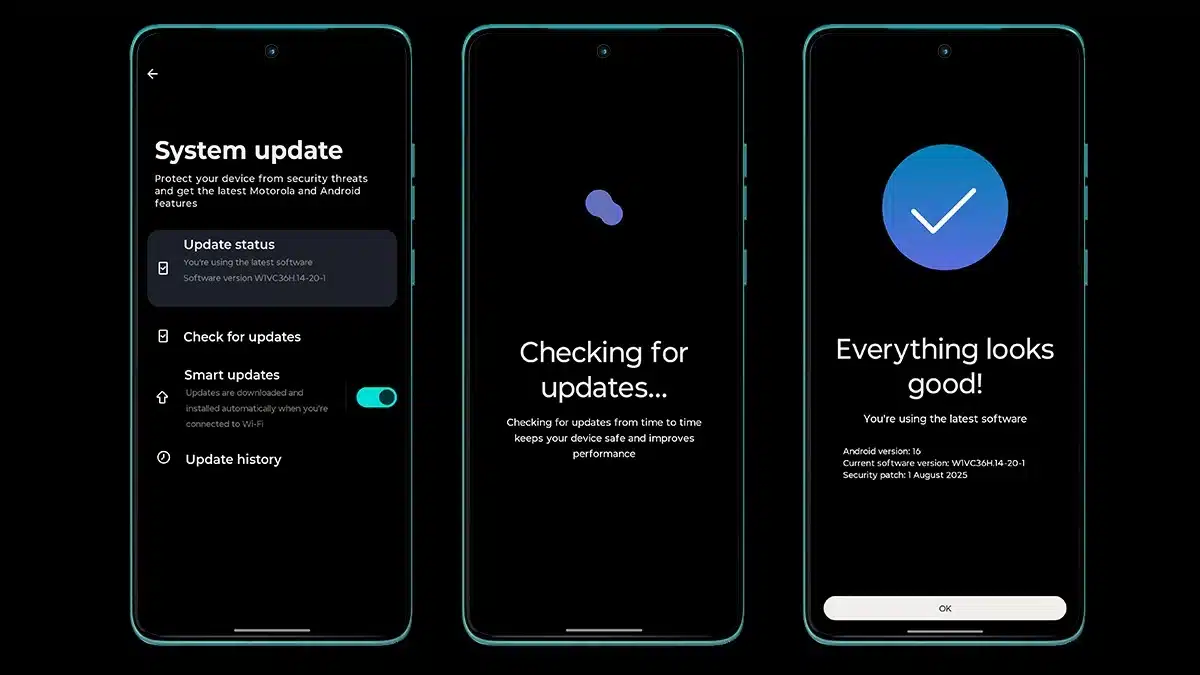
Most Motorola phones support over-the-air updates through the Settings app.
-
Open the Settings app.
-
Scroll down and tap System.
-
Tap System updates or Software update.
-
Tap Check for updates.
-
If an update is available, tap Download or Download and Install.
-
Let the phone download and install the update. Your phone will restart during this process.
-
Wait for the update to finish. Do not interrupt or turn off your phone.
If you see a message saying your software is up to date, your phone already has the latest version.
Method 2: Use Motorola’s Software Fix Tool on PC
If your phone has trouble updating or cannot update over the air, you can use Motorola’s Software Fix tool on a PC.
-
Download the Software Fix tool from Motorola’s official support website.
-
Install and open it on your PC.
-
Connect your Motorola phone via USB.
-
Use the Rescue feature to refresh or fully update your phone’s software.
This method may erase personal data, so make sure to back up your phone first. The tool also includes hardware tests and data backup options.
Tips for a Smooth Update
-
Back up important data before updating.
-
Ensure a stable Wi-Fi connection.
-
Keep your phone plugged in if the update takes time.
-
Be patient during installation and reboot; it can take several minutes.
For most users, updating directly through the Settings menu is the easiest and safest method. The Software Fix tool is a helpful alternative for troubleshooting or major updates.
By following these steps, your Motorola phone will stay up-to-date, secure, and ready to deliver the best performance.
ALSO READ: How To Speed Up Your Slow Smartphone: 6 Simple Steps