



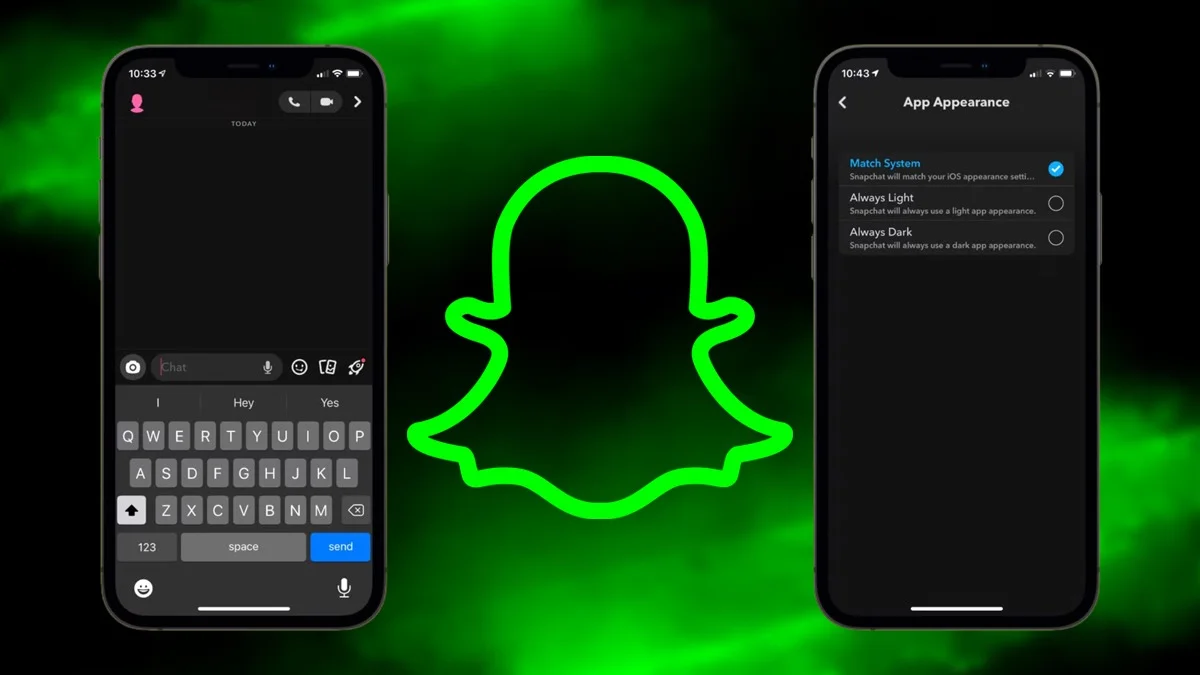
Enable Dark Mode in Snapchat: Dark mode has become one of the most essential features for smartphone users these days. With long hours before the screen, this feature gives some rest to the eyes, and all the major apps are also including this feature in their interface.
Smartphones generally have a dark mode option and a reading mode option available in them, but it is not automatically applied to the Apps.
This simple guide will help both iOS and Android Users to enable Dark mode in Snapchat.
Enable Dark Mode in Snapchat
Step 1: Open Snapchat on your phone and go to ‘Settings’.
Open Snapchat App on your phone and go to the ‘Settings’.
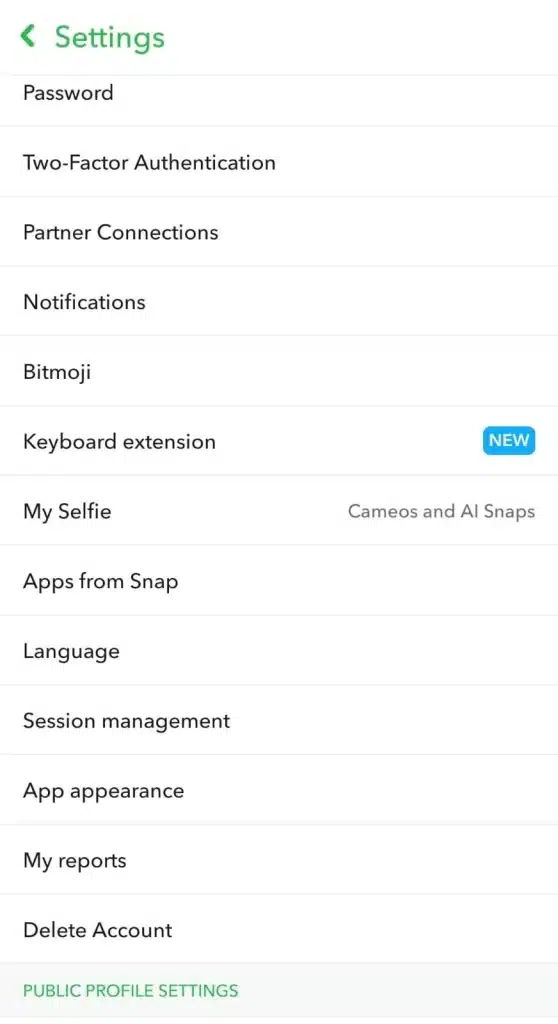
Step 2: Scroll down to find ‘App appearance’ in Settings.
Settings-App appearance
Tap on App appearance in ‘Settings’.
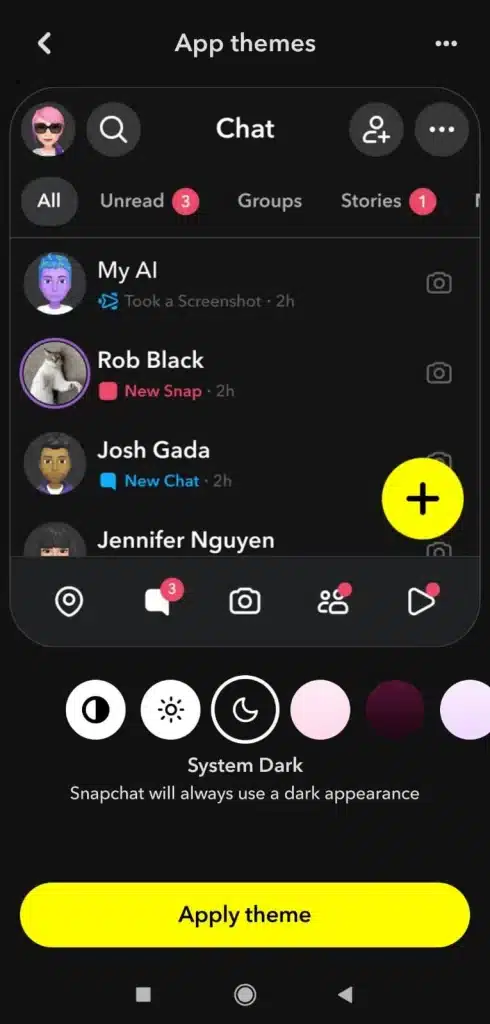
You will see three options:
- Match System (Half dark and half light)
- System Light (Sun)
- System Dark (Moon)

Step 3: Tap on the moon icon, which says ‘System Dark’.
Settings-App appearance-System Dark-Apply theme
Once you tap on the moon icon, which says ‘System Dark’, tap on ‘Apply theme’.
Dark theme will be enabled on your Snapchat App.
Step 4: Dark Mode on Snapchat is enabled successfully.
Once you follow the steps mentioned above, dark mode will be successfully enabled in your Snapchat App.
The Dark Mode feature in Snapchat is really helpful as it lets the user enjoy the app in a much more comfortable and low-light theme without putting strain on the eyes.
ALSO READ: The AI Image Trend: Gemini Nano Banana vs ChatGPT, Which Is Better?