



What is Screen Cast?
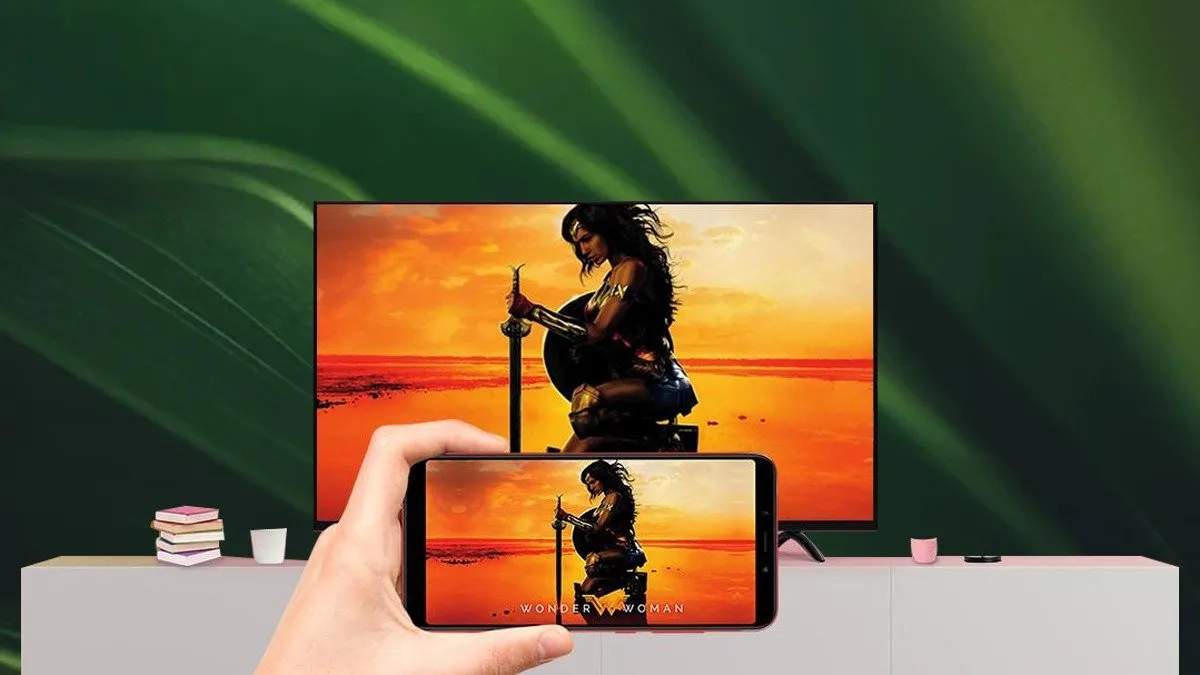
Screencast is a powerful feature that enables you to cast your mobile screen onto larger displays. Xiaomi’s custom feature has become an essential feature in the modern technological landscape. The Screen Cast/Wireless display in Xiaomi helps to enhance productivity and entertainment alike. This provides its users with a powerful built-in wireless display feature that is easy to use and allows you to cast the display of your device, eliminating the need for any other software or app. MIUI has a built-in screen mirroring tool that allows users to cast their phone display to other devices.
With the rise of remote and hybrid work, online classes for school and university students, and a rise of at-home entertainment, screen casting/wireless display has become one of the most used tools for both productivity and leisure.
Screen Cast can be used for –
-
Entertainment: Watching your favorite movies, TV shows, and videos on a larger display.
-
Gaming: Playing mobile games with friends becomes more enjoyable on a bigger screen.
-
Productivity: You can share slides and documents during meetings without any wires involved.
-
Education: Schools can use this feature to mirror study material for group learning.
What are the requirements to use Screen Cast in Xiaomi?
Certain requirements must be fulfilled before you can cast your device to any external device.
Step 1: Ensure that both devices are using the same Wi-fi.
Ensure that Wi-fi has been enabled in your Xiaomi device and in the Display device you want your screen to be cast to using wireless display settings, and both devices are using the same Wi-fi. Screen casting will not work across different networks, even if both have active internet connections.
Step 2: Enable Wireless Display
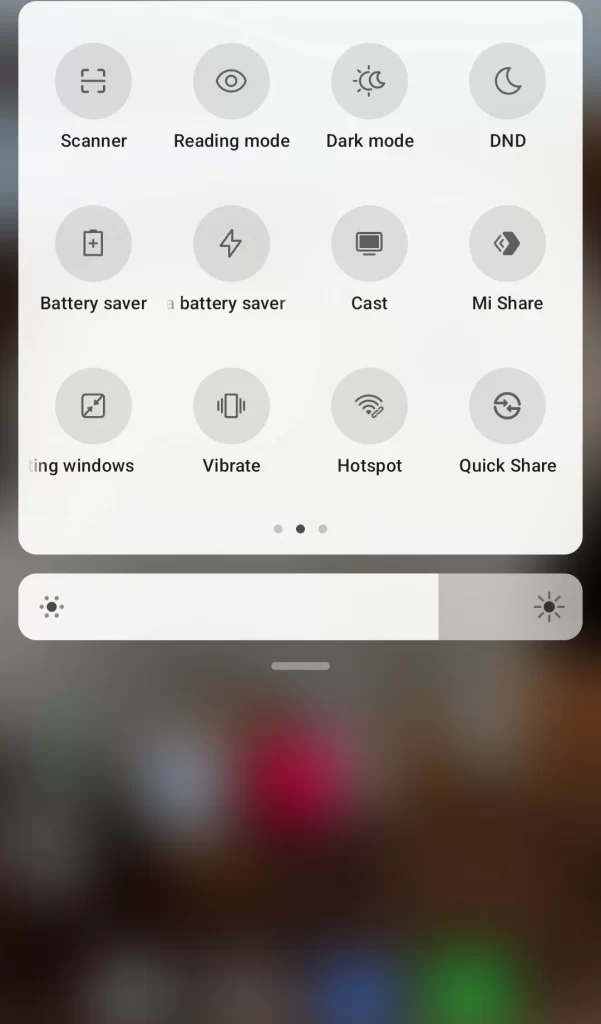
- Find the Cast device icon option in the drop-down menu at the top of the screen.
- Alternatively, search for the “cast device” or “wireless display” option in the Settings – Connection and Sharing option.
- Depending on the model of your phone, there will be different options to enable screen casting.
Tip – The exact wording can vary depending on your MIUI version and phone model, but the steps remain largely similar.
Step 3: Detect the Available devices and connect your chosen device
- Once you have enabled the wireless display/cast device option from the settings, your phone will start scanning for available devices.
- Select your device from the available list.
- Some devices require you to accept a request to cast a device by first granting access/permission to cast.
Some TVs may show a confirmation message during this stage. Use your remote to allow the screen casting.
Step 4: Wireless Display Enabled / ScreenCast Enabled Successfully
Once everything is done, your device will start displaying your Xiaomi Screen on the targeted display device. Now you can easily use this feature for both productivity and entertainment, like watching movies, presenting slideshows, or playing games, or displaying your work and sharing it with others. A smooth and seamless experience lies ahead once you meet the above basic requirements and follow the steps. The Screencast/Wireless Display in Xiaomiis a technology that is here to stay and is proven to be very useful for all its users.
Other Settings in Screen Cast/Wireless Display In Xiaomi
Some updated software versions have added enhancements such as a Universal Casting Tool, which provide additional privacy controls during casting (for example, hiding incoming notifications or calls) and smoother multitasking options.
Additional Notes:
Compatibility: Sometimes there are compatibility issues with different devices.
Specific Steps: There may be slight variations in the steps depending on different Xiaomi Phones with the same MIUI.
READ MORE: Passkeys Explained: Why Big Tech Is Ditching Passwords For Good