



How to Remove Duplicate Photos on Android: Full Step-by-Step Guide
Visual content has become a major part of everyday communication. Apps like WhatsApp and other messaging platforms make it easy to share and receive photos constantly. Because of this, your phone may download the same picture many times, especially when people forward media in multiple chats. Over time, your gallery fills up with unnecessary duplicate files that take up valuable storage.
- How to Remove Duplicate Photos on Android: Full Step-by-Step Guide
- Understanding How Google Photos Manages Your Images
- How to Remove Duplicate Images Using Photo Stacks in Google Photos
- How to Free Up Space by Deleting Backed-Up Images
- Why Removing Duplicate Pictures Matters
- 1. Saves Storage Space
- 2. Helps You Stay Organised
- 3. Prevents Accidental Deletions
- 4. Avoids Unnecessary Google One Costs
- 5. When You Should Use Third-Party Apps
- Tips for Keeping Your Gallery Clean in the Future
- FAQs
- Q1. Does Google Photos automatically delete duplicate images?
- Q2. Why can’t I find the photo stacks option in my Google Photos app?
- Q3. What happens when I tap “Free up space” in Google Photos?
- Q4. Will deleting local copies remove them from my cloud backup?
- Q5. Can I recover photos deleted when freeing up space?
When you mix up these photos, it becomes difficult to delete the right ones. If you accidentally remove an important image, recovering it can be stressful. It is much faster and safer to clean up duplicates directly from your file manager or gallery. This also helps you avoid hitting Google Photos’ 15GB free storage limit. Once you cross that limit, Google charges you for additional space through Google One.
This guide explains how to remove unwanted duplicate photos using Google Photos and its built-in tools. It breaks down the steps in simple language and shows how you can save space without deleting anything important.
Understanding How Google Photos Manages Your Images
Google Photos is the main cloud storage service for media on most Android devices. It automatically organizes your pictures, edits them, and can even recognise faces. When it comes to duplicate photos, Google Photos uses smart grouping to identify similar shots. This helps you delete repeated photos quickly so you can keep only the best ones.
The app does not have a traditional “duplicate remover,” but it provides two powerful tools:
- Photo stacks for similar images.
- Free up space for backed-up photos stored in the cloud.
Both features help you quickly clean unnecessary files without risking the loss of important images.
How to Remove Duplicate Images Using Photo Stacks in Google Photos
Google Photos groups similar pictures using its photo stacks feature. This tool ensures that repeated shots appear together so you can delete the extra copies safely. Before using this feature, ensure the photo stacks option is enabled in your Google Photos settings.
Once it is turned on, you can follow these steps:
- Launch the Google Photos app and select any image.
- In the upper-right corner, check if Google Photos shows a number indicating similar images.
- Open the image. If it is part of a stack, you will see a Top pick label. Tap Keep this, delete rest to remove the unnecessary copies.
- Tap Got it to confirm the action.
You can repeat this process for other similar photos in your library. This feature works best when your backups are turned on, and it may take some time for new uploads to stack together.
How to Free Up Space by Deleting Backed-Up Images
If your device storage is running low, Google Photos also allows you to delete pictures that are already backed up in the cloud. This method is helpful if you want to remove copies from your phone without deleting them permanently.
Follow these steps to free up space:
- Open the Google Photos app.
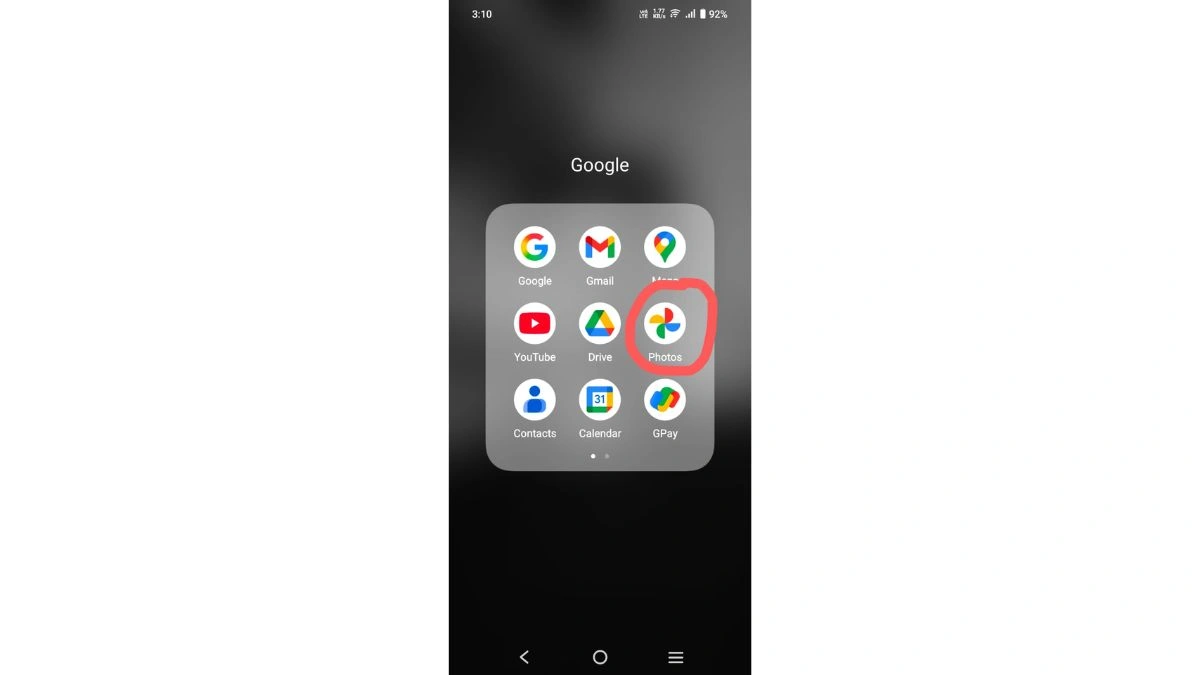
Open the Google Photos app - Tap your profile picture in the top-right corner.
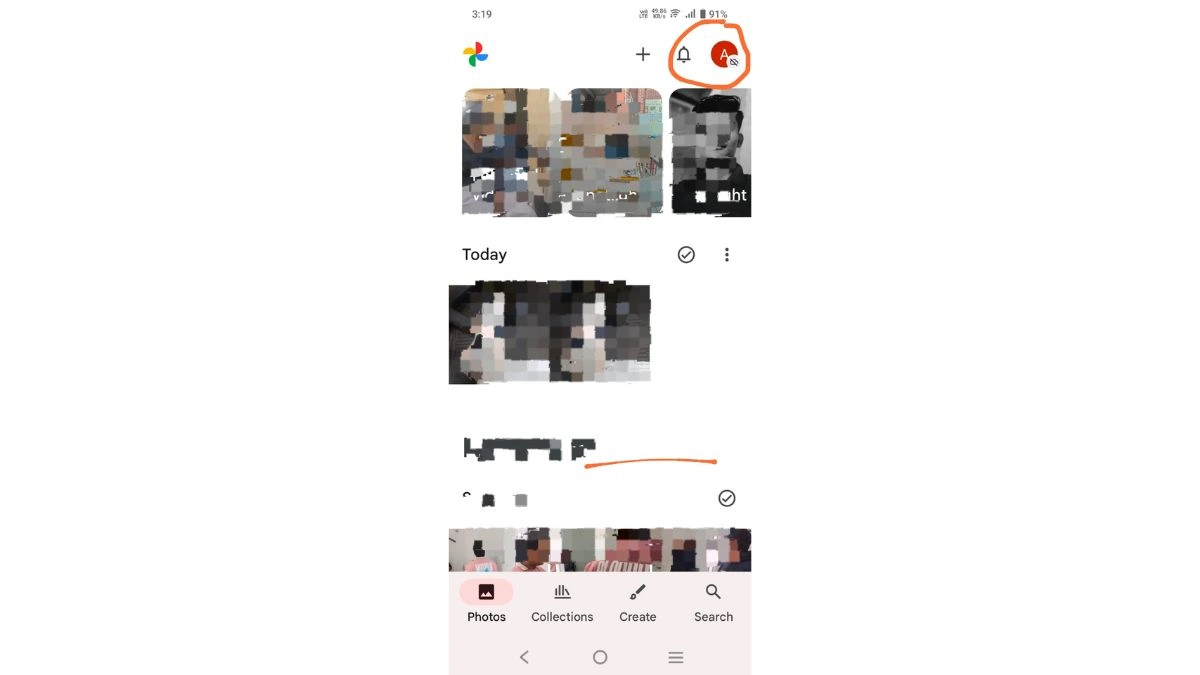
Tap your profile picture in the top-right corner - Select Free up space on this device.
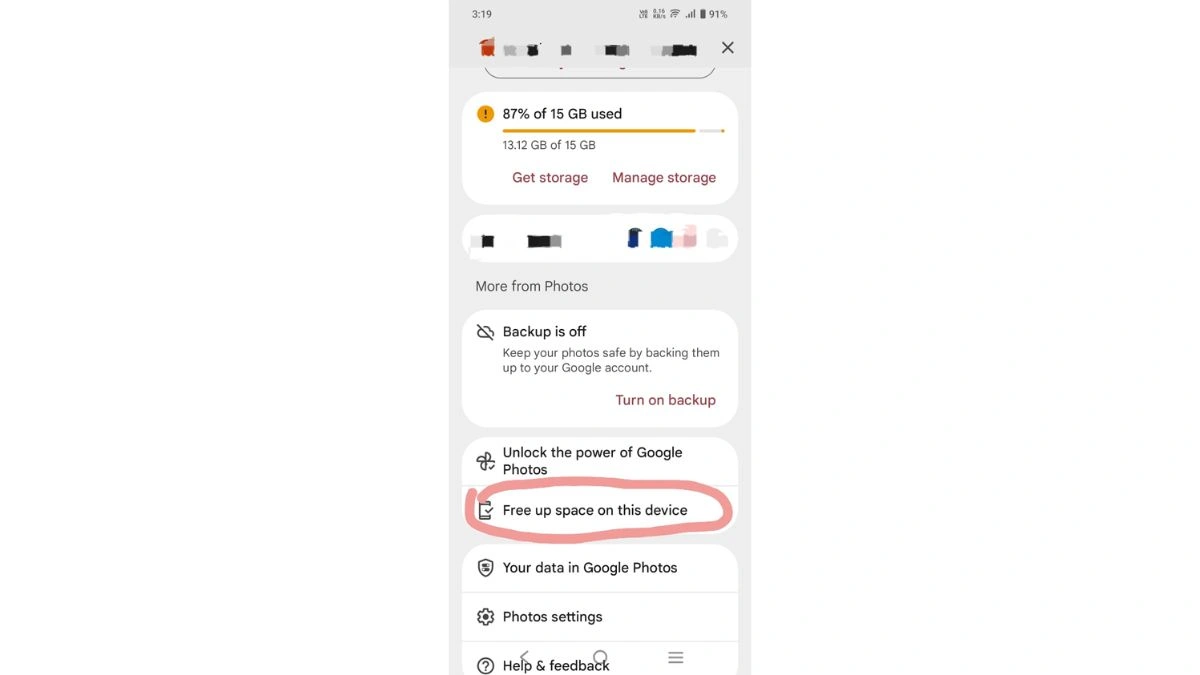
Select Free up space on this device - Google Photos will scan and show how much storage can be cleared.
- Tap Free up at the bottom of the screen.
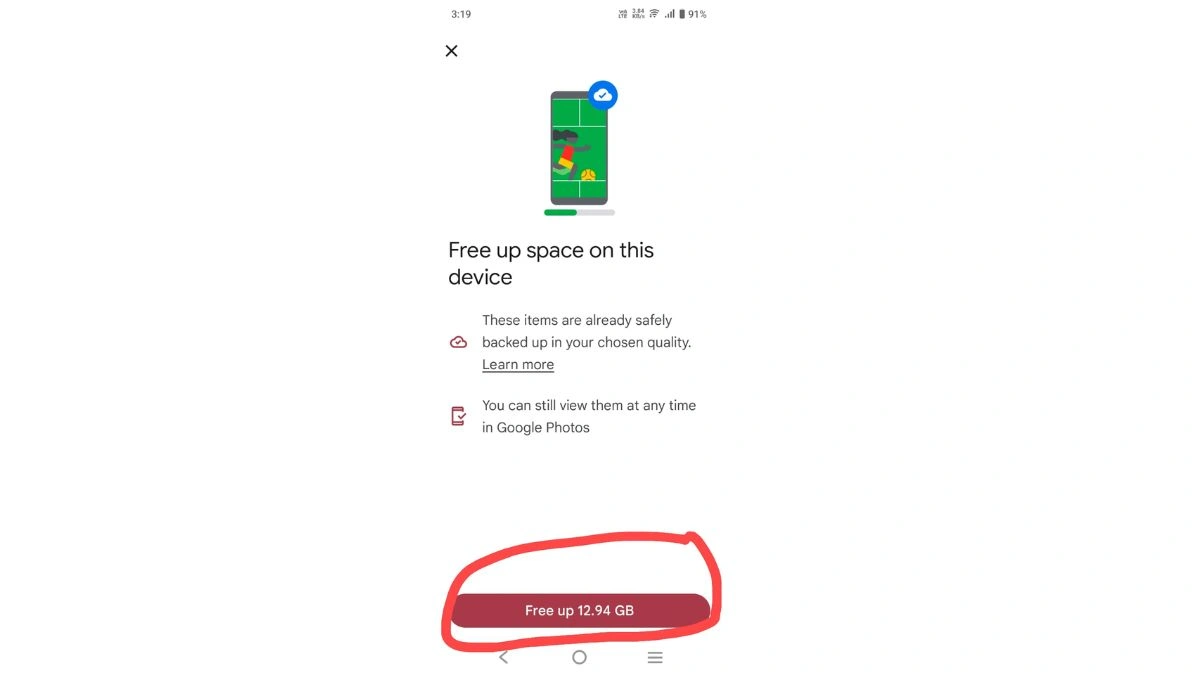
Tap Free up at the bottom of the screen - Tap Allow to confirm.
The app will delete the local copies of photos that are safely stored online. If you have not backed up your photos to the cloud, the option to free up space will not appear.
This tool does not remove exact duplicates, but it clears unnecessary copies from your device and helps you avoid hitting the storage limit across Google Photos, Drive, Gmail, and other services.
Why Removing Duplicate Pictures Matters
When you regularly receive images from communication apps, duplicates build up faster than you realise. Clearing them offers several advantages that improve your phone’s performance and reduce your storage usage.
1. Saves Storage Space
Duplicate files add up and take away precious space, especially when many apps store their own copies.
2. Helps You Stay Organised
Your gallery becomes easier to navigate when similar images are grouped, making it simpler to find the ones you truly need.
3. Prevents Accidental Deletions
When duplicates pile up, it is easy to confuse one image for another. Removing extras reduces the chance of deleting important photos.
4. Avoids Unnecessary Google One Costs
If you exceed Google’s 15GB free storage limit, you must pay for more space. Cleaning your gallery delays or avoids this additional cost.
5. When You Should Use Third-Party Apps
The provided information mentions third-party apps in general but does not name any specific tools. You can use such apps when:
- You have a very large gallery.
- You want more control over how duplicates are detected.
- You want to clean thousands of photos at once.
However, Google Photos’ built-in options are usually enough for most users, especially when you focus on removing similar images and clearing local copies.
Tips for Keeping Your Gallery Clean in the Future
While the source does not list tips, you can follow general habits based on the information provided:
- Regularly check photo stacks in Google Photos.
- Free up space every few weeks using the built-in button.
- Enable backups so that Google Photos can organise your images properly.
- Delete forwarded media from apps like WhatsApp soon after viewing.
These small steps help ensure you never run out of space unexpectedly.
FAQs
Q1. Does Google Photos automatically delete duplicate images?
A. No. Google Photos does not automatically delete duplicates, but it groups similar photos so you can remove the extra copies manually.
Q2. Why can’t I find the photo stacks option in my Google Photos app?
A. You need to enable backups. New photos may also take time before they appear in stacks.
Q3. What happens when I tap “Free up space” in Google Photos?
A. The app deletes photos from your device that are already backed up to the cloud. The cloud versions remain safe.
Q4. Will deleting local copies remove them from my cloud backup?
A. No. Once a photo is backed up, deleting it locally does not affect the cloud version.
Q5. Can I recover photos deleted when freeing up space?
A. Local copies cannot be recovered after using “Free up space,” but the backed-up cloud version remains available in Google Photos.
Also Read- Samsung Galaxy Z TriFold: First Multi-Folding Phone Launched As Foldable Competition Intensifies