
By using this site, you agree to the Privacy Policy and Terms of Use.
Accept
DevicologyDevicology
  • News
    NewsShow More
    Motorola’s Razr Fold Targets Photographers With Stylus Support
    By Tricia Wei
    6 Smart Ways To Use iPhone Camera Control Beyond Taking Photos
    6 Smart Ways To Use iPhone Camera Control Beyond Taking Photos
    By Tricia Wei
    Samsung Galaxy S26 Sticks With 25W Wired Charging
    Samsung Galaxy S26 Sticks With 25W Wired Charging
    By Tricia Wei
    Apple Creator Studio Shows How Apple Is Rethinking Creative Subscriptions
    Apple Creator Studio Shows How Apple Is Rethinking Creative Subscriptions
    By Tricia Wei
    Nothing’s CMF Phone Mini Concept Is The Compact Phone We Want Back
    Nothing’s CMF Phone Mini Concept Is The Compact Phone We Want Back
    By Tricia Wei
  • Features
    FeaturesShow More
    iPhone Users Can Set Up Text Feature To Catch Stolen Phones
    iPhone Users Can Set Up Text Feature To Catch Stolen Phones
    By Tricia Wei
    Motorola Edge 70 Review: Chasing Slim Without The Premium Price
    Motorola Edge 70 Review: Chasing Slim Without The Premium Price
    By Tricia Wei
    3 Underrated Apple Watch Features Most Users Miss
    3 Underrated Apple Watch Features Most Users Miss
    By Tricia Wei
    Apple Watch Blood Sugar Tracking Might Be Closer Than We Think
    Apple Watch Blood Sugar Tracking Might Be Closer Than We Think
    By Tricia Wei
    Apple Brings Back Drag And Drop Multitasking With iPadOS 26.2 Update
    Apple Brings Back Drag And Drop Multitasking With iPadOS 26.2 Update
    By Tricia Wei
  • Reviews
  • Apps
  • Guide
    GuideShow More
    How To Create A Google Photos Album In Just A Few Minutes
    How To Create A Google Photos Album In Just A Few Minutes
    By Tricia Wei
    Apple’s Back Tap Feature Makes Smart Home Control Effortless
    Apple’s Back Tap Feature Makes Smart Home Control Effortless
    By Tricia Wei
    How To Blur Your Home On Google Maps In Under A Minute
    How To Blur Your Home On Google Maps In Under A Minute
    By Tricia Wei
    Step by Step Guide To Call Recording On Google Pixel
    Step by Step Guide To Call Recording On Google Pixel
    By Tricia Wei
    How To Fix iPhone 16 Battery Drain After The Latest Update: Step-by-Step Guide
    How To Fix iPhone 16 Battery Drain After The Latest Update: Step-by-Step Guide
    By Carlos Blanco
  • Tech
    TechShow More
    Motorola’s Razr Fold Targets Photographers With Stylus Support
    By Tricia Wei
    iPhone Users Can Set Up Text Feature To Catch Stolen Phones
    iPhone Users Can Set Up Text Feature To Catch Stolen Phones
    By Tricia Wei
    Motorola Edge 70 Review: Chasing Slim Without The Premium Price
    Motorola Edge 70 Review: Chasing Slim Without The Premium Price
    By Tricia Wei
    Why This Affordable Camera Phone Works For All-Day Photography
    Why This Affordable Camera Phone Works For All-Day Photography
    By Tricia Wei
    Top 5 Wireless Speakers For Home In 2026
    Top 5 Wireless Speakers For Home In 2026
    By Carlos Blanco
  • Top
    TopShow More
    Top 5 Laptops Expected To Launch In 2026: MacBook M6, Dell XPS, ThinkPad And More
    Top 5 Laptops Expected To Launch In 2026: MacBook M6, Dell XPS, ThinkPad And More
    By Carlos Blanco
    Top 5 Smartphones Expected To Launch In 2026: iPhone 18, Galaxy S26 And More
    Top 5 Smartphones Expected To Launch In 2026: iPhone 18, Galaxy S26 And More
    By Carlos Blanco
    Top 5 Smartwatches Expected To Launch In 2026: Apple Watch, Galaxy Watch And More
    Top 5 Smartwatches Expected To Launch In 2026: Apple Watch, Galaxy Watch And More
    By Carlos Blanco
    Top 5 Wireless Earbuds Expected To Launch In 2026: AirPods, Galaxy Buds And More
    Top 5 Wireless Earbuds Expected To Launch In 2026: AirPods, Galaxy Buds And More
    By Carlos Blanco
    Top 5 Action Cameras To Buy In 2026 For Video And Vlogging
    Top 5 Action Cameras To Buy In 2026 For Video And Vlogging
    By Carlos Blanco
  • Game Zone
    Game ZoneShow More
    Best Free iOS Games 2025: Hottest iPhone And iPad Games To Try Now
    Best Free iOS Games 2025: Hottest iPhone And iPad Games To Try Now
    By Carlos Blanco
    Best New iOS And Android Games For August 2025
    Best New iOS And Android Games For August 2025
    By Tricia Wei
    Top Gaming Websites In Thailand (July 2025): Most Visited Platforms Ranked
    Top Gaming Websites In Thailand (July 2025): Most Visited Platforms Ranked
    By Carlos Blanco
    Top Gaming Websites In Ukraine: Most Visited Platforms in 2025
    Top Gaming Websites In Ukraine: Most Visited Platforms in 2025
    By Carlos Blanco
    Phantom Blade Zero Gameplay Demo Played at S-Party 2025
    Phantom Blade Zero Gameplay Demo Played at S-Party 2025
    By Vishwajeet Jaiswal
Font ResizerAa
DevicologyDevicology
Font ResizerAa
  • News
  • Features
  • Reviews
  • Apps
  • Guide
  • Tech
  • Top
  • Game Zone
Search
  • News
  • Features
  • Reviews
  • Apps
  • Guide
  • Tech
  • Top
  • Game Zone

Popular Post

Infinix NOTE Edge Shows How Affordable Phones Have Evolved
NewsTech

Infinix NOTE Edge Shows How Affordable Phones Have Evolved

This 4-Inch Phone Proves Peak Smartphone Design Still Exists
News

This 4-Inch Phone Proves Peak Smartphone Design Still Exists

Apple Issues New Spyware Alert For iPhone Users
News

Apple Issues New Spyware Alert For iPhone Users

Honor Launches Magic 8 Pro Air With Massive 5,500mAh Battery
News

Honor Launches Magic 8 Pro Air With Massive 5,500mAh Battery

Follow US
Made by ThemeRuby using the Foxiz theme. Powered by WordPress
FeaturesGuideTech

5 Easy Steps To Enable Parental Control in Samsung Galaxy

Arthur James
Last updated: September 22, 2025
By Arthur James
Share
Parental Control In Samsung Galaxy
Parental Control Samsung Galaxy

Parental Control in Samsung Galaxy

Parental Control in a Samsung Galaxy Phone or tablet is an advanced feature. It essentially allows you to set rules for how your kids use Galaxy devices. It can be set for all devices that are running on UI 2.0 or a later software version.

Contents
  • Parental Control in Samsung Galaxy
  • Follow this Step-by-step guide to enable parental control in the Samsung Galaxy
    • Step 1: Create a Samsung account for your child
    • Step 2: Review the information and click on Agree.
    • Step 3: Verification
    • Step 4: Enter your child’s information and tap on create account.
    • Step 5: Now you can select your child’s account and manage the apps they can have access to.
  • How is Parental Control in Samsung Galaxy helpful?

A new family group feature has been introduced, allowing users to create and add Samsung account IDs to their devices. You can now create an account for your child, and then it will enable you to set up certain parental controls that will let you manage the apps and services your child can access.

- Advertisement -

This parental control in Samsung Galaxy phones is a feature that was introduced to enhance the safety and security of children, as they are also using devices in this digital age and are not aware of the dangers to which they might be exposed.

Follow this Step-by-step guide to enable parental control in the Samsung Galaxy

Step 1: Create a Samsung account for your child

Settings-Tap on Samsung Account name – Family-Add family member-Create Child Account

Once you add a Samsung account for your child, you will be able to manage the apps they will have access to. By way of this feature, you can block certain apps that you think are inappropriate for your age.

- Advertisement -

Step 2: Review the information and click on Agree.

Once you have reviewed the information, click on Agree to confirm.

Step 3: Verification

You will not be asked to enter your credit card security code to verify the process. In case you haven’t registered a credit card to your account. You can select another card and then follow the instructions on the display screen.

This verification is to ensure that only authorized adults are managing the child’s account.

- Advertisement -

Step 4: Enter your child’s information and tap on create account.

Once you do this, the code will be sent to your child’s email address, which you will then have to enter on your device, and then tap next to complete the setup. This will be the confirmation code for enabling parental control on a Samsung Galaxy phone.

Step 5: Now you can select your child’s account and manage the apps they can have access to.

You can tap and allow certain apps, tap on the switches next to the apps that you do not want them to use, and then tap on block once you have selected the apps you want to block from your child. This is the most basic feature of Parental Control on Samsung Galaxy.

How is Parental Control in Samsung Galaxy helpful?

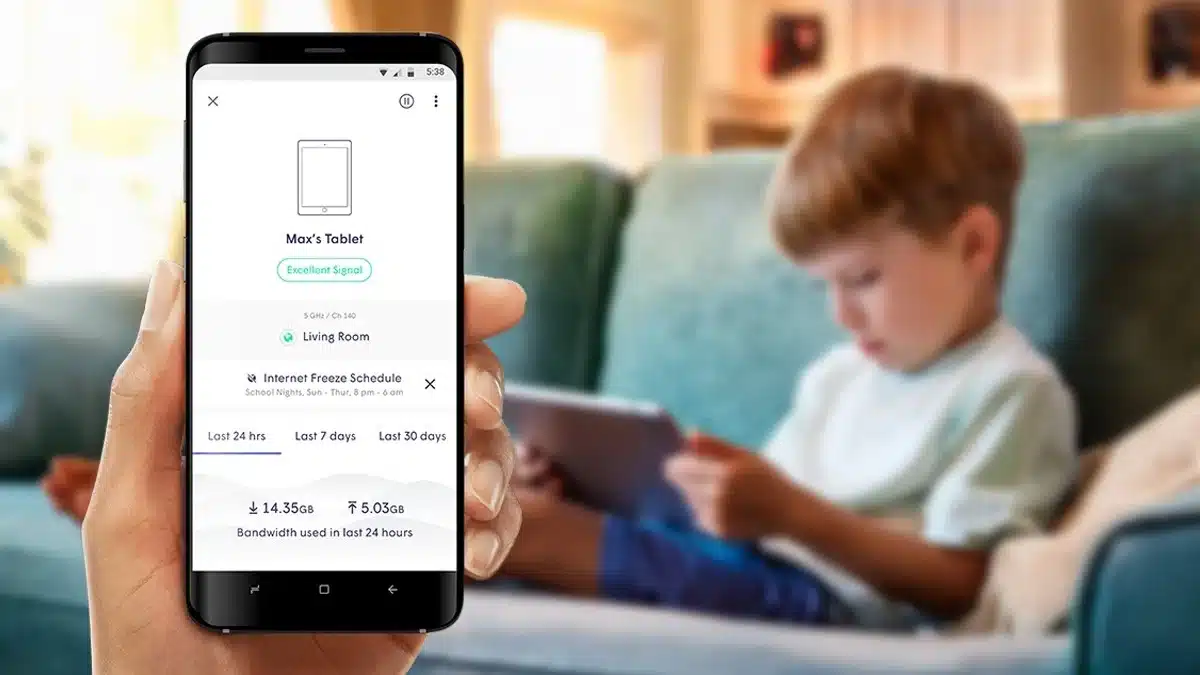
Parental Control Samsung Galaxy will help you to prevent your child from accessing certain apps and to keep track of how long they use their phones and certain apps. In this manner, you can also set a timer for their screen time.

In today’s technological landscape, more and more children have access to digital devices at a young age. It becomes more crucial to ensure that they are safely using this technology and are acting in a responsible manner as well. Samsung’s Parental control tools provide parents with the ability to monitor and manage their children’s devices more effectively.

Once you set up your child’s special account, you will gain access to a large range of controls that can help you monitor what apps and content your child is using or can use. With the help of this tool, parents can stay involved in their children’s digital lives and protect their kids to some degree from online risks, and all this from the convenience of their own phones. You will be able to guide your child’s tech experience conveniently.

Once your child is 13, they are eligible to opt out of the supervision of the Parental Control Samsung Galaxy.

ALSO READ: 10 Ways To Improve The Battery Health Of Your Xiaomi Phone

TAGGED:create samsung accountParental Control Samsung GalaxySamsung AccountSamsung Galaxy
Share This Article
Facebook Flipboard Copy Link
- Advertisement -
Ad image

Must Read

NewsTech

Motorola’s Razr Fold Targets Photographers With Stylus Support

iPhone Users Can Set Up Text Feature To Catch Stolen Phones
FeaturesTech

iPhone Users Can Set Up Text Feature To Catch Stolen Phones

Motorola Edge 70 Review: Chasing Slim Without The Premium Price
TechFeatures

Motorola Edge 70 Review: Chasing Slim Without The Premium Price

6 Smart Ways To Use iPhone Camera Control Beyond Taking Photos
News

6 Smart Ways To Use iPhone Camera Control Beyond Taking Photos

- Advertisement -
Ad image

You Might also Like

Features

The Honey Scam: Influencers Accuse PayPal Extension of Cheating Shoppers

Samsung Account Warning: Do This Before 31 July 2025 or Lose Your Data Forever
News

Samsung Account Warning: Do This Before 31 July 2025 or Lose Your Data Forever

Gaming laptop vs gaming PC performance comparison
Game ZoneTech

Is a Gaming Laptop Better Than a Gaming PC? A Complete Comparison for Gamers

OnePlus Buds Ace 2 Debuts With Upto 43 Hours Of Battery Life, AI Features
Tech

OnePlus Buds Ace 2 Debuts With Up To 43 Hours Of Battery Life, AI Features

Devicology
Whatsapp Instagram X-twitter Linkedin

The website Devicology is a repository of information on mobile devices, mobile gadgets, their functions and how to manage the devices for better user control. It offers expert advice on how to manage the settings of the hand-held devices so that the control remains with the user. From custom settings to optimum device utilization, the website covers multiple subjects of user interest and value. 

  • About Us
  • Terms of Use
  • Privacy Policy
  • Contact

© 2026 – Devicology. All Rights Reserved