



Accessing Google Maps on your phone can be a very difficult task and when you are in a hurry, it becomes even mightier to get your head straight and understand what the map is trying to say.
Navigation settings are used to make these map nuances and settings easier
Navigation settings are used to make these map nuances and settings easier to understand and also for a better understanding of the maps and geography in general.
To manage navigation settings in Google Maps, open the app, tap your profile picture, then select “Settings,” and finally “Navigation.” From there, you can adjust options like route preferences, voice guidance, and 3D building visibility.
Here’s a more detailed breakdown:
Accessing Navigation Settings:
Open the Google Maps app.

-
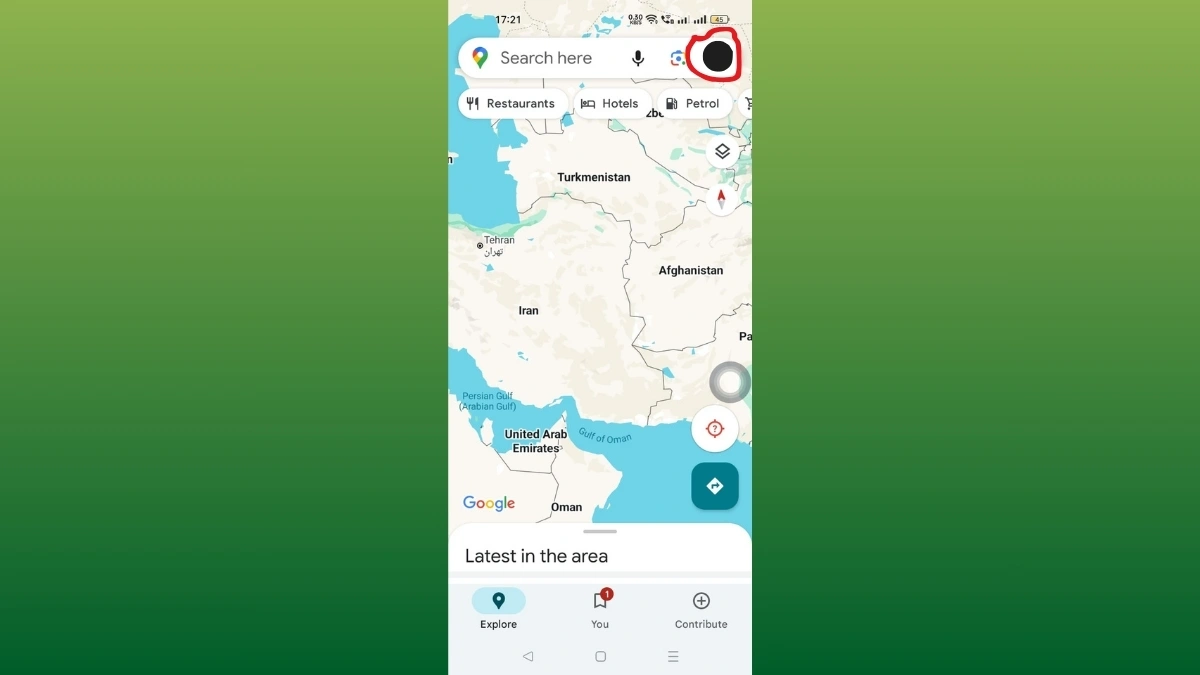
How To Manage The Navigation Settings In Google Maps, Click on your profile Tap your profile picture or initial in the top right corner.
-
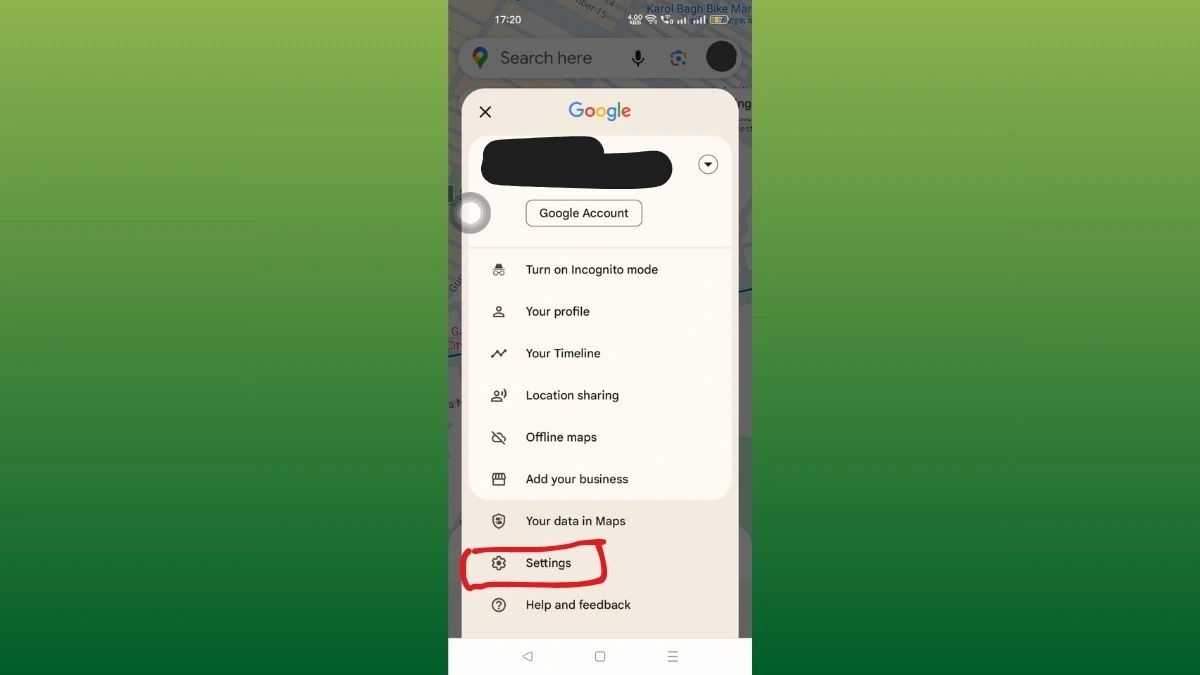
How To Manage The Navigation Settings In Google Maps, Click on Settings Select “Settings” from the menu that appears.
- Tap on “Navigation”.
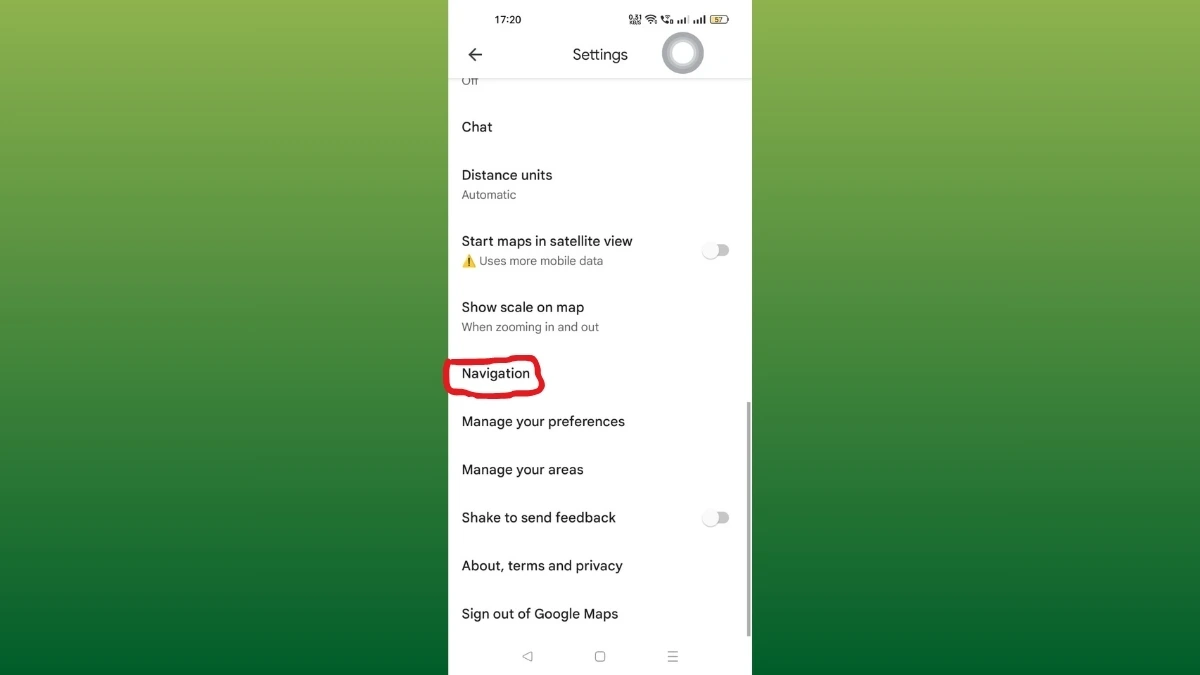
Click on Navigation - Adjusting Route Preferences:
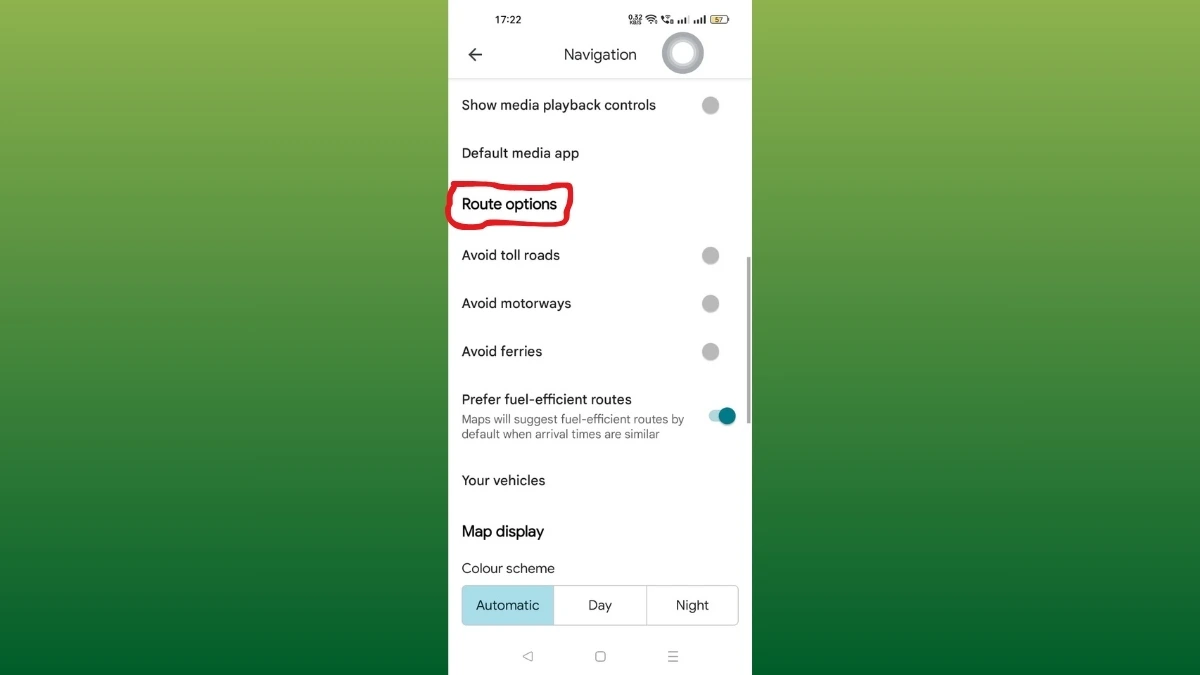
Route Options - Within the Navigation settings, you’ll find options to customize your route:
- Route Options: Choose to avoid tolls, highways, ferries, or specific road types.
- Fuel-Efficient Routes: Toggle on to see fuel-efficient route suggestions alongside other routes.
- Transit Options: Customize public transit preferences, including preferred modes of transportation and transfer preferences.
-
Voice Guidance and Alerts:
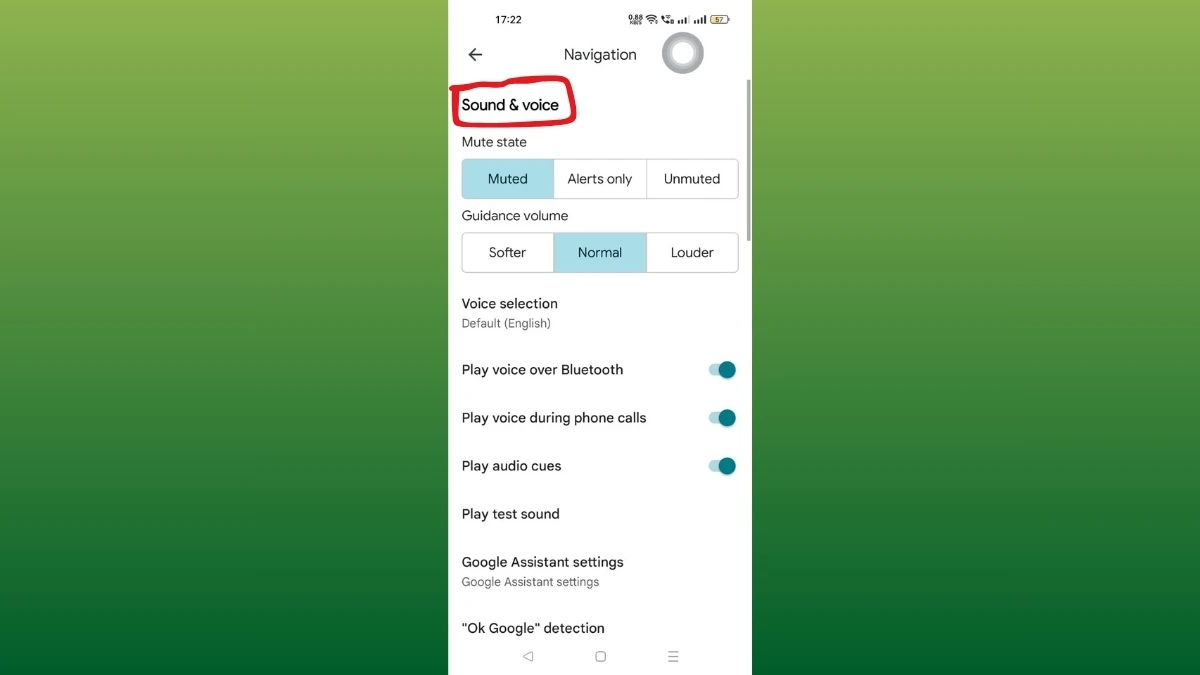
Sounds and Voice - Voice Navigation: Adjust the voice used for turn-by-turn directions, and potentially choose between different voices or languages.
- Detailed Voice Guidance: Enable or disable detailed voice instructions, including lane guidance and more specific directions.
- Mute/Alerts: While navigating, you can mute all sounds, hear only alerts (traffic, accidents, etc.), or keep all sounds on.
-
Other Navigation Settings:
- Driving Options: Turn on or off the speed limits, speedometer settings that will display your vehicle speed on your route map.
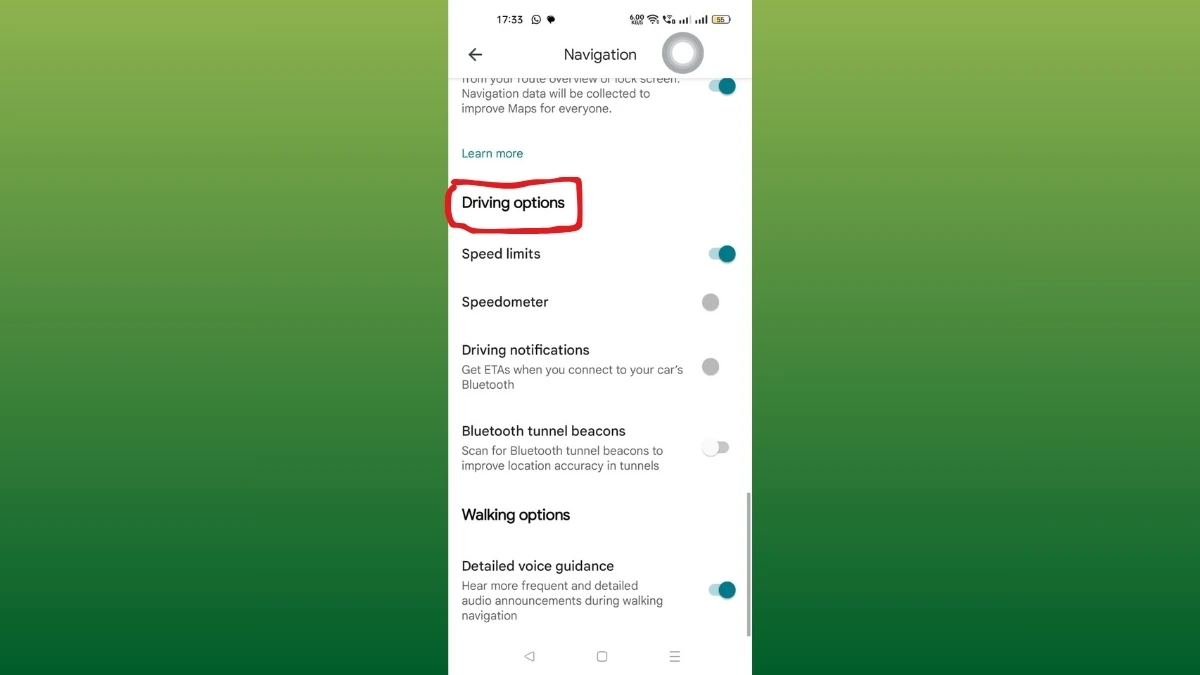
Driving options - Walking options: Toggle this feature to hear more frequent and detailed audio announcements during walking navigation.
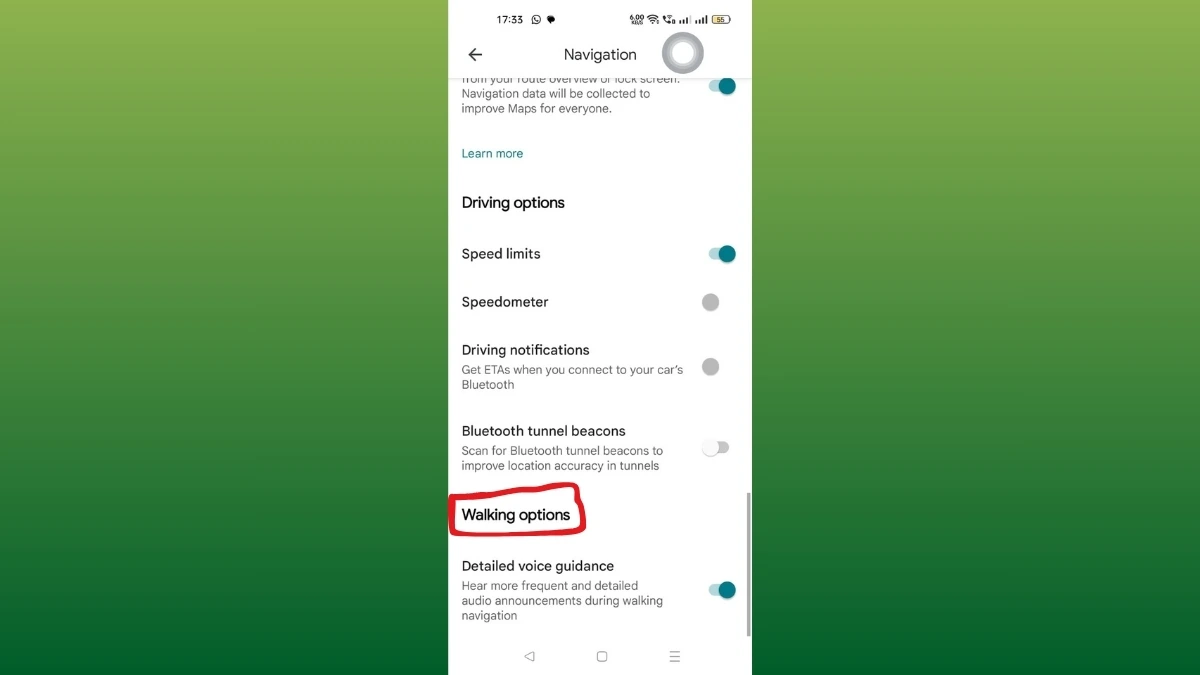
Walking Options
- Driving Options: Turn on or off the speed limits, speedometer settings that will display your vehicle speed on your route map.