


When the iPhone 16 and iPhone 16 Pro launched with the new Camera Control feature, expectations were high for a shutter-style button similar to what is found on traditional cameras. Apple never refers to it as a “button,” and while it does not work like a classic two-step shutter with autofocus, Camera Control can still be a very practical and powerful tool when used correctly.
Camera Control is now available on every new iPhone model except the iPhone 16e, including the iPhone 17 and iPhone Air. Despite this, many users either overlook it entirely or activate it accidentally without understanding what it can do. With the right settings and a bit of familiarity, Camera Control can be used to open apps, zoom in on details, and fine-tune camera settings before taking a photo.
- Camera Control Features Inside the Camera App
- How to Access Camera Control Settings
- Launch a Different Camera App Like Instagram
- Identify Objects Using Visual Intelligence and ChatGPT
- Zoom In or Switch Cameras Quickly
- Use Camera Control to Open the Magnifier App
- Adjust Exposure for Better Photos
- Record Video Without Changing Modes
Camera Control Features Inside the Camera App
When the Camera app is open, Camera Control offers additional tools beyond simply taking photos. Lightly pressing the control brings up a small tabbed window beneath the finger. Swiping down reveals a horizontal list of Camera Control options.
These features can be customized in the Settings, Camera, Camera Control menu. Any tools that are not useful can be disabled. One example is the ‘Depth’ feature, which may not produce noticeable differences between aperture settings.
How to Access Camera Control Settings
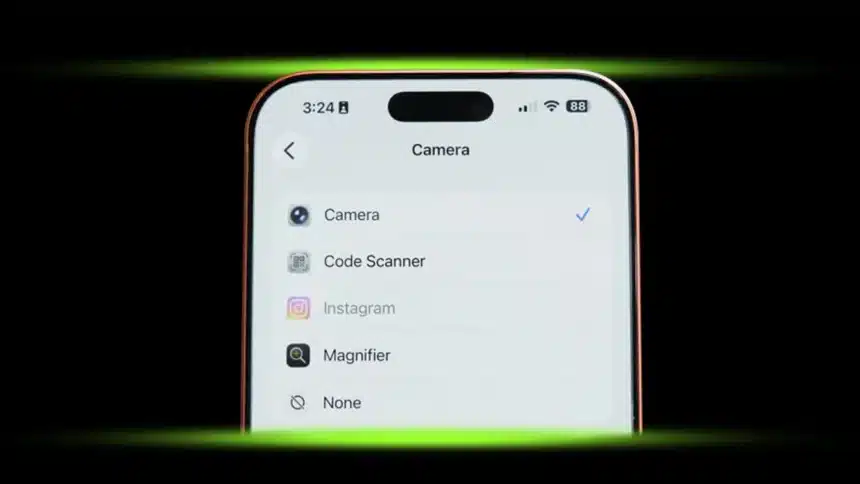
Camera Control options are found inside the Apple Settings app, not within the Camera app itself. To access them, open Settings and scroll down to Camera. At the top of the Camera menu, at least in iOS 26.2, is the Camera Control option.
From this menu, Camera Control behavior can be customized, including which app launches when the control is pressed.
Launch a Different Camera App Like Instagram
Camera Control does not have to open the default Camera app. In the Camera Control settings, users can choose an alternative option such as a QR code scanner or a third-party app.
Instagram, which began as a camera-focused app, can be set to open directly to its camera view using Camera Control. This requires Instagram to have camera permissions enabled, which can be managed under Settings, then Apps, then Instagram.
Identify Objects Using Visual Intelligence and ChatGPT
Camera Control includes access to Visual Intelligence, Apple’s image recognition feature that works with ChatGPT. This tool allows users to take a photo and ask questions about what appears in the image.
To activate Visual Intelligence, press and hold the Camera Control button from any screen except the Camera app. The feature captures a still image rather than using a live feed. While accuracy can vary, Visual Intelligence is designed to answer questions such as identifying objects, animals, or landmarks.
Zoom In or Switch Cameras Quickly
Camera Control allows smooth zooming when the Zoom option is selected. Sliding a finger left zooms in, while sliding right zooms out.
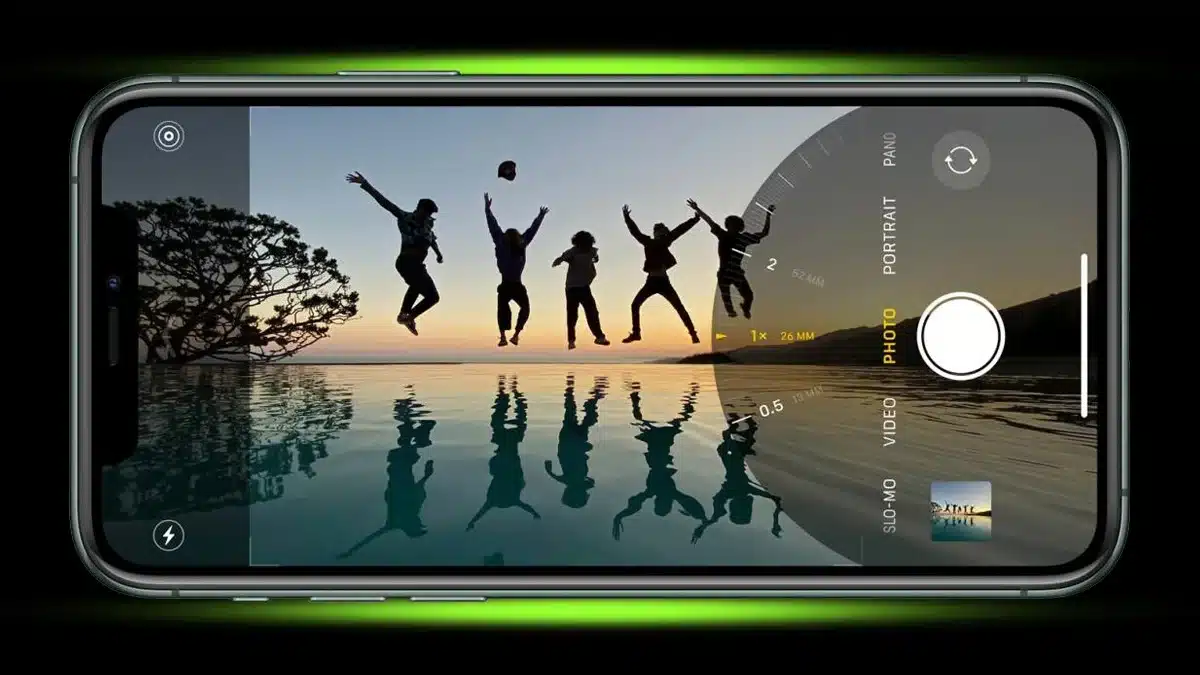
Alternatively, users can switch between available cameras by selecting Cameras from the menu. This allows quick access to the wide-angle lens labeled ‘.5,’ the main camera, and zoom levels such as 2X, 4X, and 8X. Swiping past the wide-angle option switches to the front-facing selfie camera.
Use Camera Control to Open the Magnifier App
Camera Control can also be used to launch the Magnifier app. This is useful for reading small text, menus, or labels when zooming in is needed quickly.
The Magnifier app allows users to zoom in, capture photos, and even import text into Apple’s reader for transcription. It can also activate the flashlight in low-light situations. To assign Magnifier to Camera Control, simply select it from the Camera Control settings menu.
Adjust Exposure for Better Photos
Exposure control is one of the most useful Camera Control features. It allows photos to be brightened or darkened to balance lighting or add a dramatic effect.
To access Exposure, swipe down on the Camera Control menu and swipe right until the ‘±’ icon labeled ‘Exposure’ appears. Sliding left or right adjusts brightness in real time. This feature is especially helpful for correcting overexposed images or bringing more detail into dark scenes.
While Camera Control may not yet function like a traditional two-step shutter button, it offers a wide range of useful tools. With the right setup, it can become an essential part of everyday photography on the iPhone, especially as Apple continues to refine and expand its capabilities.
Record Video Without Changing Modes
Video recording can be started instantly by pressing and holding the Camera Control button while the Camera app is open. Recording continues until the button is released. This makes it easy to capture short video clips without switching camera modes.
The on-screen camera button behaves the same way. For users who prefer still-photo bursts, the Volume Up button can be configured for burst shots. This option is found near the bottom of the Settings, Camera menu.
ALSO READ: 7 Hidden Apple Messages Features That Go Beyond Texting