





Have you ever typed your own name into Google just to see what comes up? Many people do, and sometimes they find their home address, phone number, or email address sitting right there for anyone to see.
Your personal information can end up on Google in a few ways. It often comes from data broker websites, online sign-ups, or public posts you shared.
- What Kind of Information Can You Ask Google to Remove?
- How to Remove Personal Information from Google Search
- Method 1: Use ‘Results About You’
- Method 2: Remove a Result Directly from Google Search
- Method 3: The Detailed Content Removal Form
- What happens after a removal request is approved?
- Policy Rules Google Applies to Every Request
- Extra Steps for Full Security
Seeing your private details online can feel scary. People with bad intentions can use your phone number or address to bother you, or pretend to be you to steal your identity. In worse cases, people use this information to harass or threaten others online, a practice known as doxxing.
The good news is that Google provides free tools to fix this. You do not need to pay for any expensive service.
In this article, we will walk you through simple steps to remove your personal information from Google Search.
What Kind of Information Can You Ask Google to Remove?
Google will not remove everything. But it will remove certain kinds of private information if it shows up in search results:
- Your home address, phone number, or email address
- Government ID numbers, like a Social Security number, or tax ID number
- Your bank account number or credit card number
- Pictures of your signature or your ID card
- Private records, such as medical records
- Confidential login usernames and passwords
Google also accepts requests for doxxing content. This means someone has posted your personal info along with a threat against you, or has posted a large pile of your personal details together, for no good reason at all.
There is one more special rule: anyone can report nude or sexual pictures of a person under 18 years old, using Google’s detailed removal request form.
Google won’t remove a result just because someone does not like it. It has to match one of the categories above. Results from government sites, educational institutions, and news websites are treated as valuable to the public and usually will not be removed, even if they show your name.
Also, Google is a search engine. It does not own the websites that show up in its results; it just finds and lists them. So, when Google removes something, it only removes the link from Google Search. The actual page, on the actual website, is still there. If someone visits that website directly or finds it through a different search engine, they can still see your information.
Now, let’s get into the ways to request a removal.
How to Remove Personal Information from Google Search
Method 1: Use ‘Results About You’
(Best for Address, Phone Number, or Email)
This is Google’s dedicated privacy dashboard. It is the best option if your home address, phone number, or email address is showing up in search results, because it actively scans the internet for you going forward and sends you an alert if your info shows up again later.
Step 1: Open “Results About You”
On the Google app (Android or iOS):
- Open the Google app and log in to your Google Account.

2. Tap your Profile picture or Initial in the top corner to open the Menu.
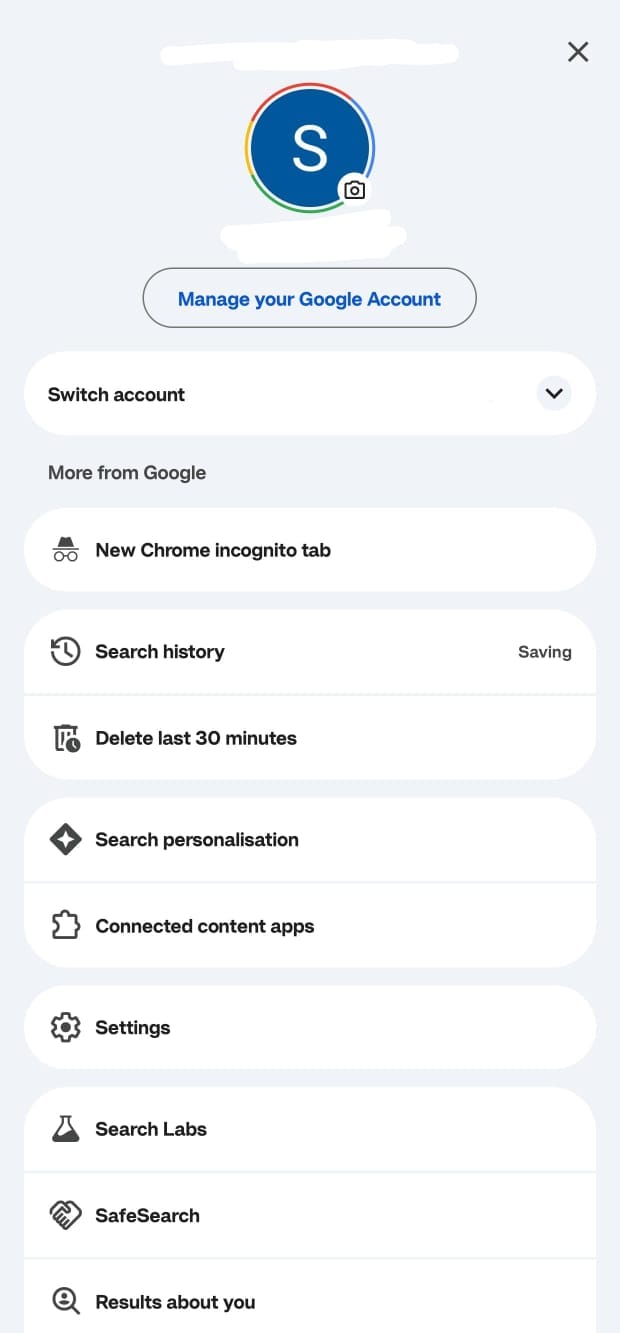
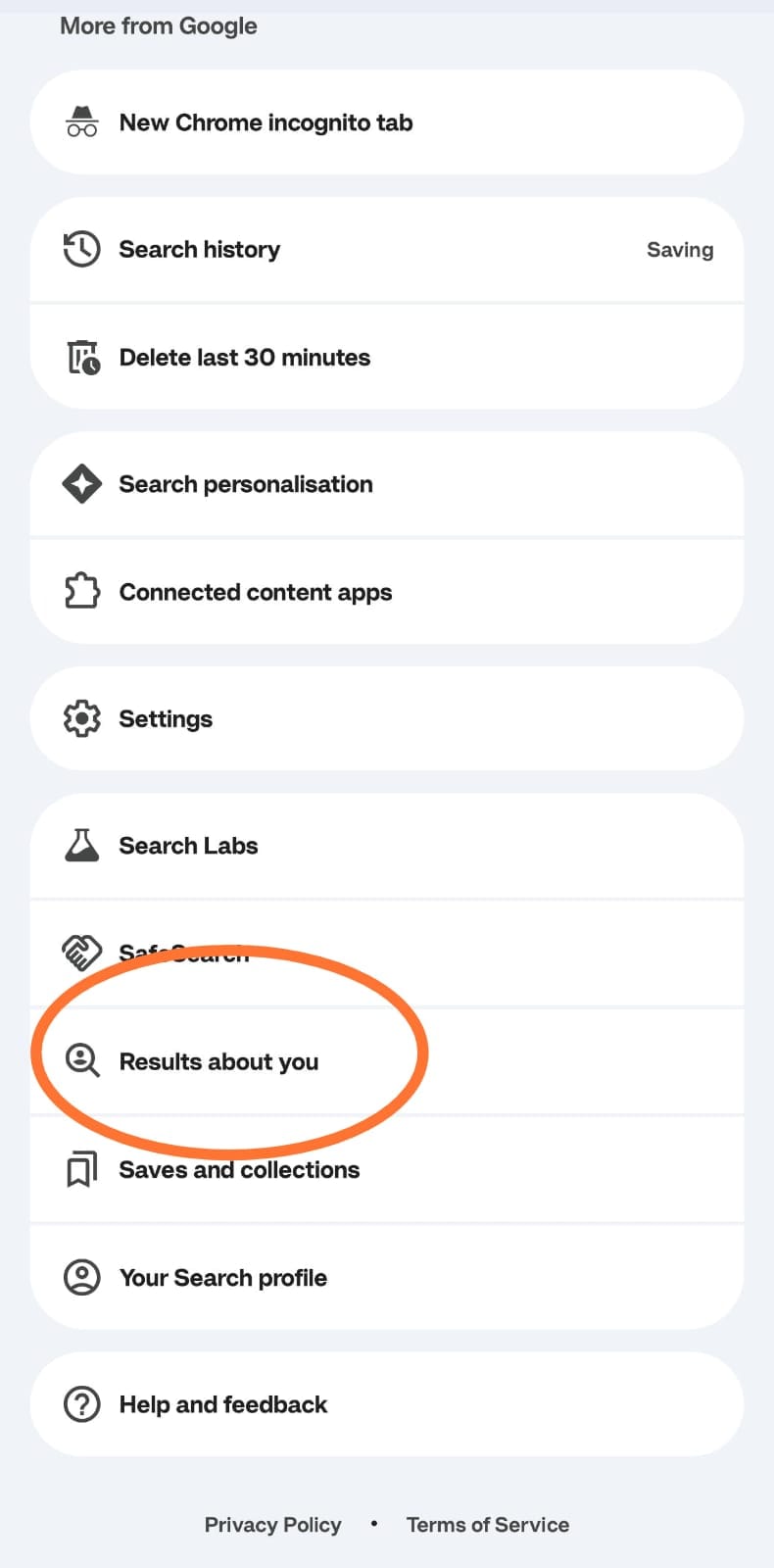
3. From the Menu, select Results about you.
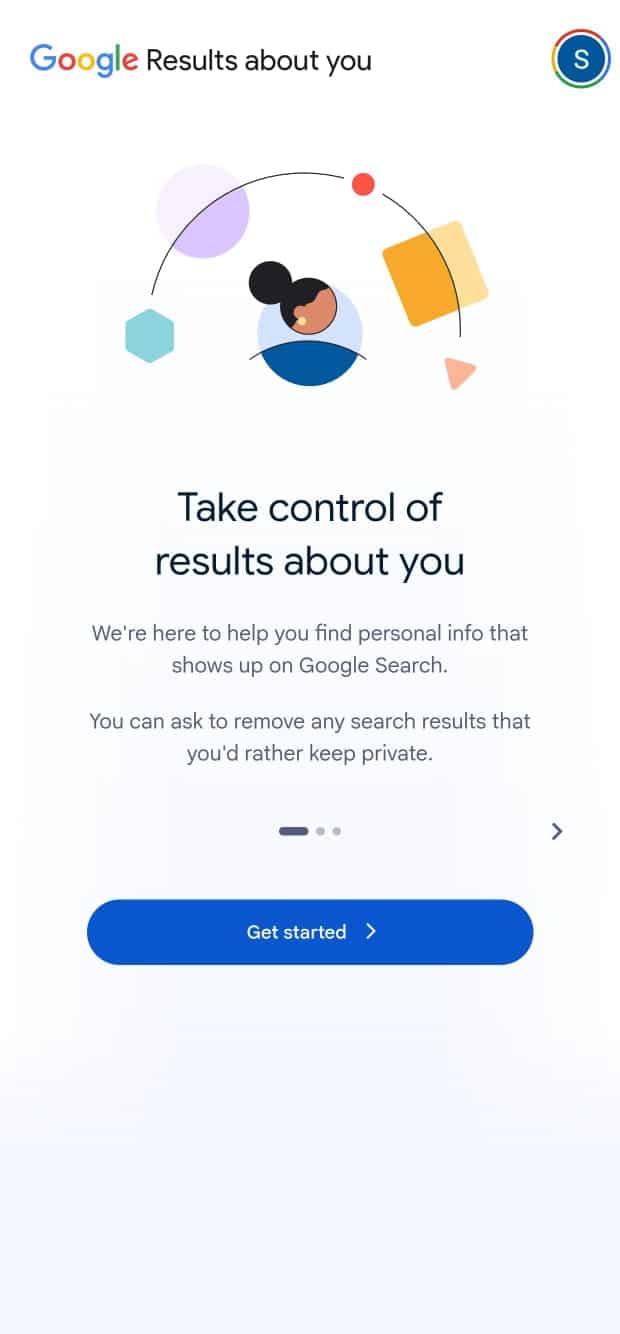
On mobile web or desktop:
- Go to the Results about you page in your browser.
- Select Get started if you are doing it for the first time, or else select Settings if you have used it before.
Step 2: Tell Google What to Look For
- Enter your name and the personal info you want Google to check for, such as your phone number, home address, or email.
- You can also add extra details in the same form, including:
- A nickname
- Your maiden name
- More than one phone number
- More than one home address
- More than one email address
- Turn on notifications if you want Google to email you or notify you in the app whenever it finds a matching result.
Step 3: Review the Results
- Go back to the Results about you page.
- Open the ‘To review’ tab.
- If notifications are on, you will typically get a notification within a few hours if Google finds anything matching your info.
- Tap on any result to see more details, like which website it is from and exactly what personal info it shows.
Step 4: Request Removal
- Select the result you want to act on.
- Tap Request to remove.
- If you’d rather not request removal, tap Mark as reviewed instead.
Step 5: Track Your Request
- You will get a confirmation email letting you know your request was received.
- You will get another email once Google finishes reviewing it.
- To check the status anytime, go to Results about you, then Removal requests. Each request will show as:
- In progress
- Approved
- Denied
- Undone
- Opening a specific request also shows you its link, the date and time you submitted it, a request ID, and the contact info you flagged.
Method 2: Remove a Result Directly from Google Search
This method works right inside a normal Google Search results page. It is quick if you have already spotted the exact result you want gone, and you are logged into your Google Account.
Step 1: Search and Find the Result
- On desktop or mobile, log in to your Google Account.
- Search for your name. To find results with your contact info specifically, try searching your name together with your home city, or your name together with your address.
- Find the result that shows your private info.
Step 2: Report It
- Next to that result, tap the three dots; this opens the ‘About this result’ panel.
- Select Remove result.
- Select: It shows my personal info, and I don’t want it there.
- Select Contact Info.
- Submit your request, then tap I’m done.
Step 3: Confirm and Monitor
- Within a few hours, you will get an email confirming your request was submitted.
- Go to Results about you to check the status of the request. It will show as In progress, Approved, Denied, or Undone, along with the link, submission date and time, request ID, and flagged contact info.
Method 3: The Detailed Content Removal Form
(For IDs, Bank Details, Medical Records, and Doxxing)
Step 1: Find the Exact URL
- Search for the page showing your private information.
- Open the page and copy the full web address (URL) from your browser’s address bar.
- Do this for every separate page you want removed; you will need one URL per page.
Step 2: Fill Out the Form
- Open the detailed content removal form.
- Select the category that matches your situation, for example, government ID, bank account number, or doxxing content.
- Paste in the exact URL you copied.
- Briefly explain why the information should be removed.
- If you are reporting doxxing, mention whether there is a threat involved or whether a large amount of your private data has been posted together without a legitimate reason.
- Submit the form.
Step 3: Wait for Review
Google’s team checks whether the page truly shows the type of information you reported and whether it is part of a public record from a government source. This review takes time, so one has to wait and keep patience.
What happens after a removal request is approved?
When a request is approved, one of these usually happens:
- The page is removed from all search results.
- The page is removed only when someone searches for your name specifically. This is called query-based removal. The page can still appear for other, unrelated searches.
If a request is denied and you still believe the information should not be public, your next step is to contact the website hosting it directly and ask them to take it down.
Policy Rules Google Applies to Every Request
Whichever method you use, Google checks each request against the same basic rules:
- The contact info shown in the result has to be your own personal info. To report professional info posted with intent to harm you, use the detailed removal request form instead.
- You must not control the info yourself. Google won’t act on info you can remove on your own, like content on your own social media page or personal blog; you will need to delete that directly.
- Google won’t remove info it considers valuable to the public, such as content from educational institutions, government sites, or newspapers.
Extra Steps for Full Security
Removing links from Google Search is a strong first step, but a careful approach goes further:
- Contact data broker sites directly: Sites like Whitepages, Spokeo, and FastPeopleSearch collect and resell personal info on their own, separate from Google. Most offer an opt-out page where you can request that your information be taken down at the source.
- Turn on Two-Factor Authentication (2FA): If an email address or phone number tied to your accounts was exposed, add 2FA wherever you can. This adds a second lock on your accounts, even if someone gets hold of your password.
- Recheck occasionally: New websites can republish your information later, even after you have cleaned things up once. If you have set up notifications through “Results about you,” Google will alert you automatically; if not, it is worth searching your name again every few months.
Your personal information belongs to you. You have every right to ask for it to be taken off Google Search when it puts your safety or privacy at risk.
Also Read: How to Clear “System Data” Storage on Android Without Losing Your Photos