




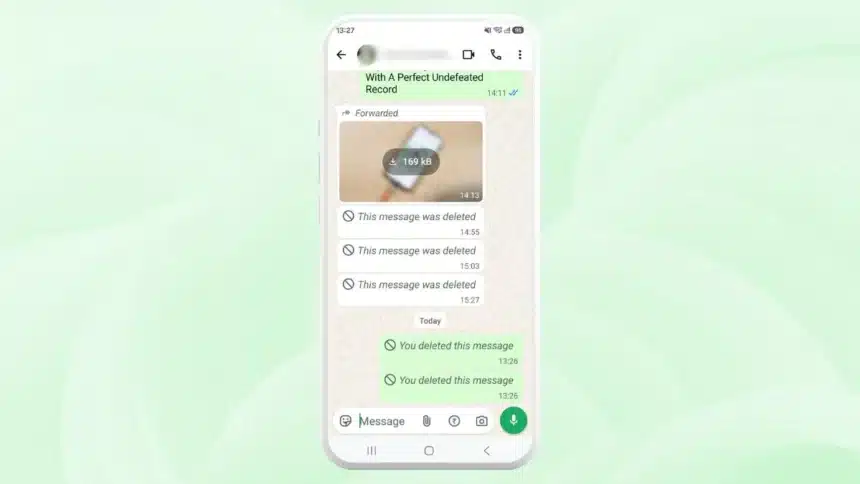
Ever seen that frustrating “This message was deleted” text pop up in your WhatsApp chat? You’re left curious after someone sent something, changed their mind, and hit “Delete for Everyone.”
The good news is you don’t need to install a sketchy third-party app to read deleted WhatsApp messages. Your phone likely already has the native tools you need built right in.
Here is a complete, no-app-required guide to recovering deleted WhatsApp messages on Android and iPhone.
Does WhatsApp Actually Delete the Message?
When someone taps “Delete for Everyone,” WhatsApp removes the message from both devices and replaces it with a placeholder. Since WhatsApp is end-to-end encrypted, it can’t be undeleted. You can get back a copy that your phone made before you deleted it by using notifications or backups.
Method 1: Android Notification History to Read Deleted WhatsApp Messages
This method is the best trick that doesn’t require an app. It works because Android quietly saves previews of new messages as they arrive, even if the sender deletes the message minutes later.
Requirements:
Android 11 or later, and Notification History must be turned on before the message is deleted.
Steps:
- Open Settings on your phone.
- Tap Notifications.
- Scroll down and tap Notification History (on some phones, dismiss all notifications and tap “No notifications” to jump straight there).
- Turn the toggle on if it isn’t already.
- The next time a message gets deleted, come back to this same screen, scroll to the WhatsApp entry from around that time, and you’ll see the original text.
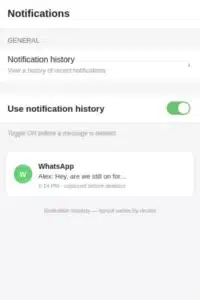
This only captures text, not photos, videos, or voice notes. It also won’t help if the chat was muted, if you were actively inside that conversation when the message arrived, or if the feature wasn’t enabled beforehand. Some phones (like Samsung) label the menu slightly differently, so search “Notification History” in Settings if you can’t find it right away.
Must Read: How To Reserve A WhatsApp Username: A Step-by-Step Guide
Method 2: Restore From a WhatsApp Backup
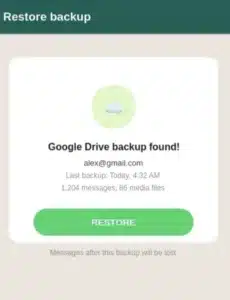
If the notification trick doesn’t work, the next best thing to do is to restore a backup. This is true for both Android and iPhone.
Check your backup status first: Open WhatsApp → tap the three dots (or Settings on iPhone) → Chats → Chat Backup. Note the date of your last backup.
On Android:
- Go to Settings > Apps > WhatsApp.
- Tap Storage, then Clear Storage.
- Reopen WhatsApp, verify your number, and when prompted, tap Restore.
- WhatsApp will pull your most recent Google Drive backup, including the message that was later deleted.
On iPhone:
- Uninstall WhatsApp.
- Reinstall it from the App Store and verify your number.
- When prompted to restore, choose your most recent iCloud backup.
- Your chat history will be restored to the time of that backup, bringing back messages that were present when the snapshot was taken.
This only works if the message existed before your last backup, and restoring will erase any messages received after that backup point, so use it thoughtfully.
Method 3: “Keep in Chat” for Disappearing Messages
If you are using disappearing messages and want to ensure important information isn’t lost, use WhatsApp’s native Keep in Chat feature before the timer expires. While this won’t recover a message that was deleted earlier, it prevents important disappearing messages from vanishing in the first place.
A Quick Note on “Deleted Message Viewer“ Apps
You’ll find plenty of apps in app stores claiming to show deleted WhatsApp messages instantly. In reality, these apps do the same thing that Method 1 does: they log your notifications in the background. The only difference is that they need full access to your storage and notifications. Since Android’s own Notification History does this job natively and privately, there’s rarely a good reason to hand that data to a third party.
Quick Comparison
| Method | Works On | Needs Setup in Advance? | Media Support |
| Notification History | Android 11+ | Yes | Text only |
| Backup Restore | Android & iPhone | No (but backup must predate deletion) | Full chat, including media |
| Keep in Chat | Both (disappearing messages) | Yes, before the timer ends | Full message |
Must Read: How To Reserve A WhatsApp Username: A Step-by-Step Guide
Final Thoughts
There isn’t a magic button that will bring back a deleted WhatsApp message, but with Android’s Notification History and a well-timed backup restore, you have a good chance of getting back what you lost without having to install any extra apps. Today is the best time to turn on Notification History and keep your WhatsApp backups up-to-date. That way, you’ll never be caught off guard again.
Visit Devicology for the latest Tech News, Guides, and in-depth Reviews. Follow us on Whatsapp, LinkedIn, X (Twitter) and Instagram to never miss an update!