
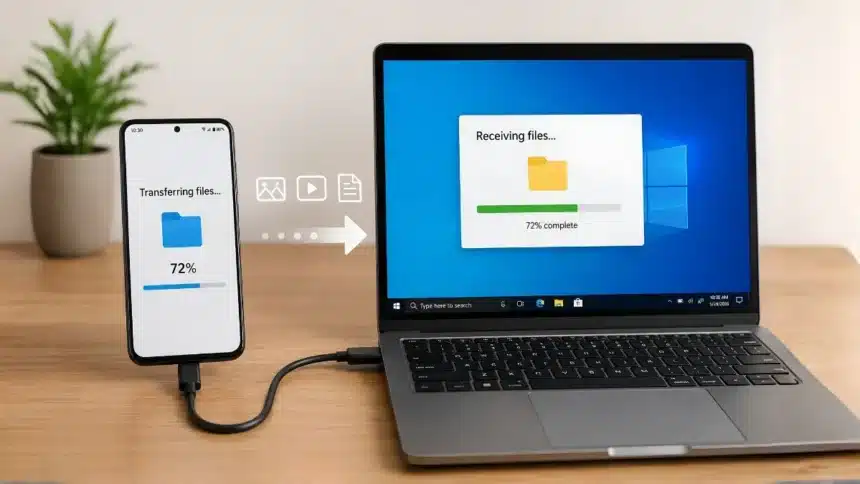
If you’ve ever tried to email a 2GB video, watched a Bluetooth transfer crawl, or opened a photo only to find it blurry, you know the issue: standard tools weren’t built for modern 4K video and high-res media. When you need to transfer large files from Android to Windows without losing quality, you need uncompressed, bit-for-bit transfer protocols.
Whether you’re moving raw camera footage or heavy project backups, choosing the right method ensures speed and zero quality loss. Check the quick summary table below to find the best option for your needs, or read on for detailed step-by-step instructions.
- Why Some Transfer Methods Ruin Your File Quality
- Best Ways to Transfer Large Files from Android to Windows
- Method 1: USB Cable (The Most Reliable & Fastest Option)
- Method 2: Quick Share (Fast Wireless Transfer, No Cable Needed)
- Step 1: Turn On Quick Share on Windows
- Step 2: Send From Android
- Method 3: Cloud Storage (Best When You’re Not in the Same Room)
- Step 1: Upload From Your Phone
- Step 2: Download on Windows
- Quick Comparison: Which Method Should You Use?
- What to Avoid?
- Final Thoughts
Quick Summary: Which Method Should You Use?
| Method | Best For | Key Advantage |
| USB Cable (MTP mode) | Massive files (10GB+), single large transfers | Fastest speeds, zero internet required |
| Quick Share for Windows | Wireless transfers in the same room | Fast, uncompressed Wi-Fi Direct sharing |
| Google Drive / OneDrive | Remote access or sharing with others | Works from anywhere, preserves original quality |
| Local FTP / WebDAV | Frequent, repeated large transfers | Lets you browse phone files directly on PC |
Why Some Transfer Methods Ruin Your File Quality
Before jumping into steps, it helps to know why quality loss happens in the first place. To save bandwidth, messaging apps like WhatsApp, Telegram, and Messenger automatically compress photos and videos.
That’s fine for a quick meme, but it lowers the quality of anything you care about and adds compression artifacts that you can see. Email has hard size caps (often 25MB), forcing the same kind of compression or an outright failed send. Bluetooth is slow enough that it discourages sending anything large in the first place.
Best Ways to Transfer Large Files from Android to Windows
If you want to transfer large files from android to windows, all four methods below preserve 100% of your original file quality without any compression or re-encoding in transit. Choose the one that best fits your setup:
Method 1: USB Cable (The Most Reliable & Fastest Option)
A wired USB connection remains the gold standard for large transfers. It’s quick, doesn’t depend on stable Wi-Fi, doesn’t limit the size of files beyond what you can store, and never connects to an outside server, which is helpful if you’re moving sensitive files.
Step 1: Plug In and Switch USB Mode
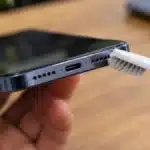
Connect your phone to your PC using a proper data-capable USB-C cable (many cheap cables are charge-only and won’t show up for file transfer). Pull down your notification shade and tap USB Preferences.
Step 2: Select “File Transfer” (MTP)
- In the USB options menu, select File Transfer / MTP.
- Open Windows File Explorer (Win + E) and navigate to This PC.
- Double-click your phone’s name, then browse to the folder holding your files (e.g., DCIM for photos and videos).
- Drag and drop the files onto your PC; they will be saved in their original quality without being compressed or changed.
Performance Benchmark: In our tests transferring a 10GB 4K video file, a USB 3.2 Gen 2 cable connected to a USB 3.0 port took just 48 seconds, compared to over 6 minutes on USB 2.0.
Troubleshooting Tip: If your PC doesn’t recognize your phone, ensure USB Debugging is turned off in Android Developer Options, or update your MTP drivers via Windows Device Manager.
Method 2: Quick Share (Fast Wireless Transfer, No Cable Needed)
Quick Share (Android’s cross-platform successor to Nearby Share) lets you beam files directly from your phone to a nearby Windows PC over Wi-Fi Direct and Bluetooth, with no compression applied. It’s ideal when your phone and PC are in the same room and you don’t want to use a cable.
Step 1: Turn On Quick Share on Windows
- Download and install the official Quick Share for Windows app from Android.
- Ensure both Bluetooth and Wi-Fi are turned on on both devices.
- Open Quick Share for Windows, log in with your Google account, and set visibility to Your devices or Everyone for 10 minutes.
- Optionally, set a custom download folder so files land exactly where you want them.
Step 2: Send From Android
- On your phone, open the file(s) you want to send and tap Share.
- Select Quick Share from the share sheet.
- Choose your PC from the list of nearby devices.
- Accept the transfer on the Windows side when the prompt appears.
Pro-Tip: If the connection drops or fails to discover your PC, check Windows Defender Firewall and ensure Quick Share is allowed through private networks.
Method 3: Cloud Storage (Best When You’re Not in the Same Room)
Google Drive, OneDrive, and Dropbox all keep the original quality of your files; they don’t automatically compress them like chat apps do. This is the most flexible method since it works even if your phone and PC aren’t near each other, and it gives you a shareable link if you need to send the file to someone else entirely.
Step 1: Upload From Your Phone
- Select the file(s) you want to transfer and tap the Share icon.
- Choose Google Drive (or OneDrive/Dropbox) from the share sheet.
- Choose a folder and tap Upload.
- Wait for the upload to finish over Wi-Fi.
Step 2: Download on Windows
- Open drive.google.com (or onedrive.live.com) in your web browser.
- Locate the uploaded file and click Download.
- The file lands in your Downloads folder at its original resolution and bitrate.
Crucial Setting Warning: Do not upload files through the Google Photos app if your backup setting is set to “Storage Saver”, as this will silently compress video bitrates and downscale high-res photos. Always upload directly via the Google Drive app to guarantee 100% original file fidelity.
Method 4: Local Wi-Fi / FTP (Best for Repeated, Large-Volume Transfers)
If you regularly move large folders back and forth, setting up a local network transfer avoids repeated uploads and downloads entirely. Many Android file managers (like CX File Explorer or Solid Explorer) have built-in FTP/WebDAV server support, which lets you use your phone as a network drive that you can access directly from Windows File Explorer over home Wi-Fi.
- Install a file manager app on Android that supports FTP or WebDAV server mode.
- Start the server from within the app; it will display a local network address (e.g., ftp://192.168.1.42:2221).
- On your Windows PC, open File Explorer (Win + E), type that address into the address bar, and press Enter.
- Browse, copy, and paste files between the two devices just like any other network folder.
Quick Comparison: Which Method Should You Use?
| Method | Best For | Speed | Needs Same Room? |
| USB Cable | Largest files, one-off transfers | Fastest (wired) | Yes |
| Quick Share | Fast wireless, no cable handy | Fast (Wi-Fi Direct) | Yes |
| Cloud Storage | Remote access, sharing with others | Depends on internet speed | No |
| Local FTP/Wi-Fi | Frequent, repeated large transfers | Fast (local network) | Same network |
What to Avoid?
- Messaging Apps: Sending videos or photos via WhatsApp or Messenger heavily reduces resolution and bitrate.
- Email Attachments: Any attachments bigger than 25 MB will be rejected or automatically downscaled.
- Bluetooth Transfers: Moving large files over Bluetooth is extremely slow and prone to disconnects.
- Charge-Only Cables: Always use a data-capable USB-C cable; cheap power-only cables won’t allow file transfers.
Final Thoughts
There is no single “best” way to move large files from Android to Windows. The right option depends on how often you’re moving files, how close you are to your PC, and whether you have a cable handy. For quick one-time dumps, a USB cable is unbeatable. Quick Share offers seamless wireless convenience, while cloud storage bridges the distance when you’re on the go.
Visit Devicology for the latest Tech News, Guides, and in-depth Reviews. Follow us on Whatsapp, LinkedIn, X (Twitter) and Instagram to never miss an update!