



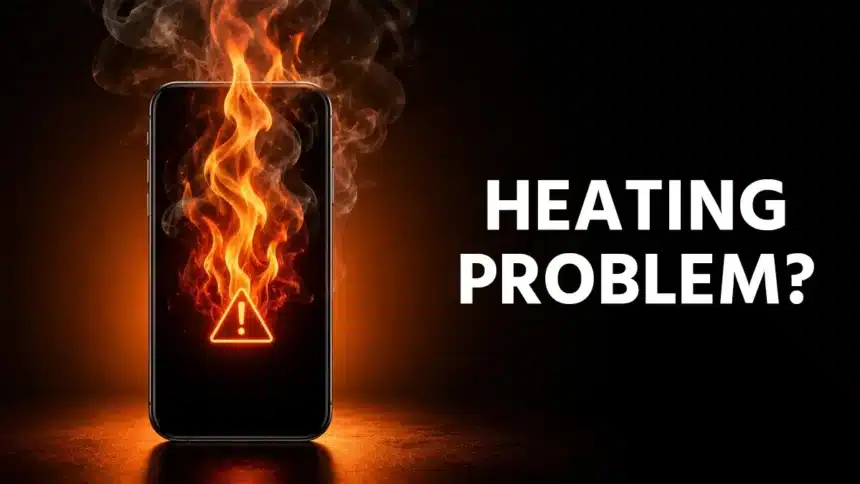
If you are experiencing an Android 17 setup warm issue right after installation and your phone suddenly feels like it just sat in the sun, take a deep breath because your device is completely fine. It is incredibly common for an Android phone to run warm or even hot right after a major OS update.
Between background app re-optimization and extensive data restoration, your processor is simply working overtime. In this guide, we will break down exactly why this thermal activity happens, what counts as normal, and how you can cool your device down quickly.
- Why You Experience the Android 17 Setup Warm Issue
- Is This Warmth Actually Normal?
- How Long Should the Warmth Last?
- How to Fix Excess Heat After Android 17 Setup
- Let Setup Finish Completely
- Manually Update Your Apps
- Run Built-In Diagnostics
- Remove Your Phone Case Temporarily
- Restart the Device
- Boot Into Safe Mode If Heat Persists
- Avoid Heavy Tasks While the System Settles
- When to Contact Support
- Summing It Up
Why You Experience the Android 17 Setup Warm Issue
Every major Android update can push your device’s processor into overdrive. Android 17 is not an exception, and the heat you might be feeling is just a side effect of real work happening inside the device.
The Processor Works Overtime
It is quite common to find your phone hot after software update files are being processed and integrated into the core system.
Your CPU often handles a massive workload during this setup. It is installing new system files, rebuilding caches, and even applying security patches. Ultimately, this constant activity will naturally raise the device temperature.
Google’s own reporting has confirmed this pattern on different Pixel devices. In the process of a software update, the CPU has a ton of work to do while the update installs. Once this installation is done, the temperature usually returns to normal if it was a minor update.
Apps Get Reoptimized in the Background
Once the update is complete, the apps will not just resume as before. Several developers generally push the updates so that they can align well with the new Android version. This implies multiple apps can update simultaneously right after the update, creating a massive spike in background activity.
Once the new operating system is set up, caches get rebuilt, files get reindexed, and apps get optimized for the new environment. This process can lead to demanding extra processing power. This is a background activity that often continues quietly, even while you are not using the phone that much.
Restoring Data Adds Extra Load
In case you are setting up your device as a new one or restoring a backup, your device will pull the contacts, photos, and settings. This process runs hand-in-hand with app optimization. Samsung has its own support documentation that lists this exact case. It also notes that devices can run hot during the initial setup after the purchase or while restoring the data.
It is completely expected to have a phone warm during setup when your device is pulling massive cloud backups.
Is This Warmth Actually Normal?
Many users search for solutions when they notice an Android phone overheating after update, but the reality is often less severe. Thermal activity during setup is an expected behavior that is common across almost every Android device.
Here is a quick look at the key differences between expected thermal behavior and a genuine hardware issue:
| Feature / Situation | Normal Setup Warmth | Actual Overheating |
| Physical Feel | Warm to touch, but comfortable to hold. | Painfully hot or uncomfortable to hold. |
| Performance | Smooth navigation and regular background tasks. | Severe lagging, freezing, or app crashes. |
| Screen Behavior | Normal display brightness and response. | Screen dims automatically or lowers refresh rate. |
| Charging Status | Charges fine (though slightly slower if warm). | Charging halts completely with heat warnings. |
| Duration | Settles down within 2–4 hours or a few days. | Persists even after days of idle time. |
What Counts as Normal Heat
A phone that is warm when being touched but not painful is operating within its normal temperature range. Several studies have mentioned that phones can turn warm during an update or even the first-time setup, and this can eventually settle down once the process is completed.
Samsung has also clearly stated that their Galaxy devices are completely designed to run best when in the temperature range of 32 and 95 degrees Fahrenheit. In some cases, if the device exceeds the safe limits, some features can also be temporarily paused.
What Signals a Real Problem
Some signs can even go beyond the normal setup warmth and deserve more attention. They are:
- Uncomfortable to Hold: The phone becomes physically too hot to hold comfortably.
- Severe Performance Drop: Lagging or stuttering during simple tasks like checking text messages or emails.
- Display Alterations: The screen dims automatically without any manual setting adjustments.
- Charging Halts: The device stops charging completely or refuses to initiate a charge.
- Frequent Warnings: A persistent UI heat warning appears on the display.
If you see any of these things happening, treat them as a separate issue. With setup warmth, the chance of these issues happening is highly unlikely.
How Long Should the Warmth Last?
This is a new question that several people have been asking these days. The honest answer to this varies as per the device and the update size. But to get a bigger picture, here are some timelines.
| Time Period | What is Happening | User Action Required |
| First 45 Minutes | Heavy background app optimization and peak thermal activity. | Leave the phone idle; remove the case if it gets too warm. |
| First 2 Hours | System cache rebuild and background processes start to settle. | Perform a simple manual restart after the processes finish. |
| Next 2 to 3 Days | Deep file reindexing and sync operations (especially on premium flagships). | Avoid heavy tasks like gaming or navigation; monitor battery life. |
| Beyond 4 Days | Thermal levels and battery performance should return to 100% normal. | Start active troubleshooting if warmth or battery drain persists. |
The First Few Hours After Update
Your phone works in its best way when you’ve just installed it. You can expect some noticeable warmth in the first 2 hours as the background process takes time to settle. This period usually passes on its own without any action from you.
During our internal hands-on testing with the latest major Android builds on our test units, we noticed the device temperature peaked during the first 45 minutes of heavy background app optimization. However, the thermal levels settled down completely after a simple manual restart and a couple of hours of idle time.
The Following Few Days
Some devices often stay warmer than usual for a prolonged period. Heavy users often notice that premium flagship devices run hotter than usual for a few days after a major OS installation, with the battery life also dipping temporarily.
Rest assured, after this brief indexing period, both your phone’s temperature and battery performance will return to normal.
When to Start Troubleshooting
If your battery is draining and is warm beyond three to four days, this can be a different situation. A temporary Android system update battery drain often goes hand-in-hand with the initial setup warmth. At this point, you must move from just waiting to actively troubleshooting.
How to Fix Excess Heat After Android 17 Setup
These fixes address both the system setup process itself and any lingering warmth afterward. If you are looking for ways to cool down your phone running the new OS, work through these steps in order for the fastest results.
Let Setup Finish Completely
Avoid interrupting the update or restore process. Closing the phone in a case or drawer during setup traps heat unnecessarily. Let the device sit somewhere open and cool while it finishes.
Manually Update Your Apps
Automatic app updates do not always trigger immediately after a major OS update. Open the Play Store, go to your profile, and check for pending updates. Installing them manually can resolve conflicts between old app versions and the new system.
Run Built-In Diagnostics
Most manufacturers include tools that check for abnormal heat or battery drain. On Pixel phones, navigate to Settings, select Battery, and choose Battery diagnostics to get a proper temperature reading. On Samsung devices, go to Settings, open Battery and device care, and select Optimize now to close background apps and free up memory.
Remove Your Phone Case Temporarily
A case traps heat and blocks airflow during heavy processing. Removing it while your phone finishes optimizing after setup helps heat escape faster. This matters even more if you are also charging the device.
Restart the Device
A simple restart clears temporary processes sitting in memory. This often calms a phone that has been warm for a while. It costs nothing and takes under a minute.
Boot Into Safe Mode If Heat Persists
If warmth continues well past the normal window, safe mode helps isolate the cause. Starting your phone with only built-in apps running shows whether a third-party app is responsible. Press and hold the power button, then hold Power off until the safe mode prompt appears.
Avoid Heavy Tasks While the System Settles
When it’s your first day of the major update, it is best to skip gaming, video calls, or navigation apps. These tasks can even add processing load on top of background optimization. Giving your phone a lighter workload speeds up the settling period.
When to Contact Support
Most Android 17 setup warmth resolves within a few days without intervention. If your phone is still running hot, shuts down unexpectedly, or continues to show heat warnings after a week, connect with your manufacturer’s support team. Software fixes will not solve a hardware-related battery or component issue, and a technician can properly diagnose it.
Summing It Up
If you feel warmth in the setup of Android 17 on your devices, it reflects that the processor is working well. Everything happens at once, starting from cache rebuild, app optimization, and data restoration. You need to give your phone a day or two, check for all the fixes mentioned above, and see if your phone settles to cool itself.
Read Also: How to Clear “System Data” Storage on Android Without Losing Your Photos
Visit Devicology for the latest Tech News, Guides, and in-depth Reviews. Follow us on Whatsapp, LinkedIn, X (Twitter) and Instagram to never miss an update!