

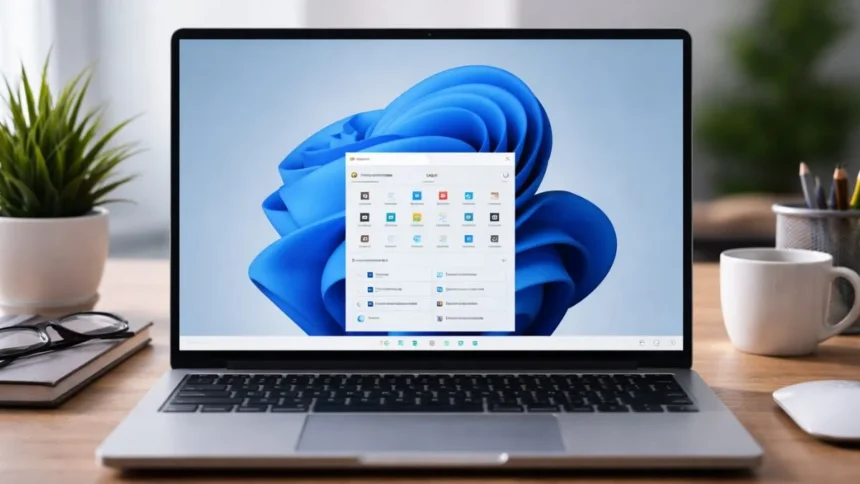
When a computer malfunctions, many people become anxious due to slow performance, start-up errors, and random crashes; they believe that they now need to use an external USB Boot Drive to fix the problem or they need to show it to the service centre.
But this is not true
Windows 11 comes with a recovery mode that allows you to troubleshoot and recover your PC without the use of additional hardware or software, and typically takes less than a few minutes.
The key to using recovery mode is knowing where to access it and how to use it.
What Is Windows 11 Recovery Mode?
Think of recovery mode as your PC’s built-in emergency toolkit.
It’s a separate environment that loads before Windows starts normally. From here, you can fix startup issues, roll back updates, restore your system, or even reinstall Windows without touching your personal files if you choose not to.
How to Access Recovery Mode
Go to Settings> System> Recovery >Advanced Startup >Restart now.
Your PC will reboot into a blue screen with multiple repair options.
If your system is already failing to start, Windows may automatically open this screen after repeated failed boot attempts.
3-Step Self-Repair Method
If you just want a quick fix without getting lost in options, follow this:
Step 1: Open Advanced Startup
Step 2: Tap Troubleshoot
Step 3: Select Startup Repair
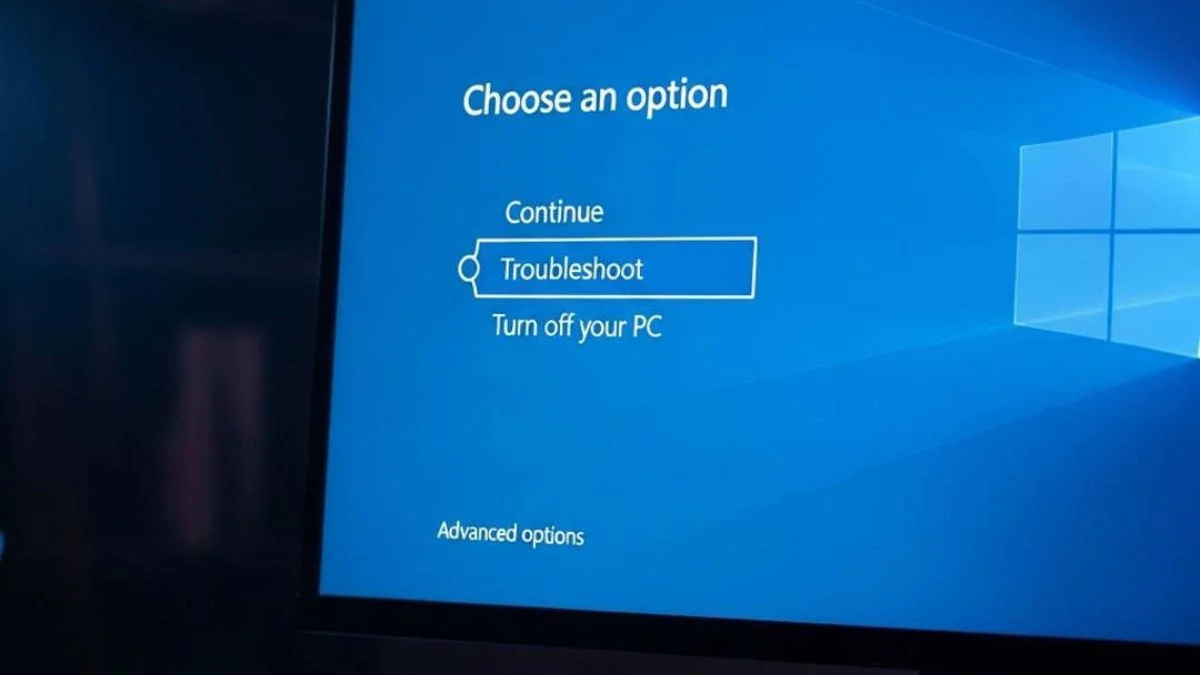
That’s it.
Startup Repair will scan your system, find issues stopping Windows from loading, and attempt to fix them automatically. For most boot-related problems, this is the quickest solution.
Recovery mode in Windows 11 is intended to quickly fix common problems, such as boot failure or sudden performance drop, through several options available in recovery mode without having to add additional applications (to Windows) or assessment tools. If you make the right choice of recovery option, you can often correct an issue within a matter of minutes.
So, if your PC starts acting up, don’t go to reinstall everything or spend money on repairs. Use recovery mode to ease the problem.
Also Read:6 Hidden USB Features Every Samsung User Should Know