



Your phone now thinks locally. On-device AI processes data without cloud servers. That means faster responses and stronger privacy. But here is the catch. These features drain the battery and eat storage fast. The good news? You can use them smartly. This guide shows you exactly how to balance security, storage, and battery life. You will learn practical settings, real trade-offs, and proven habits. All tailored for the phones Americans use daily.
What Does On-Device AI Actually Do On Your Phone
On-device AI runs machine learning models directly on your hardware. It skips the internet entirely for specific tasks. This keeps sensitive data on your phone instead of floating through remote servers.
- What Does On-Device AI Actually Do On Your Phone
- The Storage Problem and How to Solve It
- Battery Drain: Why Does It Happen and What Helps
- Security: Keeping On-Device AI Truly Private
- The Right Balance: A Quick Decision Framework
- Final Recommendations for US Phone Users
Common On-Device AI Features in 2025-2026
- Live transcription and captions (Google Pixel, Samsung Galaxy)
- Photo enhancement and object recognition (Apple Intelligence, Google Photos)
- Predictive text and voice typing (Gboard, Apple Keyboard)
- Face and fingerprint recognition (Face ID, Samsung Knox biometrics)
- Smart reply suggestions in messaging apps
- Real-time language translation without Wi-Fi
Why It Matters for US Users
American consumers store banking apps, health records, and personal photos on one device. On-device AI processes all of this locally. No third-party server touches your data. That distinction matters when HIPAA-adjacent health apps or financial tools run on your phone.
The Storage Problem and How to Solve It
AI models are large files. Apple Intelligence alone requires 4GB of free space minimum. Samsung’s Galaxy AI features need a similar room. These models update periodically, consuming even more storage over time.
Check What AI Features Consume Storage
| Feature | Approximate Storage Use | Device |
| Apple Intelligence models | 4-7 GB | iPhone 15 Pro and newer |
| Google Gemini Nano | 2-3 GB | Pixel 8 Pro and newer |
| Samsung Galaxy AI (offline pack) | 3-5 GB | Galaxy S24 series and newer |
| Offline translation packs | 300-500 MB each | Most Android/iOS devices |
Practical Steps to Manage Storage
- Audit your downloaded AI language packs. Remove languages you never use. Each pack sits idle otherwise.
- Disable AI features you genuinely skip. Not everyone needs live captions or photo unblur.
- Offload unused apps regularly. iOS does this automatically if enabled in Settings.
- Clear AI model caches monthly. Android lets you do this under Settings > Apps > System Apps.
- Use cloud backup for photos and videos. Free up local space for AI models that need it.
A simple rule works here. Keep 15-20% of your total storage free. This gives AI models room to update without freezing your phone.
Battery Drain: Why Does It Happen and What Helps
On-device AI uses your phone’s neural processing unit (NPU). This chip handles AI tasks efficiently. But “efficiently” still means power consumption. Background AI processes compound the drain significantly.
Biggest Battery Drains from AI Features
- Continuous voice assistant listening (“Hey Siri,” “Hey Google”)
- Real-time photo analysis in the background
- Predictive app suggestions running constantly
- On-device learning that retrains models overnight
Battery-Saving Settings That Work
For iPhone users:
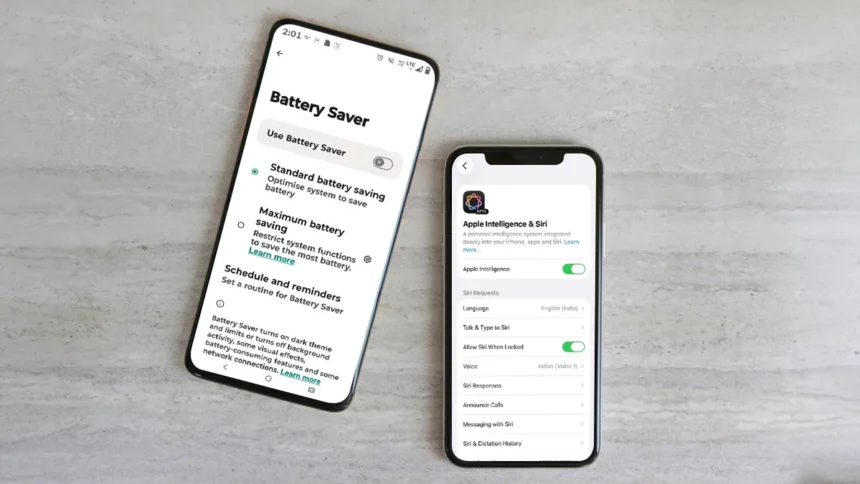
- Go to Settings > Apple Intelligence & Siri
- Tap “Talk & Type to Siri”
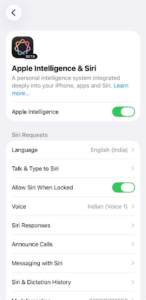
- Toggle off “Hey Siri” when you don’t need hands-free activation

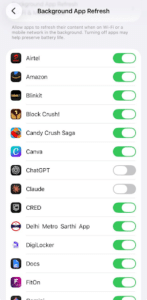
Turn off Background App Refresh for AI-heavy apps
- Go to Settings > General > Background App Refresh
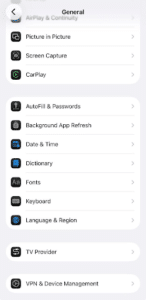
- Disable refresh for AI-intensive apps (e.g., ChatGPT, image generators, Apple Intelligence features)
Use Low Power Mode during work hours
- Go to Settings > Battery
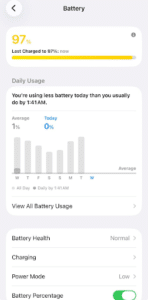
- Toggle on Low Power Mode

AI features still function but less aggressively—reducing background processing and proactive suggestions while preserving core functionality
For Android users:
Let’s see how iOS and Android differ:
Disable “Hey Google” voice activation when unnecessary
- Open the Google app. Tap your profile icon (top right) > Settings
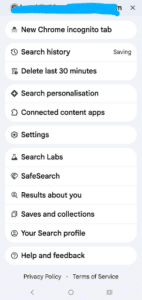
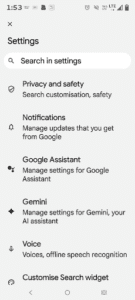
- Tap Google Assistant > General
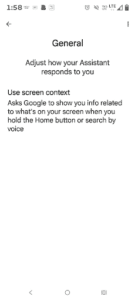
- Choose how you want your screen context
Turn off Allow Background App Refresh for AI-heavy apps
- Go to Settings > Apps
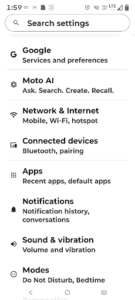
- Select the AI-intensive app (e.g., Gemini, ChatGPT, image generators)
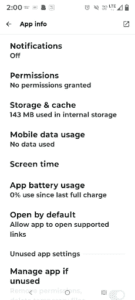
- Tap Battery and select “Allow Background Usage” to prevent background activity
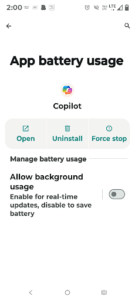
- Use Battery Saver Mode during work hours
- Go to Settings > Battery > Battery Saver
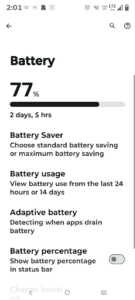
- Toggle on Battery Saver or set a schedule
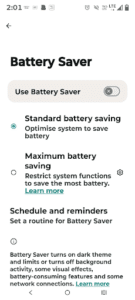
AI features still function but less aggressively—reducing background syncing and proactive suggestions while preserving core functionality
One overlooked trick? Charge your phone during AI-heavy tasks. Run photo enhancement or large translations while plugged in. Your battery health stays intact longer.
Security: Keeping On-Device AI Truly Private
On-device processing sounds private by default. Mostly, it is. But nuances exist that US consumers should understand clearly.
What Stays on Your Device
- Biometric data (Face ID, fingerprints) never leave your phone.
- Keyboard predictions train locally and stay local.
- Photo recognition labels remain in your device’s index.
What Might Not Stay Local
- Some “on-device” features still send anonymized analytics to servers.
- AI suggestions in apps like Google Maps blend local and cloud processing.
- Software updates can change privacy defaults without obvious notification.
How to Lock Down Your AI Privacy
- Review permissions quarterly. Go to Settings > Privacy on both iOS and Android.
- Disable “Improve AI” toggles. Apple and Google both ask to share usage data. Decline.
- Turn off personalized ads tied to AI learning. Find this under Google Account > Data & Privacy.
- Update your OS promptly. Security patches fix AI-related vulnerabilities regularly.
- Read update changelogs. New AI features sometimes enable data sharing by default.
US users benefit from state-level privacy laws like CCPA in California. But these laws only help if you actively manage your settings. The phone will not protect you by default in every scenario.
The Right Balance: A Quick Decision Framework
Not every AI feature deserves your storage and battery. Use this framework before enabling anything new.
| Question | If Yes | If No |
| Do I use this feature weekly? | Keep it enabled | Disable or remove |
| Does it need offline access? | Download the model | Use cloud version instead |
| Does it run in the background? | Set battery limits | Leave default settings |
| Does it access sensitive data? | Audit permissions | Standard monitoring is fine |
This framework saves you from the “enable everything” trap. Most Americans use three or four AI features regularly. The rest just sit there consuming resources.
Final Recommendations for US Phone Users
Start with an audit this weekend. Check which AI features run on your phone right now. Disable what you skip. Restrict background access for what you keep. Review privacy toggles every quarter.
The goal is simple. Use on-device AI for what genuinely helps you. Let go of features that just look impressive in marketing materials. Your phone performs better, lasts longer, and stays more secure when you make intentional choices.
On-device AI will only grow from here. Apple, Google, and Samsung ship more local models every year. Building good habits now means you stay ahead without sacrificing performance or privacy later.
Visit Devicology for the latest Tech News, Guides, and in-depth Reviews. Follow us on Whatsapp, LinkedIn, X (Twitter) and Instagram to never miss an update!