


Artificial intelligence (AI) is now a big part of most smartphones. AI-powered features now help with writing, editing photos, getting notifications, searching, voice commands, and suggesting apps, whether you are on an iPhone or an Android device. Even though these tools are meant to make life easier, learning how to turn off AI features can make your phone simpler and less cluttered if you do not like using them.
A lot of people find AI overlays annoying, unnecessary, or distracting. These features, like writing prompts that pop up on the screen or AI assistants that stay on the screen, can get in the way of your work and even make you worry about your privacy. The good news is that you can turn off or change most AI-powered features.
- Quick Overview: Common AI Features & How They Affect You
- What Are AI Overlays and Smart Suggestions?
- Why Do People Turn Off AI Features?
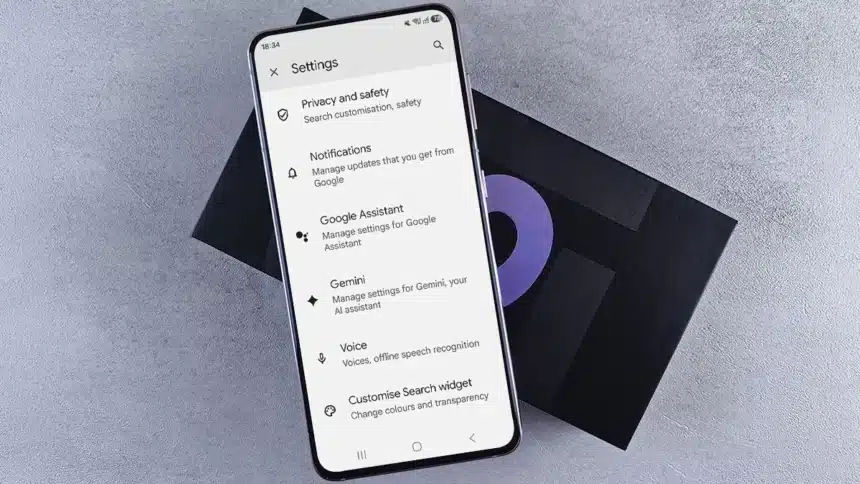
- How to Turn Off AI Features on Android
- Disable AI Assistant
- Turn Off Smart Suggestions
- Disable Keyboard AI Suggestions
- Turn Off Notification Suggestions
- How to Disable AI Features on Samsung Galaxy Phones
- How to Turn Off AI Suggestions on Google Pixel
- How to Turn Off AI Features on iPhone
- Disable AI Features Inside Individual Apps
- Should You Turn Off Every AI Feature?
- Troubleshooting: What to Do If AI Features Keep Coming Back
What are AI overlays? Why do people choose to turn them off? If you want to know how to turn off AI features step-by-step, this guide will show you how to disable common AI suggestions on your Android and iPhone.
Quick Overview: Common AI Features & How They Affect You
| AI Feature / Overlay | What It Does | Common Issue | Quick Action |
| Smart Suggestions | Recommends apps, contacts & replies | Screen clutter, unwanted pop-ups | Toggle off in Launcher / Keyboard settings |
| Siri / Assistant Triggers | Launches voice assistant automatically | Accidental button & gesture activation | Change Default Assistant to None |
| AI Text & Writing Helpers | Offers predictive text & grammar prompts | Battery drain, typing distractions | Disable Smart Compose & Predictive Text |
| Notification Summaries | Scans and condenses incoming alerts | Privacy concerns, missed context | Turn off Notification Summaries |
What Are AI Overlays and Smart Suggestions?
On-screen elements that are powered by AI and show up while you’re using your phone are called AI overlays. Some of these are:
- AI writing helpers
- Smart text ideas
- Context-based suggestions
- AI search shortcuts
- Floating assistant buttons
- Notification summaries
- Suggested replies and smart answers
- Photo editing tips
- Voice assistant prompts
Smart suggestions look at your actions, messages, and app use to suggest things you should do, people you should talk to, or responses you should send. Most of the time, these features can be turned off and are only helpful for some users.
Why Do People Turn Off AI Features?
People choose to limit or turn off AI functionality for a number of reasons:
- Less Screen Clutter: Pop-ups, floating icons, and suggestion cards that keep coming up can take your attention away from the apps you are trying to use.
- Better Privacy: Many AI features look at your messages, search history, screenshots, or app use to make suggestions that are more relevant to you. Turning them off limits the amount of personal data being processed.
- Improved Battery Life: Some AI services keep running in the background to monitor device activity. Turning off unnecessary features helps reduce background battery drain.
- Faster Performance: Background AI processing can use significant memory and processing power, especially on older devices. Disabling them makes your phone feel more responsive.
- Fewer Interruptions: Many smartphone users simply prefer a cleaner, classic interface without constant prompts.
How to Turn Off AI Features on Android
The exact steps depend on the brand of your phone, but the core settings across most Android devices are similar.
Disable AI Assistant
If your phone triggers an AI assistant through gestures or buttons automatically:
- Open Settings.
- Go to Apps > Default apps.
- Tap Digital Assistant app (or Device Assistant app).
- Select None or switch to another preferred app.
This stops side buttons or swipe gestures from accidentally activating the assistant.
Turn Off Smart Suggestions
To stop your launcher from showing app predictions and contextual suggestions:
- Open Settings.
- Tap Home Screen or Launcher Settings.
- Toggle off options like Suggested apps, App predictions, Smart recommendations, and Search suggestions.
(Note: Menu names vary slightly depending on your phone manufacturer).
Disable Keyboard AI Suggestions
If your keyboard always offers AI-generated corrections or writing help:
- Go to Settings.
- Tap System > Languages & Input (or General Management).
- Select your active keyboard (e.g., Gboard or SwiftKey).
- Turn off features like Smart Compose, Predictive text, Grammar suggestions, and AI writing assistance.
You can still leave basic spell check enabled if you prefer.
Turn Off Notification Suggestions
Some Android phones sum up alerts or suggest ways to respond.
To disable:
- Go to Settings.
- Tap Notifications.
- Toggle off Smart Reply, Suggested Actions, and Notification Summaries.
How to Disable AI Features on Samsung Galaxy Phones
Samsung phones feature deeply integrated Galaxy AI capabilities. You can disable or customize them through these steps:
- Open Settings.
- Tap Galaxy AI (on some models, go to Advanced features > Galaxy AI).
- Select and toggle off individual services you do not want, such as: Chat Assist, Note Assist, Interpreter, Browsing Assist, Transcript Assist, Photo Assist
(Tip: You can also enable Process data only on device inside Galaxy AI settings for enhanced privacy, or change the side button settings to disable Bixby).
How to Turn Off AI Suggestions on Google Pixel
Pixel phones rely heavily on Google’s on-device machine learning. To reduce AI activity:
- Long press on the home screen, select Home settings, and turn off At a Glance.
- In Google Messages, open Settings > Suggestions and turn off Smart Reply.
- In Settings > Apps > Assistant, disable shortcut triggers.
- Go to Settings > Sound & vibration and turn off Live Caption and Now Playing.
These changes keep the most important features of Android but make it easier to use.
How to Turn Off AI Features on iPhone
Apple has slowly added more AI-powered features through Siri and the intelligence built into its devices.
In order to cut down on AI suggestions:
Disable Apple Intelligence & Siri Suggestions
- Open Settings.
- Tap Apple Intelligence & Siri.
- To disable systemic AI features completely, toggle off Apple Intelligence.
- Scroll down and disable Siri suggestion features like the following:
- Suggestions on Lock Screen
- Suggestions in Search
- Suggestions While Sharing
- Suggestions Before Searching
Disable Predictive Text
- Open Settings.
- Go to General > Keyboard.
- Turn off:
- Predictive Text
- Auto-Correction (optional)
- Inline Predictions (if available)
Reduce Search Recommendations
If you don’t want Siri to learn which apps you use and make suggestions for you, go to Settings > Siri.
Disable AI Features Inside Individual Apps
Many third-party apps now come with built in AI assistants:
- Messaging Apps: Turn off AI generated replies or chatbots in chat settings.
- Email Apps: Disable smart compose and automatic email summaries.
- Photo Editors: Turn off automated enhancement prompts.
- Browsers: Disable AI summary overlays in search settings.
Check the Settings or Preferences menu inside each specific app to disable these features individually
Should You Turn Off Every AI Feature?
Not necessarily. Some AI tools provide genuine convenience without cluttering your interface. Features like automated spam call blocking, voice dictation, and smart photo search can save time while running quietly.
Instead of turning off everything, evaluate which features interfere with your daily use and disable only those, keeping the helpful tools active.
Troubleshooting: What to Do If AI Features Keep Coming Back
If an AI feature turns back on automatically:
- Check for Software Updates: Major OS updates often reset system defaults. Re-check your settings after updating your phone.
- Restart Your Phone: Ensure preference changes are fully applied by restarting the device.
- Check App Permissions: Disable background activity or overlay permissions for AI assistant apps.
- Reset App Preferences: If suggestions persist on your keyboard or launcher, clear the cache or reset settings for that specific app.
AI is changing smartphones by making suggestions that are smarter and automating tasks that many users like. On the other hand, not everyone wants suggestions, overlays, or smart assistants to show up all the time.
Luckily, you can change or turn off many of these features on both Android and iPhone. You can make your phone’s assistant, keyboard, notifications, search, and app settings cleaner and less distracting while keeping the features that are most important to you.
In the end, your phone should do what you want it to do. It doesn’t matter if you like a very personalized AI experience or a simple interface with fewer interruptions. Reviewing your settings can make your device feel more private, easy to use, and fun.
Must Read: Top 7 Productivity Apps In The USA
Visit Devicology for the latest Tech News, Guides, and in-depth Reviews. Follow us on Whatsapp, LinkedIn, X (Twitter) and Instagram to never miss an update!