


No matter which part of the world people reside in, there is a constant fear in their mind about the data on their mobile phone. It’s not just restricted to what if they lose their phone, it’s also about what if they switch from one smartphone to another. And this includes a vital piece of their day-to-day conversations, their WhatsApp chats. People often worry about what will happen to their WhatsApp chats when they switch from an iPhone to an Android phone.
When you switch phones, it can be very upsetting to lose the conversations, shared photos, videos, and voice notes that you’ve made over the years. Thank goodness, WhatsApp now has an official, safe way for you to move all of your chat history from your iPhone to your Android phone without having to know anything about computers. This guide shows you step-by-step how to do it.
- Transfer WhatsApp Chats from iPhone to Android: What You Need
- Why Can’t One Just Bring Back an iPhone Backup on an Android phone?
- What Do You Need Before You Start?
- Step 1: Begin Setup on Your New Android Phone
- Step 2: Press the “Move to Android” button.
- Step 3: Use your iPhone to scan the QR code.
- Step 4: Let the swap happen.
- Step 5: Confirm Everything Transferred Correctly
- Alternative Method: Using a Computer
- What Transfers and What Might Not?
- Common Problems and How to Fix Them
- Final Tips for a Smooth Switch
- Conclusion
Transfer WhatsApp Chats from iPhone to Android: What You Need
| What You Need | Details |
| Old Phone | iPhone with WhatsApp installed |
| New Phone | Android phone being set up |
| Latest version installed on both phones | |
| Phone Number | Same WhatsApp number for verification |
| Internet | Both phones connected to Wi-Fi |
| Battery | Both phones charged or connected to power |
| Transfer Method | Official WhatsApp chat transfer |
| Backup | Recommended iCloud or computer backup before starting |
Why Can’t One Just Bring Back an iPhone Backup on an Android phone?
Android phones use Google Drive or local storage to back up WhatsApp, while iPhones use iCloud. There are big differences between these two systems, so if you try to restore an iPhone backup directly to an Android device, it will not work at all.
We need a special migration method instead of a direct restore because of this. This is the reason why WhatsApp made this method work between iOS and Android.
What Do You Need Before You Start?
Getting ready for the transfer makes it go more smoothly and restricts most of the mistakes that may happen. Make sure you have these things ready before you start:
- Your new Android phone and iPhone are both fully charged or plugged into a charger.
- Both phones have the most recent version of WhatsApp installed.
- The most recent version of the operating system on both phones.
- Get your SIM card or phone number ready to be checked.
- To speed up the transfer, both phones should be linked to the same Wi-Fi network.
- As a safety net, make a separate copy of your iPhone on iCloud or a computer.
Step 1: Begin Setup on Your New Android Phone
If WhatsApp isn’t already on your new Android device, download it from the Google Play Store and follow the instructions on-screen to install it. Tap Agree and Continue in the app when you open it. Type in your phone number when asked. This is the phone number that goes with your WhatsApp. Make sure you are who you say you are in this step. This also gets the app ready to receive your data.
Step 2: Press the “Move to Android” button.
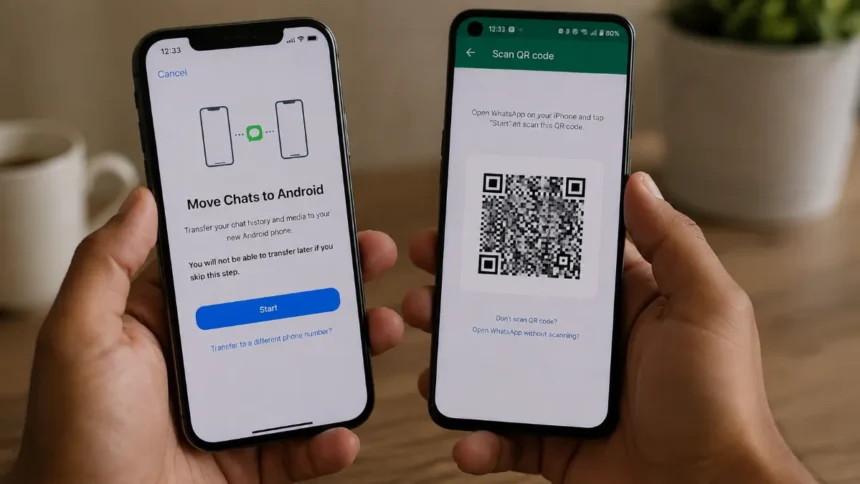
Android will know that you are coming from an iPhone the first time you set it up and offer to move your chat history from your iPhone. As a result, a QR code will appear on your Android screen. Your old iPhone and your new Android phone can share data for a short time by scanning this QR code.
Step 3: Use your iPhone to scan the QR code.
Get on your iPhone and open WhatsApp. Moving chats to your Android phone is easy. Just go to Settings > Chats > Chat Transfer > Transfer Chats. When you press the “Start” button on your iPhone, the camera will open on your Android phone and scan the QR code. They set up a safe local link to start the transfer after checking both devices.
Step 4: Let the swap happen.
As soon as you connect your iPhone and Android phone, you can start moving your messages, photos, videos, and voicemails between the two. You have to look at how much data you have. This process might not take long if you only have a few chat messages and pictures. With years’ worth of texts and videos, it could take over an hour. Both phones need to be close by, turned on, and connected to Wi-Fi until the whole process is done.
Step 5: Confirm Everything Transferred Correctly
When it’s done, open WhatsApp on your Android phone and check all of your chats to make sure everything looks right. This includes groups, private conversations, and shared files. If everything looks good, you’re done with your move. Your whole WhatsApp history will be on your new phone, so you can start using it right away.
Alternative Method: Using a Computer
Your device may not have a built-in phone-to-phone transfer feature. If this is the case, you can use a computer-based method as a backup. Usually, you need to use iTunes or Finder to create a local backup of your iPhone’s WhatsApp data. Then, you need to use special software to convert the backup to a format that Android can read.
Finally, you can move the files to your Android phone via USB or Wi-Fi. You can use this method instead of the official one if the official one doesn’t work. It needs more software and takes longer.
What Transfers and What Might Not?
The following things can be transferred:
- Individual and group chats
- Photos, videos, and voice messages
- Chat wallpapers
Here’s what might not move perfectly:
- Messages that were marked as starred might not be marked as starred after the move.
- It may be necessary to manually change WhatsApp Business catalogues and business-specific settings.
- The method only works when setting up Android for the first time; it’s not meant to be used on a phone that’s already running WhatsApp.
Common Problems and How to Fix Them
Why these issues happen and how to fix them:
- You can’t scan the QR code. To connect both phones, make sure they are both on the same Wi-Fi network and that Bluetooth is turned on. For the connection to work, both of these need to be enabled and running.
- If the transfer gets stuck or goes slowly, move the phones closer together, turn off any battery-saving modes, and make sure the Android device has enough free space.
- After the transfer, some chats are missing? Make sure that both phones had the most recent version of WhatsApp installed before you started. If you need to, you can safely try the transfer process again.
Final Tips for a Smooth Switch
Finally, here are some tips that can help you move:
- The transfer needs to happen undisturbed. Since both phones need to stay close and connected during the whole process, it is important o dedicate the time solely till the transfer is complete.
- While the transfer is going on, don’t use either device for anything else.
- When you’re done, log out of any WhatsApp Web or Desktop sessions that are connected to your old iPhone and then connect them to your new Android phone.
- You might want to set your Android phone to automatically back up to Google Drive so that future chat backups happen without you having to do anything.
Conclusion
No longer do you have to lose your WhatsApp history when you switch from an iPhone to an Android phone. Moving your chats, media, and settings to Android is easy and only takes a few careful steps with the official Move to Android feature.
You can move all of your WhatsApp conversations to your new Android phone without losing a single one if you prepare both devices ahead of time and follow the steps carefully.
Read Also: How To Transfer WhatsApp Chats From Android To iPhone
Visit Devicology for the latest Tech News, Guides, and in-depth Reviews. Follow us on Whatsapp, LinkedIn, X (Twitter) and Instagram to never miss an update!