

How to Use Google Maps Flight Path Tool to Calculate Exact Distances with Your Phone
Have you ever wondered how Google Maps lets you measure real-world distances in a straight line between two or more points, like how far your friend moved when they relocated or how long a planned hike stretches? The feature often called the “flight path tool” (actually Google Maps’ Measure Distance mode) is surprisingly easy to use and powerful once you know the steps.
What Is It and Why It Matters
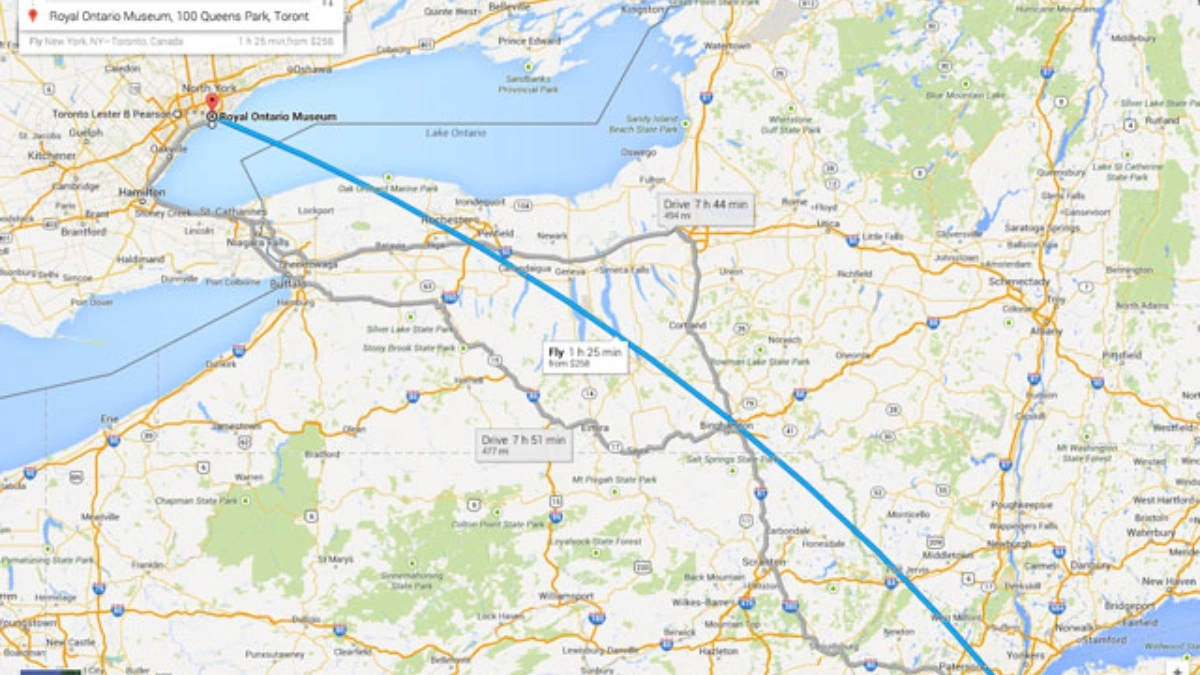
Google Maps has had a “Measure distance” feature for years, it’s also referred to as a flight‑path tool because it calculates the straight‑line distance(“as the crow flies”) between points.
This is different from route‑based directions and is perfect for estimating distances that aren’t bound by roads. It’s the go‑to for hikers, planners, curious travellers or anyone who wants a clean measurement.
How to Use It on Desktop (Google Maps Website)
Open Google Maps on your desktop or laptop
Right-click on your starting location
Click “Measure distance” from the menu
Click anywhere on the map to add the next point
Each additional click adds a segment, and Google shows total distance in miles or kilometers at the bottom
Drag points if you need to adjust them. Click a point to delete it or click “Clear” to start over
How to Use It on Mobile (Android & iOS App)
Open the Google Maps app on your phone or tablet
Long‑press on your starting point (must not be a place name or icon)
Tap “Measure distance”
Move the map to position the crosshair on the next point and tap “Add point”
Repeat to build a path; delete the last point with Undo or reset with Clear
What You Can Do with It
Measure direct (“crow‑flies”) distance between cities, landmarks, or any two points
Calculate total distance over multiple waypoints (e.g., field boundaries, hiking routes)
Useful for land planning, plotting running or cycling routes, and even fencing quotes
Why It’s More Reliable Than Other Tools
Because it uses actual map coordinates, not estimated routes. Unlike apps that rely purely on user input, Google calculates distance based on geospatial data and great‑circle formulas. That means it’s accurate for direct-line distances, even when no roads connect the points. Third‑party tools often mimic this, see Daft Logic or Calcmaps but Google Maps is built in and free.
Pro Tips to Get the Most Out of It
Zoom in to get accurate points, especially for curves or corners
Drag pins to refine your path, super helpful for tracing an irregular shape
Toggle between miles and kilometers depending on your preference or location
Use this tool to highlight unexpected distances, like that house move across town being shorter than you thought
Combine with Google Maps screenshot or share link to show others your measurement visually.
Also Read- Proton VPN Free Plan Reviewed for Speed, Safety and Limits