


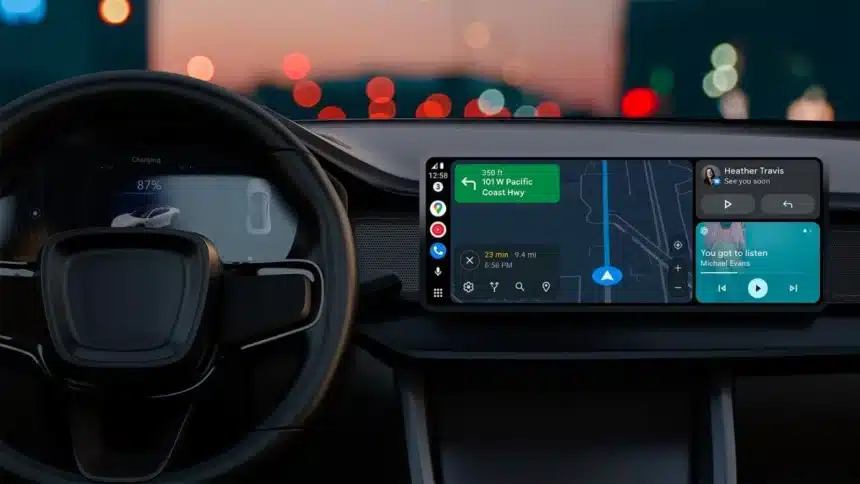
Android Auto from Google has existed for a long period of time, and it truly is one of the simplest methods to be able to maintain connectivity on the road while not having to use your phone to accomplish it.
Whether you plug it in or connect wirelessly, this is a great solution for you. However, if you do not set it up correctly, you may not be taking full advantage of Android Auto’s features. Using your device without any additional configurations will lead to a much more frustrating and annoying user experience than with the addition of certain features.
5 New Android Auto Settings
Every time I set up a new Android phone, these are the first few settings I change.
- Music Auto-Play
Imagine you get into your car, connect your phone, and suddenly music starts playing at whatever volume you left it on last time. Not ideal, especially at night or with passengers.
Head into your phone settings, search for Android Auto, go to Start-up, and turn off “Start music automatically.”
- Minimize Notification
By default, Android Auto throws alerts from messaging and media apps right onto your screen. That’s distracting, and honestly unsafe.
You can reduce this in two ways. Turn off message chimes to kill the constant pinging, or go a step further and disable message notifications entirely.
- Stop Android Auto
While it may seem beneficial for Android Auto to automatically start without having to connect to your phone’s Bluetooth, doing so can increase your battery drain when using Android Auto wirelessly.
To fix this, disable your phone’s setting that allows “Use Android Auto When Phone is Locked.” Your phone will still connect and display calls but will not show an Android Auto interface unless you want to see one.
- Use Shortcuts
Voice commands can be helpful, but they can also be problematic if you command your phone to do something and it misinterprets what you want to do. It can misinterpret your command due to road noise, a bad signal or poor command reception.
By setting up quick-access shortcuts for common actions such as contacting someone or finding nearby gas stations, you will have access to these shortcuts from the “Customize Launcher” area of Android Auto, and they will appear as pinned shortcuts on the top of the Android Auto home screen.
- Enable Quick Controls
You will also want to enable the Android Auto Task Bar Widget, which will allow you to control your music while the Maps screen is maximized.
If you do not enable this feature, you will need to switch back and forth between the other applications each time you want to skip a song. Once you enable this feature, you will have access to all of your music controls without having to interrupt your music experience.
Also Read: Android XR Adds 5 New Features to Boost Your Experience